
New ALEKS Adventure Time & Topic Report
Use the new ALEKS Adventure view Time and Topic report to review learning patterns.
- Customer Support
- PreK-12
- Classroom Teacher
- Elementary School
- Direct Login & Auto-Rostering
- Direct Login & Manual-Rostering
- SSO & Auto-Rostering
- SSO & Manual-Rostering
- Supplemental
- Math
- ALEKS Adventure
- Reports & Analytics


View the demo in a separate tab.
View the Spanish version of the demo.
Article Contents
Class Time & Topic Report: Table View
Class Time & Topic Report: Graph View
Access Time & Topic Report
1. SSO or log in at my.mheducation.com.
2. Launch ALEKS Adventure.
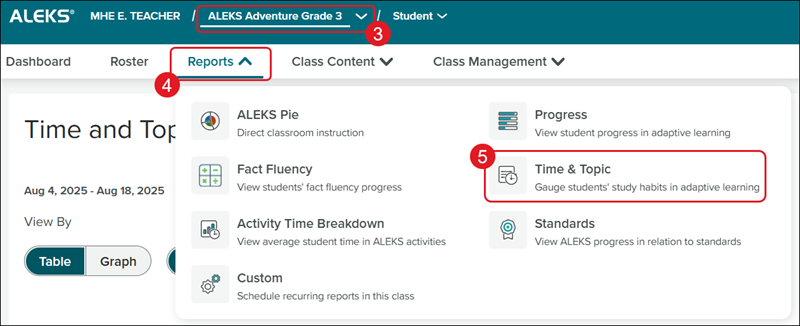
3. Select a Class from the drop-down.
4. Click on Reports.
5. Click on Time & Topic from the menu.
Class Time & Topic Report: Table View
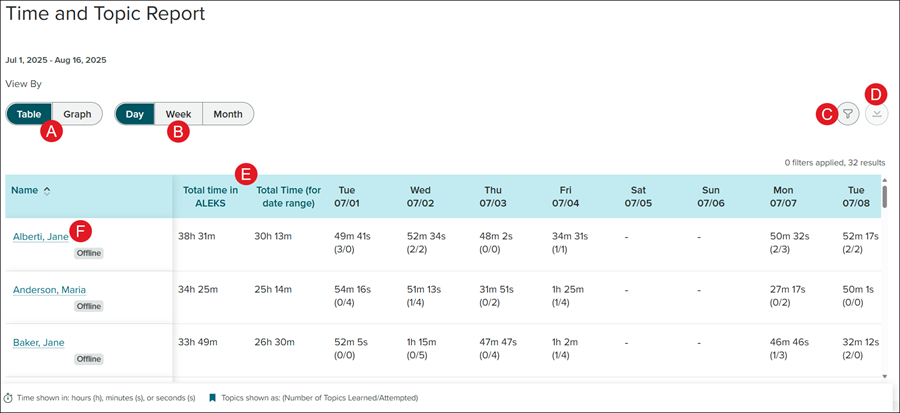
A. The report defaults to the Table view. Click Graph to toggle to the graph view.
B. Click Day, Week, or Month to toggle between the different breakdown views.
C. Click the Filters icon to select a different Date Range and Graph view.
Note: The Date Range can be no less than a week and no more than 20 weeks in length.
D. Click the Download button to download/save the report.
E. Each student is listed with data showing the Total time in ALEKS, Total Time (for date range), and a breakdown by Day, Week, or Month based on the option selected.
F. Click on a student Name to navigate to the student's Time & Topic Report.
Class Time & Topic Report: Graph View
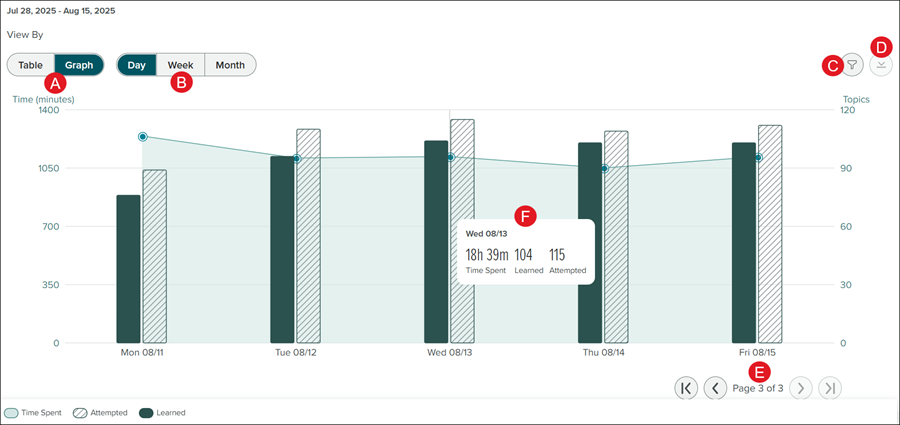
A. The report defaults to the Table view. Click Graph to toggle to the graph view.
B. Click Day, Week, or Month to toggle between the different breakdown views.
C. Click the Filters icon to select a different Date Range and Graph view.
Note: The Date Range can be no less than a week and no more than 20 weeks in length.
D. Click the Download button to download/save the report.
E. If there are multiple pages, use the arrows to navigate back and forth between the data views.
F. Hover over a section of the graph to view the Time Spent, and topics Learned and Attempted for that day, week, or month.
Student Time & Topic Report
1. Select a Class from the drop-down.
2. Select a student from the drop-down.
3. Click on Reports.
4. Click on Time & Topic from the menu.
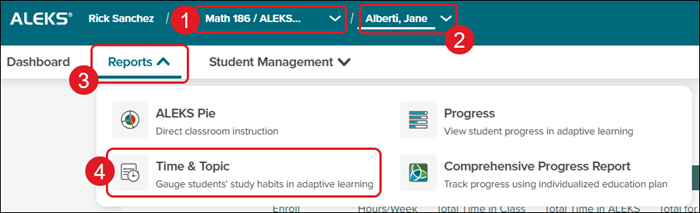
Another option is to click on the student's name from the class Time & Topic Report.
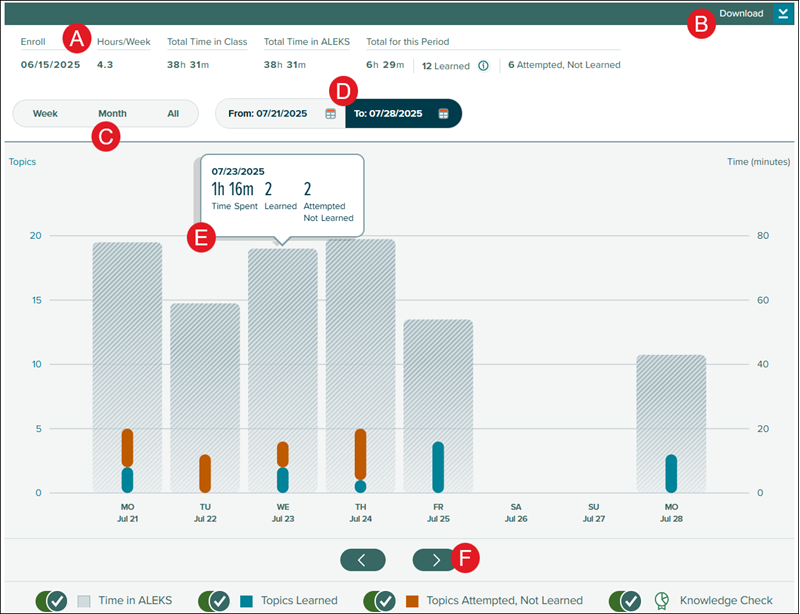
A. The report shows the student's Enroll date, Hours/Week spent in the program, the Total Time in Class, the Total Time in ALEKS, and the Total for this Period based on the Date Range selected.
C. Toggle between a Week, Month, or All view.
D. Click the calendar to filter to a specific range.
Note: The Date Range can be no less than a week and no more than 20 weeks in length.
E. Hover over a section in the graph to view the Time Spent and topics Learned and Attempted/Not Learned.
F. If there is a larger date range selected, use the arrows to toggle between page views.
