New ALEKS Adventure - Pie Content
Manage ALEKS Adventure Pie content to control topics students see and master.
- Supplemental
- ALEKS Adventure
- Math
- SSO & Manual-Rostering
- Customer Support
- Direct Login & Auto-Rostering
- Plan & Present
- Direct Login & Manual-Rostering
- Classroom Teacher
- SSO & Auto-Rostering
- PreK-12
- Preschool
- Elementary School


The Pie content in ALEKS Adventure comes pre-selected based on the teacher's course and state standards. This article shows teachers how to edit the Pie by adding or removing Topics.
For a full page view of the demo, click here.
For a Spanish version of the demo, click here.
1. SSO or log in at my.mheducation.com.
2. Launch ALEKS Adventure.
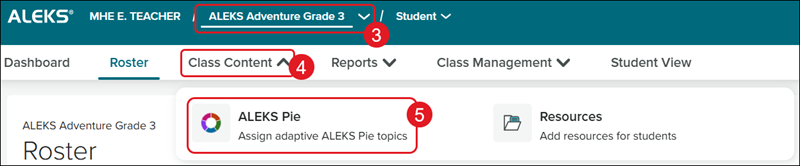
3. Select the Class from the drop-down.
4. Click on Class Content.
5. Click ALEKS Pie from the menu.
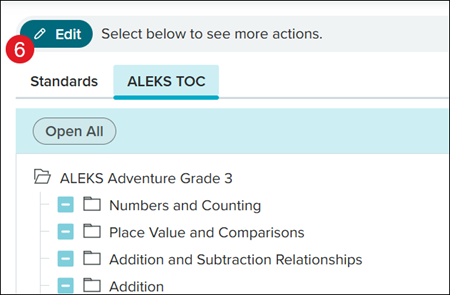
6. Click the Edit button.
7. Click to edit the Pie content by Standards, Textbook TOC, or ALEKS TOC.
Note: The Textbook TOC option will only be available if you have a textbook integrated into the program. To integrate a textbook, refer to the New ALEKS Adventure - Class Settings article.
8. Check/uncheck the options to include or remove them from the Pie content.
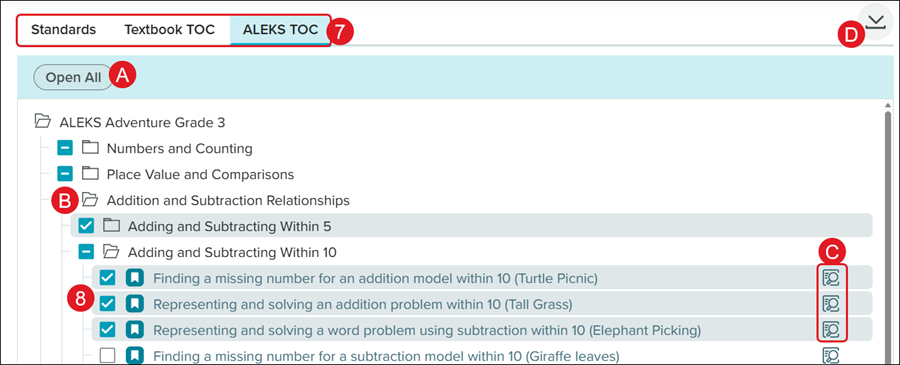
A. Click the Open All button to open all folders at once.
B. Click on an individual folder to expand the section.
C. Click on the Preview button to view an example question.
D. Click the Download button to save/print the class syllabus.
9. Click the Continue button at the bottom.
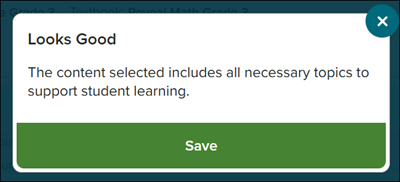
10. Click the Save button on the pop-up.