New ALEKS Administrator Time & Topic Reports
Use the administrator Time and Topic report to analyze how students spend learning time.
- PreK-12
- Customer Support
- School Administrator
- Elementary School
- Middle School
- High School
- Direct Login & Auto-Rostering
- Direct Login & Manual-Rostering
- SSO & Auto-Rostering
- SSO & Manual-Rostering
- Supplemental
- Math
- ALEKS
- Reports & Analytics


The Time & Topic Report allows you to monitor the amount of time a student is spending within the ALEKS Knowledge Checks and Learning Mode. It also includes the number of topics a student has attempted over a particular period of time and how many of those topics the student has learned.
Article Contents
Access Time & Topic Report
1. SSO or sign in at my.mheducation.com.
2. Launch ALEKS from the navigation menu.
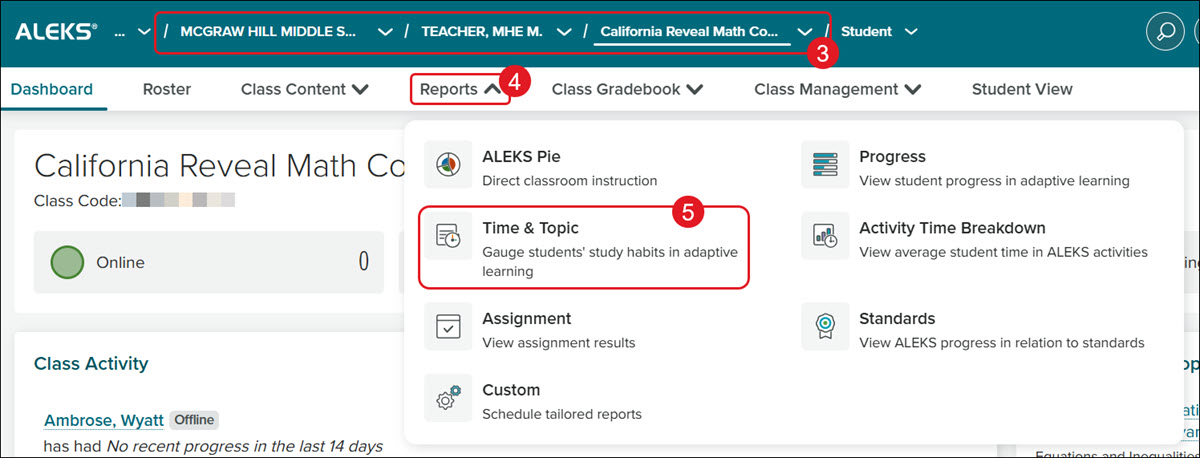
3. Select the School, Teacher, and Class from the drop-downs.
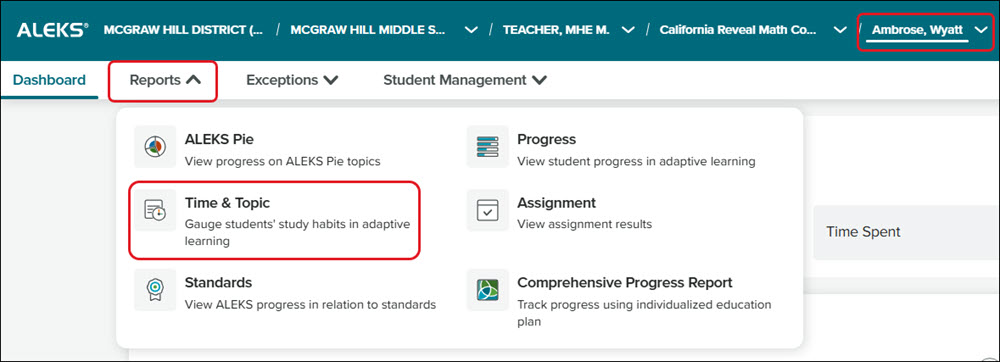
4. Click on Reports.
5. Click Time & Topic from the menu.
Class Time & Topic Report
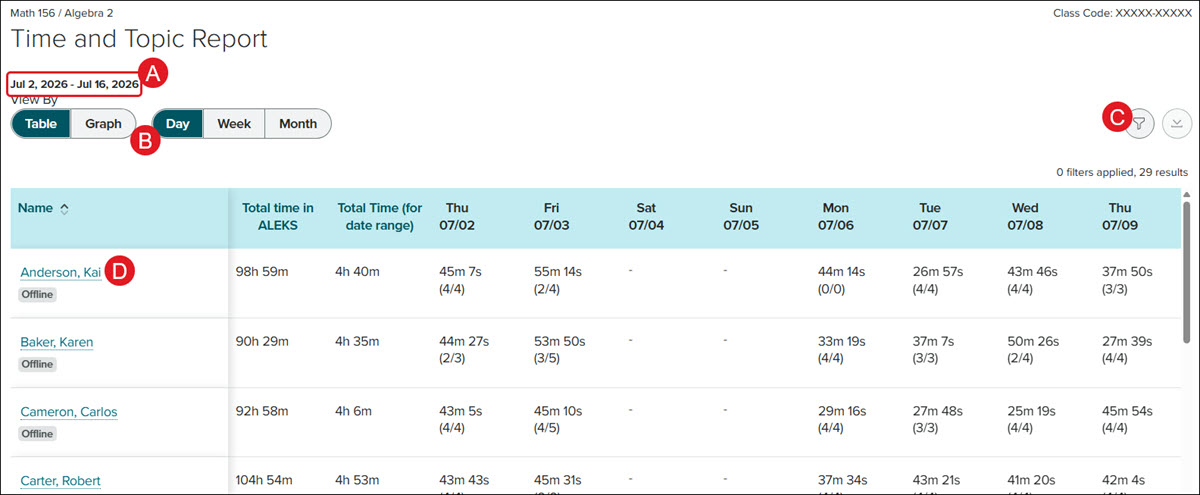
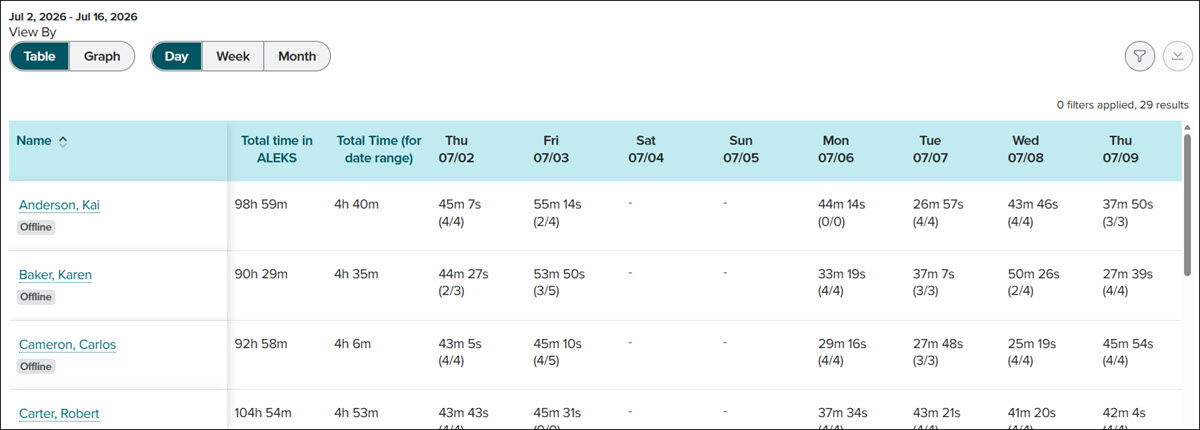
A. The Time and Topic Report defaults to showing one week, with the end date being the current day.
B. The view of the data can be changed between Table view and Graph view, as well as by Day, Week, and Month.
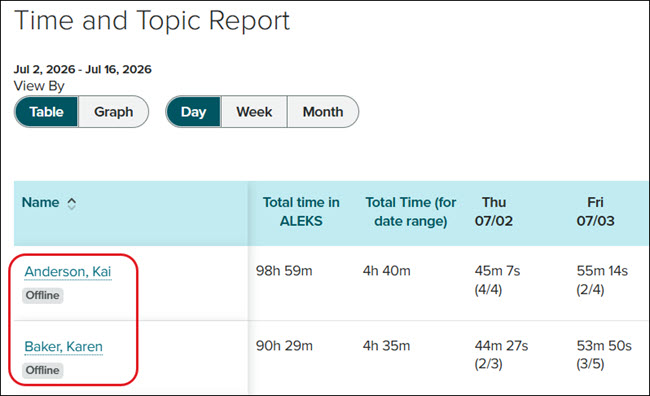
Table View
Graph View
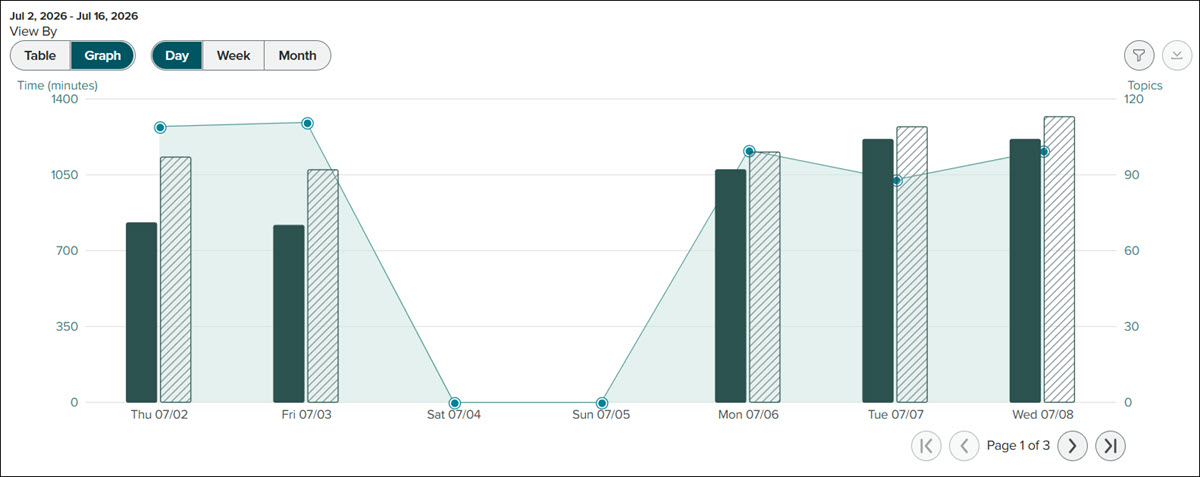
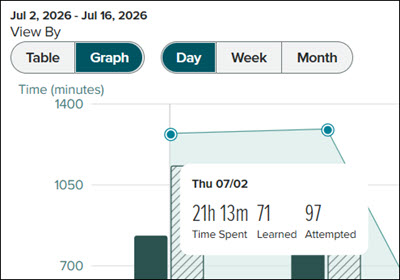
Hover over an option in the Graph view to see the Time Spent, number of topics Learned, and topics Attempted for that day.
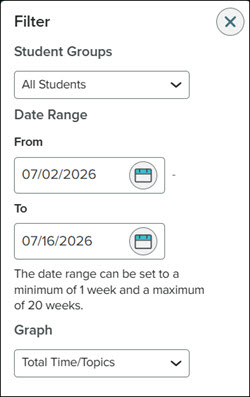
C. Click the Filters button to view by Student Groups, a different Date Range, and by Total or Average Time/Topics.
The Date Range cannot span more than 20 weeks at a time.
D. Click on a student's Name to navigate to the Student Time and Topic Report.
Student Time & Topic Report
To access the Time & Topic Report for a student, click on the student's name in the class-level Table report.
Another option is to select the Student from the drop-down, click on Reports, and select Time & Topic from the menu.

A. The report shows the student's Enroll date, the Hours/Week they have spent in the program based on the date range selected, the Total Time in Class, the Total Time in ALEKS, and the Total for this Period.
B. The bar graph view can be toggled between Week, Month, and All.
C. Change the start and end date range by clicking on the calendar icon.
D. Click the Download button to save/print the report.
The bar graph shows the student's Time in ALEKS, Topics Learned, Topics Attempted (solid teal), Not Learned (solid orange), and any Knowledge Checks (ribbon icon) they've taken.
Hover over a bar in the graph to view this information for that day on a pop-up.
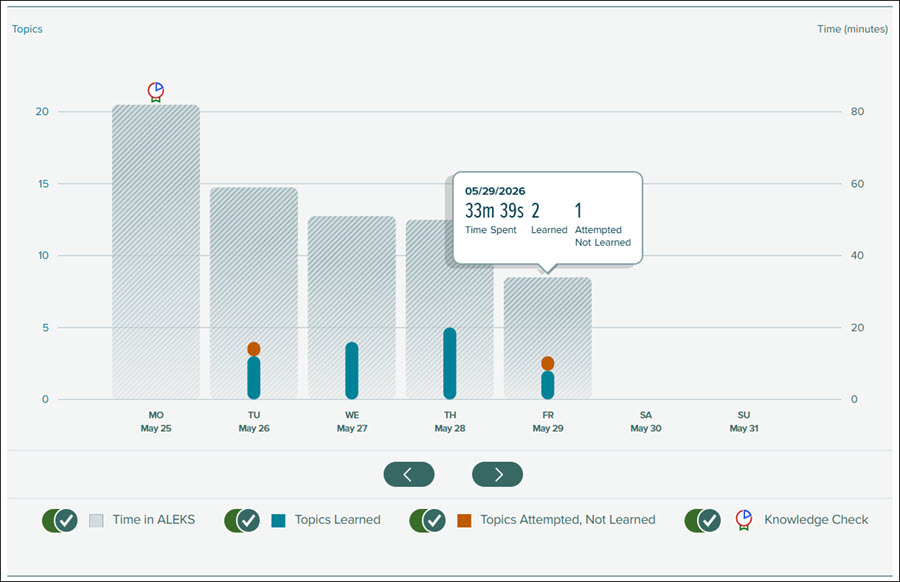
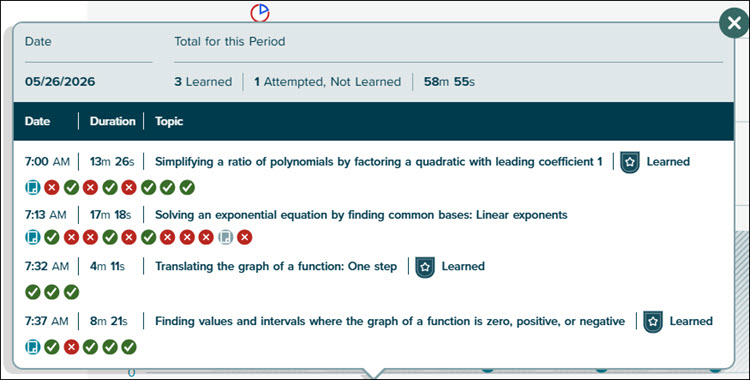
Click on a bar in the graph to view additional details for that day, such as the Date and time, Duration spent in the program, and the Topics they've learned/attempted.
Hover over an icon for additional date and time details. Click on an icon to view the question, the correct answer, and the answer submitted by the student.