Preview or Print New ALEKS Assignments
Preview or print assignments in the new ALEKS interface for review or offline use.
- Customer Support
- PreK-12
- Classroom Teacher
- Elementary School
- Middle School
- High School
- Direct Login & Auto-Rostering
- Direct Login & Manual-Rostering
- SSO & Auto-Rostering
- SSO & Manual-Rostering
- Supplemental
- Math
- ALEKS
- Grades & Assignments


View the demo in a separate tab.
View the Spanish version of the demo.
Article Contents
Preview Assignment
1. SSO or log in at my.mheducation.com.
2. Launch your ALEKS course.
3. Select the Class from the drop-down.
4. Click on Class Content.
5. Click Assignments from the menu.
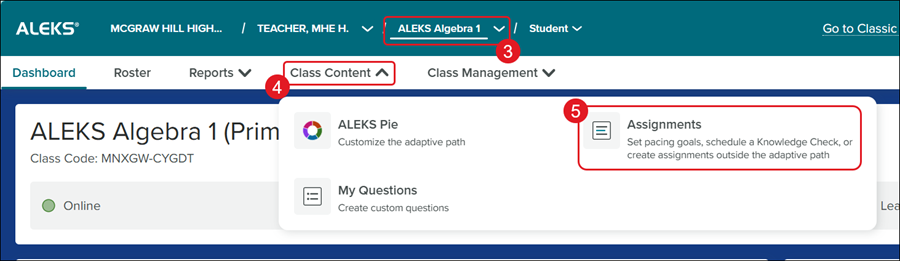
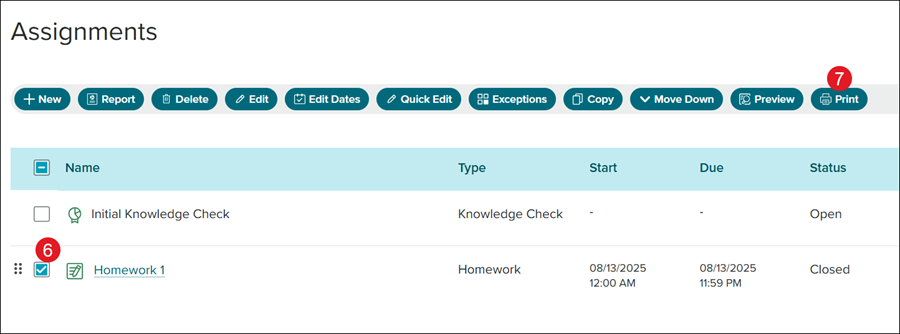
6. Check the box next to the assignment you want to preview.
7. Click the Preview button.
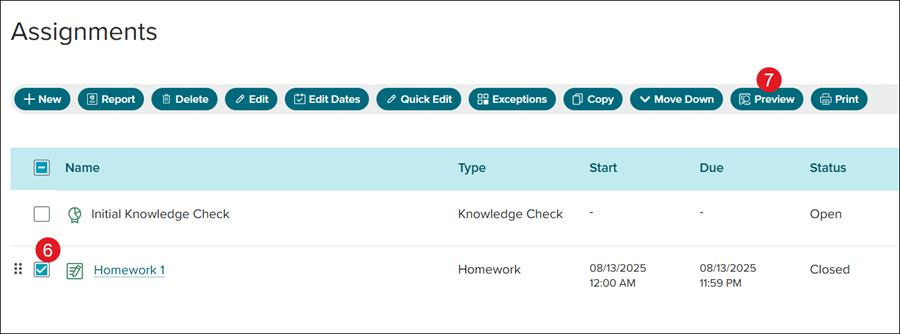
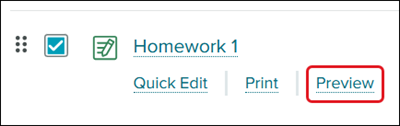
You can also hover over the assignment Name and click the Preview link.
The preview will open in a secondary browser window. If it does not come up, you will need to verify that your pop-up blocker is not on.
The preview will show how a student will see it when they access the assignment.
Print Assignment
1. SSO or log in at my.mheducation.com.
2. Launch your ALEKS course.
3. Select the Class from the drop-down.
4. Click on Class Content.
5. Click Assignments from the menu.
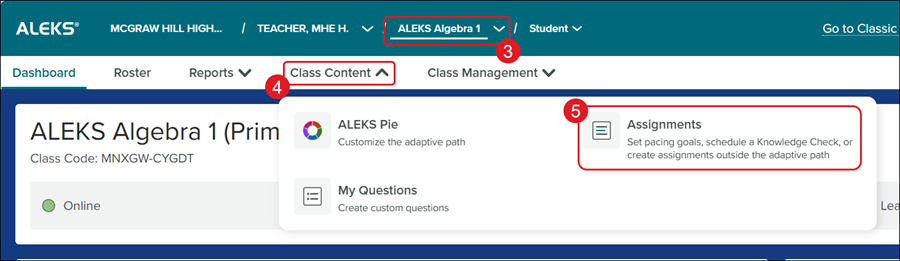
6. Check the box next to the assignment you want to print.
7. Click the Print button.
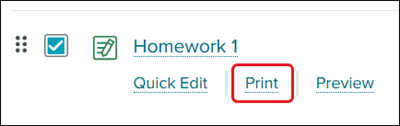
You can also hover over the assignment Name and click the Print link.
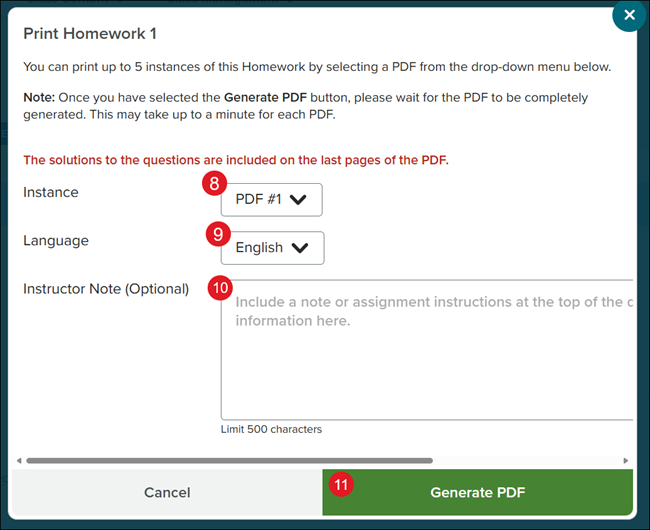
8. On the Print pop-up, select how many Instances (copies) you want to print.
9. Select the preferred Language from the drop-down.
10. Enter any Instructor Notes you want on the printouts.
11. Click the Generate PDF button.
It could take a few minutes to download depending on how many instances you selected.