Manage Assignment Folders in New ALEKS
Learn how to create and manage assignment folders within the new ALEKS view.
- Customer Support
- PreK-12
- Classroom Teacher
- Elementary School
- Middle School
- High School
- Direct Login & Auto-Rostering
- Direct Login & Manual-Rostering
- SSO & Auto-Rostering
- SSO & Manual-Rostering
- Supplemental
- Math
- ALEKS
- Tools & Resources
- Grades & Assignments


View the demo in a separate tab.
View the Spanish version of the demo.
Article Contents
Access Assignments Page
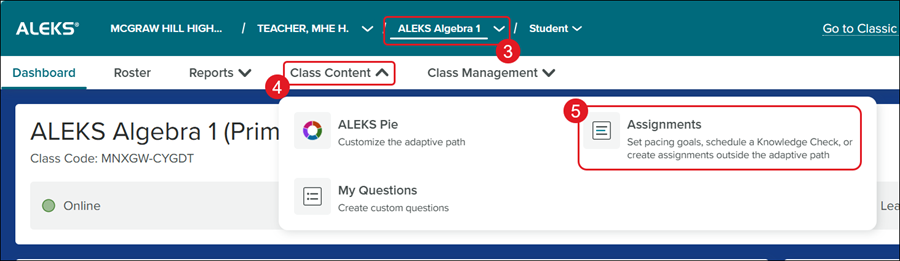
1. SSO or log in at my.mheducation.com.
2. Launch your ALEKS course.
3. Select the Class from the drop-down.
4. Click on Class Content.
5. Click on Assignments from the menu.
Create a Folder
Adding a folder to the Assignments List allows you to organize your assignments as you would like them to display to you and to students so they're easier to locate.
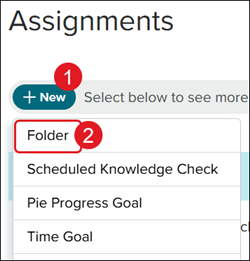
1. On the Assignments page, click the +New button.
2. Click Folder from the menu.
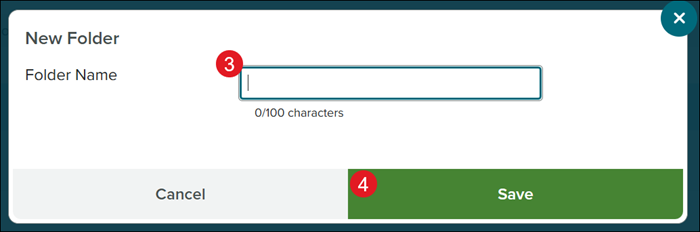
3. On the New Folder pop-up, enter a Folder Name.
4. Click the Save button.
Rename a Folder
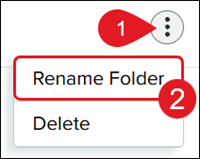
1. On the Assignments page, click the kebob icon in the Report column for the folder.
2. Click Rename Folder from the menu.
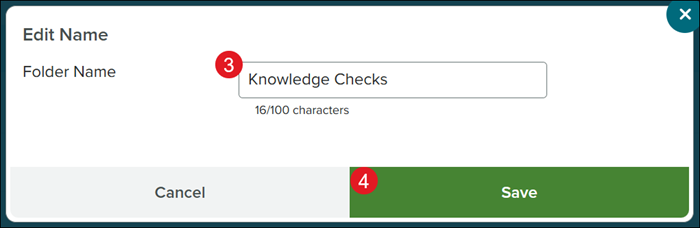
3. On the Edit Name pop-up, ender the preferred Folder Name.
4. Click the Save button.
Move Assignments to Folder
Any assignments can be moved into a folder for the exception of the Initial Knowledge Check.
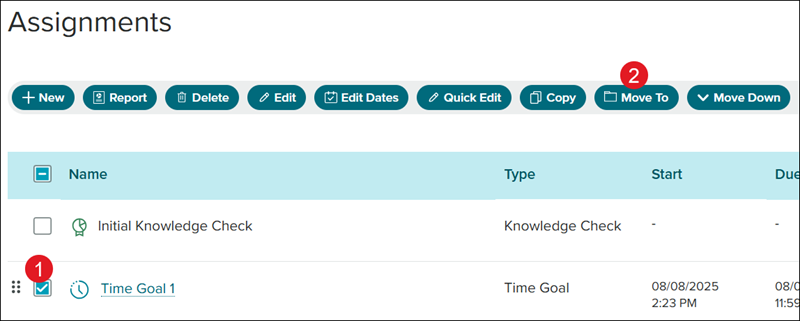
1. On the Assignments page, check the box next to the Name of the assignment.
2. Click the Move To button.
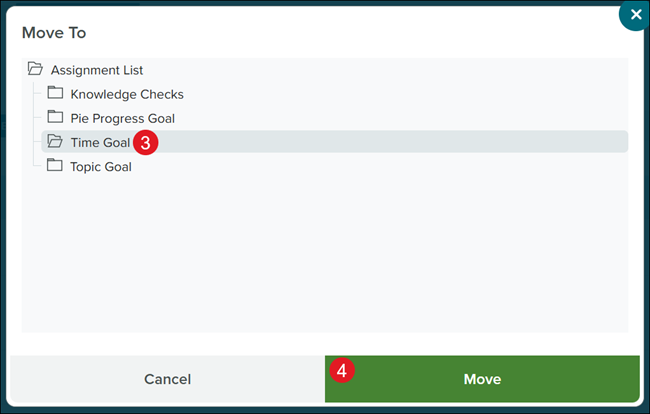
3. Select the preferred folder so that it highlights/opens.
4. Click the Move button.
The folder will show expanded on the Assignments page with assignments in the folder listed beneath. Click the folder to close it.
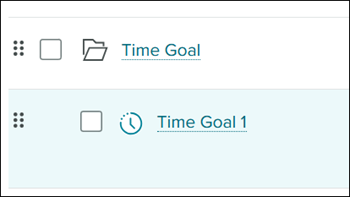
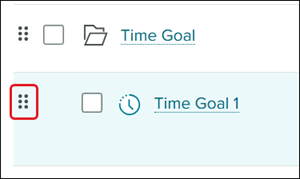
An alternative option is to click on the bars to the right of the assignment and drag it into the location you want it.
Delete a Folder
When deleting a folder, it will also delete any assignments that are assigned to that folder. If you are wanting to keep those assignments, you will want to move them out of the folder or into a new one before deleting that folder. This action cannot be reversed once completed.
1. On the Assignments page, check the box next to the folder Name.
2. Click the Delete button.
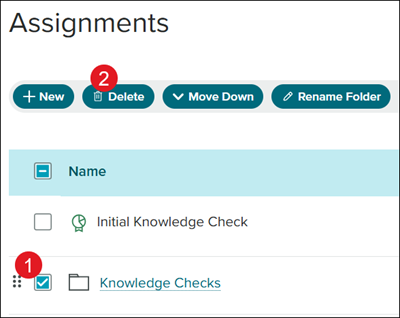
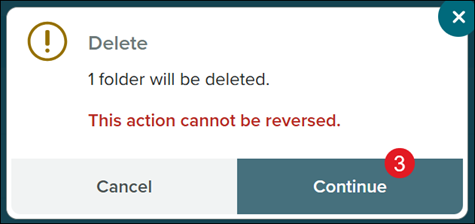
3. On the Delete pop-up, click the Continue button to confirm.