Edit, Copy, or Delete Assignments in the New ALEKS
Learn how to easily manage assignments in the new ALEKS view.
- Customer Support
- PreK-12
- Classroom Teacher
- Elementary School
- Middle School
- High School
- Direct Login & Auto-Rostering
- Direct Login & Manual-Rostering
- SSO & Auto-Rostering
- SSO & Manual-Rostering
- Supplemental
- Math
- ALEKS
- Grades & Assignments


View the demo in a separate tab.
View the Spanish version of the demo.
Article Contents
Edit Assignments
1. SSO or log in at my.mheducation.com.
2. Launch your ALEKS course.
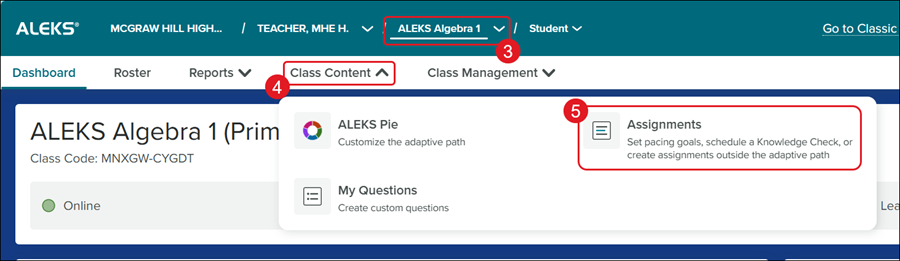
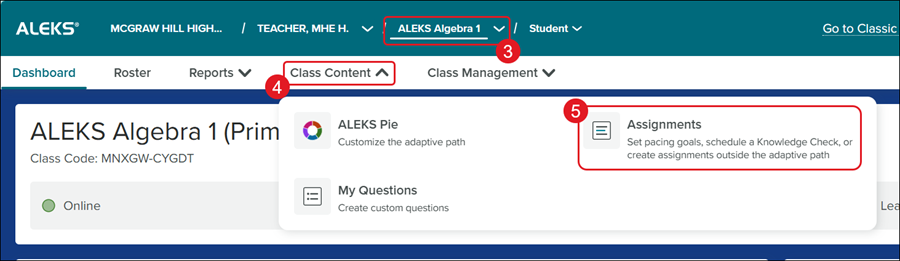
3. Select the Class from the drop-down.
4. Click on Class Content.
5. Click Assignments from the menu.
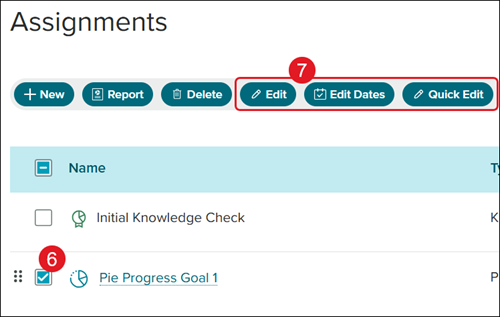
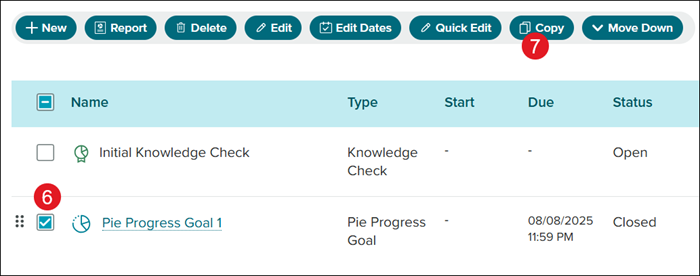
6. Check the box next to the assignment you want to edit.
Note: You cannot make edits to the Initial Knowledge Check assignment.
7. Click the Edit, Edit Dates, or Quick Edit button depending on the changes you want to make.
Edit - Allows you to make changes to the assignment settings.
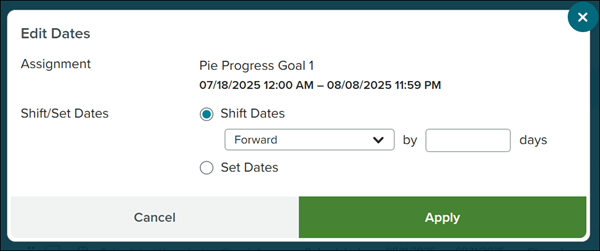
Edit Dates - Allows you to Shift/Set Dates for the assignment.
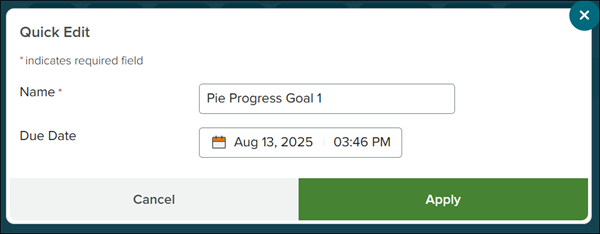
Quick Edit - Allows you to make changes to the Assignment Name and Due Date.
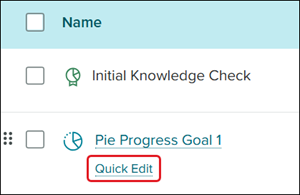
You can also hover over the assignment name to access the Quick Edit link.
Copy Assignments
1. SSO or log in at my.mheducation.com.
2. Launch your ALEKS course.
3. Select the Class from the drop-down.
4. Click on Class Content.
5. Click Assignments from the menu.
6. Check the box next to the assignment to copy.
7. Click the Copy button.
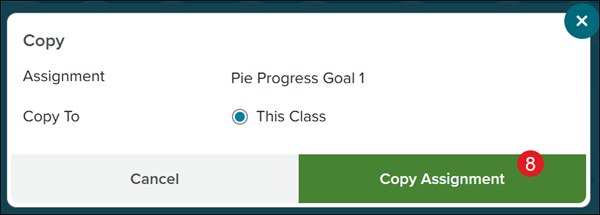
8. On the Copy pop-up, click the Copy Assignment button.
Delete Assignment
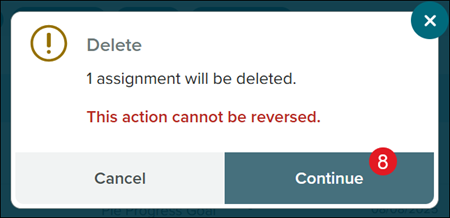
Keep in mind, when deleting an assignment there is not a way to reverse the action.
1. SSO or log in at my.mheducation.com.
2. Launch your ALEKS course.
3. Select the Class from the drop-down.
4. Click on Class Content.
5. Click Assignments from the menu.
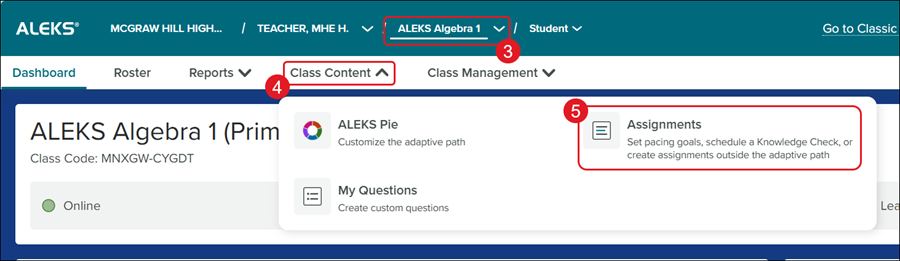
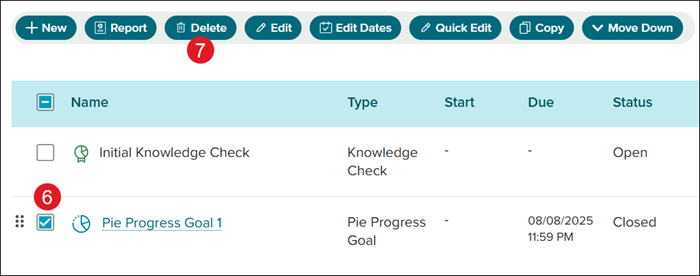
6. Check the box next to the assignment to remove.
7. Click the Delete button.
8. On the Delete pop-up, click the Continue button.