Networks 2018 - My Discussions

Use the Networks teacher planner to organize lessons, assignments, and instructional pacing.

Tags
You can view a video here that will walk you through the steps mentioned in the document below. On the My Discussion page, your class has discussions related to the current lesson.
 

What is covered in this article:

Access Discussions
Navigate the Discussions Page
Create a New Post
Respond to a Comment



Access Discussions
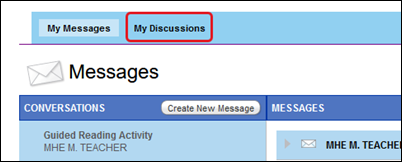
To open your Discussions page,

1. Click the Messages link at the top of the page.


2. Then click My Discussions in the top banner.


If your teacher hasn’t created any class discussions, the My Discussions link does not appear.


Navigate the Discussions Page
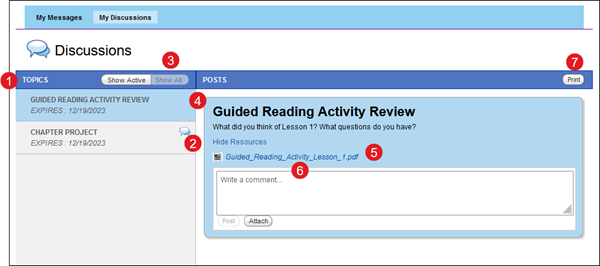
1. Current discussion topics are listed on the left side of the screen. The topics are arranged by due date, with the latest on top.

2. When someone adds a new comment to a topic, the Comments icon appears next to the topic title.

3. You can currently see all your active discussions. Click the Show All button to view all older discussions. When the topic has expired, you won't be able to see the discussion anymore.

4. Select the title to view that discussion on the right side of the screen.

5. The topic appears at the top, along with any resources you attached, with the discussion located below.

6. Click the link to see any attached resources.

7. Click the Print button to print the current discussion.


Create a New Post
You can create a new post at the top of the discussion.

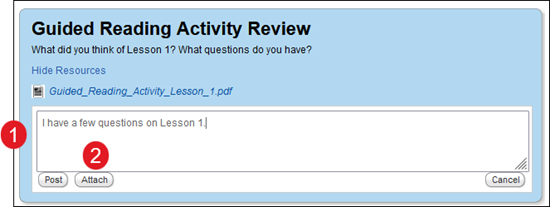
1. At the top of the discussion, enter your comment in the text field.


2. Click the Attach button to attach any program resource files to your post.  

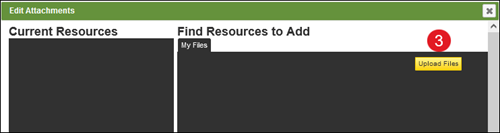
3. To upload files from your computer to the My Files tab, click the Upload Files button.


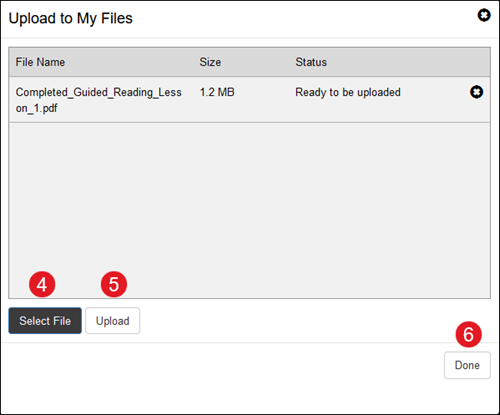
4. Drag the file or click the Select File button on the pop-up screen.

5. Click the Upload button to upload and register the selected files.


6. Click the Done button.

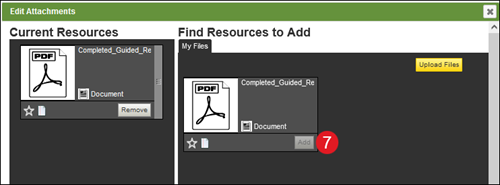
7. When the files are uploaded. They are listed on the Edit Attachments pop-up. Click the Add button on a resource to attach it.

8. Click the Done button.


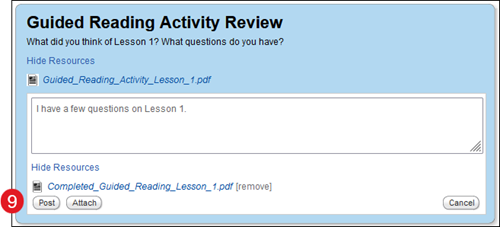
9. Click the Post button.


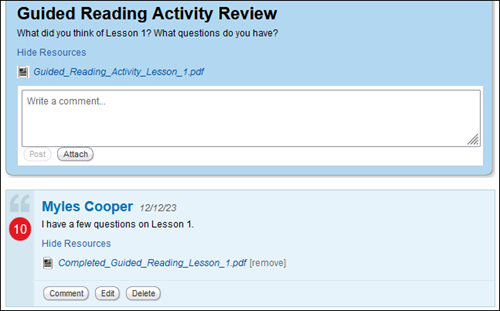
10. Your comment appears at the top of the discussion.

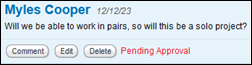
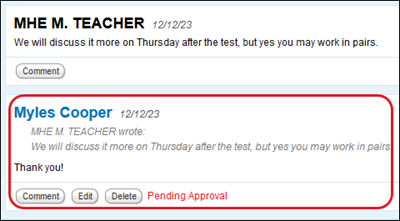
If you see a Pending Approval message, it means your teacher has to approve your post before

If you see an Approved message, your post has been approved, and everyone in the discussion can see it.

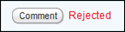
If you see a Rejected message, your post has been rejected by your teacher. You cannot edit it and no one in the discussion can see it.


11. Click the Edit button to make any changes to a post.

12. Click the Delete button to delete the comment from the discussion.


Respond to a Comment
To respond directly to a post in a discussion,

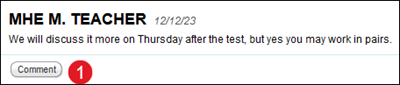
1. Click the Comment button on the post.


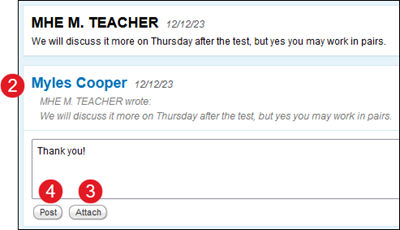
2. Enter your comment in the text field.

3. Click the Attach button to attach any program resource files to your post.


4. Click the Post button. Your comment appears directly beneath the posting you are responding to.

Top