Access and Complete Assignments in Networks 2018
Learn how students access, complete, and submit assignments within the Networks platform.
- Networks
- SSO & Manual-Rostering
- Customer Support
- Grades & Assignments
- Social Studies
- Direct Login & Auto-Rostering
- School Student
- Middle School
- Core
- Direct Login & Manual-Rostering
- High School
- Networks 2018
- School Parent
- SSO & Auto-Rostering
- PreK-12


You can view a video here that will walk you through the steps mentioned in the article below.
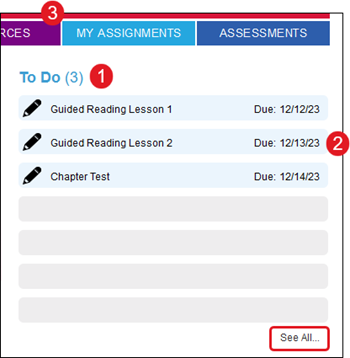
1. Your current assignments are listed by Due Date on the right side of your Student Center Dashboard.
2. Click an assignment to open it on the My Assignments page.
3. To view all your assignments, c lick the My Assignments tab at the top of the screen o r the See All link under your list.
My Assignments
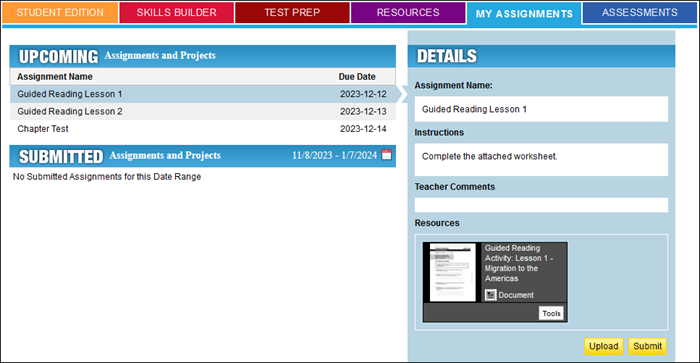
The My Assignments page shows a list of everything that is due, as well as letting you view comments from your teacher on what you have turned in.
View Upcoming Assignments
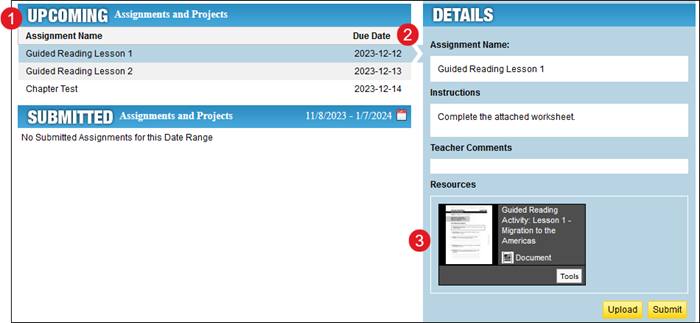
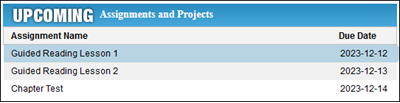
1. Assignments that are due are listed in the Upcoming section by Due Date. If an assignment is Past Due , the Due Date appears in red .
2. Click a title to see more information about the assignment, including Instructions and Resources, in the Details panel that appears on the right.
3. Click the resources icon to open it.
Submit an Assignment
1. To submit an assignment, select it in the Upcoming list.
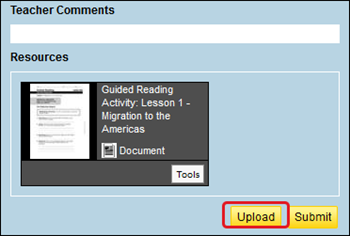
2. To attach a file to your assignment, click the Upload button.
3. Drag your files to the dialog box or click the Select Files button on the Upload Assignment pop-up screen. You can upload more than one file at once.
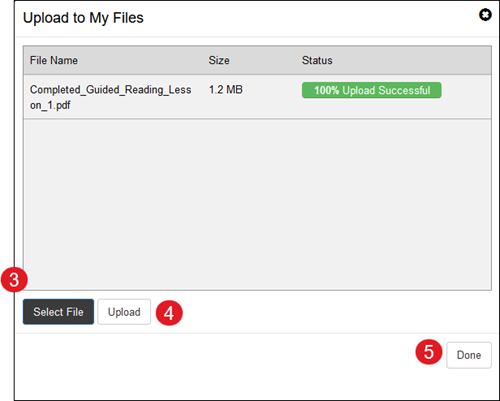
4. Click the Upload button to upload the selected files.
5. Click the Done button to close the pop-up window.
6. Your files appear in the My Uploaded Files section, located under the assignment Resources in the Details pane.
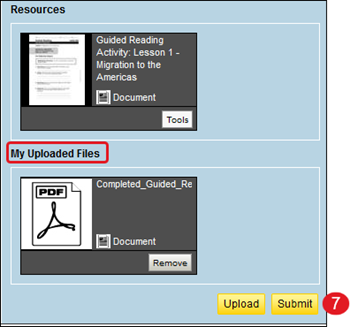
7. Click the Submit button to submit the assignment to your teacher. Keep in mind, you can only submit an assignment once.
8. The submitted assignment now appears in the Submitted section.
View Submitted Assignments
1. All the assignments you have submitted appear in the Submitted section.
2. If your teacher has added comments to a submitted assignment, the Comments icon appears next to the assignment title.

3. Click a title to view the comment.
4. The Details for the submitted assignment include any files you uploaded.
5. The Teacher Comments appear under the assignment details.
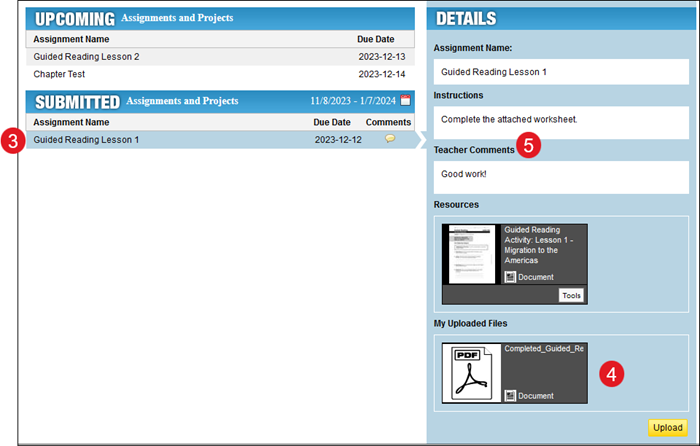
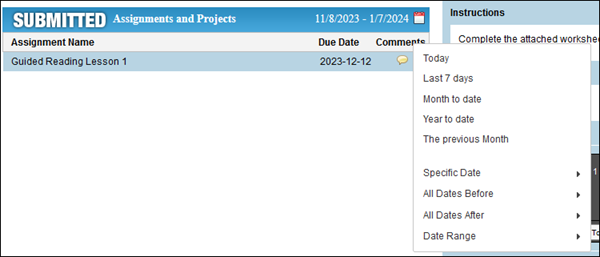
6. Submitted shows the assignments submitted in the current date range. Click the calendar icon to view a different range of assignments.
7. You can view assignments for specific date ranges, including the past week and month, or indicate specific dates.