Navigating the Networks 2014/2016 Teacher Dashboard
Explore features of the Networks teacher dashboard for copyright versions 2014 and 2016.
Tags
- Getting Started & Orientation
- Dashboard & Navigation Overview
- SSO & Manual-Rostering
- Customer Support
- Social Studies
- Direct Login & Auto-Rostering
- Middle School
- Core
- Direct Login & Manual-Rostering
- High School
- Classroom Teacher
- SSO & Auto-Rostering
- PreK-12
- Networks 2014 & 2016


Overview
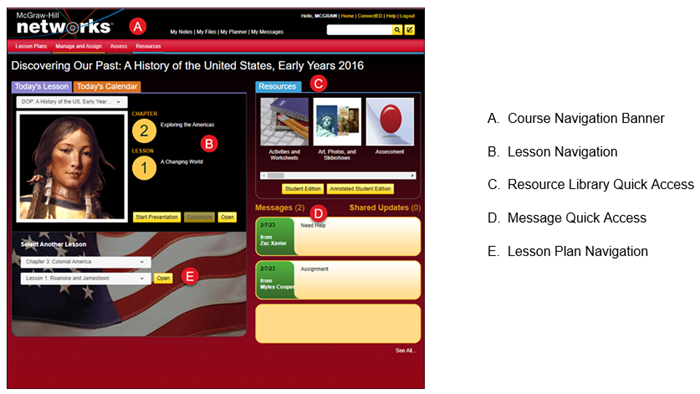
Navigation Banner

1. Click the program title in the upper left corner of the page to return to the Teacher Center Dashboard.
2. Click the links at the top of the page to directly access specific course pages.
- My Notes – Access any notes that you have taken through the course.
- My Files – Upload any files from your computer to the program.
- My Planner – Access the course planner/calendar.
- My Messages – Access the messages to and from your students in the class.
3. Use the Search field to search the course for specific resources in the Resource library.
4. Click the Home link to return to the Teacher Center Dashboard.
5. Click the ConnectED link to return to your My Classes page.
6. Click the Help link to access any help documents in the Resource library for the course.
7. Click the tabs at the top of the page to quickly access the program pages.
6. Click the Help link to access any help documents in the Resource library for the course.
7. Click the tabs at the top of the page to quickly access the program pages.
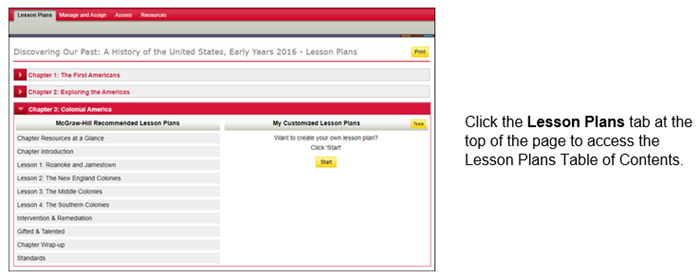
- Lesson Plans – Access the Lesson Plan Table of Contents, including all lesson plans for the course, and any customized lesson plans you’ve created.
- Manage and Assign – Access all the class management pages, including information about your classes and students, the Assignment Tracker, Planner, and the messages and discussions for your classes.
- Assess – Access the eAssessment assessment program.
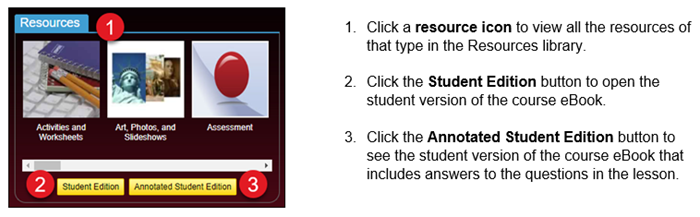
- Resources – Access the Resources Library, including all online resources for the course.
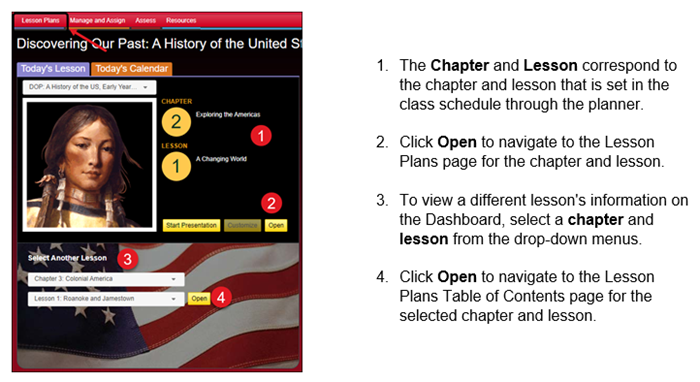
Lesson Plans
Resources
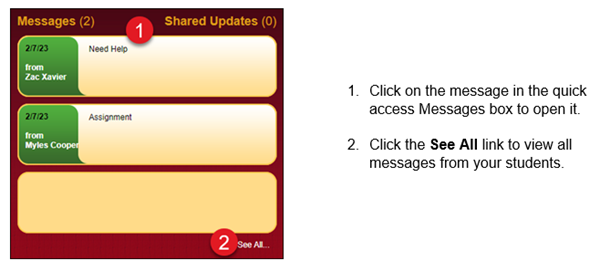
Messages