Navigating the Emerge! Student Dashboard
Learn how students can easily navigate around their student dashboard for Emerge.
- Customer Support
- PreK-12
- School Student
- School Parent
- Elementary School
- Direct Login & Auto-Rostering
- Direct Login & Manual-Rostering
- SSO & Auto-Rostering
- SSO & Manual-Rostering
- Core
- Literacy
- McGraw Hill Literacy Emerge!
- Dashboard & Navigation Overview
- Getting Started & Orientation


Article Contents
Navigating the Dashboard
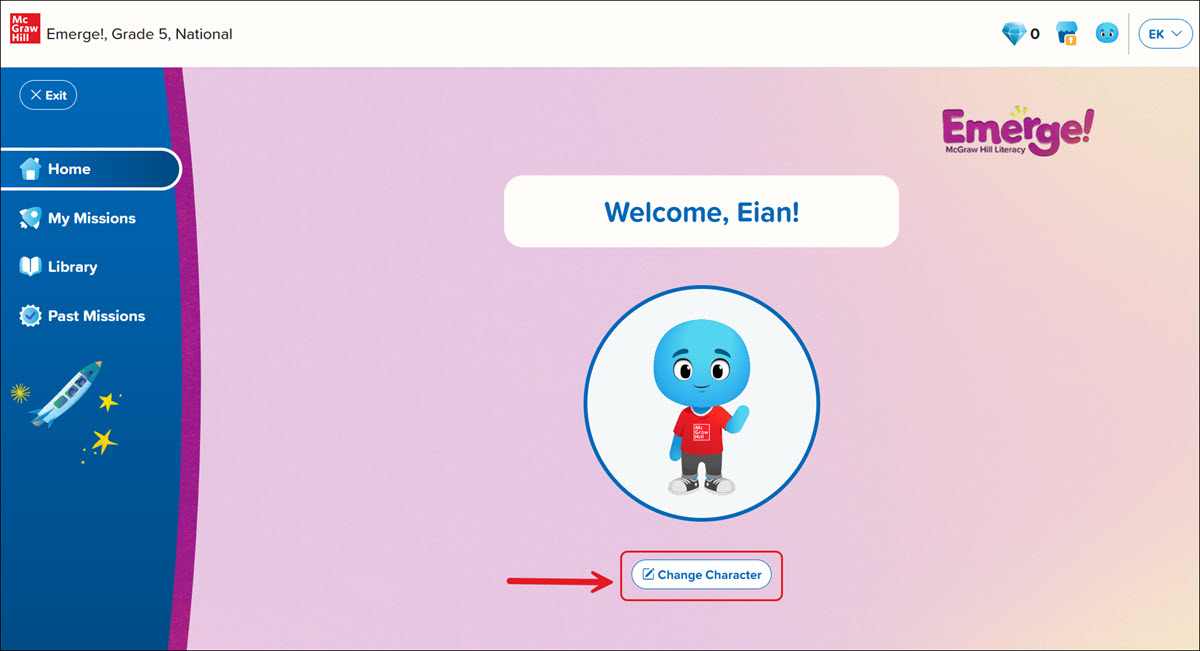
When students first access their Emerge! class, they will be prompted to customize their character by clicking the Change Character button.
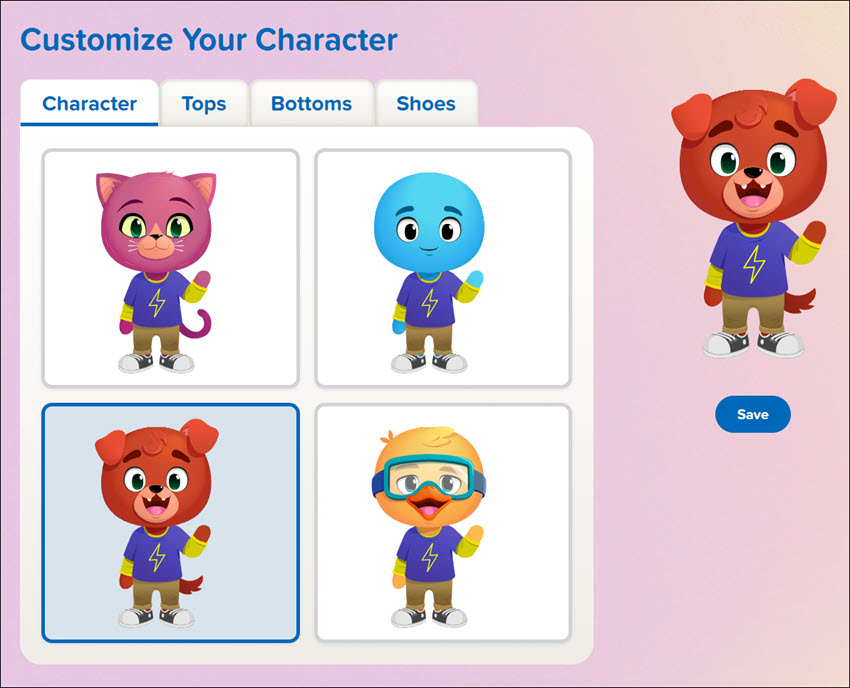
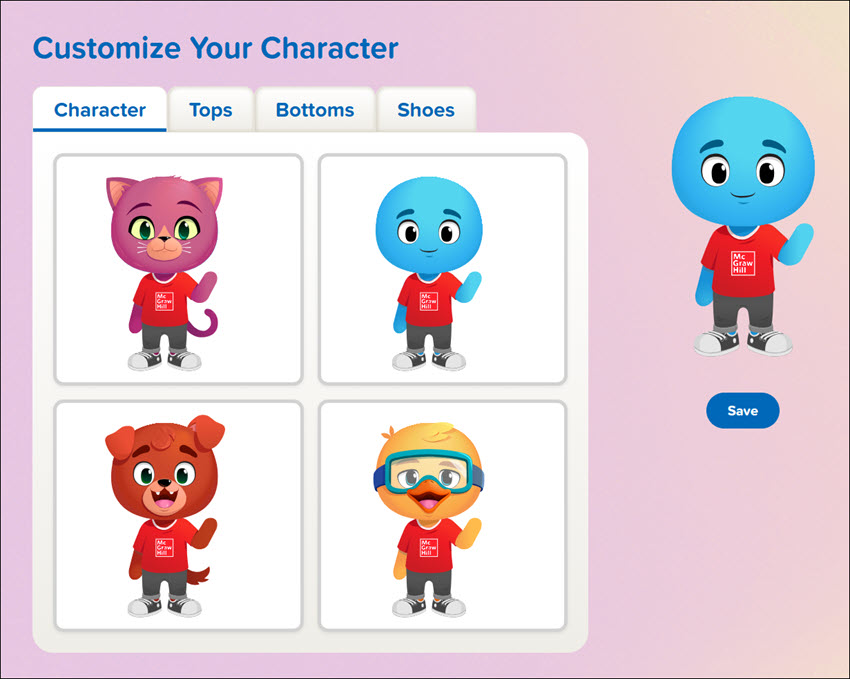
Click on the available tabs to select a Character, Top, Bottoms, and Shoes. Click the Save button once customizing has been completed.
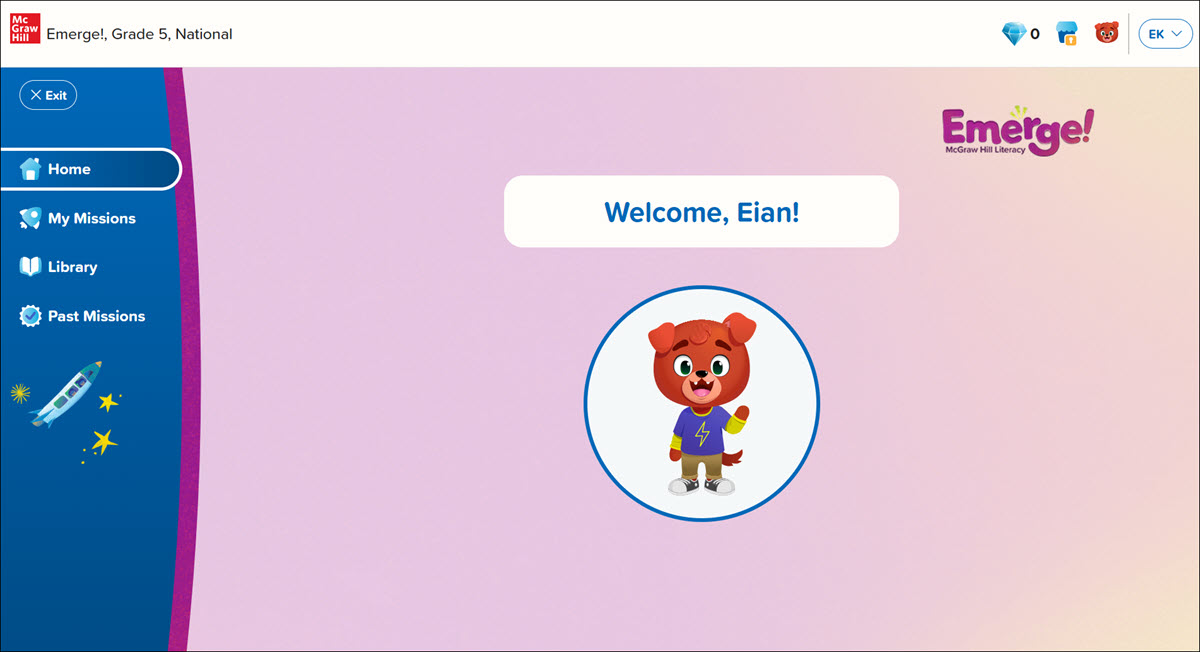
The customized character will show on the Home page when the class is launched.
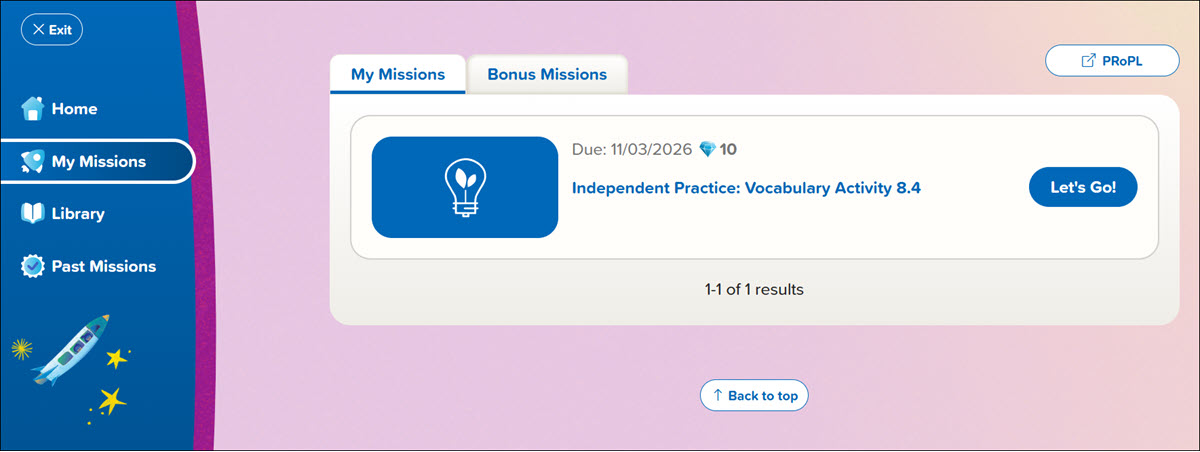
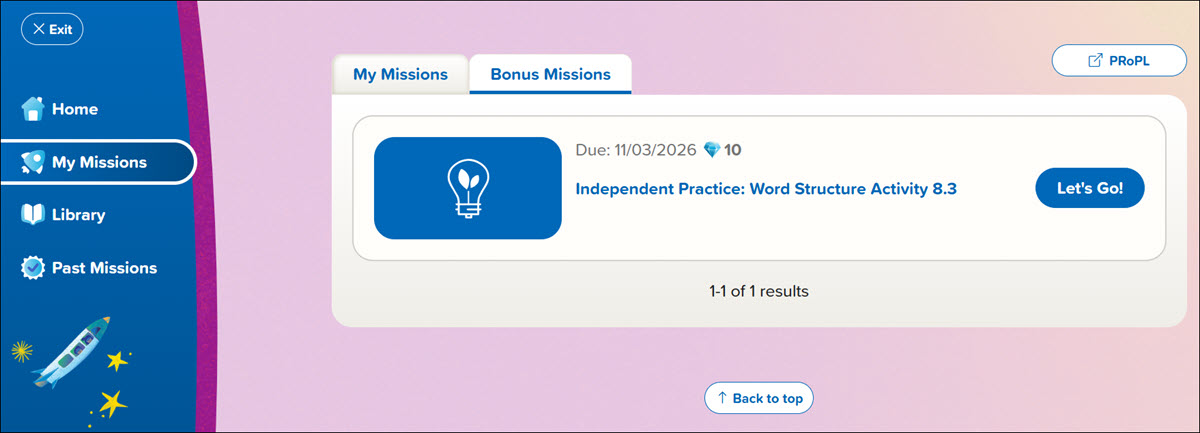
Click on My Missions on the navigation menu to view assignments sent by the teacher. Depending on what was assigned, assignments can be found under the My Missions tab as well as the Bonus Missions tab.
Assignments on the My Missions tab are meant to be done first, while those on the Bonus Missions tab are to be completed if students have time.
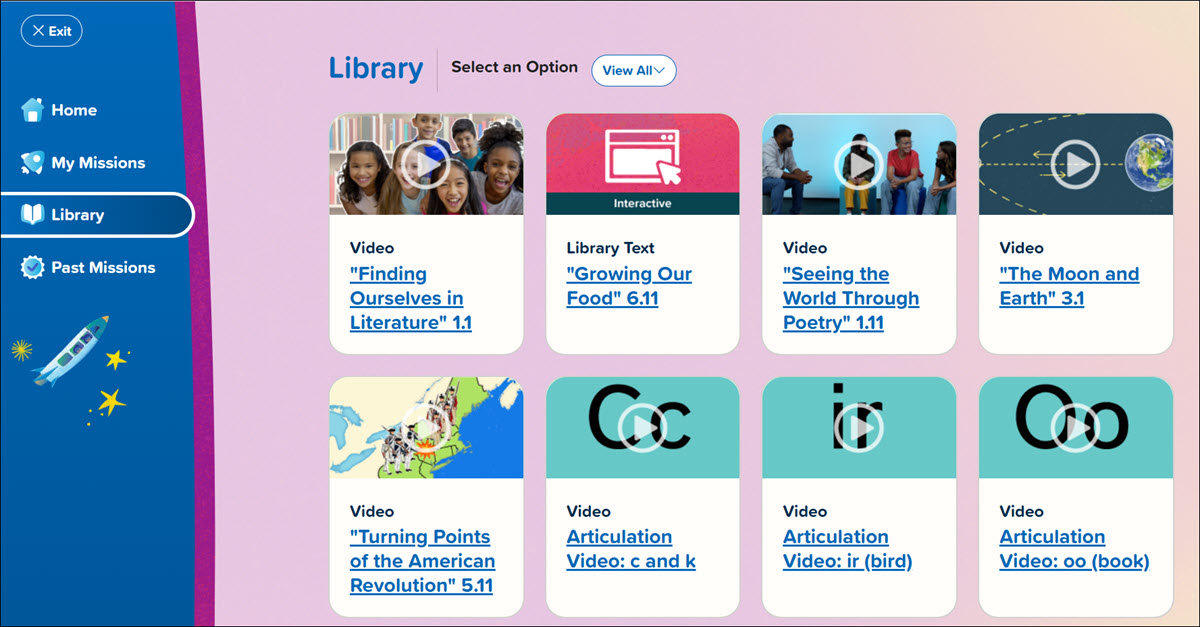
Click on Library to access resources available to students that they can access at any time. Viewing these resources on their own will not earn them any gems, as they do for assignments given by the teacher.
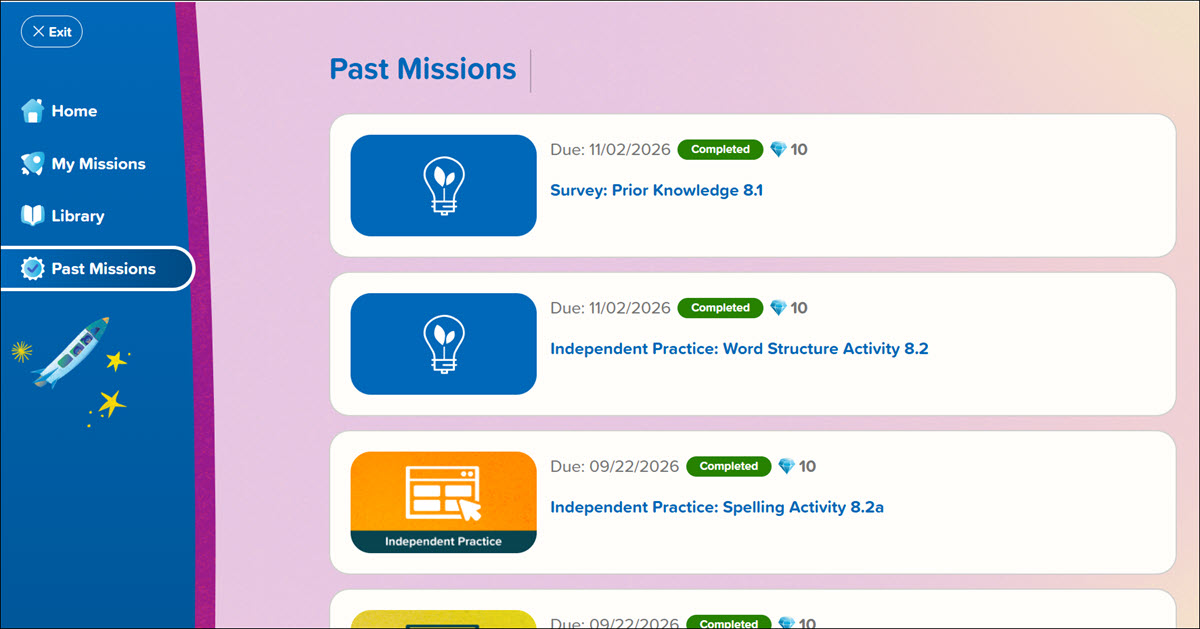
The Past Missions page shows all of the assignments that have been completed and how many gems were earned.
Gem Store
The Store will open after every three missions that are completed. These missions can be completed from the My Missions or Bonus Missions tab to earn gems.
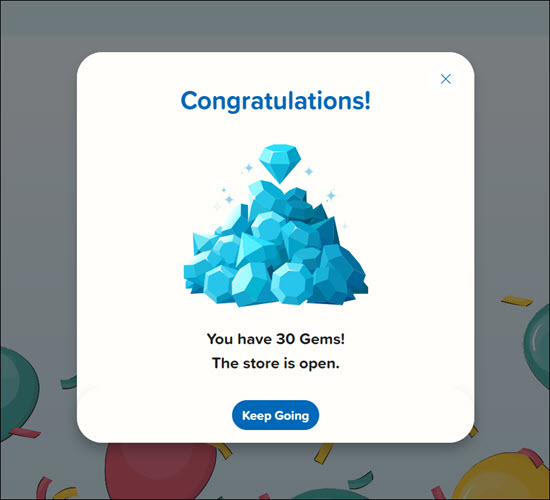
When the store becomes available, a message will appear after the third mission has been completed.
The store can be accessed by clicking on the green house icon at the top right of the screen, between the gem and character icons.
Once clicked, if a student clicks out of the store, it will relock - even if they have gems available to purchase something. It will reopen again once another three missions have been completed.
The number of gems they have available for the store will show at the top right of the screen.
The items available in the store will vary when accessed. Students will want to look at the number of gems under the image to see how much that item will cost them to purchase for their character.
To purchase something, they'll need to click on the item and then click the Purchase button under their character.
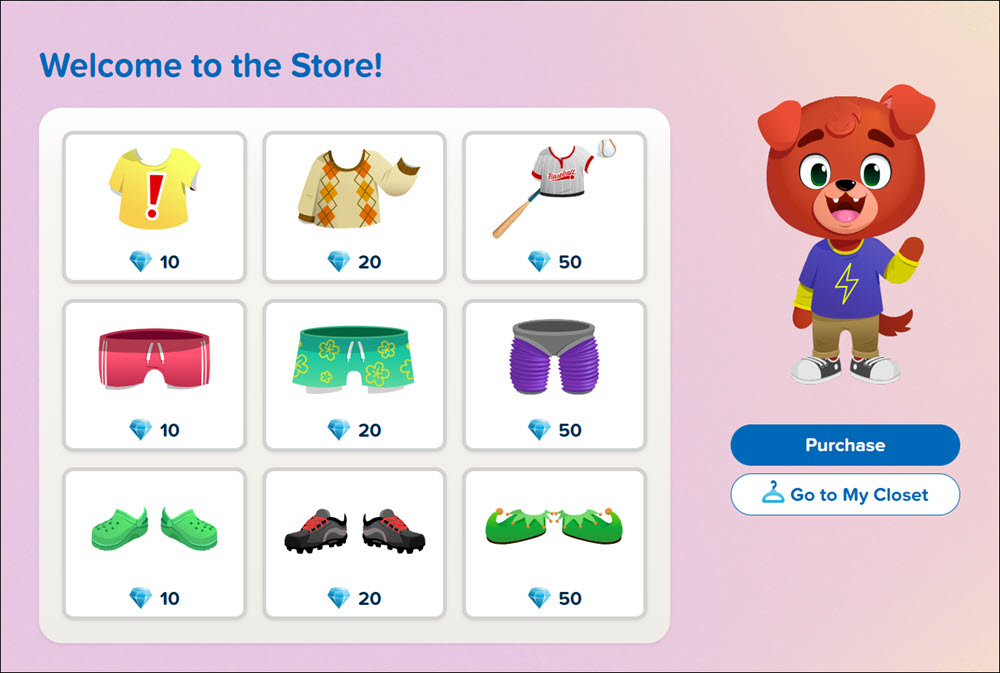
They can click the Go to My Closet button to see what all they have purchased and change the look of their character.
After making any changes, click the Save button to navigate back to the dashboard.