Navigate the ConnectED Teacher eBook
Access and use the Teacher eBook to view instructional content, notes, and embedded resources.
Tags
- Customer Support
- PreK-12
- Classroom Teacher
- Elementary School
- Middle School
- High School
- Direct Login & Auto-Rostering
- Direct Login & Manual-Rostering
- SSO & Auto-Rostering
- SSO & Manual-Rostering
- Core
- Literacy
- Math
- Science
- Social Studies
- Health
- Visual & Performing Arts
- World Languages
- Networks 2014 (K-5)
- iScience 2017
- Glencoe Science 2017
- Inspire Science 2017
- Glencoe Health 2014
- McGraw Hill Health 2014
- McGraw Hill My Math 2013 & 2016
- McGraw Hill My Math 2018
- McGraw Hill My Math
- Glencoe Math Course 1
- Glencoe Math Course 2
- Glencoe Math Course 3
- Glencoe Math Accelerated
- Glencoe Math
- Glencoe Algebra 1 2014
- Glencoe Algebra 2 2014
- Glencoe Algebra 1 2018
- Glenoce Algebra 2 2018
- Asi se Dice 2016
- Tools & Resources
- Dashboard & Navigation Overview
- Plan & Present


Article Contents
Access and Navigate
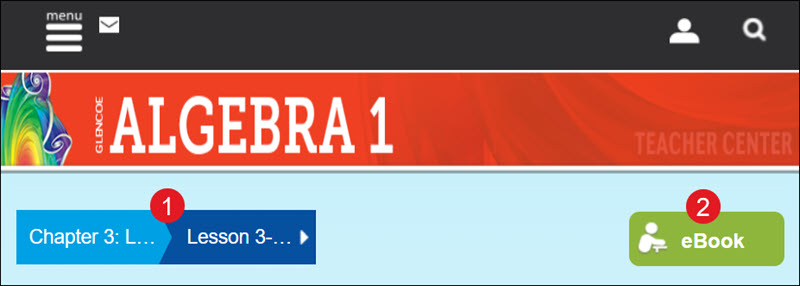
Select a Chapter and/or Lesson from the menu (1), and then click the eBook button (2).
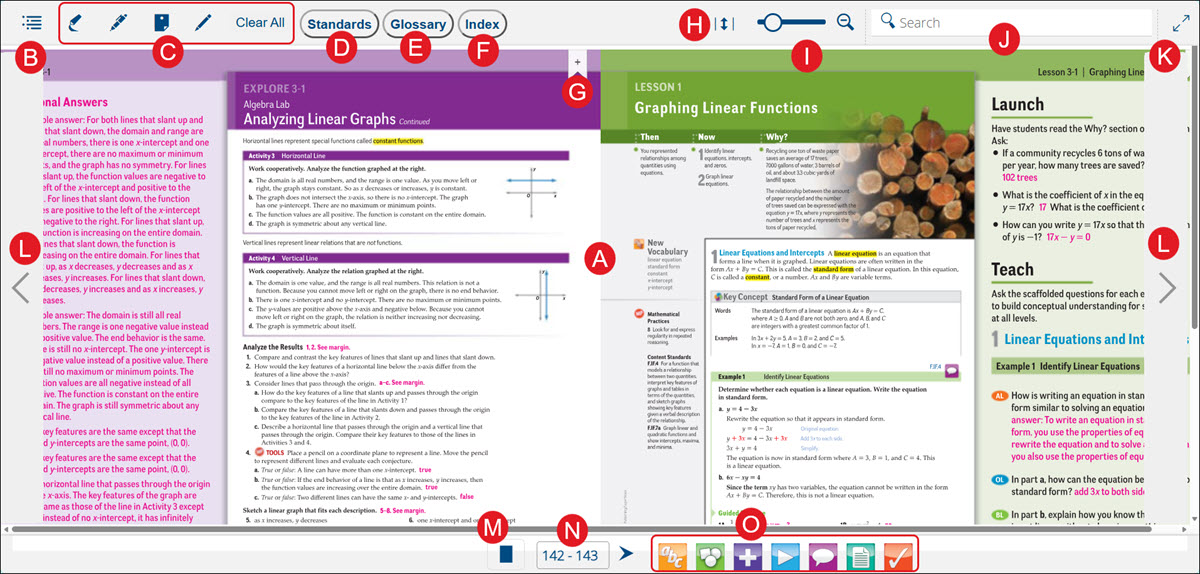
- The teacher eBook pages include chapters and lessons that correspond with the physical teacher textbook. They also provide answers and teacher notes (shown in pink text).
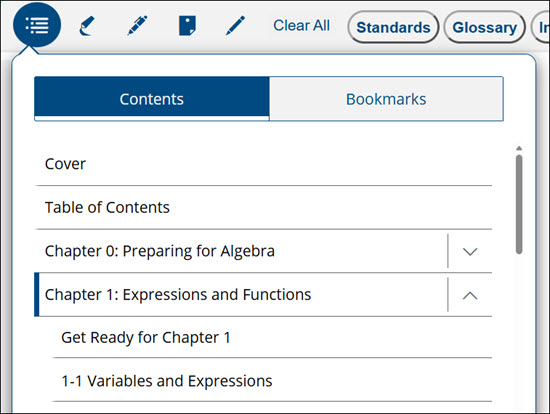
- Click on the Table of Contents to easily navigate to different chapters and lessons within the eBook. This is where Bookmarks can be located.
Click on an arrow next to a chapter to view the list of associated lesson pages. Click on an option in the Table of Contents to quickly navigate to that page.
- Click on an eBook tool - highlighter, pen, sticky note, and/or box/circle/underline - to make annotations and Clear All annotations on eBook pages.
- Click the Standards button to view the list of standards that are associated with the content. These can be viewed by lesson or by standard.
- Click the Glossary button to view the top words within the eBook.
- Click the Index button to view the associated eBook directory.
- Click the bookmark (ribbon) icon to mark the page to easily return to it later.
- Click the Fit to Height/Fit to Width button to expand the page view to better fit your device screen.
- Easily zoom in and out of the page view by clicking the magnifying glass. You can then click and drag the circle icon to zoom in and out on the page.
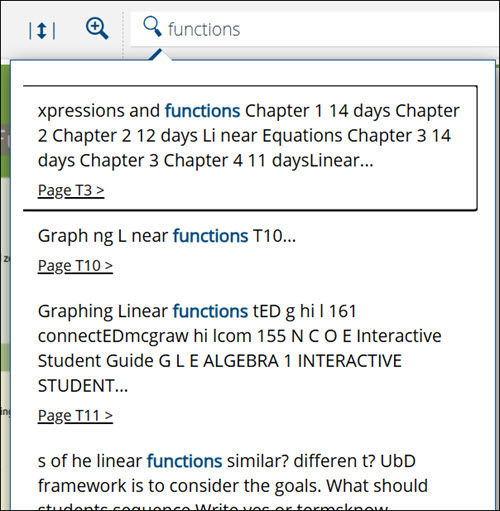
- Enter keywords in the Search to view a list that contains all instances of where that keyword appears. Click on a page link to navigate to that location within the eBook.
- Click on the Expand (diagonal arrows) to put the eBook in full screen.
- Use the back-and-forth navigation arrows to move from one set of pages to the next.
- Toggle between viewing the eBook by one page or by two pages at a time.
- Easily navigate to a specific page by entering the page number and clicking Enter.
- Click on a resource icon to quickly access associated resources of that type. These will vary based on the program being used.
Annotation Tools
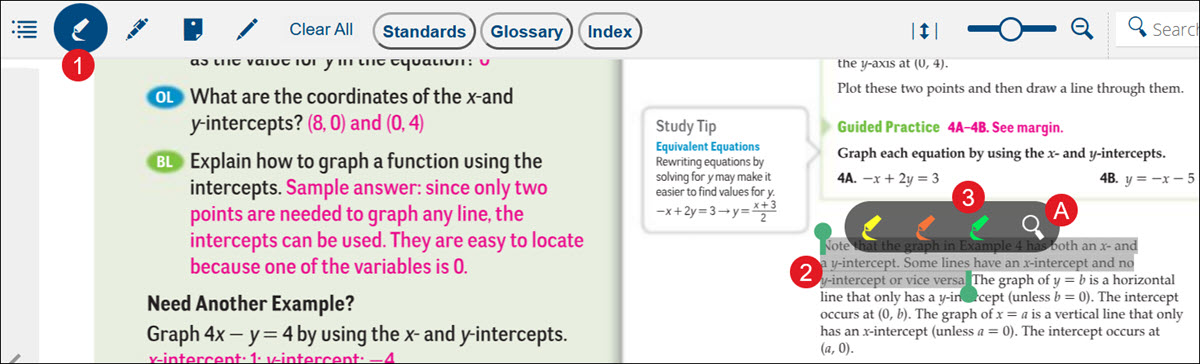
Highlight Tool
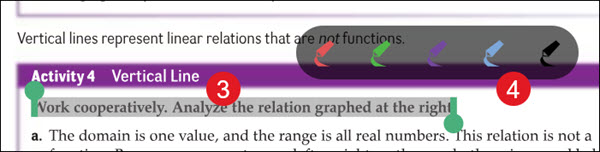
- Click on the Highlight icon.
- Select the text in the eBook you want to highlight.
- Select a color from the pop-up toolbar.
A. Click the magnifying glass on the toolbar to search the eBook for additional keywords or text within the eBook.
Pen Tool
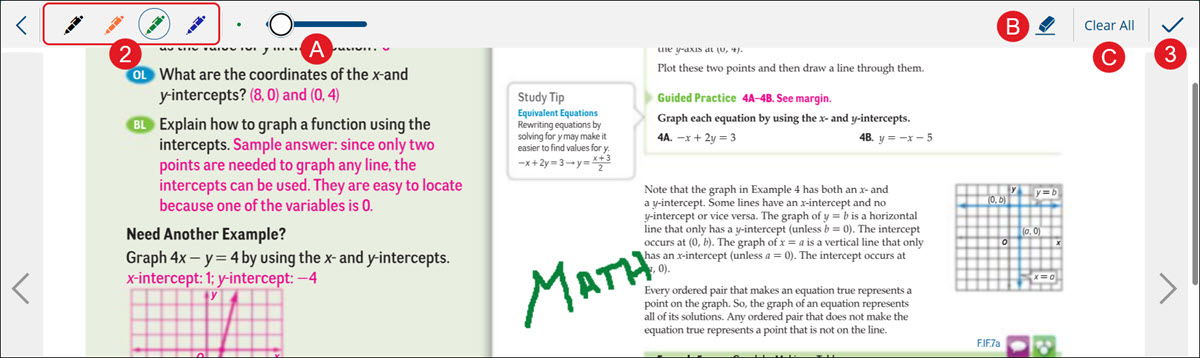
- Click on the Pen icon.

- Click on a pen color.
A. Click on the circle icon and drag it up/down the bar to change the thickness of the pen writing.
B. Use the eraser to remove parts of any written annotation.
C. Click Clear All to remove all written annotations from the eBook pages. This Clear All is for the pen annotations only.
- Click the checkmark icon to close out the pen annotation toolbar.
Sticky Note
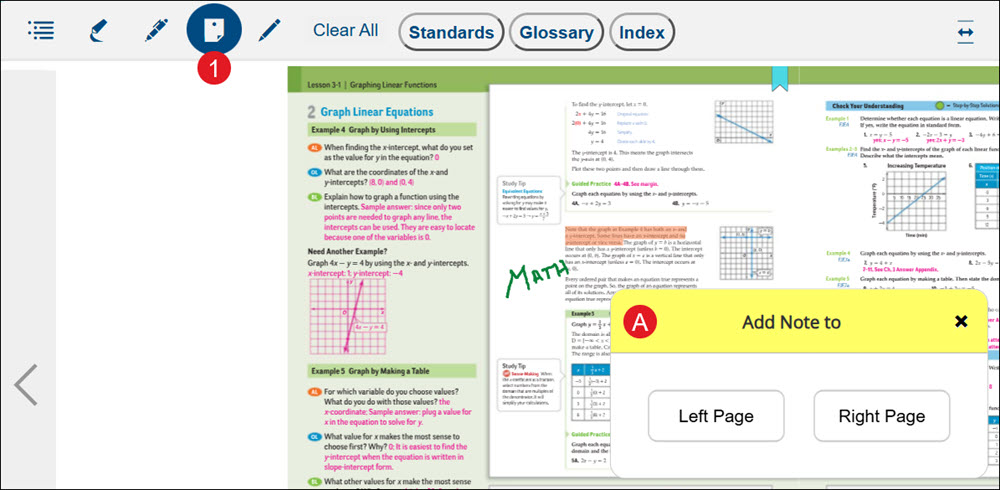
- Click the Sticky Note icon.
A. If you are viewing two pages at a time, select to add the note to the Left Page or Right Page.
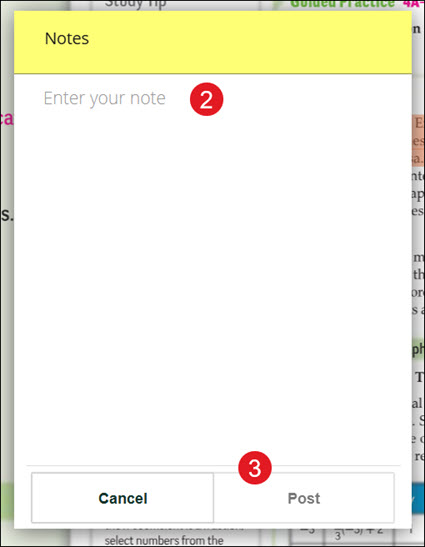
- Enter your note in the space provided.
- Click the Post button.
Box/Circle/Underline
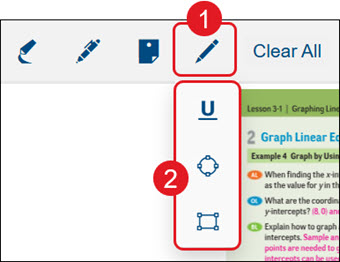
- Click the Box/Circle/Underline (pencil) icon.
- Select Box, Circle, or Underline from the menu.
- Select the text on the eBook page.
- Click on a color from the pop-up toolbar.