Print a McGraw Hill Assessment
Overview of how teachers print assessments for offline use, including selecting print options & downloading assessment PDFs.
Tags
- Customer Support
- PreK-12
- Classroom Teacher
- Preschool
- Elementary School
- Middle School
- High School
- Direct Login & Auto-Rostering
- Direct Login & Manual-Rostering
- SSO & Auto-Rostering
- SSO & Manual-Rostering
- Core
- Intervention
- Supplemental
- AP, Honors & Electives
- Career & Technical Education
- Literacy
- Math
- Science
- Social Studies
- Health
- Visual & Performing Arts
- World Languages
- AP Biology
- AP Chemistry
- AP History & Geography
- AP Psychology
- AP Economics
- AP African American Studies
- AP Precalculus
- AP Statistics
- AP Computer Science
- AP Language and Composition
- AP Public Speaking
- AP Music Theory
- 5 Steps to a 5 - AP Test Prep
- Glencoe Health 2022
- Teen Health 2021
- Arrive Math
- Building Blocks 2024
- Building Blocks PreK 2025
- Number Worlds 2024
- SRA Reading Laboratory 2025
- SRA Reading Mastery Transformations
- McGraw Hill Literacy Emerge!
- McGraw Hill Literacy Summit!
- McGraw Hill Literacy Soar!
- Open Court Reading
- Open Court Reading 2016, 2018, 2023
- Open Court Reading 2025
- CA Reveal Math (K-12)
- Illustrative Math
- Reveal Math (K-12)
- Texas Math
- CA Inspire Science 2020
- FL Science 2025 (K-12)
- Inspire Science 2020
- TN Science (K-12)
- TX Science 2025 (K-12)
- CA Impact 2019
- FL Social Studies 2024 (K-12)
- Impact Social Studies
- McGraw Hill Social Studies
- Asi se Dice 2024
- Wonders Balanced Literacy 2016
- Maravillas 2020 & 2017
- Music! Its Role
- McGraw Hill My Math 2018
- Networks 2018
- OCR Foundational Skills Kit
- OCR Word Analysis Kit
- Spotlight on Music
- Wonders 2023 2020 2017
- CTE - Business, Marketing, and Finance
- CTE - Health Science
- CTE - Computing and Technology
- CTE - Agriculture
- CTE - Culinary Arts
- CTE - Early Childhood Education
- CTE - Criminal Justice
- Online Assessments


View the demo in a separate tab.
View the Spanish version of the demo.
For steps on creating, editing, and assigning assessments, see the McGraw Hill Assessment Management Resources article.
Article Contents
From the Assignments Page (Open Learning Courses Only)
From Assigned Assessments (ConnectED Courses Only)
From Assessments Page
- SSO or sign in at my.mheducation.com.
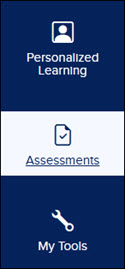
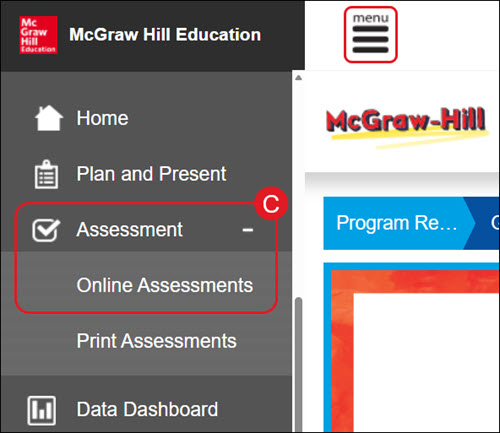
- Click Assessments on the navigation menu.
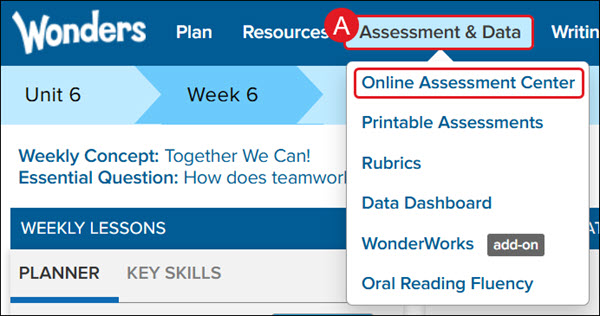
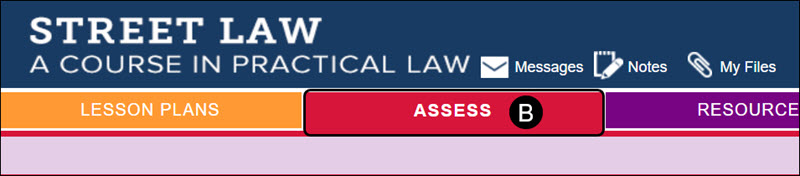
For programs such as Wonders (A), Networks (B), or My Math (C), you will need to click on Online Assessment Center (A), Assess (B), or Online Assessments (C).
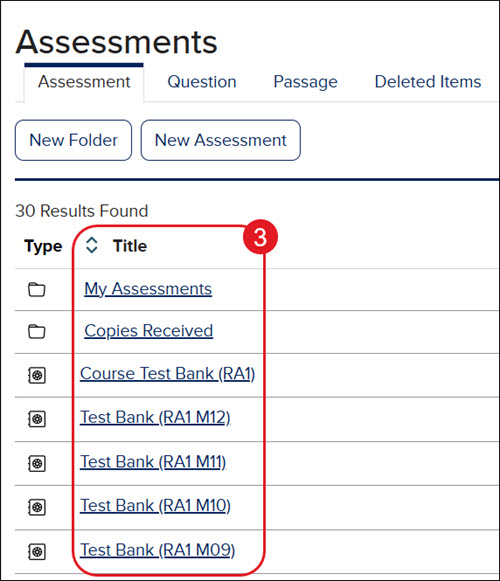
- Click on the test bank Title from the list provided.
A. You can use the Search By Title field to locate a specific assessment.
B. You can also select Filters to locate a specific type of assessment from within the selected test bank.

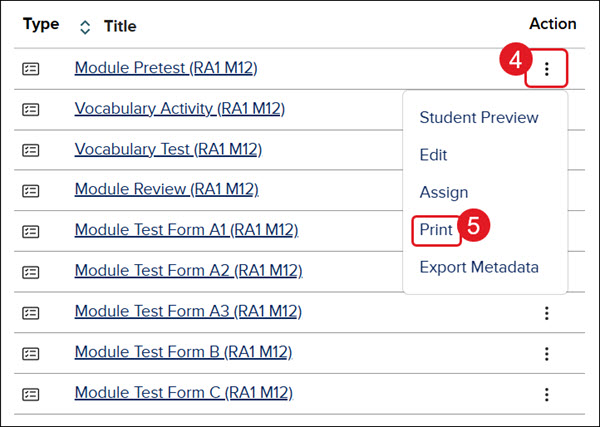
- Click the Options icon in the Actions column for the assessment.
- Click Print from the menu.
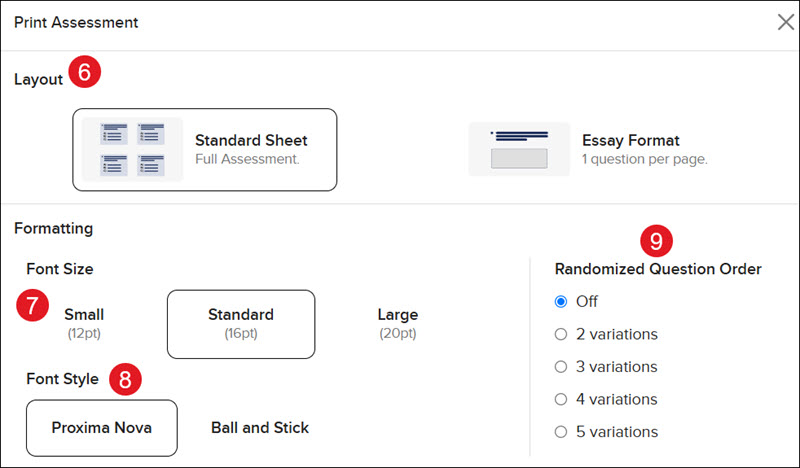
- On the pop-up, select whether you want to print the Standard Sheet or Essay Format layout.
The Essay Format layout will print one question per page, allowing students more space to write full essay responses.
- Select the preferred Font Size.
- Select the Font Style.
- Select the radio button next to if you want to Randomize Question Order.
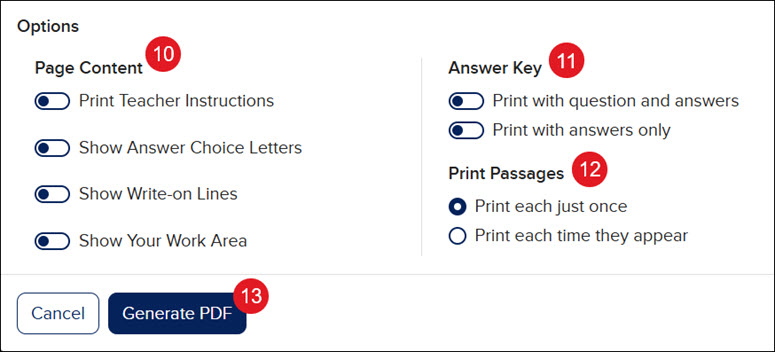
- Toggle on any Page Content you want to include: Print Teacher Instructions, Show Answer Choice Letters, Show Write-on Lines, and/or Show Your Work Area.
The Show Your Work area provides extra space between questions for students to show their work.
- Toggle on Answer Key options to Print with question and answers or Print with answers only.
- If the assessment has passages included, select the appropriate radio button to Print Passages: Print each just once or Print each time they appear.
- Click the Generate PDF button.
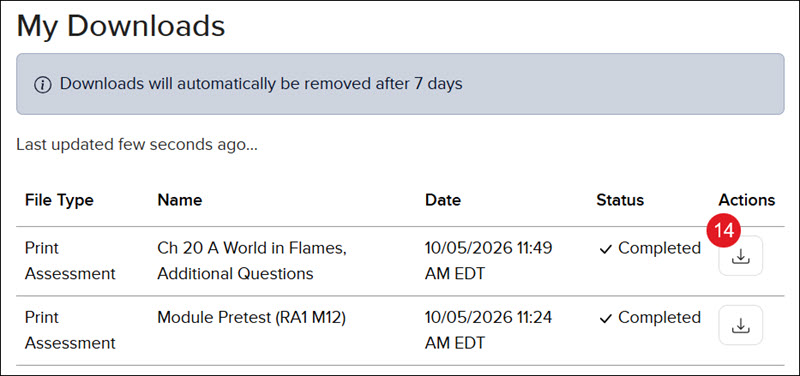
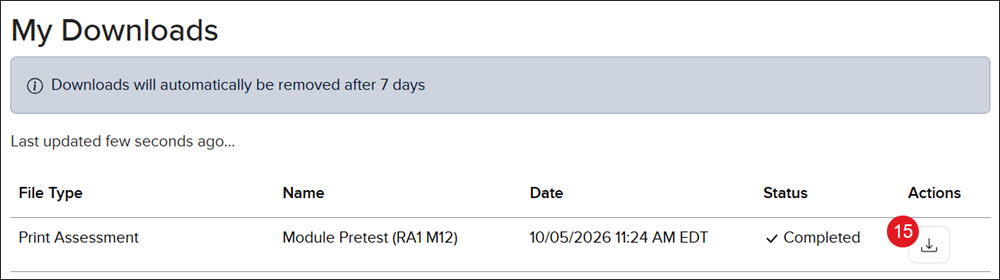
- Click the Downloads button on the Assessments page.

- Click the Download button for the assessment to save it to your device/print the assessment PDF.
From the Assignments Page (Open Learning Courses Only)
- SSO or sign in at my.mheducation.com.
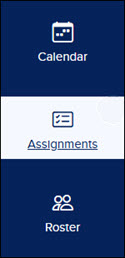
- Click Assessments on the navigation menu.
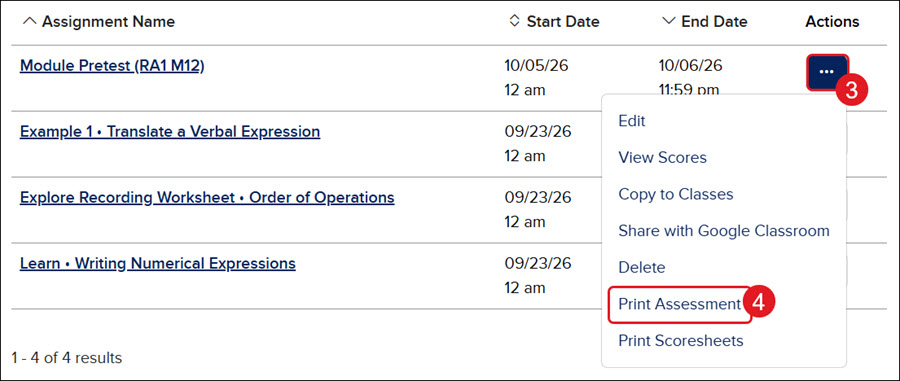
- Click the Options button in the Actions column to the right of the assessment.
- Click Print Assessment from the menu.
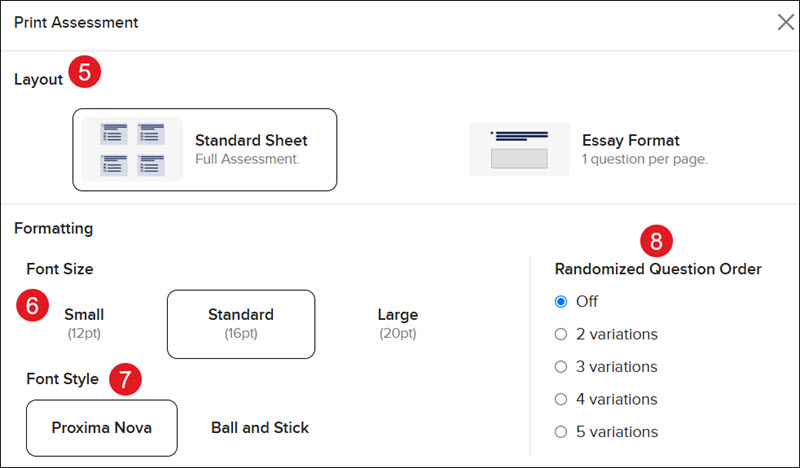
- On the pop-up, select whether you want to print the Standard Sheet or Essay Format layout.
The Essay Format layout will print one question per page, allowing students more space to write full essay responses.
- Select the preferred Font Size.
- Select the Font Style.
- Select the radio button next to if you want to Randomize Question Order.
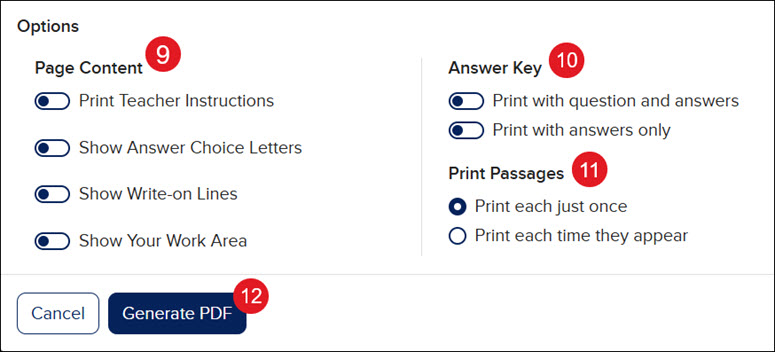
- Toggle on any Page Content you want to include: Print Teacher Instructions, Show Answer Choice Letters, Show Write-on Lines, and/or Show Your Work Area.
The Show Your Work area provides extra space between questions for students to show their work.
- Toggle on Answer Key options to Print with question and answers or Print with answers only.
- If the assessment has passages included, select the appropriate radio button to Print Passages: Print each just once or Print each time they appear.
- Click the Generate PDF button.
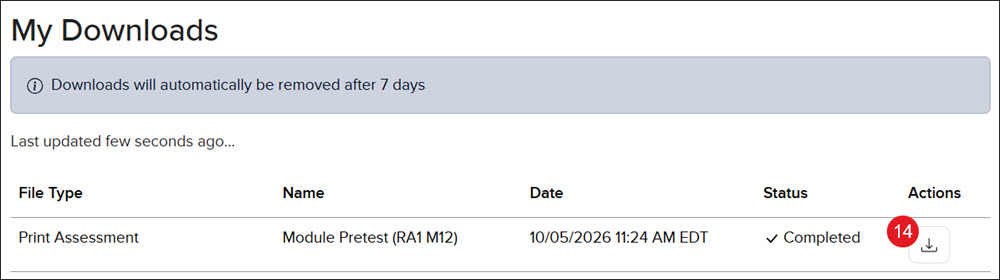
- Click the Downloads button on the Assignments page.

- Click the Download button for the assessment to save it to your device/print the assessment PDF.
From Assigned Assessments (ConnectED Courses Only)
- SSO or sign in at my.mheducation.com.
- For programs such as Wonders (A), Networks (B), or My Math (C), you will need to click on Online Assessment Center (A), Assess (B), or Online Assessments (C). This will vary based on the program being used.
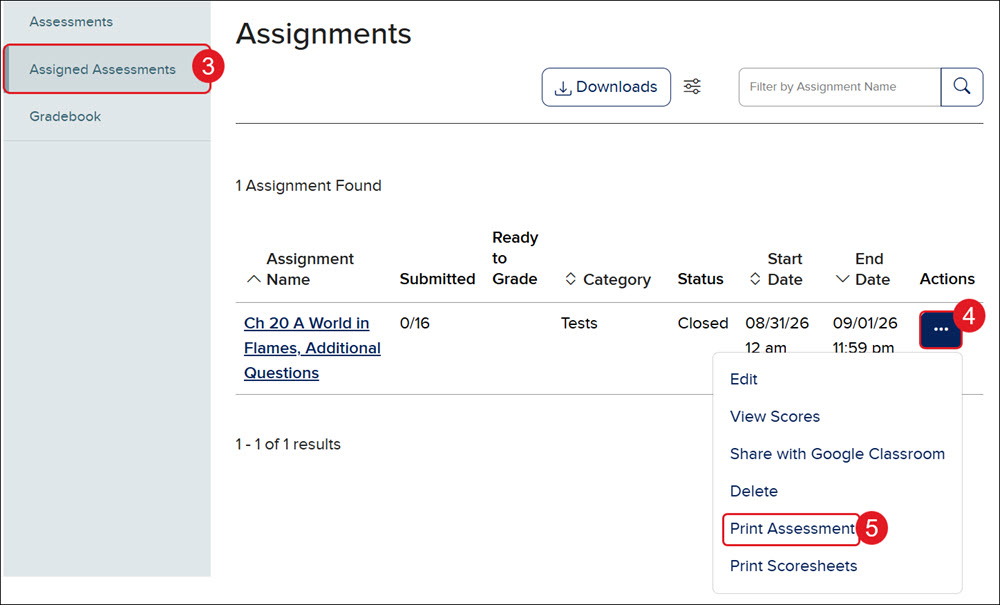
- Click on Assigned Assessments.
- Click the Options button in the Actions column to the right of the assessment.
- Click Print Assessment from the menu.
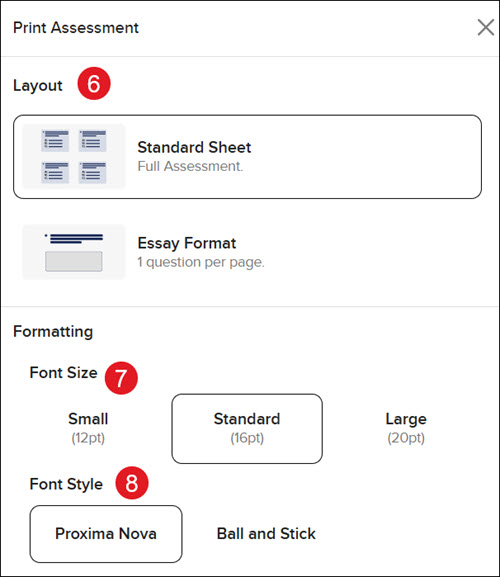
- On the pop-up, select whether you want to print the Standard Sheet or Essay Format layout.
The Essay Format layout will print one question per page, allowing students more space to write full essay responses.
- Select the preferred Font Size.
- Select the Font Style.
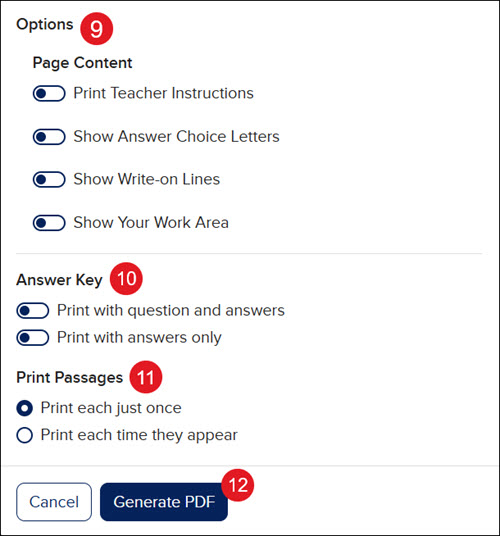
- Toggle on any Page Content you want to include: Print Teacher Instructions, Show Answer Choice Letters, Show Write-on Lines, and/or Show Your Work Area.
The Show Your Work area provides extra space between questions for students to show their work.
- Toggle on Answer Key options to Print with question and answers or Print with answers only.
- If the assessment has passages included, select the appropriate radio button to Print Passages: Print each just once or Print each time they appear.
- Click the Generate PDF button.
- Click the Downloads button on the Assignments page.

- Click the Download button for the assessment to save it to your device/print the assessment PDF.