Make a Copy of a McGraw Hill Assessment
Learn how teachers copy custom McGraw Hill assessments to create editable duplicates while keeping the original assessment unchanged.
- Customer Support
- Middle School
- High School
- SSO & Auto-Rostering
- PreK-12
- Supplemental
- Visual & Performing Arts
- Health
- Literacy
- Social Studies
- Core
- AP, Honors & Electives
- SSO & Manual-Rostering
- Direct Login & Manual-Rostering
- Classroom Teacher
- Elementary School
- World Languages
- Math
- Intervention
- Direct Login & Auto-Rostering
- Science
- Preschool
- AP Biology
- AP Chemistry
- AP History & Geography
- AP Psychology
- AP Economics
- AP African American Studies
- AP Precalculus
- AP Statistics
- AP Computer Science
- AP Language and Composition
- AP Public Speaking
- AP Music Theory
- 5 Steps to a 5 - AP Test Prep
- Glencoe Health 2022
- Teen Health 2021
- Arrive Math
- Building Blocks 2024
- Building Blocks PreK 2025
- Number Worlds 2024
- SRA Reading Laboratory 2025
- SRA Reading Mastery Transformations
- McGraw Hill Literacy Emerge!
- McGraw Hill Literacy Summit!
- McGraw Hill Literacy Soar!
- Open Court Reading 2025
- CA Reveal Math (K-12)
- Illustrative Math
- Reveal Math (K-12)
- Texas Math
- CA Inspire Science 2020
- FL Science 2025 (K-12)
- Inspire Science 2020
- TN Science (K-12)
- TX Science 2025 (K-12)
- CA Impact 2019
- FL Social Studies 2024 (K-12)
- Impact Social Studies
- McGraw Hill Social Studies
- All Sorts 2026 (K-5)
- Asi se Dice 2024
- CTE - Health Science
- CTE - Agriculture
- CTE - Computing and Technology
- CTE - Culinary Arts
- CTE - Early Childhood Education
- CTE - Business, Marketing, and Finance
- CTE - Criminal Justice
- Online Assessments


This article walks teachers through making a copy of a custom assessment. Making a copy of a custom assessment allows teachers to make additional changes to a test while keeping the original intact.
For a full page view of the demo, click here.
For a Spanish version of the demo, click here.
To make a copy of a McGraw Hill-created assessment, you will need to first make edits to that assessment. Refer to the MH Assess - Edit an Assessment article for steps on making edits to a McGraw Hill assessment.
1. Launch your course.
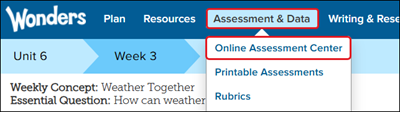
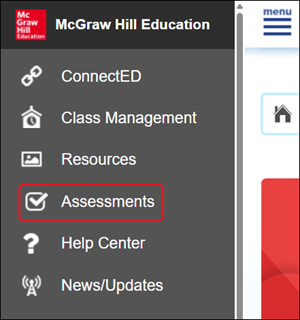
2. Click on Assessments from the navigation menu.
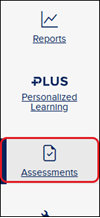
For certain programs, you will need to click on Assess, Assessment, or Online Assessment Center.

3. Click on the My Assessments folder.
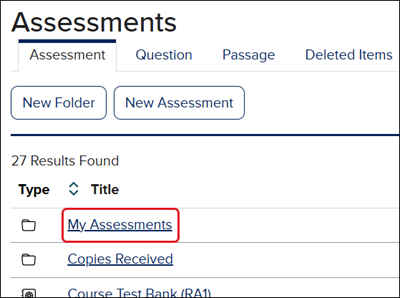
4. Click on the Options menu icon in the Actions column and click on Copy Assessment from the menu.
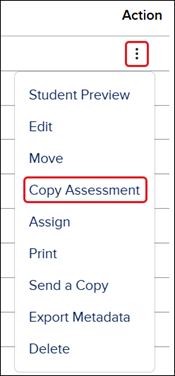
You will then receive a message that the assessment was successfully copied. If you click on the Go to your assessment link in the message, it will refresh the page and navigate you to the copy of the assessment that was made.

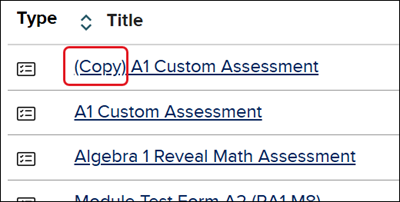
The copied assessment will show (Copy) at the beginning of the assessment title.