
Score a McGraw Hill Assessment Using the Class Scoresheet
Learn how to manually grade completed student assessments using the Class Scoresheet.
- Customer Support
- Middle School
- High School
- SSO & Auto-Rostering
- PreK-12
- Supplemental
- Health
- Literacy
- Social Studies
- Core
- AP, Honors & Electives
- SSO & Manual-Rostering
- Direct Login & Manual-Rostering
- Classroom Teacher
- Elementary School
- World Languages
- Math
- Intervention
- Direct Login & Auto-Rostering
- Science
- Preschool
- AP Biology
- AP Chemistry
- AP History & Geography
- AP Psychology
- AP Economics
- AP African American Studies
- AP Precalculus
- AP Statistics
- AP Computer Science
- AP Language and Composition
- AP Public Speaking
- AP Music Theory
- 5 Steps to a 5 - AP Test Prep
- Glencoe Health 2022
- Teen Health 2021
- Arrive Math
- Building Blocks 2024
- Building Blocks PreK 2025
- Number Worlds 2024
- SRA Reading Laboratory 2025
- SRA Reading Mastery Transformations
- McGraw Hill Literacy Emerge!
- McGraw Hill Literacy Summit!
- McGraw Hill Literacy Soar!
- Open Court Reading 2025
- CA Reveal Math (K-12)
- Illustrative Math
- Reveal Math (K-12)
- Texas Math
- CA Inspire Science 2020
- FL Science 2025 (K-12)
- Inspire Science 2020
- TN Science (K-12)
- TX Science 2025 (K-12)
- CA Impact 2019
- FL Social Studies 2024 (K-12)
- Impact Social Studies
- McGraw Hill Social Studies
- All Sorts 2026 (K-5)
- Asi se Dice 2024
- CTE - Health Science
- CTE - Agriculture
- CTE - Computing and Technology
- CTE - Culinary Arts
- CTE - Early Childhood Education
- CTE - Business, Marketing, and Finance
- CTE - Criminal Justice
- Online Assessments
- Grades & Assignments


This article walks teachers through manually grading assessment questions using the Class Scoresheet.
For a full page view of the demo, click here.
For a Spanish version of the demo, click here.
The Class Scoresheet allows teachers to score all students for a single question from one page, making it quicker and easier for them to score questions that need to be manually graded on assessments.
1. Launch your course.
2. Click on Assignments from the navigation menu.
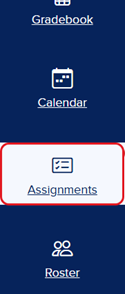
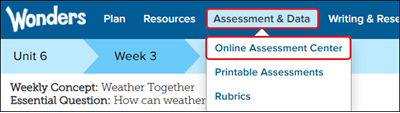
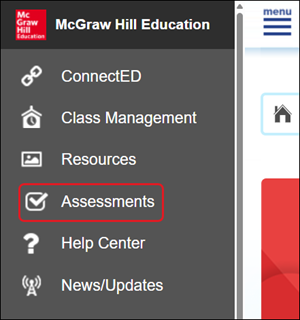
For certain programs, you will need to click on Assess, Assessment, or Online Assessment Center.

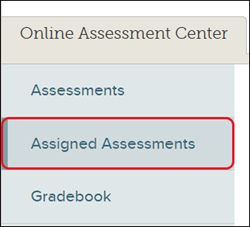
Then click on Assigned Assessments from the navigation menu.
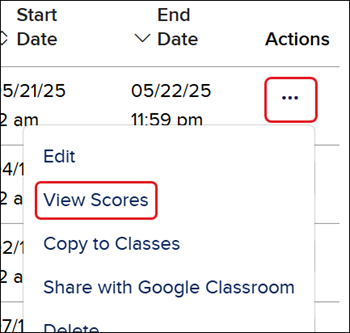
3. Click on the Assignment Name,
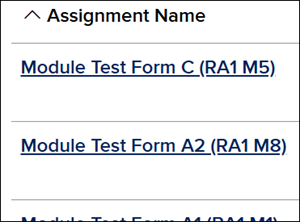
or click on the Options menu icon in the Actions column and click on View Scores from the menu.
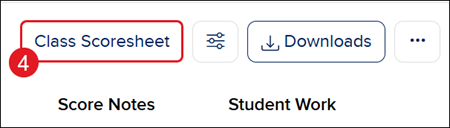
4. Click the Class Scoresheet button.
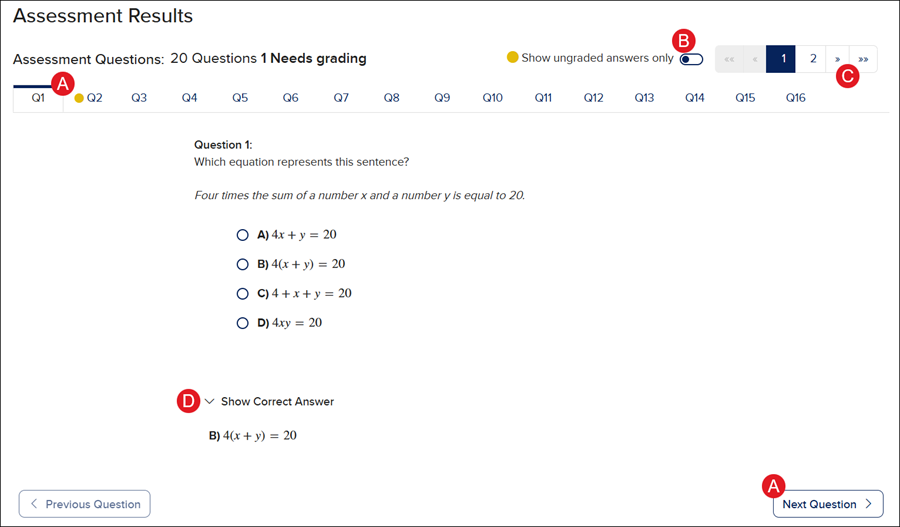
A. Click on the question (Q) tabs, or click the Previous/Next Question button to navigate through the different questions.
B. Toggle on/off the Show ungraded answers only to quickly view only the questions that need manual grading.
C. Use the back and forth arrows to navigate through the rows of questions.
D. Click the arrow to show/hide the Correct Answer for the question being viewed.
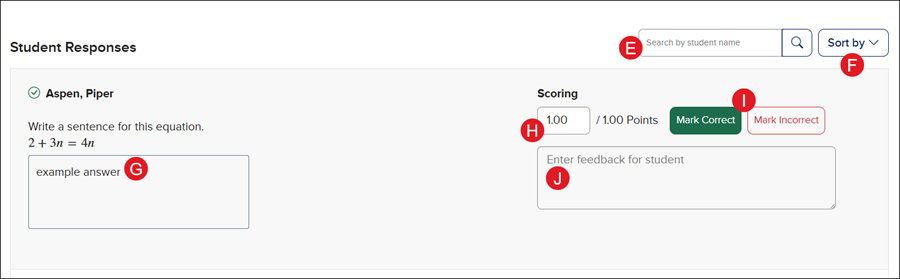
E. Use the Search to locate a specific student's response.
F. Click Sort by to sort the list of Student Responses alphabetically or by score.
G. Review the student's submitted answer for the question.
H. The Scoring reflects if the question has been marked as correct or incorrect. A different score can be entered into the field if needed.
I. Click Mark Correct or Mark Incorrect to score the question.
J. Enter any feedback you want the student to see for that question.
