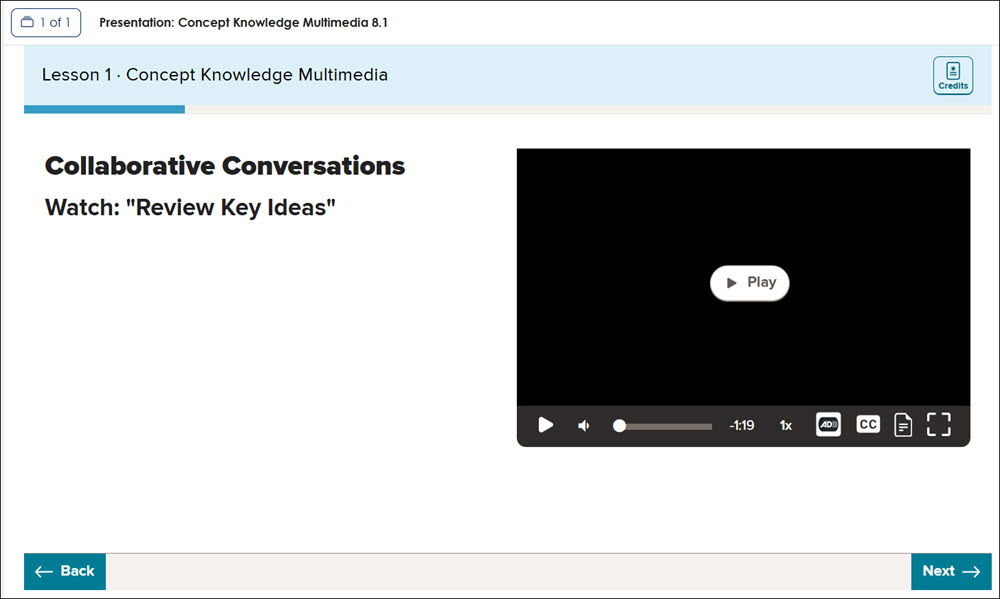
McGraw Hill Literacy Presentations
Learn how to access and navigate the McGraw Hill Literacy presentations.
- Customer Support
- PreK-12
- Classroom Teacher
- Elementary School
- Middle School
- High School
- Direct Login & Auto-Rostering
- Direct Login & Manual-Rostering
- SSO & Auto-Rostering
- SSO & Manual-Rostering
- Core
- Literacy
- McGraw Hill Literacy Emerge!
- McGraw Hill Literacy Summit!
- McGraw Hill Literacy Soar!
- Plan & Present
- Dashboard & Navigation Overview
- Tools & Resources


Presentations are accessible directly from the Course page in your McGraw Hill Literacy program. Please note that not every lesson page includes a presentation.
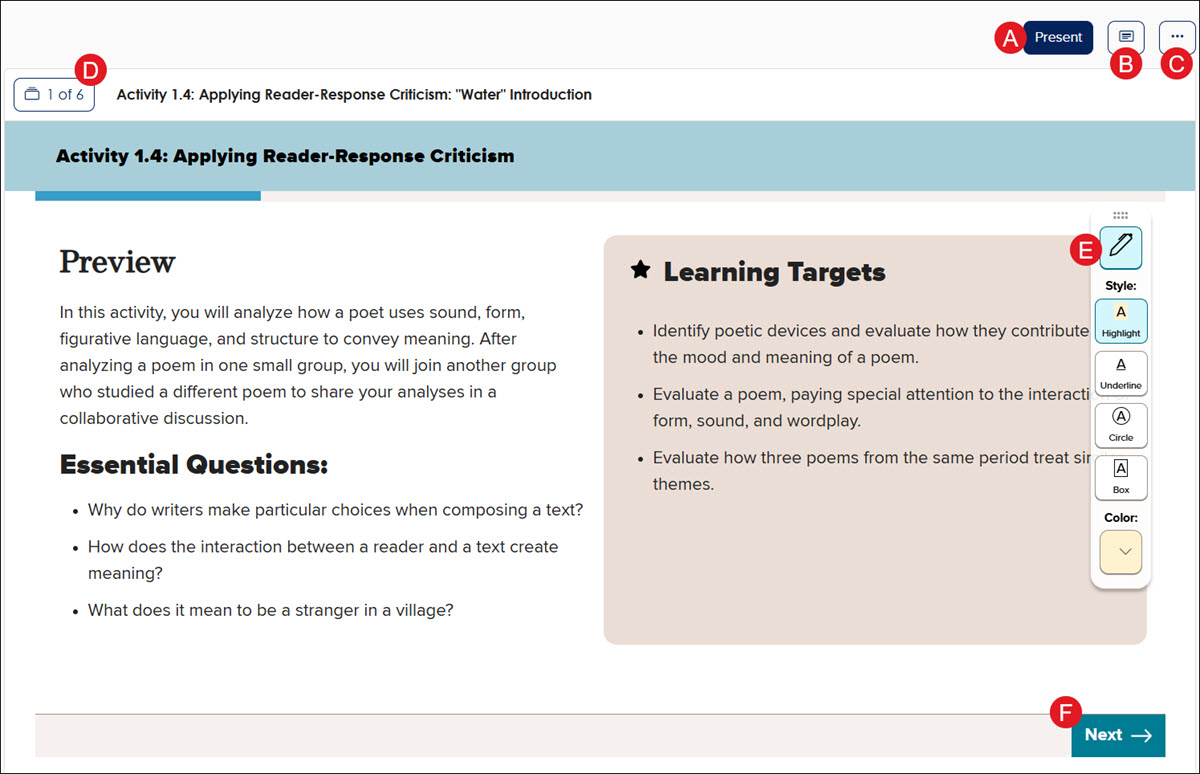
A. Click the Present button to open the presentation in full screen.
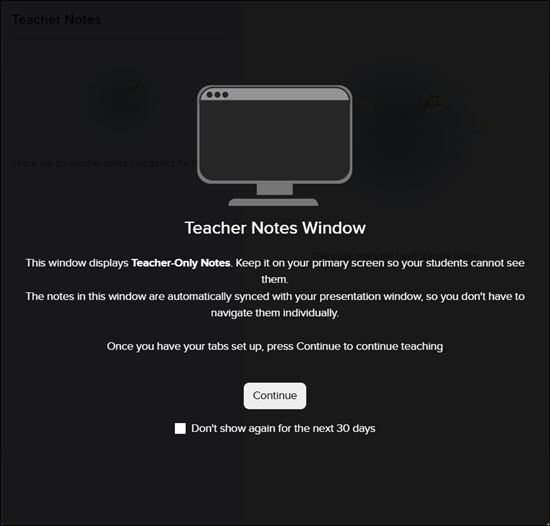
B. The Teacher Notes will open in a pop-up browser window. Click the Continue button to navigate to the notes.
This window displays Teacher-Only Notes. Keep it on your primary screen so your students cannot see them. The notes in this window are automatically synced with your presentation window, so you don't have to navigate them individually.
Note: Not all presentations will have available teacher notes.
C. Click the Presentation Options button to open the presentation in a new browser tab.
For Emerge users, there is also the Gather My Students option. For information on using this feature, see the Using the Gather My Students Feature article.

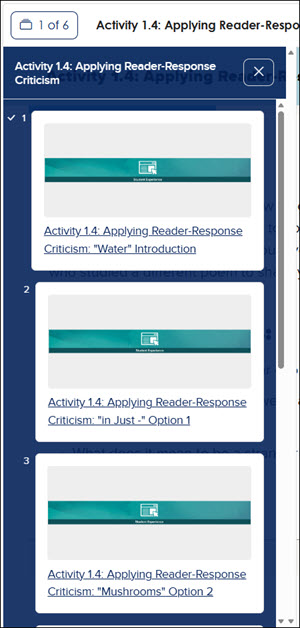
D. The Resource Navigation button opens a side panel with the list of available resources that are attached to the presentation. Clicking on a resource in the panel navigates you directly to that resource page.
E. Click the pen icon to open and close the annotations toolbar.
Note: The annotation toolbar is not available for all presentations.
To add an annotation to the presentation slide:
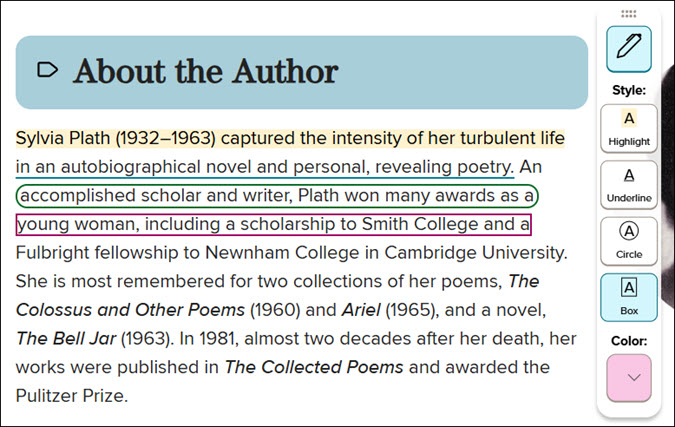
1. Click to Highlight, Underline, Circle, or Box the text, then choose the Color.
2. Select the text in the presentation.
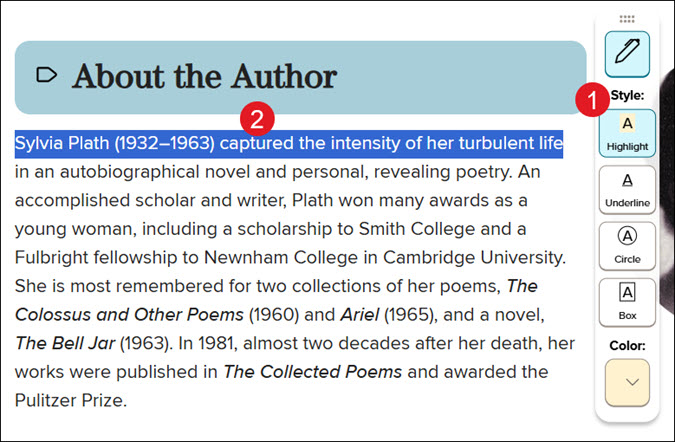
The annotation options selected will automatically mark the selected text.
F. Click the Next or Back button to navigate to the following or previous slide of the presentation.
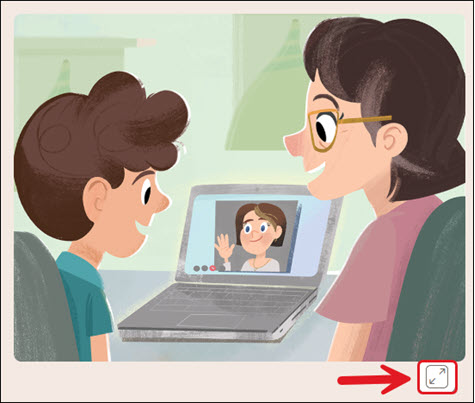
On images, click the expand button under the image to open it in a pop-up screen.
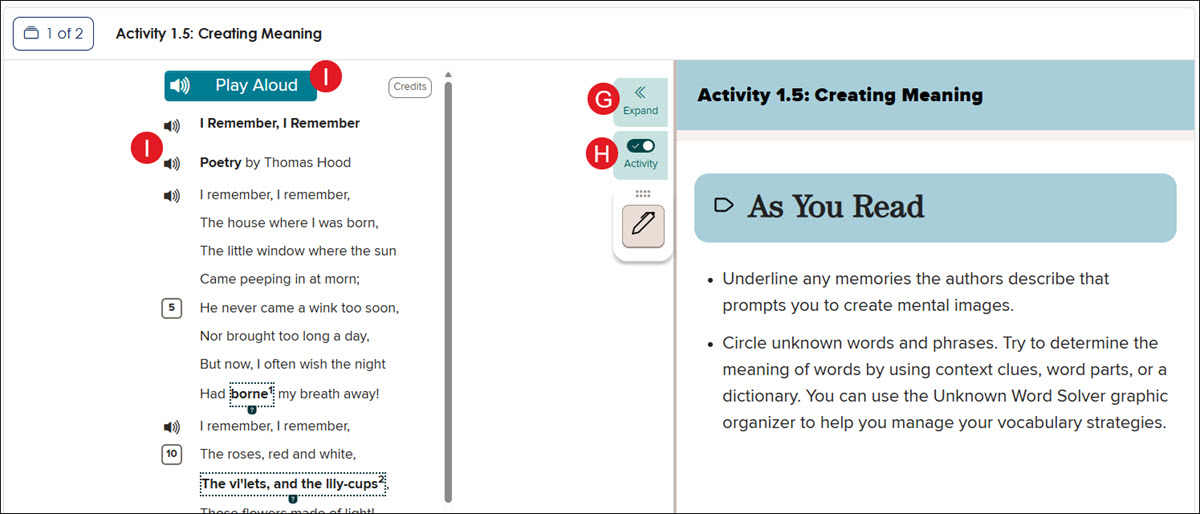
Some presentations have activities included on the slide.
G. Click the Expand button to expand the activity panel to fill the presentation slide.
H. Click the Activity toggle to show or hide the activity in the presentation.
I. Click the Play Aloud button to have everything in the reading panel read aloud.
You can also click on the individual speaker icons to have only certain parts read aloud.
This option is not available for all slides.
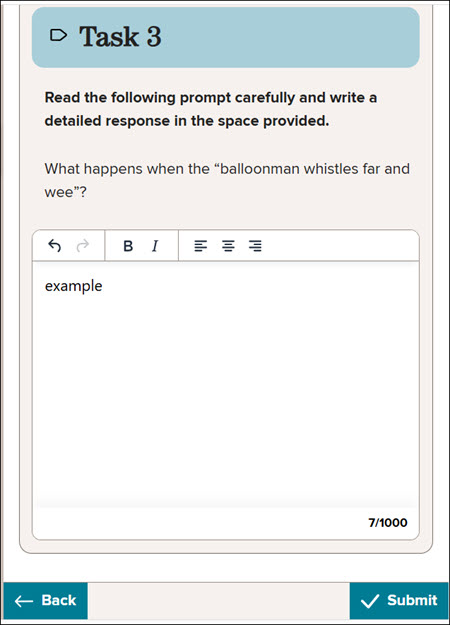
Some slides include tasks and activities where you will need to enter a response and click Submit to be able to move to the next slide.
Some slides may also include a video that you can play within the presentation.