
Manage K-12 Connect® Media Resources
Add media resources to use within Connect assignments.
- Customer Support
- PreK-12
- Classroom Teacher
- High School
- Direct Login & Auto-Rostering
- Direct Login & Manual-Rostering
- SSO & Auto-Rostering
- SSO & Manual-Rostering
- AP, Honors & Electives
- AP Connect
- Tools & Resources
- Grades & Assignments
- Plan & Present


Article Contents
Add Media Files
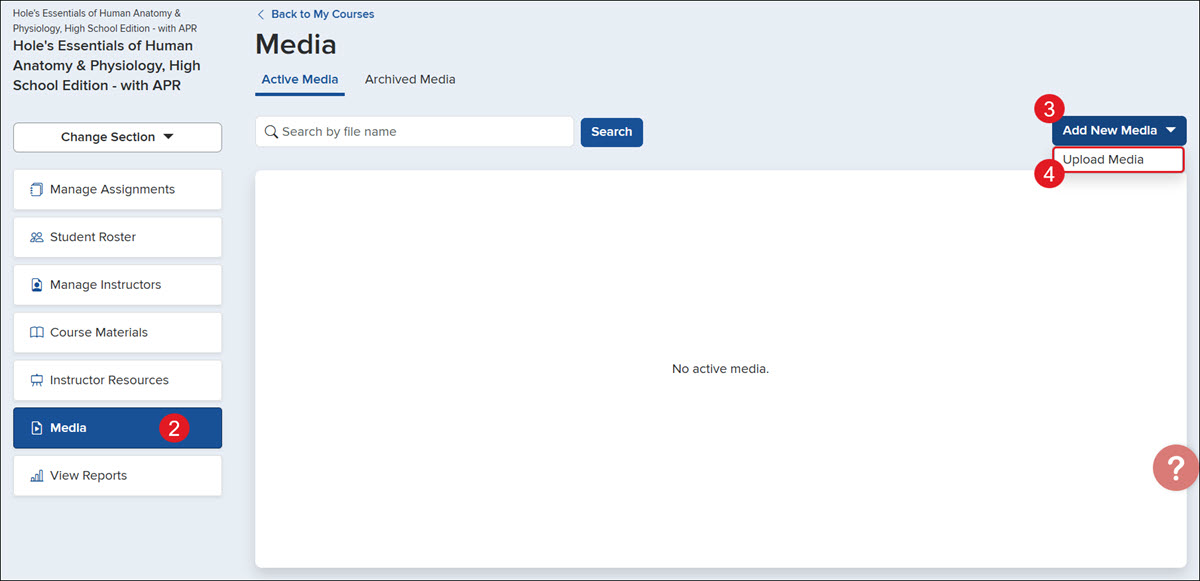
1. Click the Section name.
2. Click on Media from the left-hand menu.
3. Click the Add New Media button.
4. Click Upload Media from the menu.
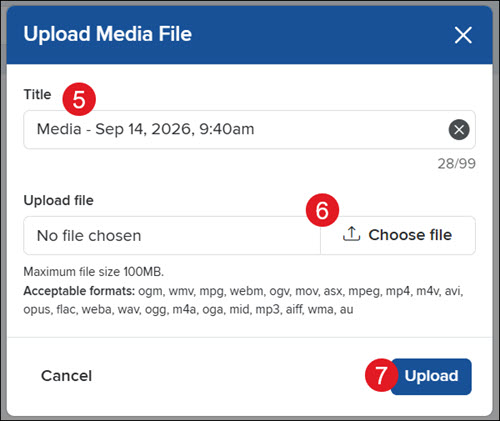
5. On the pop-up, enter a Title for the file.
6. Click the Choose file button and select the file you want to upload.
Maximum file size: 100 MB.
Acceptable formats: ogm, wmv, mpg, webm, ogv, mov, asx, mpeg, mp4, m4v, avi, opus, flac, weba, wav, ogg, m4a, oga, mid, mp3, aiff, wma, au
7. Click the Upload button.
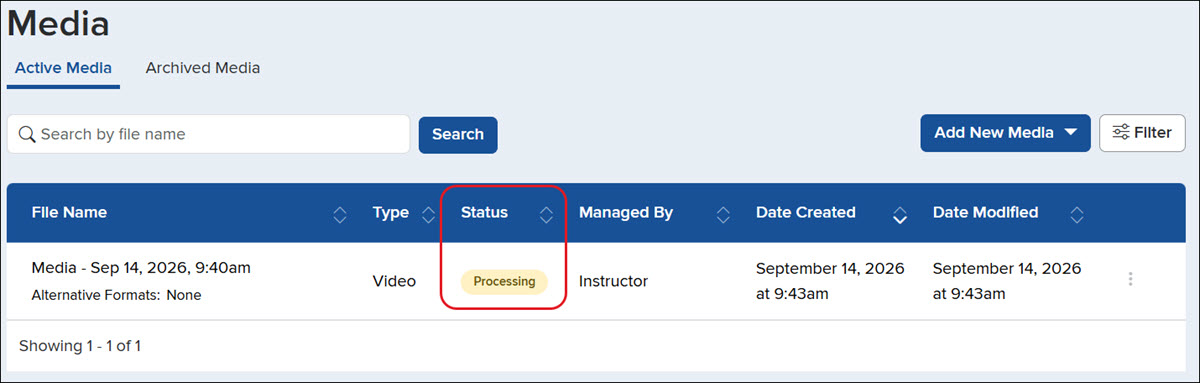
The Status will show as Pending until the media file has fully uploaded. The upload time will vary depending on file size.
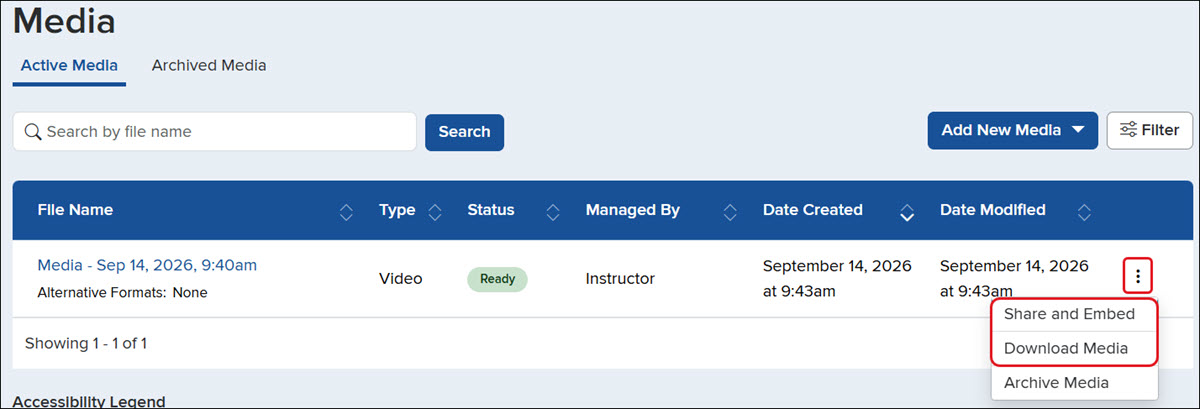
Once the file is ready, you can click on the Actions menu icon and get a Share and Embed code to add the media to assignments. You can also Download the media.
Archive Media Files
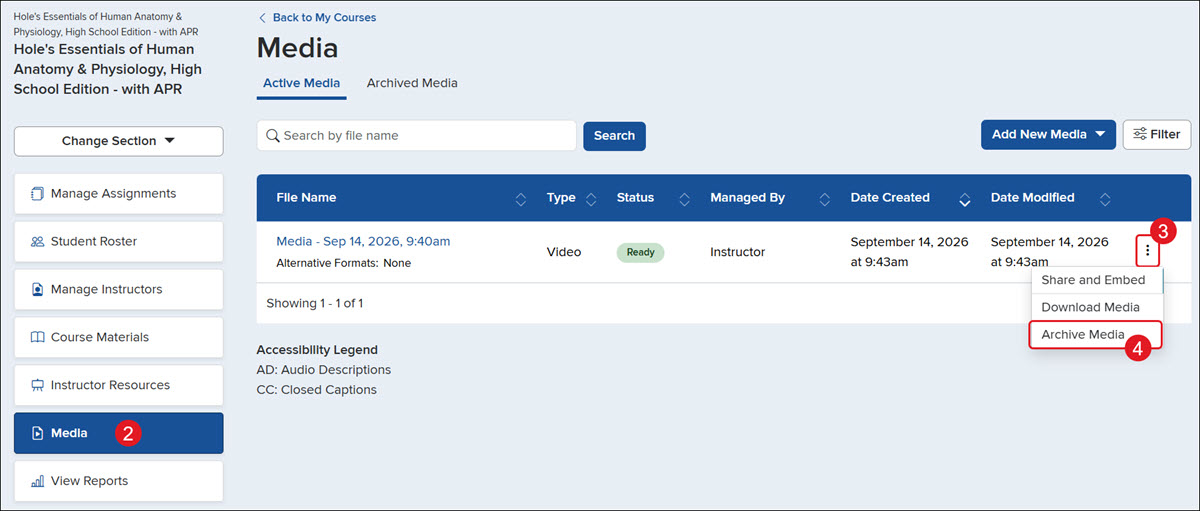
1. Click the Section name.
2. Click on Media from the left-hand menu.
3. Click the Actions icon to the right the file.
4. Click Archive Media from the menu.
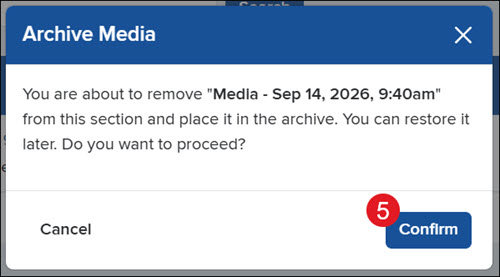
5. On the pop-up, click the Confirm button.
Archived files can be found under the Archived Media tab.
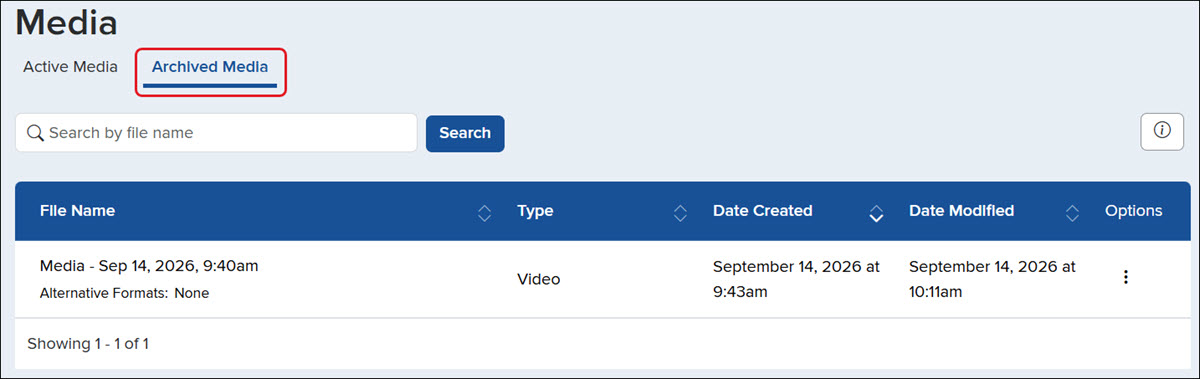
Click the Actions icon in the Options column to Restore Media.

