
Share K-12 Connect® Sections with Teachers
Share K‑12 Connect® sections to collaborate with other teachers.
- Customer Support
- PreK-12
- Classroom Teacher
- High School
- Direct Login & Auto-Rostering
- Direct Login & Manual-Rostering
- SSO & Auto-Rostering
- SSO & Manual-Rostering
- AP, Honors & Electives
- AP Connect
- Class Management
- Back-to-School Setup
- Getting Started & Orientation


Sharing a section lets you replicate it for other instructors while retaining control over assignment editing, due dates, and policies. Changes you make to your section will apply to the shared versions of that section. Changes made to the shared versions of the section will not affect the original.
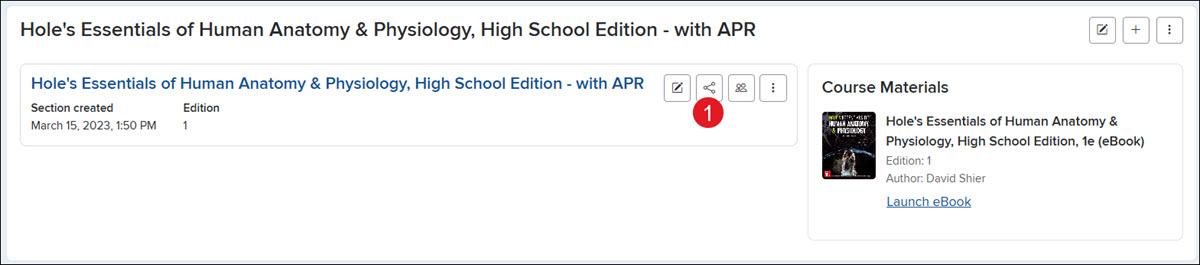
1. Click on the Share Section button on the section tile.
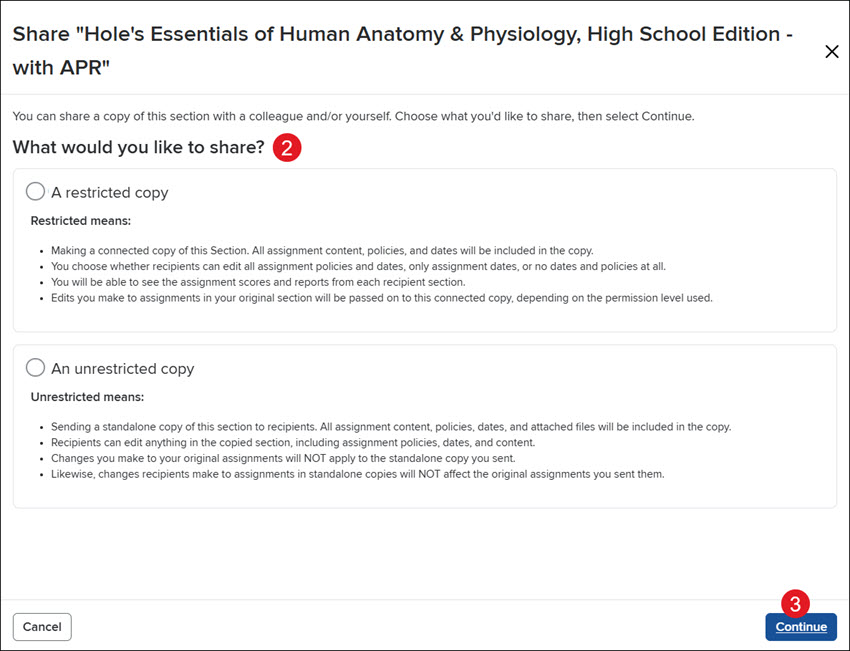
2. Select the radio button to share A restricted copy or An unrestricted copy of the section.
Restricted means:
- Making a connected copy of this Section. All assignment content, policies, and dates will be included in the copy.
- You choose whether recipients can edit all assignment policies and dates, only assignment dates, or no dates and policies at all.
- You will be able to see the assignment scores and reports from each recipient section.
- Edits you make to assignments in your original section will be passed on to this connected copy, depending on the permission level used.
Unrestricted means:
- Sending a standalone copy of this section to recipients. All assignment content, policies, dates, and attached files will be included in the copy.
- Recipients can edit anything in the copied section, including assignment policies, dates, and content.
- Changes you make to your original assignments will NOT apply to the standalone copy you sent.
- Likewise, changes recipients make to assignments in standalone copies will NOT affect the original assignments you sent them.
3. Click the Continue button.
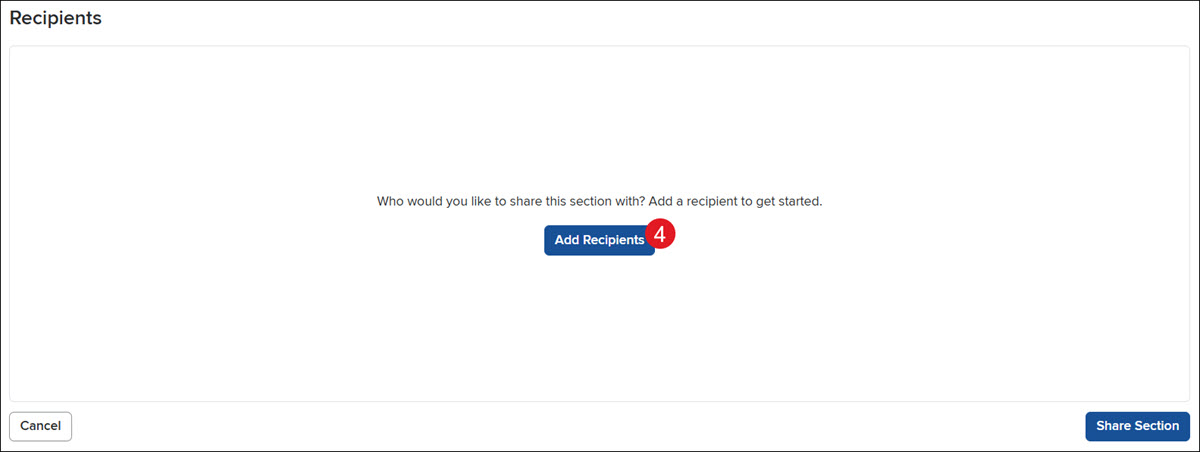
4. Click the Add Recipients button.
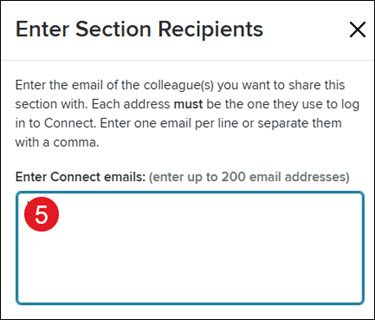
5. Enter the email address of the teacher(s) you want to share the section with.
Enter one email per line or separate them by commas. The email address added must be the one they use for their Connect account.
Note: You can only share sections with teachers that are associated with the same school in Connect.
6. Click the Continue button at the bottom.
A. An error message will show in the School column if the teacher you're trying to share with is not associated with the same Connect school.
B. Click the pencil icon to make changes to the school the teacher is associated with.
C. Select the number of section Copies you want to share with the teacher.
D. If Restricted was selected, select the preferred Instructor Permissions of Start and Due Dates Only, All policies, or No policies.
E. Click the Remove Instructor (trash can icon) button in the Actions column to delete the recipient.
F. Click the Add More Recipients button to share the section with additional teachers.

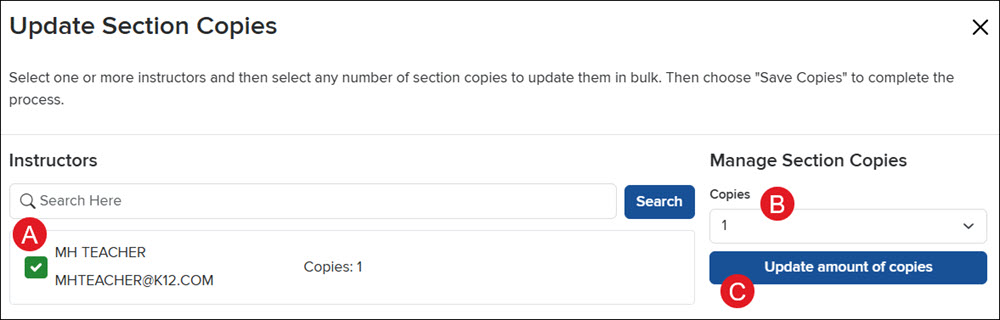
G. Click the Bulk Options button to Update copies, Update policy permissions, and/or Remove instructors.
For Update copies and Update policy permissions, checkmark the teacher(s) (A) and select the preferred option from the drop-down (B). Click the Update amount or Apply Permissions button (C), then click the Save button.
For Remove Instructors, checkmark the teacher(s) and click the Remove Instructors button.
7. Click the Share Section button once all preferred teachers and settings are set.
