
Reusing a K-12 Connect® Course or Section
Reuse an existing K-12 Connect® course section for a new class or term.
- AP Connect
- Getting Started & Orientation
- SSO & Manual-Rostering
- Customer Support
- Direct Login & Auto-Rostering
- Middle School
- Class Management
- Direct Login & Manual-Rostering
- High School
- AP, Honors & Electives
- Classroom Teacher
- SSO & Auto-Rostering
- PreK-12


We strongly recommend using a different section web address (URL) for each section and each semester. If you reuse a section web address (URL) from a previous semester, a student from the previous section may try to access their past grades and will instead register for the new semester.
Our recommendation is to copy (duplicate) your course for next term. This will copy the course and any sections (including all assignments), but it will not copy student data or grades from the previous term.
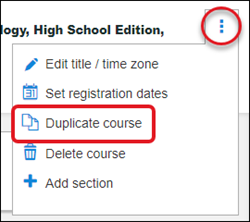
1. On the My courses page, locate the course you wish to copy. Click the Course options icon and select Duplicate course from the menu.
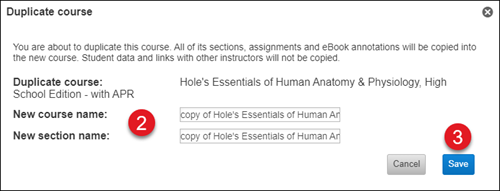
2. In the Duplicate course pop-up, enter the New course name and a New section name in the provided spaces.
3. Click the Save button.
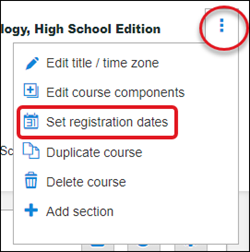
4. After the new course has been created, click on the Course options icon for the course. Click Set registration dates from the menu to update the registration dates for the course.
5. Open your new section to check the start/due dates of the assignments that were copied from the previous course.
Best Practices:
- You may find it helpful to use the course designation and term in the course name field (for example ACCT 201 Fall20) and section names that are easily distinguishable from each other (such as MFW 10-11am).
- To save time and ensure consistency in your sections, make course-wide edits to existing assignments, such as content changes or policy settings, before duplicating an existing section.
- Edit section-specific web addresses for the new term before providing students with the registration information.
- We recommend that you export student grades into an excel spreadsheet before deleting a course or section, in case you need to access the information again after the term ends.
