
K-12 Connect® Teacher Item Analysis Report
Discover how to analyze question‑level results using the Connect® Item Analysis Report.
- Customer Support
- PreK-12
- Classroom Teacher
- High School
- Direct Login & Auto-Rostering
- Direct Login & Manual-Rostering
- SSO & Auto-Rostering
- SSO & Manual-Rostering
- AP, Honors & Electives
- AP Connect
- Grades & Assignments
- Reports & Analytics


The item analysis report provides statistics on each question within a single assignment. Teachers will be able to view the section average score on each question within a single question bank assignment or compare multiple sections’ scores.
The item analysis report is the best way to get a bird’s-eye view of a single assignment. When you want to see what your class is struggling with on a particular assignment or quiz, this report will help by providing you with the average score for each individual question across all students’ attempts, the average of best scores, and the average of the most recent attempts on the question. Teachers will be able to tell if students are improving on the activity and concepts, if the concepts are something teachers want to spend additional time on in class, or address in a future assignment.
Article Contents
Access the Item Analysis Report
Access the Item Analysis Report
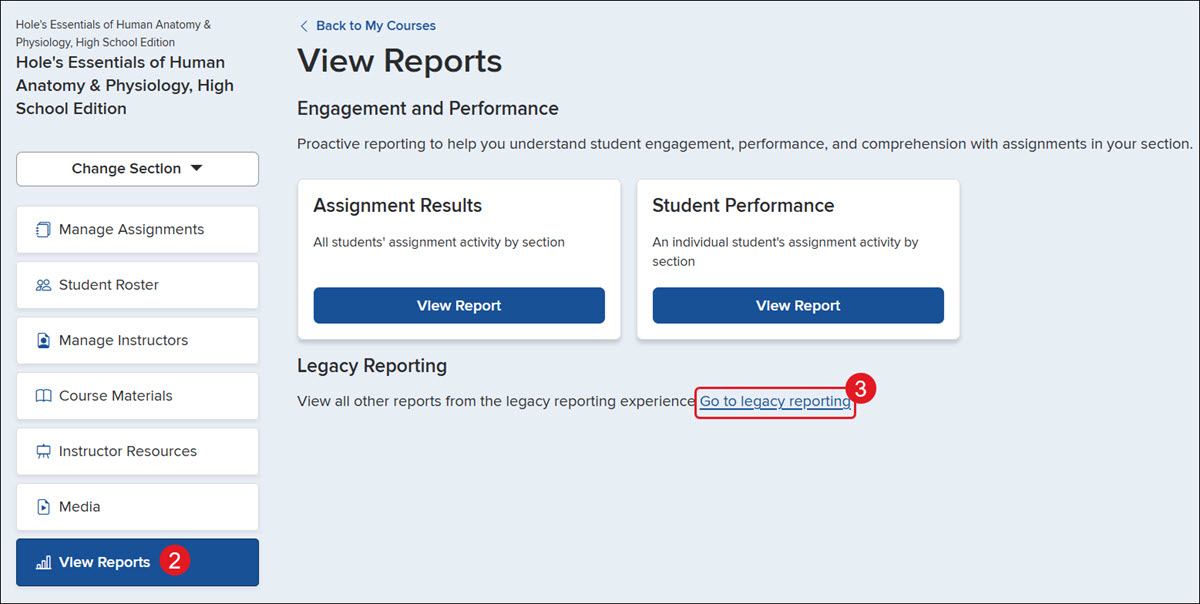
1. Click on the class name.
2. Click on View Reports from the navigation menu.
3. Click the Go to legacy reporting link.
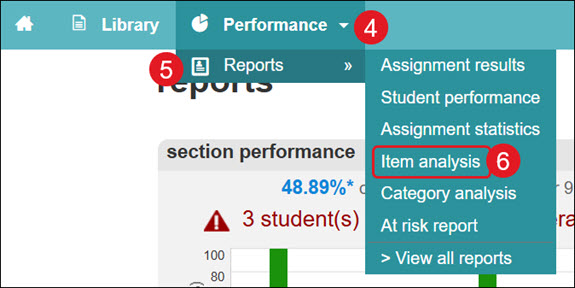
4. Click the Performance drop-down.
5. Hover over Reports.
6. Click on Item analysis from the menu.
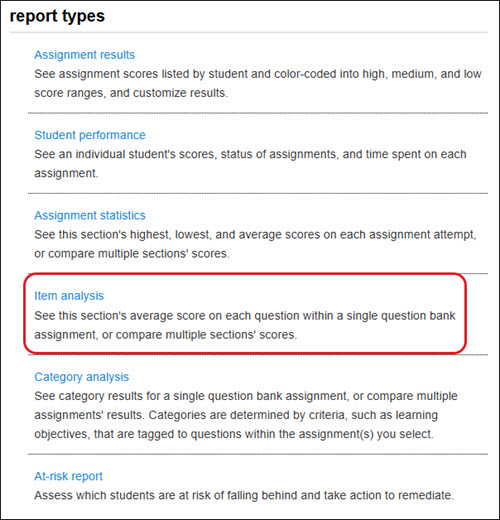
You can also click on Item analysis from the report types list at the bottom.
Select Report Filters
You can choose from a variety of options to customize the report to best fit your needs.
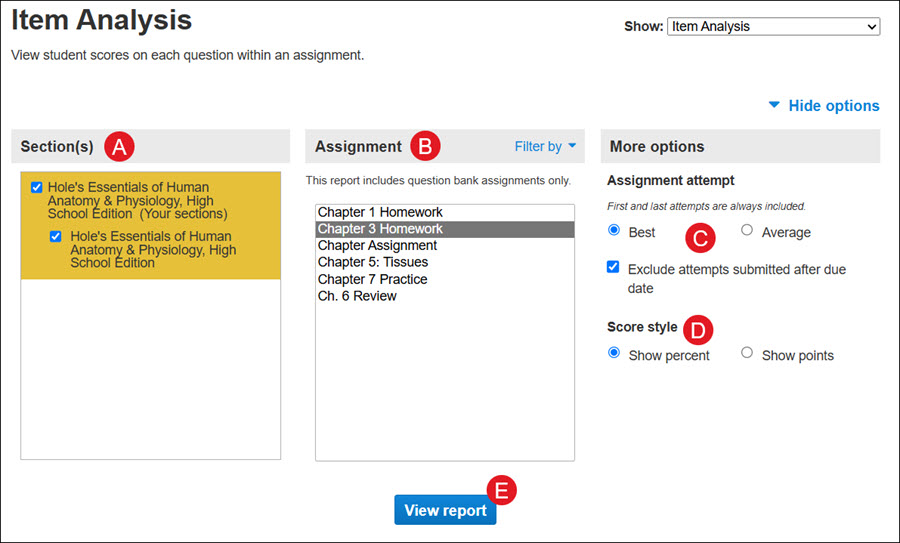
A. Select which Sections of your course will be on the report. Choose from the current section, sections within the same course, and secondary instructor’s shared sections, if applicable.
B. Select one Assignment to be displayed in the report. Your choice of sections determines the assignments listed here. Note that only question bank assignments can be used for this report.
C. Select the radio button to view the Assignment attempt of Best or Average score for the selected assignment. Uncheck the box next to Exclude attempts submitted after due date if you want to see submitted student scores after the assignment due date has passed.
D. Select the preferred Score style radio button to view the scores as a percentage or points.
E. Click the View report button to generate the report.
View Report
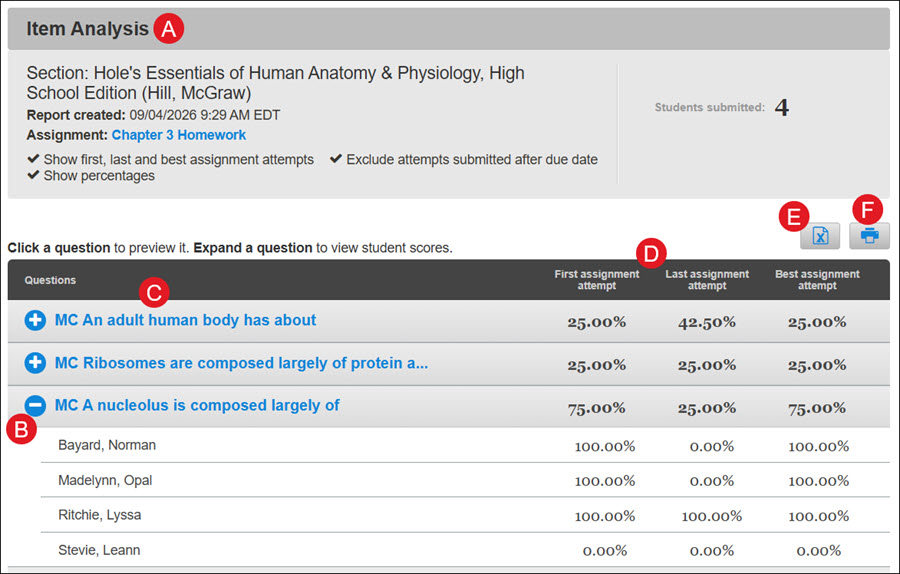
A. The Item Analysis section shows the selected Section, the Report created date, the selected Assignment, and the number of Students submitted.
B. Click the + (plus icon) next to each question to view the list of students and their individual scores/percentages for the question.
C. Click on the question to view a preview of it.
D. For each question, you will be able to see the First, Last, and Best assignment attempt for each student.
E. Click the export button to download an Excel file with all of the report details.
F. Click the print button to download/print a PDF version of the report.
