
Reset K-12 Connect® Password
Steps on how to reset you teacher or student Connect password.
- Customer Support
- PreK-12
- Classroom Teacher
- School Parent
- School Student
- High School
- Direct Login & Auto-Rostering
- Direct Login & Manual-Rostering
- SSO & Auto-Rostering
- SSO & Manual-Rostering
- AP, Honors & Electives
- Literacy
- Math
- Science
- Social Studies
- Health
- Visual & Performing Arts
- World Languages
- AP Connect
- Log-In & Passwords
- Account Management
- User Management


View the demo in a separate tab.
View the Spanish version of the demo.
Article Contents
Forgot Password
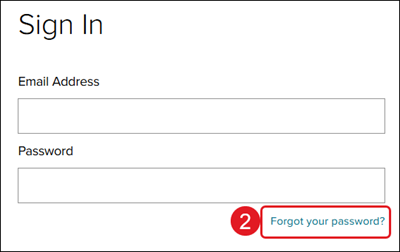
1. Navigate to the Connect log in page.
To ensure you are on the correct login page, verify you see the McGraw Hill Connect® icon at the top-left of the page.

2. Click the Forgot your password link.
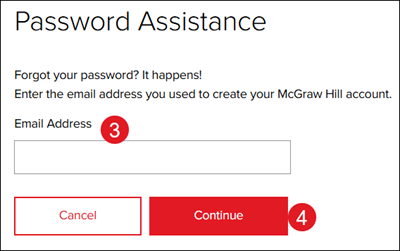
3. Enter your Email address.
4. Click the Continue button.
5. Click the link provided in the email that was sent to the email address you provided.
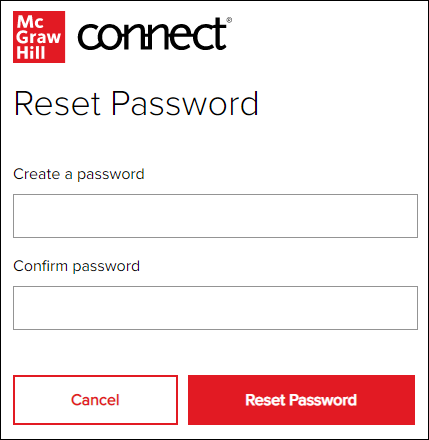
6. Enter a new password.
7. Confirm the new password.
8. Click the Reset Password button.
Change Current Password
1. Navigate to the Connect log in page.
2. Sign into your account with your existing username and password.
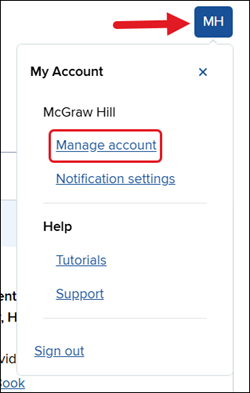
3. Click on your initials at the top-right of the page.
4. Click on Manage Account from the menu.
5. Click the Edit button.
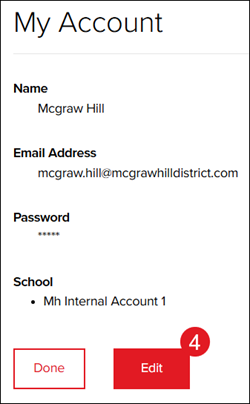
6. In the Security section, click on Edit to the right of Password.
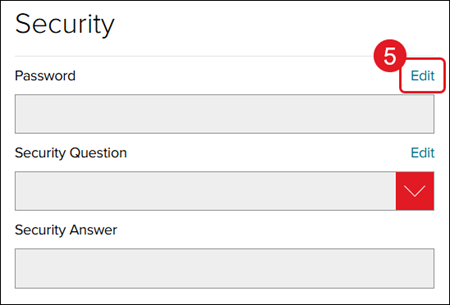
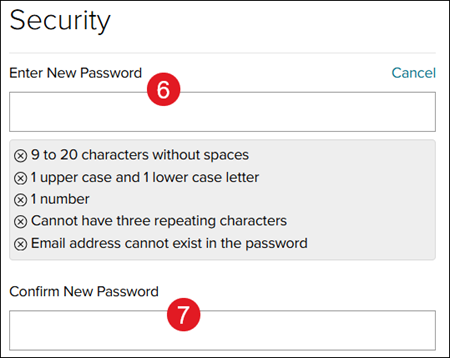
7. Enter a New Password.
8. Confirm the New Password.
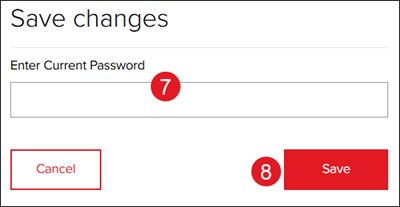
9. In the Save changes section, enter your current password (the one you used to sign in to your account).
10. Click the Save button.
Additional Support
If your email address is not found in the system or if you are unable to reset your password for any reason, and you're a K-12 student or teacher, please contact our Digital Technical Support team.
If you are a College/University student or instructor and are unable to sign in to your account, please contact our Higher Education Support team.
Additional Articles
K-12 Connect® Frequently Asked Questions (FAQ)
Access Your K-12 Connect® Account
