Create K-12 Connect® Question Bank Assignments
Build an assignment from various sources and question types, while incorporating your choice of settings and proctoring options.
- Customer Support
- PreK-12
- Classroom Teacher
- High School
- Direct Login & Auto-Rostering
- Direct Login & Manual-Rostering
- SSO & Auto-Rostering
- SSO & Manual-Rostering
- AP, Honors & Electives
- AP Connect
- Grades & Assignments


Article Contents
Create a New Assignment
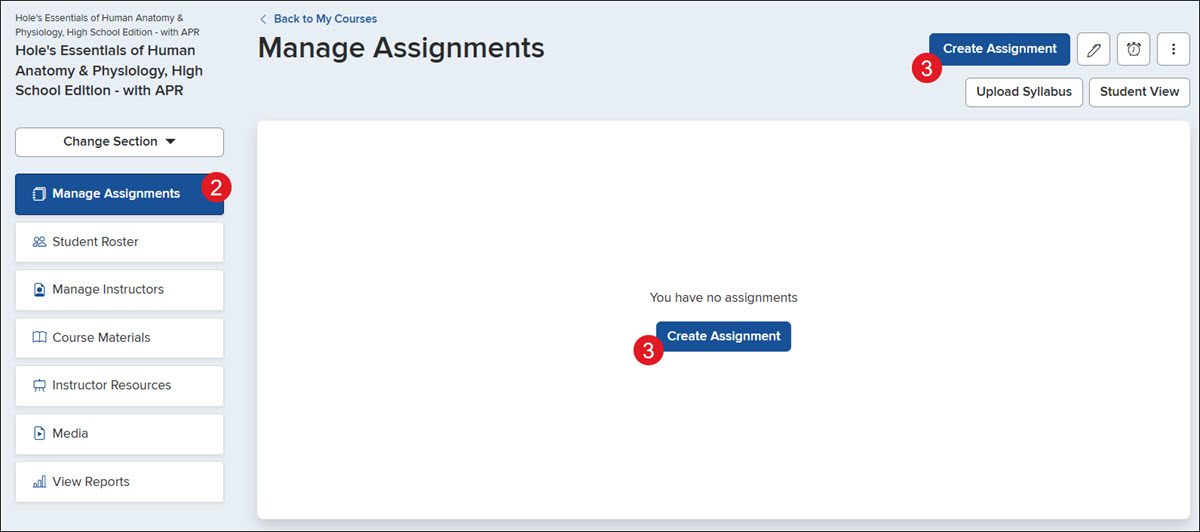
1. Click on the Section name.
2. Click Manage Assignments from the left-hand menu.
3. Click the Create Assignment button.
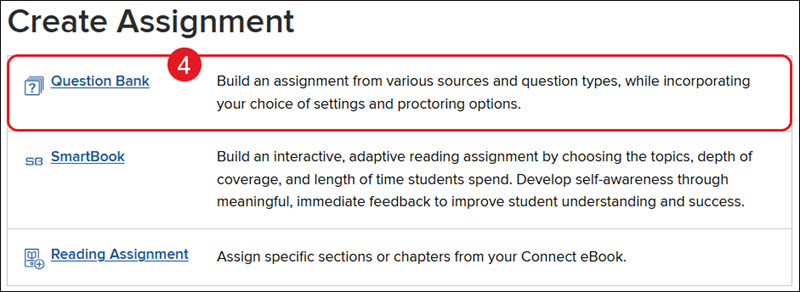
4. Click on the Question Bank link.
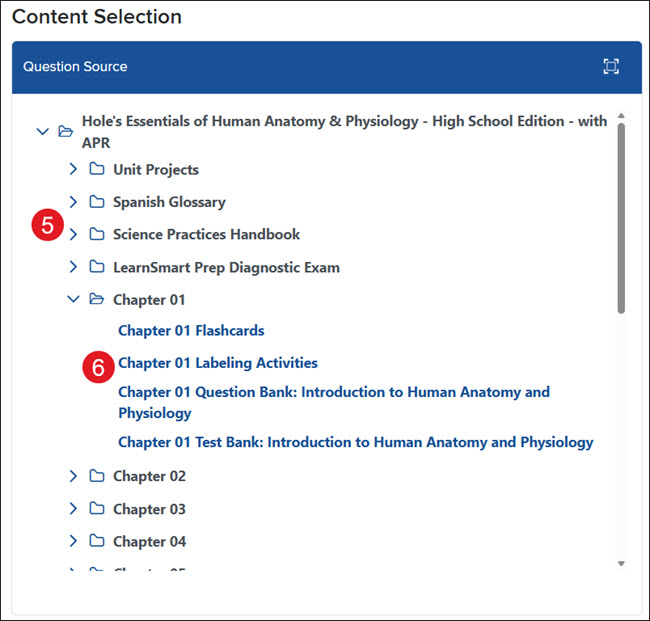
5. In the Question Source box, click on a folder to expand the section.
6. Click on a section to view the question bank.
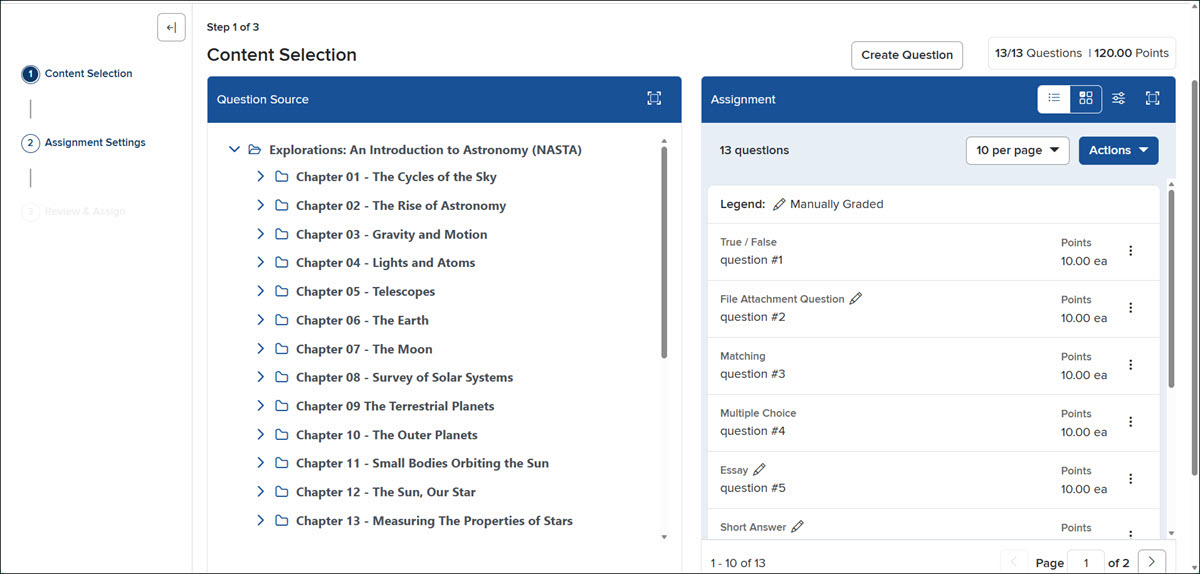
7. Click the + button (plus icon) for the question you want to add.
Note: Clicking the plus button multiple times does add the question multiple times to the assignment.
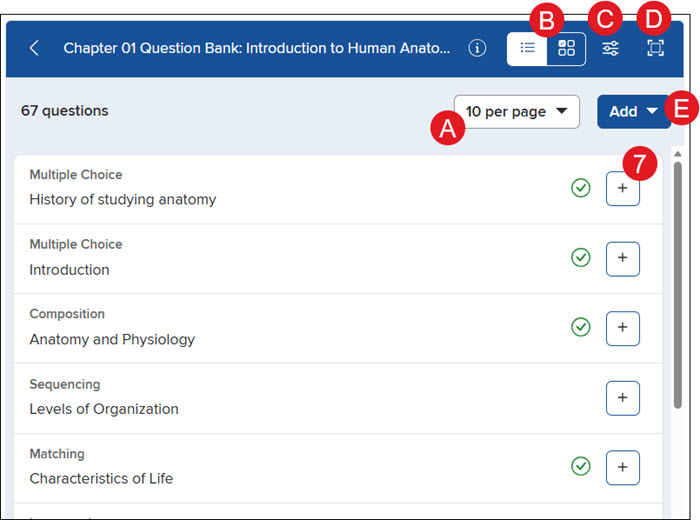
A. Click the per page drop-down to view questions by 10, 20, 50, or 100 at a time.
B. Toggle the question list between List View and Question Preview.
C. Click the Filter icon to view a certain question type only.
D. Click the Expand button to make the Content Selection or Assignment box full screen.
E. Click the Add drop-down to Add questions, Add to new pool, Add to existing pool, or Add random questions.
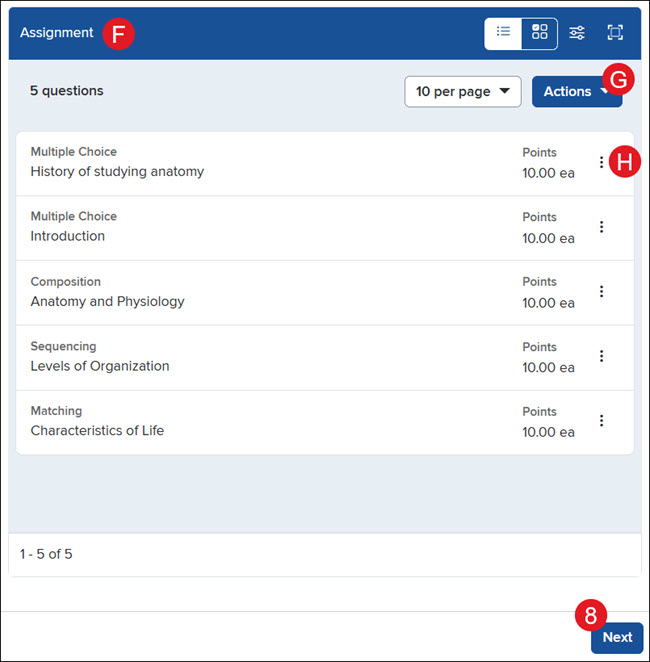
F. The selected questions will show in the Assignment box to the right.
G. Click the Actions button to Set points, Arrange questions, Merge pools, Remove questions.
H. Click the Actions menu icon on an individual question or pool to configure the pool, move a question into a pool, move its location within the list, or remove the question.
8. Click the Next button.
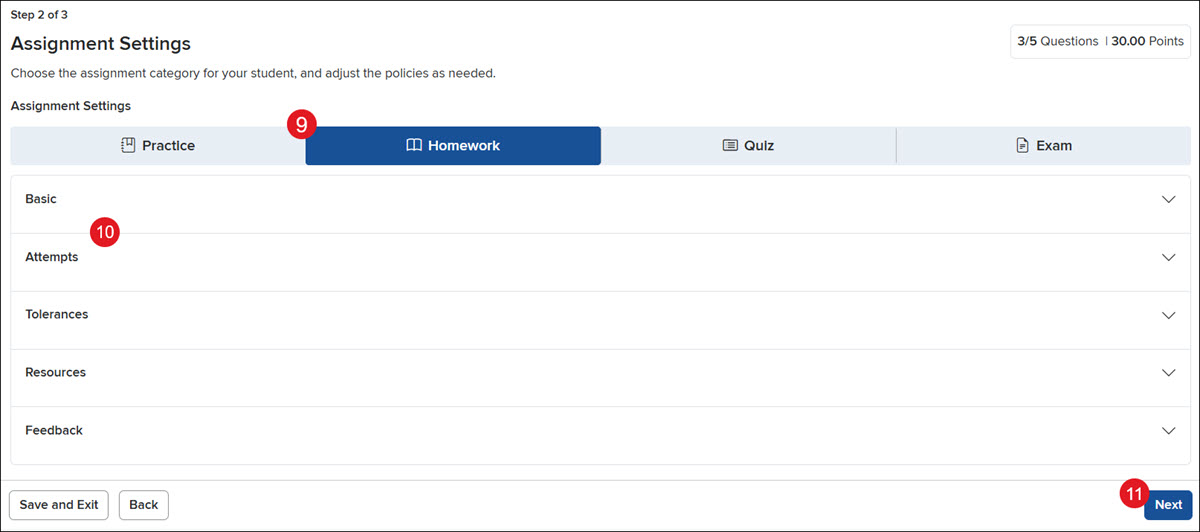
9. Select whether the assignment is going to be for Practice, Homework, a Quiz, or an Exam.
10. Select the preferred Assignment Settings for each section: Basic, Attempts, Tolerances, Resources, and Feedback.
11. Click the Next button.
12. Enter an Assignment Name.
13. Add any Instructions for the students. This is optional.
14. Enter a Start Date and/or Time and a Due Date and Time. These are optional.
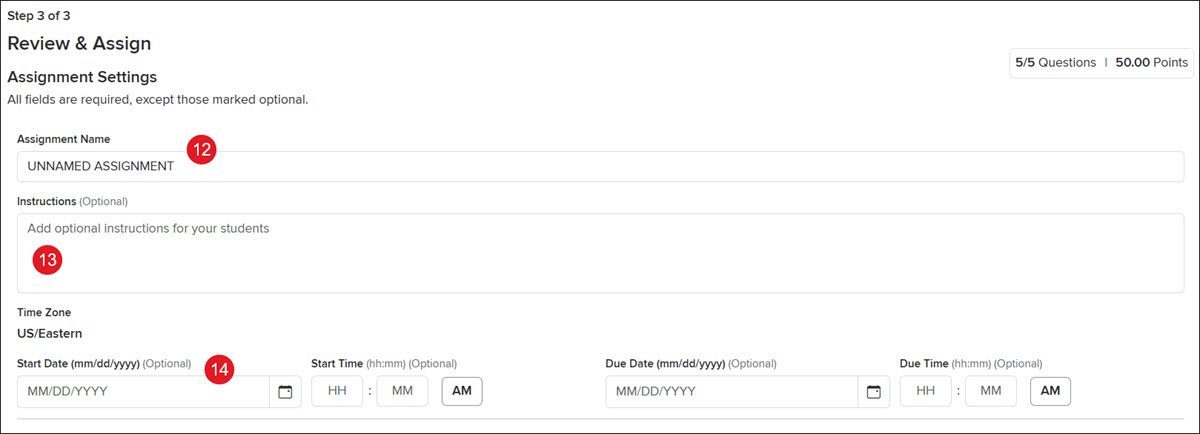
The selected Assignment Settings will be shown below.
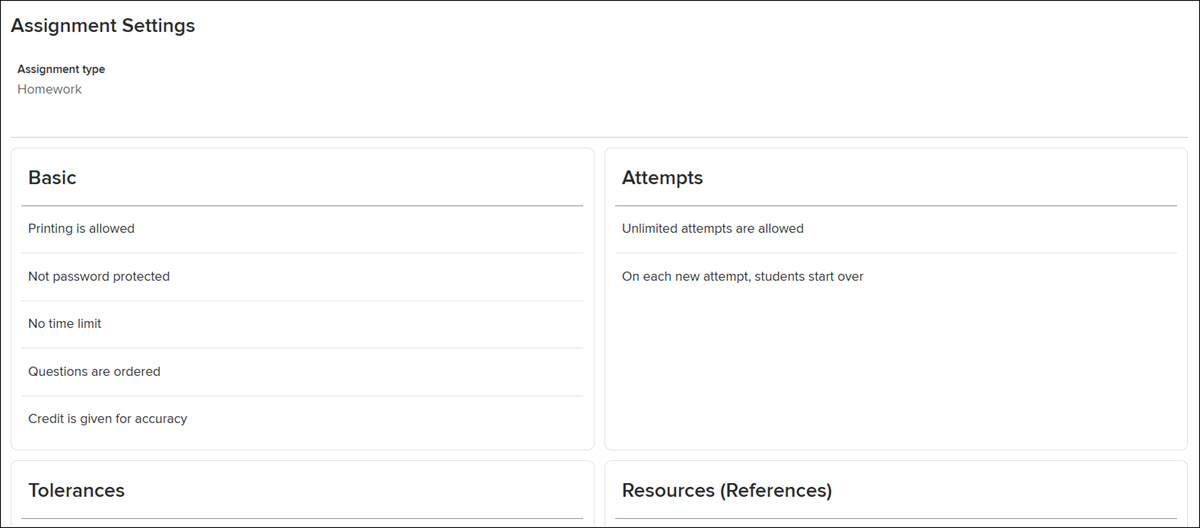
15. Click the Assign button at the bottom.
Create a Question Pool
Create a pool that will draw questions from each student's assignment so that each student receives a different set of questions for an assignment. Section break and survey-type questions cannot be added to a pool.
1. Click on the Section name.
2. Click Manage Assignments from the left-hand menu.
3. Click the Create Assignment button.
4. Click on the Question Bank link.
5. In the Question Source box, click on a folder to expand the section.
6. Click on a section to view the question bank.
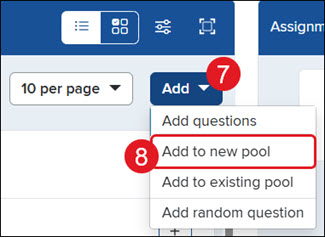
7. Click the Add drop-down.
8. Click Add to new pool from the menu.
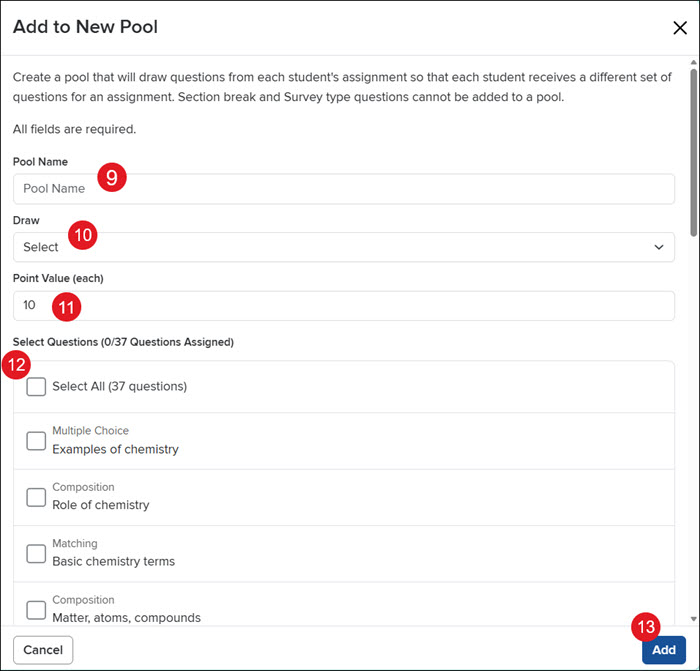
9. Enter a Pool Name.
10. Select the Draw number from the drop-down.
Note: This number must match the number of questions you will select.
11. Enter the Point Value for each question.
12. Select Questions from the list to include in the pool.
13. Click the Add button.
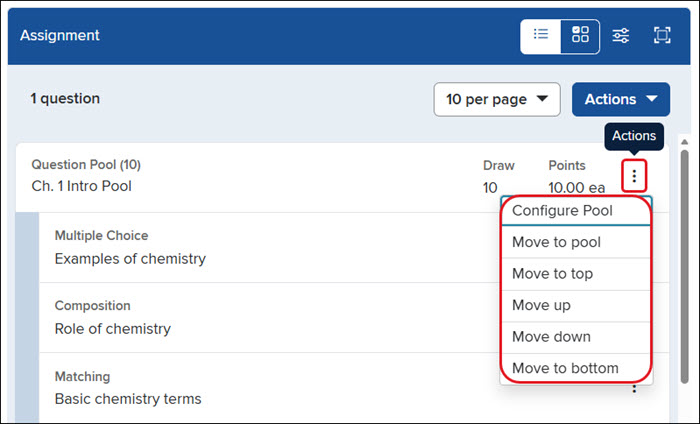
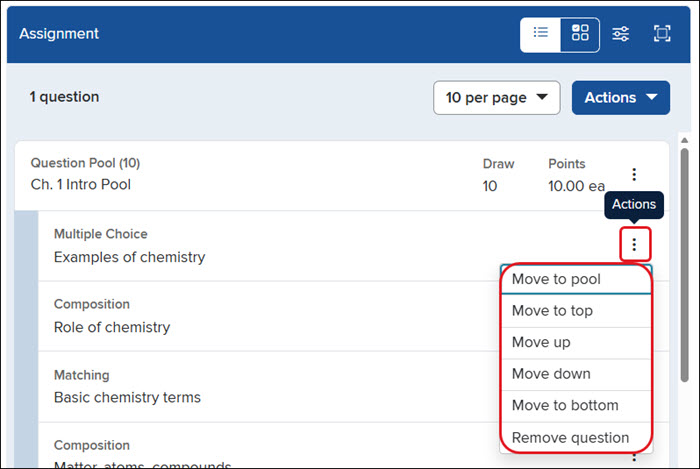
The pooled questions will show in the Assignment box.
Click the Actions icon to the right of the pool to configure the pool or move its location within the list of questions.
Click the Actions icon to the right of an individual question to move it to a different pool, move its location within the list, or remove the question.
14. Click the Next button.
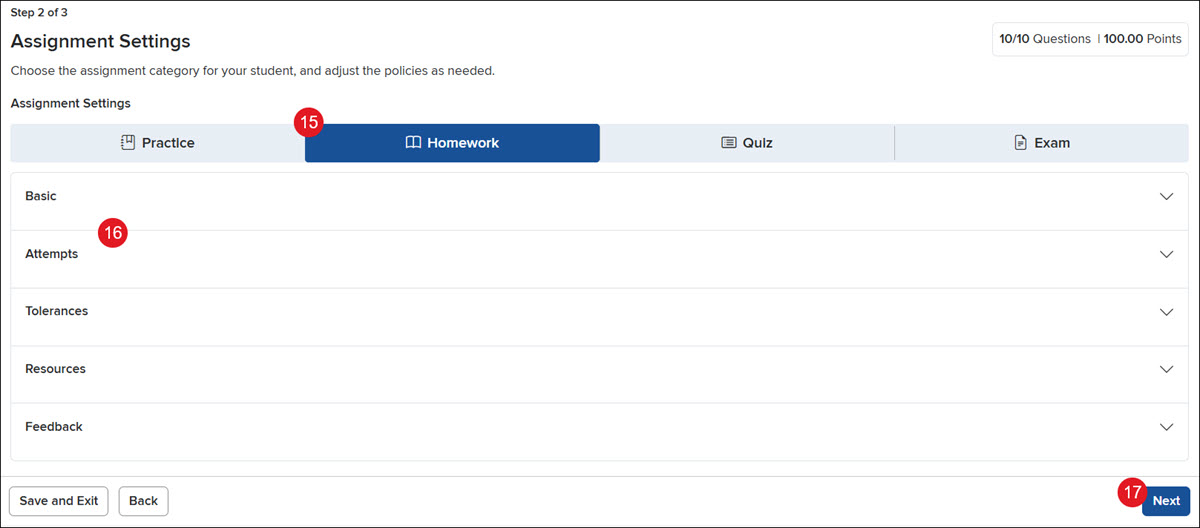
15. Select whether the assignment is going to be for Practice, Homework, a Quiz, or an Exam.
16. Select the preferred Assignment Settings for each section: Basic, Attempts, Tolerances, Resources, and Feedback.
17. Click the Next button.
18. Enter an Assignment Name.
19. Add any Instructions for the students. This is optional.
20. Enter a Start Date and/or Time and a Due Date and Time. These are optional.
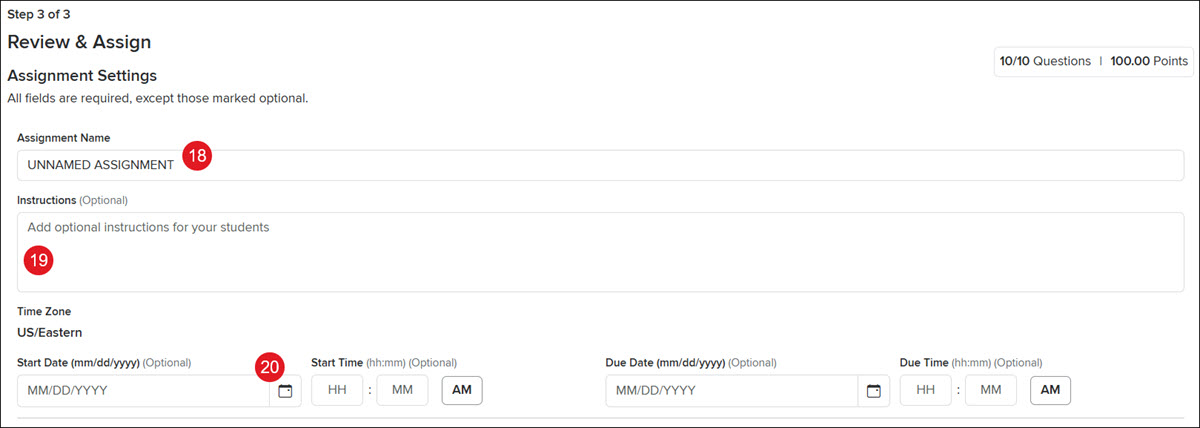
The selected Assignment Settings will be shown below.
21. Click the Assign button at the bottom.
Create a New Question
1. Click on the Section name.
2. Click Manage Assignments from the left-hand menu.
3. Click the Create Assignment button.
4. Click on the Question Bank link.
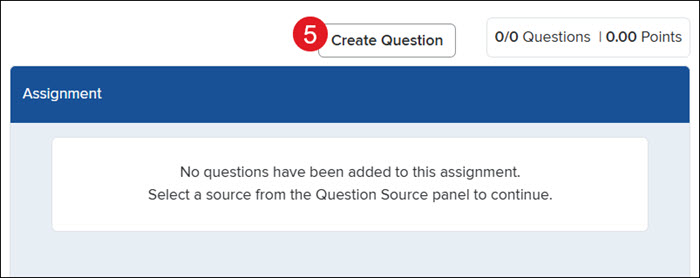
5. Click the Create Question button.
6. On the pop-up, select the radio button for the question type.
7. Click the Continue button.
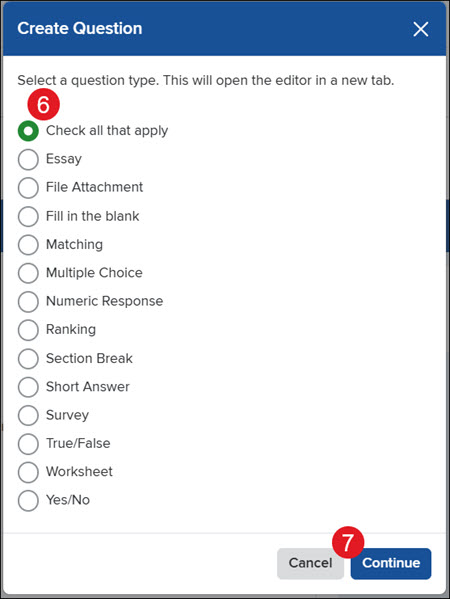
The question editor will open in a new browser tab.
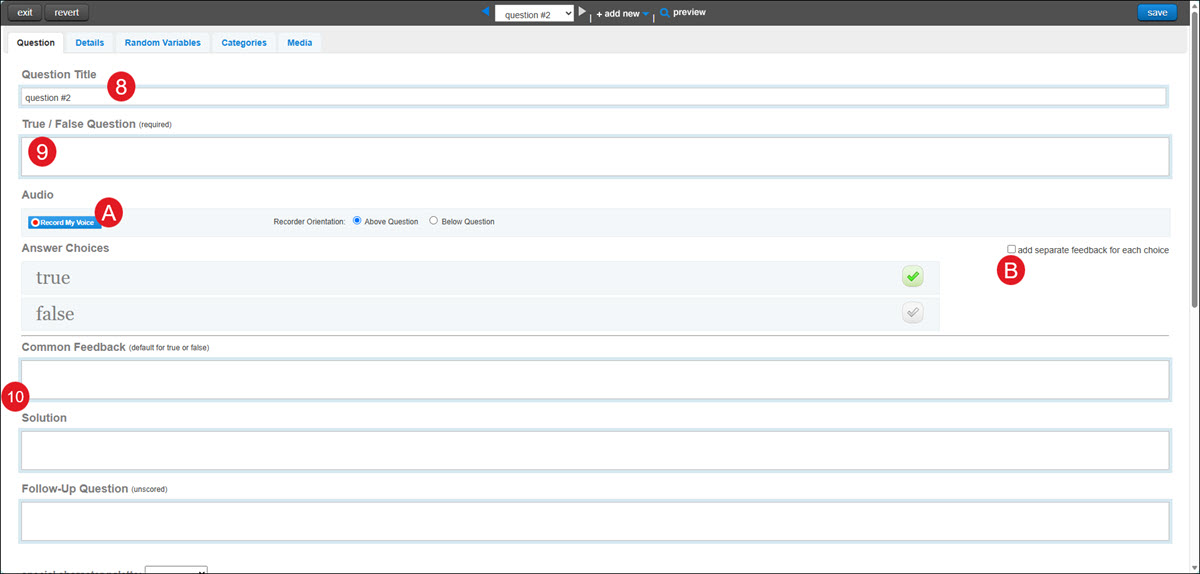
8. On the Question tab, enter a Question Title.
9. Enter the Question.
10. Enter the answer choices, feedback, hints, etc. These sections will vary based on the question type you selected.
A. Click the Record My Voice button to enter an audio file for the question.
B. Check the box to add separate feedback for each answer choice. This option is only available for certain question types.
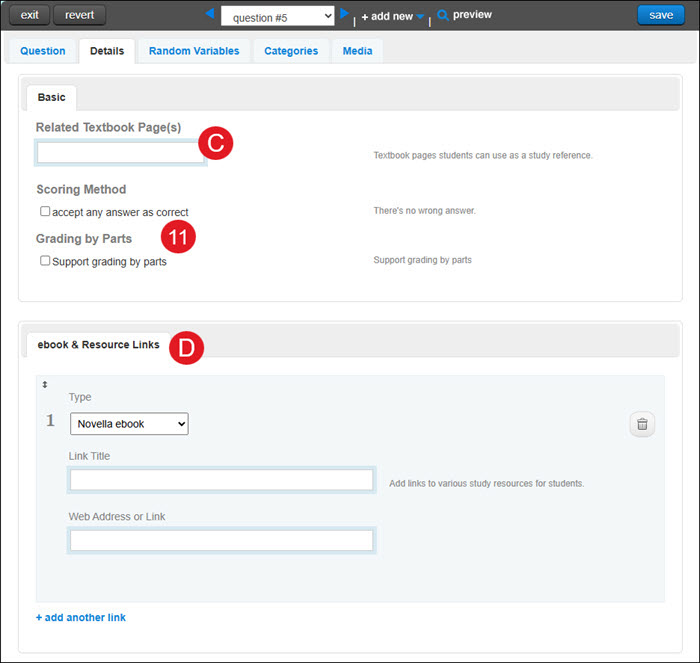
C. On the Details tab, enter any Related Textbook Page(s) students should reference for the question.
11. Select the Grading/Scoring Method/Grading by Parts option(s) you want for the question. These options are only available for certain question types.
D. Select any ebook & Resource Links for students to use as study resources.
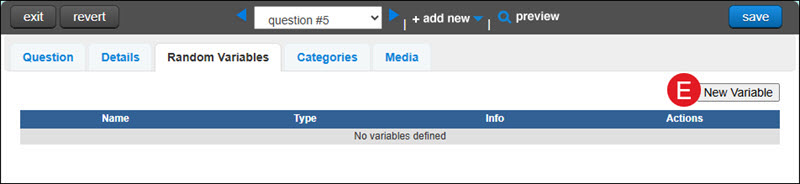
E. On the Random Variables tab, click the New Variable button to add the type and information for it.
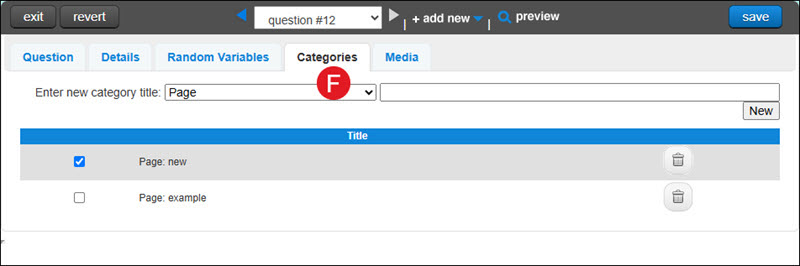
F. On the Categories tab, you can select a new category title from the drop-down and enter a category title.
- Click the New button to add the category.
- Checkmark the ones you want attached to the question.
- Click the trash can icon to remove any categories you no longer want.
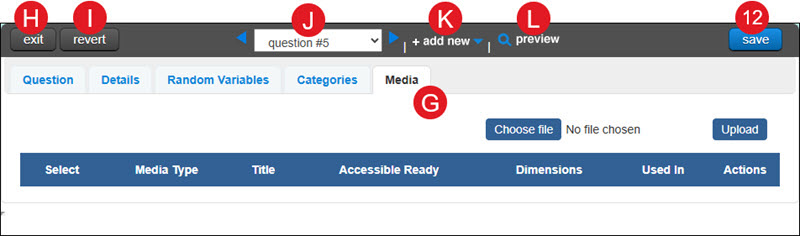
G. On the Media tab, you can add different videos, images, and recording files and attach them to the question for students to watch and/or listen to.
H. Click the Exit button to close the Question Editor tab.
I. Click the Revert button to put the question back to its original state.
J. Click the back-and-forth arrows or select a question from the drop-down to move between the questions that you have attached to the assignment.
K. Click the + add new drop-down to add additional custom questions to the assignment.
L. Click the preview button to see the question as the students will see it on the assignment.
12. Click the Save button.
The new question will automatically be added to the assignment.