Edit a K-12 Connect® Course or Section Details
Edit course or section details in Connect®, including names, dates, and settings.
- Customer Support
- PreK-12
- Classroom Teacher
- High School
- Direct Login & Auto-Rostering
- Direct Login & Manual-Rostering
- SSO & Auto-Rostering
- SSO & Manual-Rostering
- AP, Honors & Electives
- AP Connect
- Class Management
- Getting Started & Orientation
- Back-to-School Setup


View the demo in a separate tab.
View the Spanish version of the demo.
Article Contents
Edit Course Details
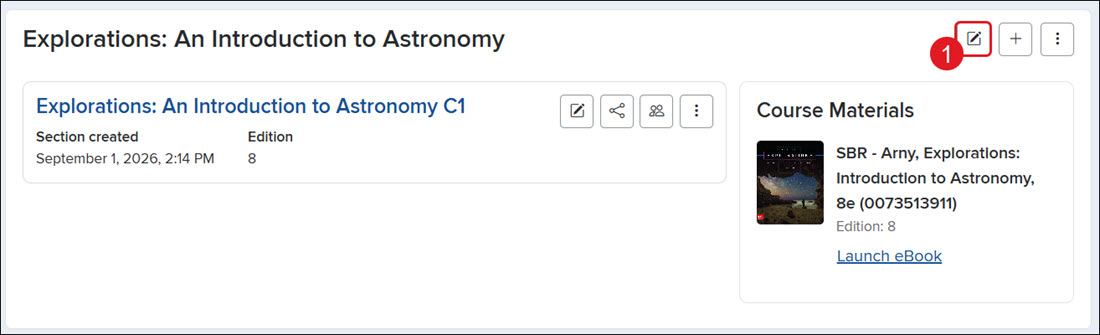
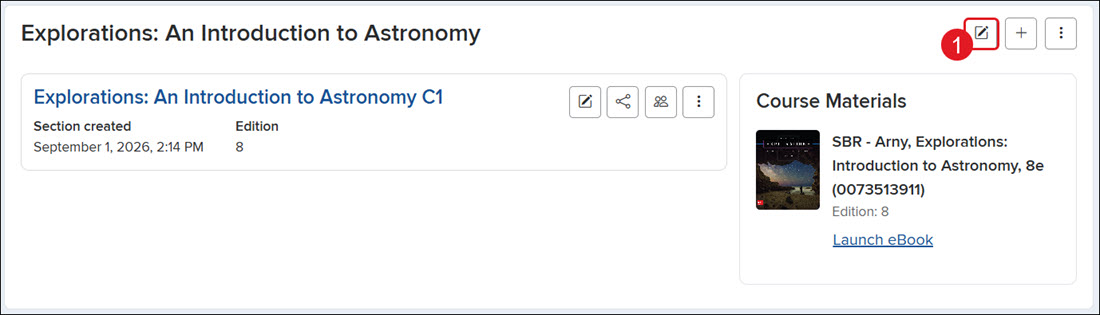
1. On your My Courses page, click the Edit Course Details button (pencil icon).
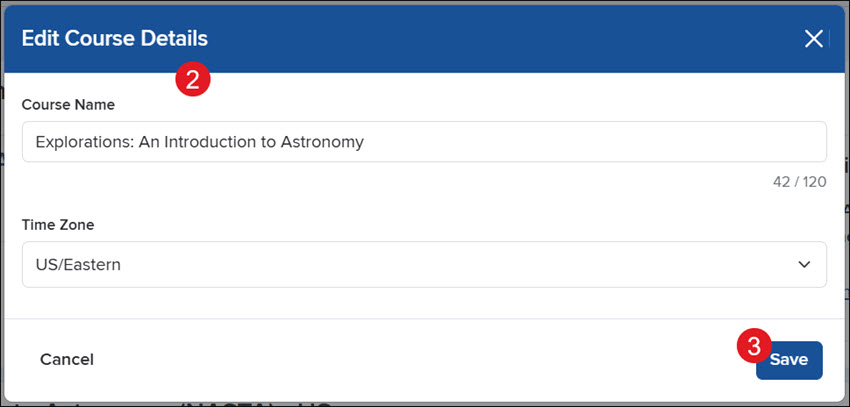
2. On the Edit Course Details pop-up, make your preferred changes to the Course Name and/or Time Zone.
3. Click the Save button.
Set Registration Dates
If registration dates are set for a section, this means that students can only register for that class between those set dates.
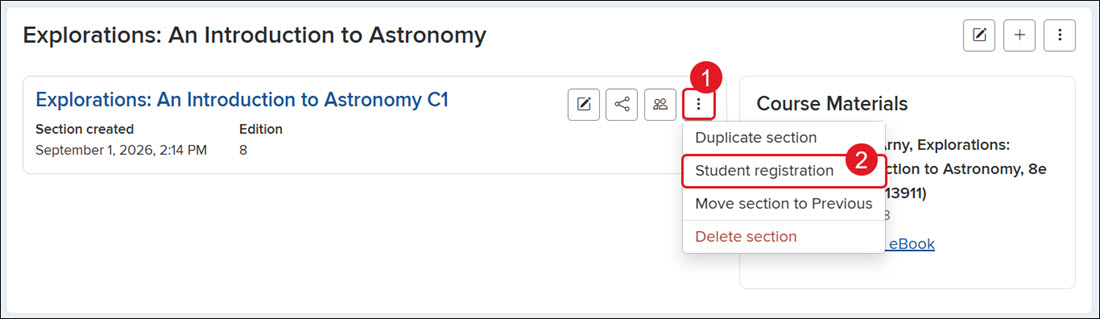
1. On the Section tile, click the Options button.
2. Click on Student registration from the menu.
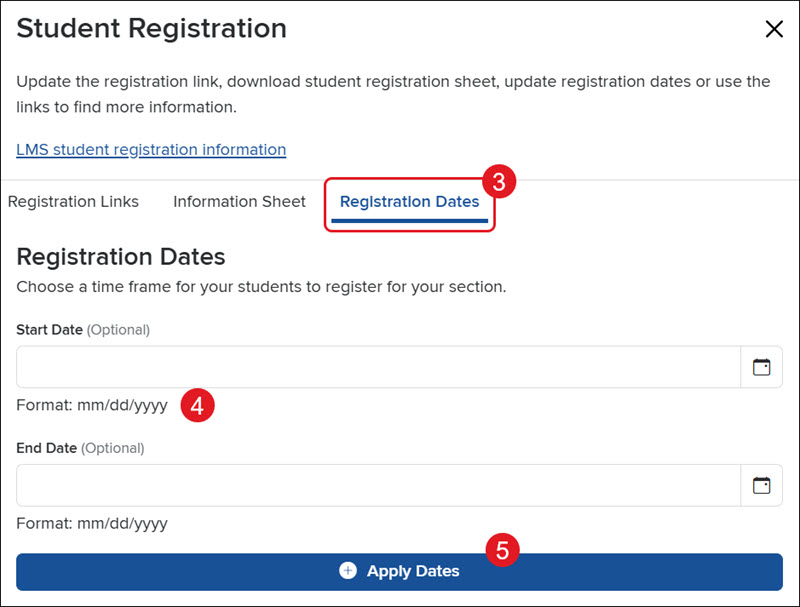
3. On the Student Registration panel, click the Registration Dates tab.
4. Enter a Start and End Date.
5. Click the Apply Dates button.
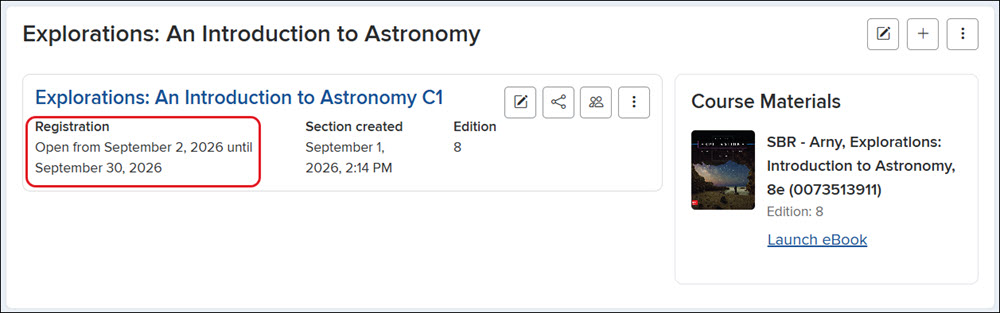
The dates can be seen on the Section tile on the My Courses page.
Edit Section Details
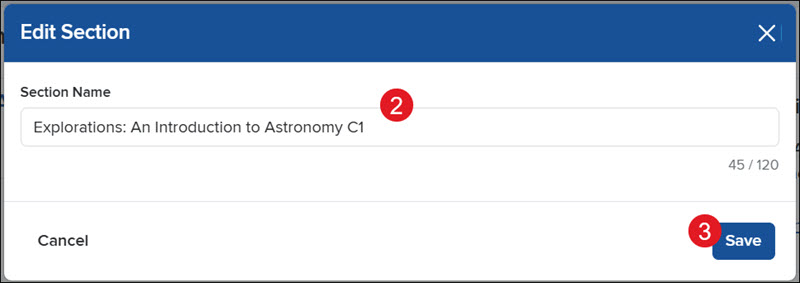
1. On the Section tile, click the Edit Section button (pencil icon).
2. On the Edit Section pop-up, enter a new Section Name.
3. Click the Save button.