
K-12 Connect® Teacher Category Analysis Report
Use the Connect® category analysis report to evaluate student performance by category or learning objective.
- Customer Support
- PreK-12
- Classroom Teacher
- High School
- Direct Login & Auto-Rostering
- Direct Login & Manual-Rostering
- SSO & Auto-Rostering
- SSO & Manual-Rostering
- AP, Honors & Electives
- AP Connect
- Grades & Assignments
- Reports & Analytics


See category results for a single question bank assignment, or compare multiple assignments' results. Categories are determined by criteria, such as learning objectives, that are tagged to questions within the assignment(s) you select.
Article Contents
Access the Category Analysis Report
Access the Category Analysis Report
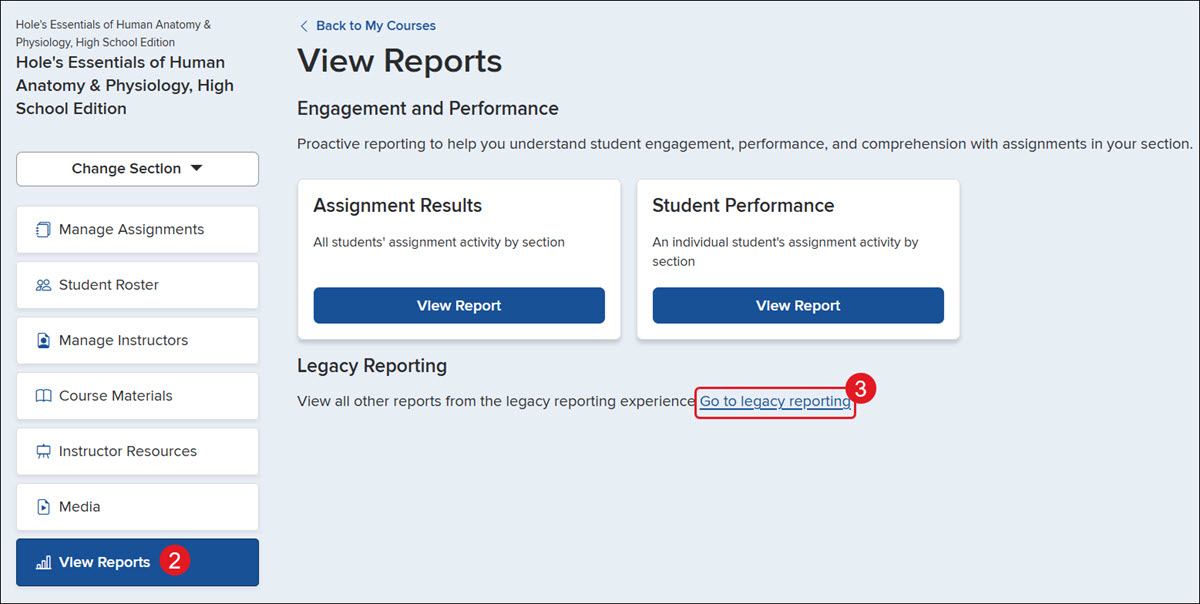
1. Click on the class name.
2. Click on View Reports from the navigation menu.
3. Click the Go to legacy reporting link.
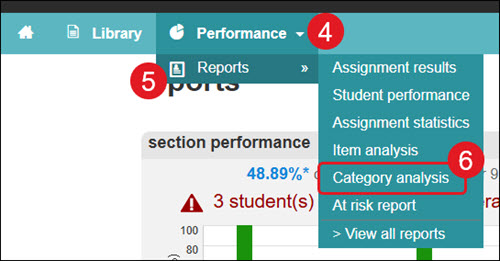
4. Click the Performance drop-down.
5. Hover over Reports.
6. Click on Category analysis from the menu.
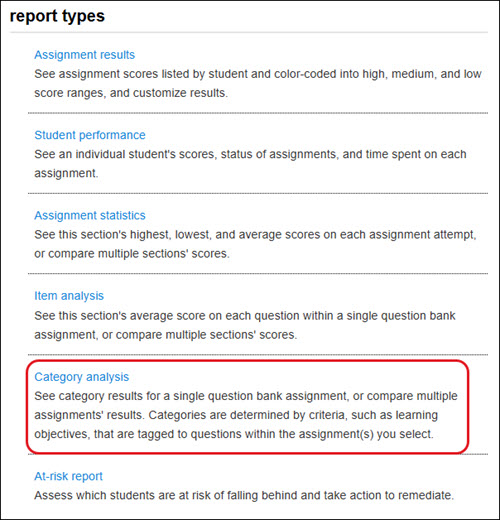
You can also click on Category analysis from the report types list at the bottom.
Select Report Filters
There are a variety of options from which you can choose to customize the report to best fit your needs.
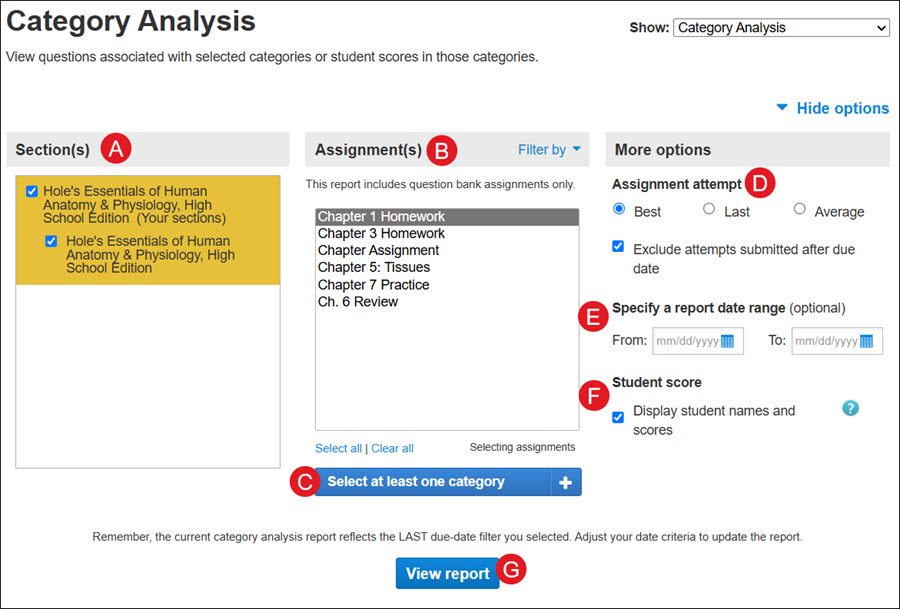
A. Select which Sections of your course will be on the report. Choose from the current section, sections within the same course, and secondary instructor’s shared sections (if applicable).
B. Select which Assignments will be on the report. You can filter assignments by type and select or deselect multiple assignments by using the CTRL or Command keys while clicking assignment names.
C. Select at least one category to use to evaluate students' performance. These categories vary based on what section and assignments you choose. A category or category group is only available when a selected assignment contains a question with content related to this category or group.
D. Specify how the student assignment score is calculated and displayed when your students are allowed multiple Assignment attempts. Uncheck the box next to Exclude attempts submitted after due date if you want to see submitted student scores after the assignment due date has passed.
E. Specify a report date range by selecting a From and To date using the calendar icon. If you don’t see any scores when you click “View report,” ensure the date range is wide enough to encompass the assignments you wish to view or the entire term.
F. Choose whether you want to view Student scores. You can only select one Assignment from the list if you want to check this option.
G. Click the View report button to run the report based on the filters selected.
View Report
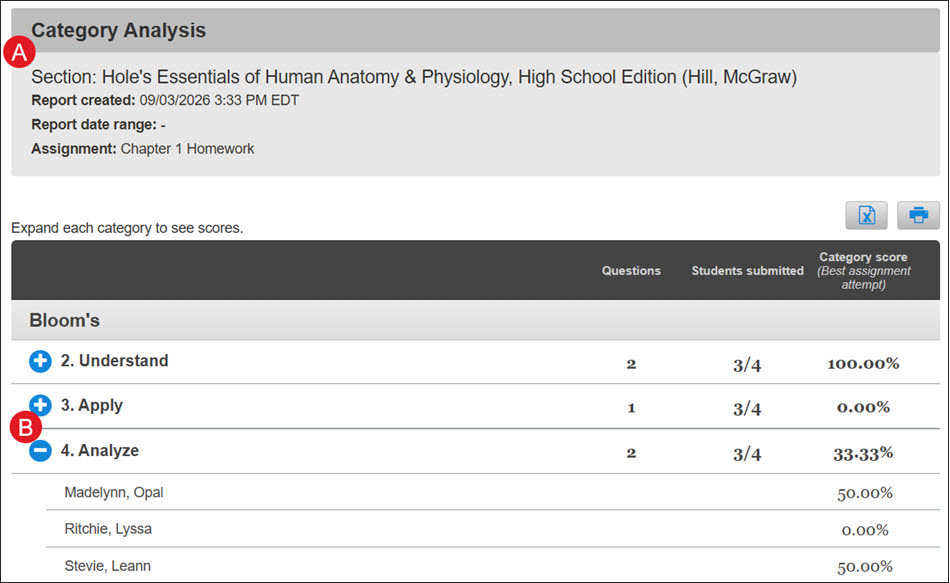
A. The Category Analysis provides the date and time of report creation, the report date range (if selected), and the selected Assignment(s).
B. Click the + (plus icon) next to each section to view the details.
If you only selected one Assignment and checked the box next to Student score, you will see the students listed with the score for each row.
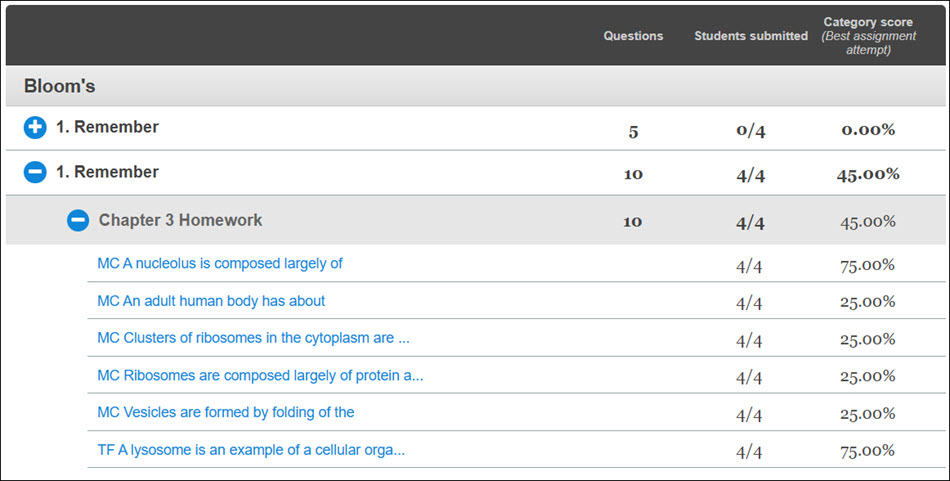
If you selected more than one Assignment, you will see the Assignment name and each associated question. Click the question to preview the question and answer.
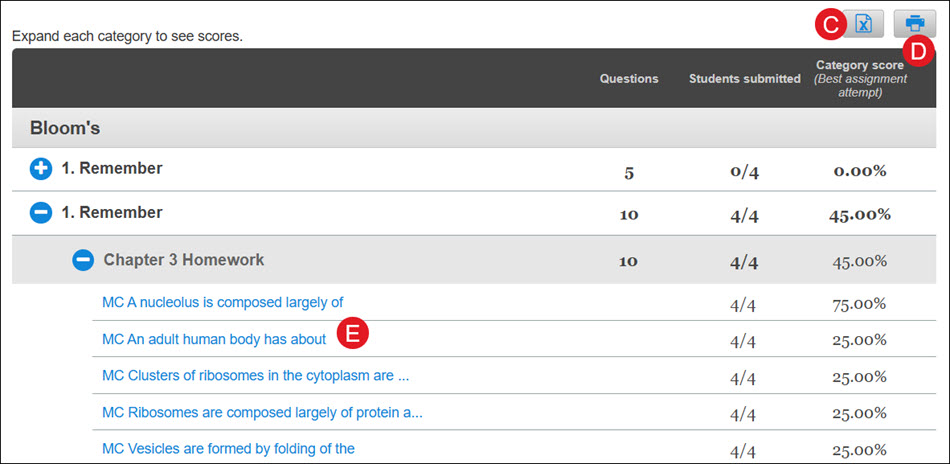
C. Click the export button to download an Excel file with all of the report details.
D. Click the print button to download/print a PDF version of the report.
E. For multiple assignment are selected, click on a question to view the question in another browser window.
Measured Improvement
The Category Analysis report is the place to go to find out how your students are performing relative to specific learning objectives and goals. Run customized reports on the content in your assignments to determine performance across aspects like learning objectives, difficulty levels, Bloom’s taxonomy categories, and even your own criteria if you’ve taken the time to edit questions in your assignments with individual learning objectives for your course.
It’s an easy way to see how your students performed overall in a category for a particular assignment or across all your assignments. You can even run the report at different times during the semester to see if there’s an improvement over the duration of your course.
