View the K-12 Connect® Assignment Statistics Report
Analyze assignment statistics reports in Connect® to review completion rates, scores, and performance trends.
- Customer Support
- PreK-12
- Classroom Teacher
- High School
- Direct Login & Auto-Rostering
- Direct Login & Manual-Rostering
- SSO & Auto-Rostering
- SSO & Manual-Rostering
- AP, Honors & Electives
- AP Connect
- Grades & Assignments
- Reports & Analytics


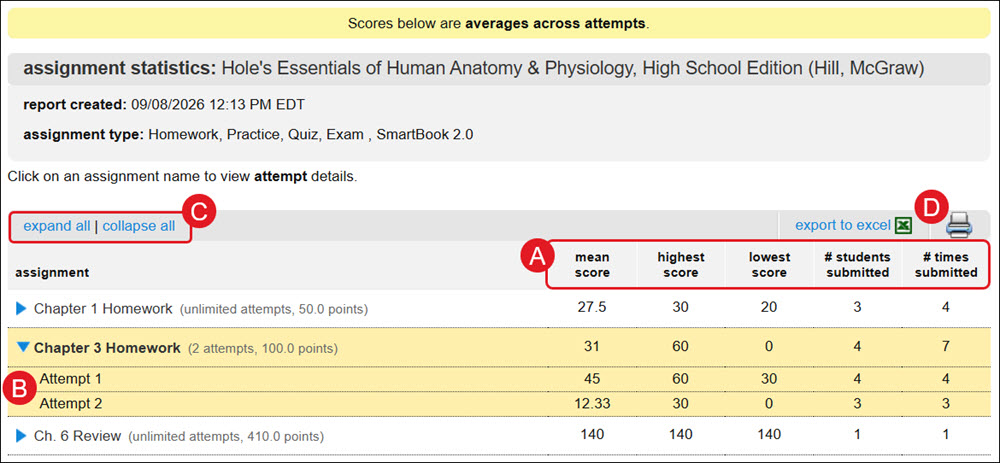
The Assignment Statistics report provides a set of common assignment report statistics. If multiple attempts were allowed for assignments, statistics for each attempt can be viewed by clicking the assignment name link.
The report will give teachers some quick data on each of the assignments, including the mean score, high score, and low scores, as well as the number of students who submitted the assignment and the number of times it was submitted overall. Teachers can select individual assignments to get statistics, or just select everything in one or more of the sections. And if teachers want to know more about an individual assignment attempt, we have all of the same statistics for those too, so teachers can see if the class is improving.
Article Contents
Access Assignment Statistics Report
Access Assignment Statistics Report
1. Click on the class name.
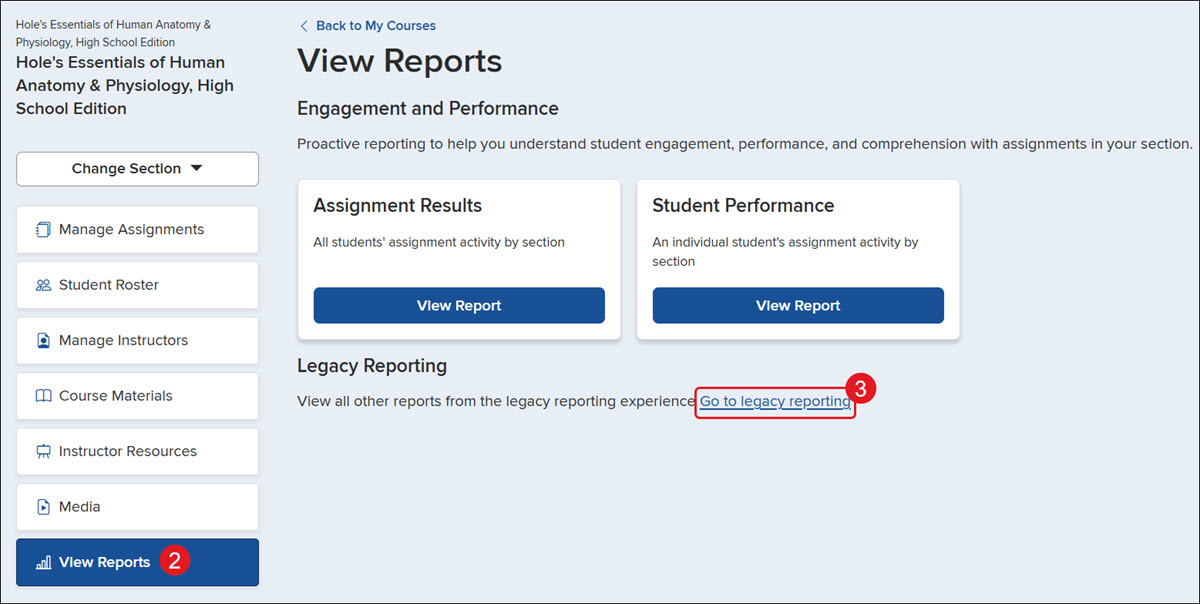
2. Click on View Reports from the navigation menu.
3. Click the Go to legacy reporting link.
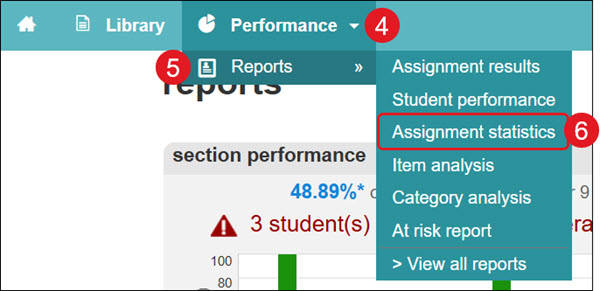
4. Click the Performance drop-down.
5. Hover over Reports.
6. Click on Assignment statistics from the menu.
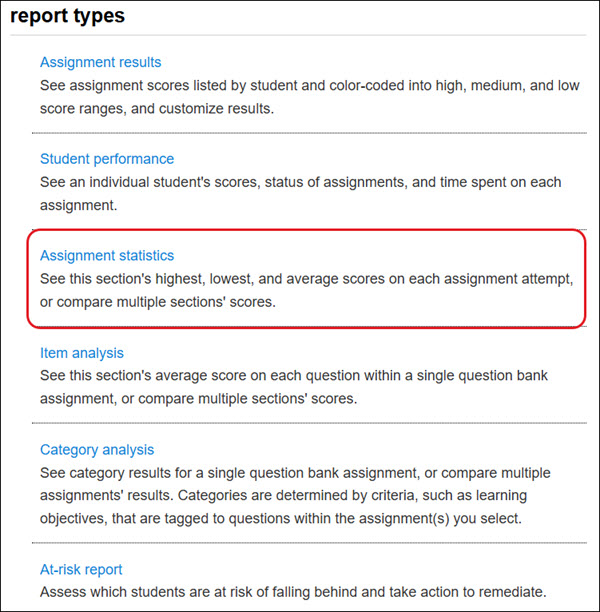
You can also click on Assignment statistics from the report types list at the bottom.
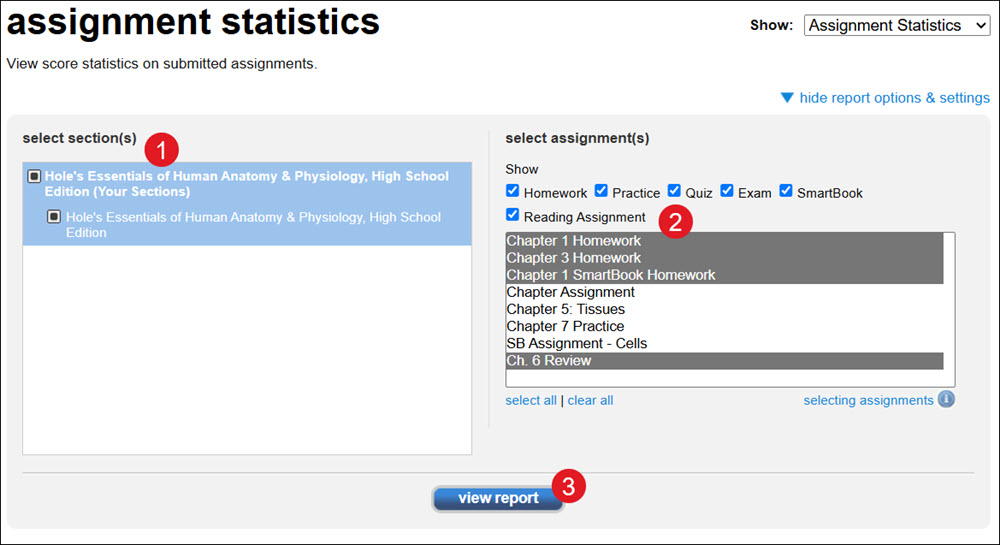
Select Report Filters
1. Select which sections of your course will be viewable on the report.
2. Select which assignments will be on the report.
You can filter assignments by type and select or deselect multiple assignments by using the CTRL or Command keys while clicking on the assignment names.
3. Click the view report button.
View Report
A. The Assignment Statistics Report includes:
- Mean Score - Calculated mean score value from all assignment attempts.
- Highest Score - Highest of all assignment attempt scores.
- Lowest Score - Lowest of all assignment attempt scores.
- # Students Submitted - Number of students who accessed and turned in the assignment.
- # Times Submitted - Number of times students submitted the assignment.
B. Click on the assignment name to expand the list of attempts for that assignment.
C. Use the expand all | collapse all links above the assignment column to expand or collapse the assignments listed.
D. You can also export the data to Excel or print the data.