Add, Duplicate, Delete, or Archive a K-12 Connect® Section
Learn how to easily manage your sections within your Connect account.
- Customer Support
- PreK-12
- Classroom Teacher
- High School
- Direct Login & Auto-Rostering
- Direct Login & Manual-Rostering
- SSO & Auto-Rostering
- SSO & Manual-Rostering
- AP, Honors & Electives
- AP Connect
- Class Management
- Getting Started & Orientation
- Back-to-School Setup


View the demo in a separate tab.
View the Spanish version of the demo.
Article Contents
Add a New Section
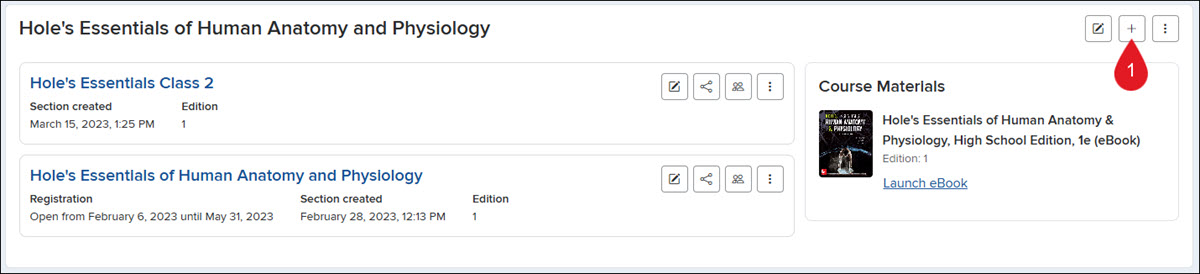
1. Click on the Add New Section (plus icon) button at the top right of the course tile.
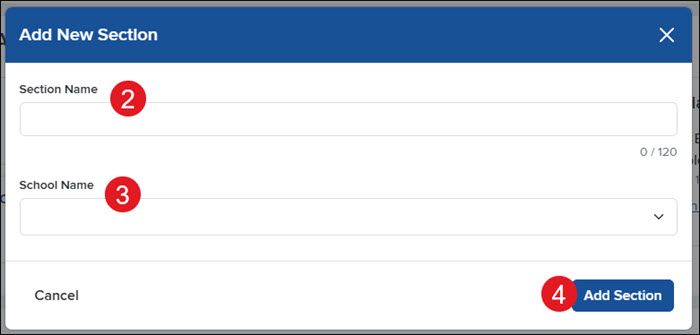
2. Enter a Section Name.
3. Select the School Name from the drop-down.
4. Click the Add Section button.
Duplicate a Section
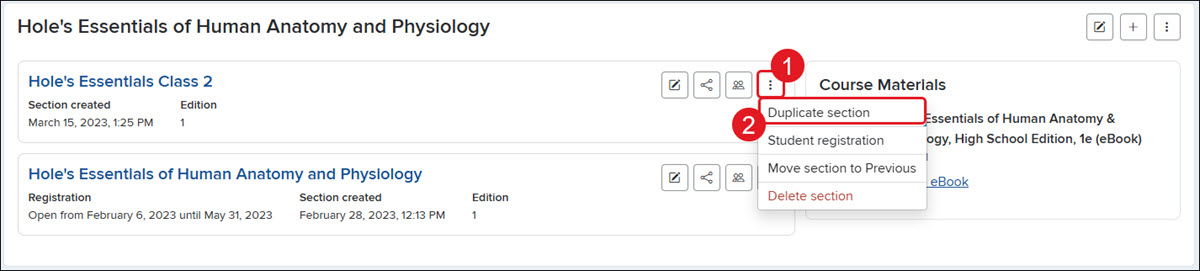
1. On the section tile, click the Options button.
2. Click Duplicate section from the menu.
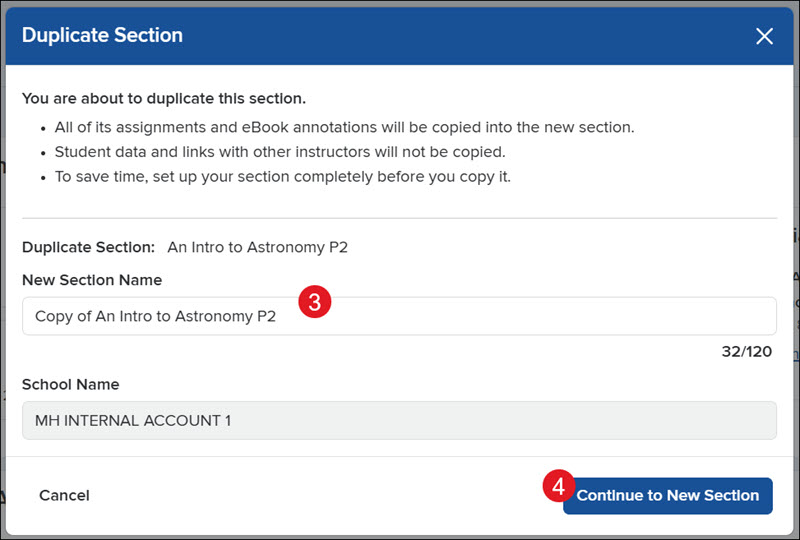
3. On the pop-up, enter a New Section Name.
4. Click the Continue to New Section button.
Delete a Section
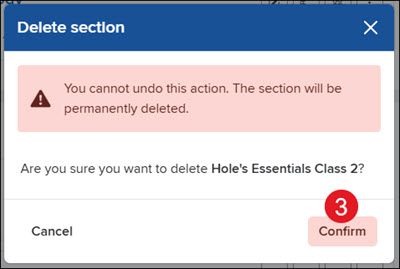
Note: When deleting a course or section, this cannot be undone, and the section will be permanently deleted. We recommend archiving the section instead.
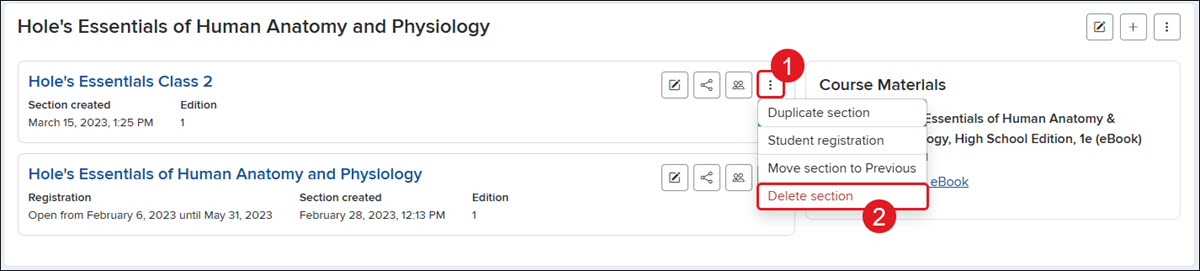
1. On the section tile, click the Options button.
2. Click Delete section from the menu.
3. On the pop-up, click the Confirm button.
Archive a Section (Move to Previous)
Moving sections to Previous means that you are archiving the class, and it can no longer be accessed by students.
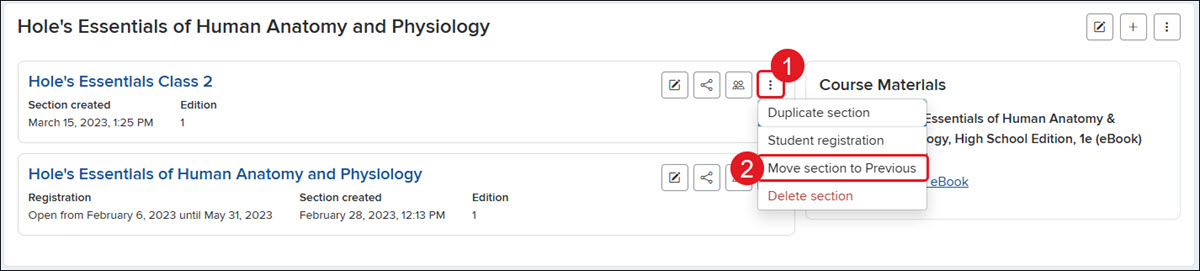
1. On the section tile, click the Options button.
2. Click Move section to Previous section from the menu.
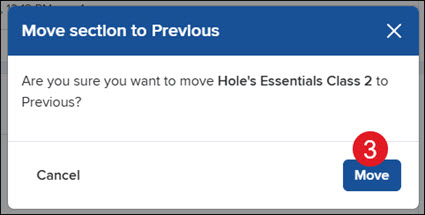
3. On the pop-up, click the Move button.
Unarchive a Section (Move to Current)
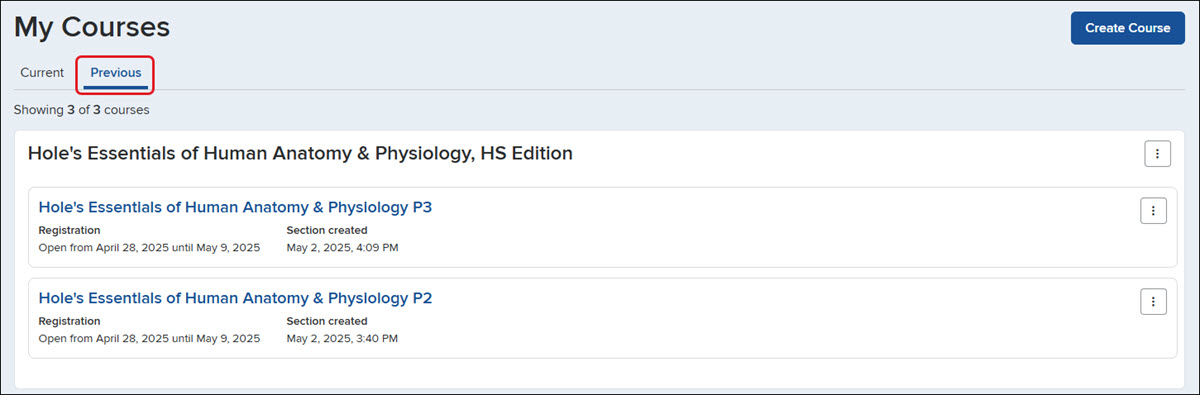
Click the Previous tab to view all the courses that have been archived.
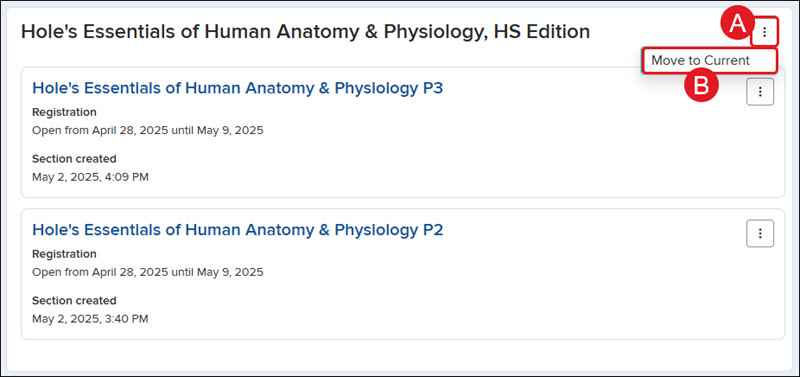
To move all sections for a course, click the Options button (A) to the right of the course name and click Move to Current (B) from the menu.
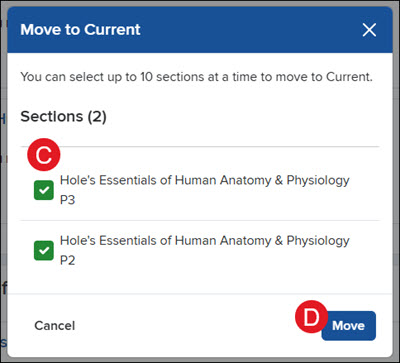
On the pop-up, check the Sections (C) you want to move to current and click the Move (D) button.
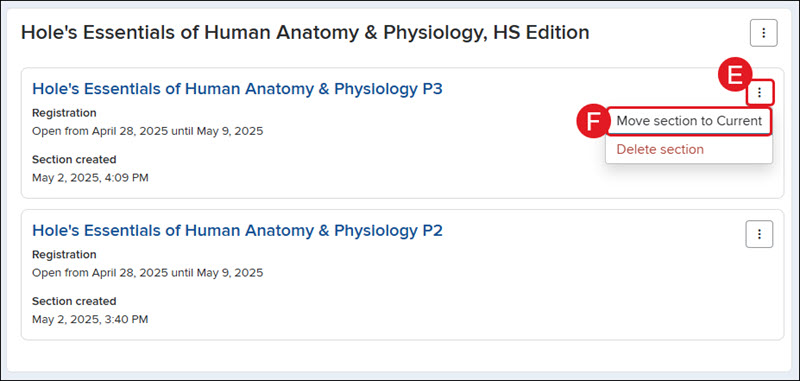
To move a specific section, click the Options button (E) to the right of the section name and click Move section to Current (F) from the menu.
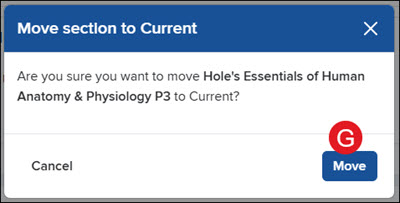
On the pop-up, click the Move button (G) to confirm.