
Access and Navigate the Inpsire Science 2017 Student Lesson Page
Explore Inspire Science student lessons and interactive content.
- Inspire Science 2017
- Dashboard & Navigation Overview
- SSO & Manual-Rostering
- Customer Support
- Direct Login & Auto-Rostering
- School Student
- Core
- Direct Login & Manual-Rostering
- School Parent
- SSO & Auto-Rostering
- PreK-12
- Science
- Elementary School
- Student Resources


The Student Lesson is the online version of the book text. Follow this document for an overview of using the Student Lesson available in Inspire Science 2017 on ConnectED.
The Student Lesson is accessible from the Student Edition Dashboard.
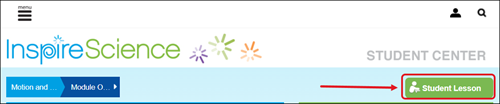
The Student Lesson opens in a separate browser window to the module and lesson selected from the Navigation Banner.
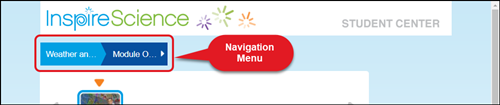
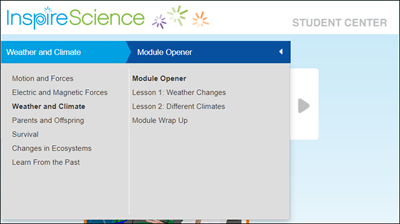
Navigate to another module and lesson by expanding the Navigation Banner, and selecting the desired module and lesson.
Use the buttons at the top and bottom of the page to navigate through the different sections of the lesson.
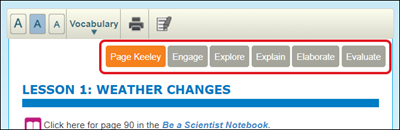
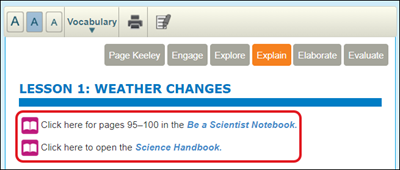
On select sections of the text, use the provided links at the top to access accompanying resources for the selected module and lesson.
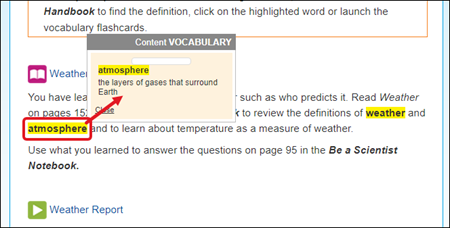
Vocabulary words that appear in the text are highlighted. Click the term to see the definition.
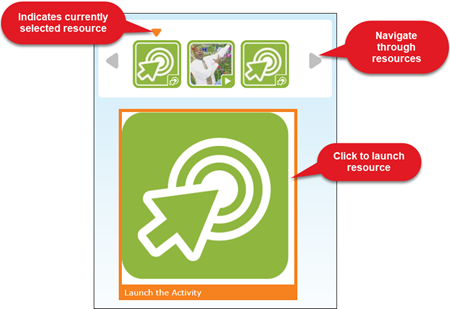
On select sections of the text, resources that correspond to the current lesson will also be available. Use the arrows to move through the resources available. Click on the resource icon to display the resource in the large window below the listed resources. Click on the larger icon to fully launch the resource.
Lesson Toolbar
The toolbar at the top of the Student Lesson provides tools for reading the lesson text.
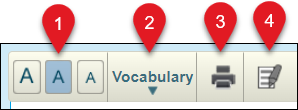
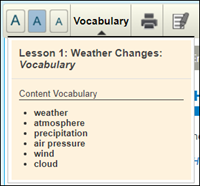
1. Click the Text icons to make the page text bigger or smaller.
2. You can access all the Vocabulary words for the lesson in one place by clicking the Vocabulary option on the toolbar.
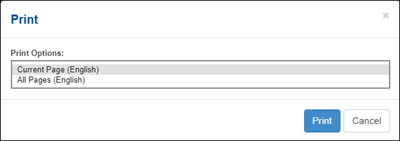
3. Click the Print icon to print the Student Lesson text. You can print the current page, or all the pages in the module.
4. Click the Highlighter icon and drag your cursor to highlight the selected text.
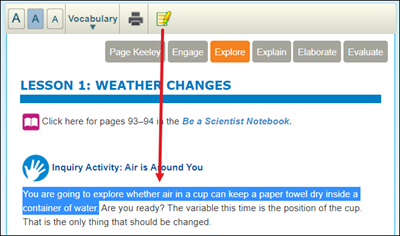
To remove a highlight, click on the Highlighter icon and hover over the highlighted text until you see a red x. Click the highlighted text to remove it.

