
How to Troubleshoot Single Sign-On (SSO) ID Errors
Troubleshoot Single Sign-On (SSO) ID errors and resolve access issues.
- PreK-12
- Customer Support
- School Administrator
- Preschool
- Elementary School
- Middle School
- High School
- Direct Login & Auto-Rostering
- SSO & Auto-Rostering
- Core
- Intervention
- Supplemental
- AP, Honors & Electives
- Career & Technical Education
- Literacy
- Math
- Science
- Social Studies
- Health
- Visual & Performing Arts
- World Languages
- AP Biology
- AP Chemistry
- AP History & Geography
- AP Psychology
- AP Economics
- AP African American Studies
- AP Precalculus
- AP Statistics
- AP Computer Science
- AP Language and Composition
- AP Public Speaking
- AP Music Theory
- 5 Steps to a 5 - AP Test Prep
- Glencoe Health 2022
- Teen Health 2021
- Arrive Math
- Building Blocks 2024
- Building Blocks PreK 2025
- Number Worlds 2024
- SRA Reading Laboratory 2025
- SRA Reading Mastery Transformations
- Achieve3000 Literacy
- Actively Learn
- McGraw Hill Literacy Emerge!
- McGraw Hill Literacy Summit!
- McGraw Hill Literacy Soar!
- Open Court Reading 2025
- Redbird
- StudySync 2021
- ALEKS
- ALEKS Adventure
- CA Reveal Math (K-12)
- Illustrative Math
- Redbird Math
- Reveal Math (K-12)
- Texas Math
- CA Inspire Science 2020
- FL Science 2025 (K-12)
- Inspire Science 2020
- TN Science (K-12)
- TX Science 2025 (K-12)
- CA Impact 2019
- FL Social Studies 2024 (K-12)
- Impact Social Studies
- McGraw Hill Social Studies
- All Sorts 2026 (K-5)
- Asi se Dice 2024
- CTE - Health Science
- CTE - Computing and Technology
- CTE - Agriculture
- CTE - Culinary Arts
- CTE - Early Childhood Education
- CTE - Criminal Justice
- Glencoe Health 2014
- McGraw Hill Health 2014
- 2Inform
- Building Blocks 2015
- Connecting Math Concepts
- Number Worlds 2015
- Corrective Reading
- Early Interventions in Reading
- Spelling Mastery
- WonderWorks 2022 & 2014
- Maravillas 2020 & 2017
- OCR Foundational Skills Kit
- OCR Word Analysis Kit
- Open Court Reading 2016, 2018, 2023
- StudySync 2015 & 2017
- Wonders
- Wonders 2014
- Wonders 2023 2020 2017
- Wonders Balanced Literacy 2016
- Wonders EL 2016
- World of Wonders 2017
- Core Plus Math 2015
- Everyday Mathematics 4 (K-6)
- Glencoe Algebra 1 2014
- Glencoe Algebra 1 2018
- Glencoe Algebra 2 2014
- Glenoce Algebra 2 2018
- Glencoe Math
- Glencoe Geometry 2014
- Glencoe Geometry 2018
- Glencoe Math Course 1
- Glencoe Math Course 2
- Glencoe Math Course 3
- Glencoe Math Accelerated
- McGraw Hill My Math
- McGraw Hill My Math 2013 & 2016
- McGraw Hill My Math 2018
- Pre-Algebra 2012
- Glencoe Science
- Glencoe Science 2017
- Inspire Science 2017
- iScience 2017
- Networks
- Networks 2014 (K-5)
- Networks 2014 & 2016
- Networks 2018
- Music! Its Role
- Spotlight on Music
- Asi se Dice 2016
- Access Manager
- Class Management
- User Management
- Account Management
- Troubleshooting
- Error Messages
- Auto-Rostered SSO Resources
- OneRoster®
- Schoology®
- Google Classroom™
- Canvas
- D2L Brightspace


Direct Login and Auto-Rostering
Single Sign-On (SSO) and Auto-Rostering
This article applies to Auto-Rostering districts. Auto-Rostering means that account creation, class setup, and roster management are automated through a process handled by your district.
Direct Login means that teachers, students, and administrators log in at my.mheducation.com.
Single Sign-On applies to districts that use a SSO portal, district website, or Learning Management System (LMS) to access McGraw Hill digital programs.
Not sure which Access Service your district uses? View the Access Service Descriptions article to learn more about the four Access Services that we support.
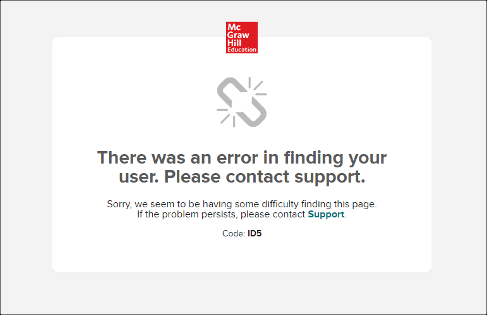
Single Sign-On (SSO) users will receive an error message similar to the screenshot above if there is an issue with the SSO ID. This error is typically seen when accessing a McGraw Hill account using the SSO link. The "Code" may differ from above (ex: ID4, TS1), but most errors are caused by the following issues:
Issue: The user cannot be found because the user is not being sent in the data, or the user is being sent but missing a required field.
To resolve: Add the user to the roster data with all required fields and process the data.
Issue: The user has been added to the roster data, but the data has not yet been processed, so the system is unable to locate the user.
To resolve: After confirming that the user is included in your district's roster data with all required fields, manually upload the roster file(s) or sync your API roster data in Access Manager on the Upload tab.
Note: If you use Clever® as your roster service, a sync will start automatically after changes are made. Depending on the changes, the sync could take up to a few hours to complete.
Issue: There is an error on the account because there is a mismatch between the last received SSO ID and what is in the SSO system. SSO IDs are unique values used to link users to the correct account. They are set up during your initial Integration setup and are one of the following fields: userSourcedId, user ID, username, email, or identifier.
To resolve: Change the ID back if it was changed in error. If the change was intentional and the SSO ID is one of the following: user ID, username, email, or identifier, make sure to process the data with the SSO ID so that it updates in our system. If the SSO ID is the userSourcedID, we will need to correct it in our system. Contact Digital Integration Support at 1-855-315-6417 or IntegrationSupport@mheducation.com to have us overwrite the old value.
Issue: There is a duplicate userSourcedId in the roster data.
To resolve: Check your users.csv file for duplicate userSourcedIds. For OneRoster® customers, only one row is permitted for each user on the users.csv file. If the user needs to be listed in multiple schools/organizations, list multiple orgSourcedIds in the orgSourcedId column comma separated with quotes (ex: "212,213").
Issue: There is a duplicate user that exists with the SSO ID. We see this most often with email, where an email is reused for a new user (usually following a format such as first initial + last name @ domain).
To resolve: First, confirm that you are not sending duplicate SSO IDs for users within the current roster data. If you do not wish to change the SSO ID to be unique, contact Digital Integration Support at 1-855-315-6417 or IntegrationSupport@mheducation.com. We can remove the inactive user from the system or run your district's roster data in Replace mode if multiple users are affected. Replace mode will remove everything that is no longer being sent in the roster data for the entire district.
For more information about SSO, see the Single Sign-On (SSO) Frequently Asked Questions (FAQ).
If you are still having issues, contact Digital Integration Support at 1-855-315-6417 or IntegrationSupport@mheducation.com.
OneRoster® is a trademark of the IMS Global Learning Consortium, Inc. (www.imsglobal.org).
Clever® is a trademark of Clever, Inc. (www.clever.com)
