
Health 2014 Student eBook Navigation
Learn how to access, navigate, and annotate the student eBook for Health 2014 copyright books.
- Customer Support
- PreK-12
- School Student
- School Parent
- Middle School
- High School
- Direct Login & Auto-Rostering
- Direct Login & Manual-Rostering
- SSO & Auto-Rostering
- SSO & Manual-Rostering
- Core
- Health
- McGraw Hill Health 2014
- Glencoe Health 2014
- Dashboard & Navigation Overview
- Student Resources


Article Contents
Access Student eBook
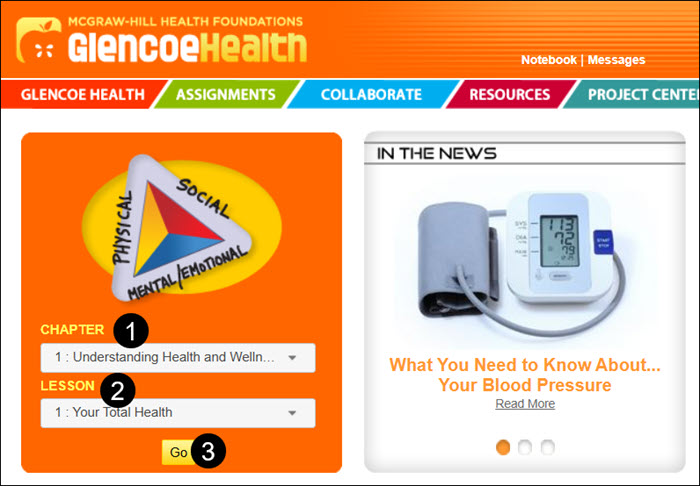
The eBook can easily be found on the home page of the program once you've launched your class.
1. Select an option from the Chapter drop-down.
2. Select an option from the Lesson drop-down.
3. Click the Go button.
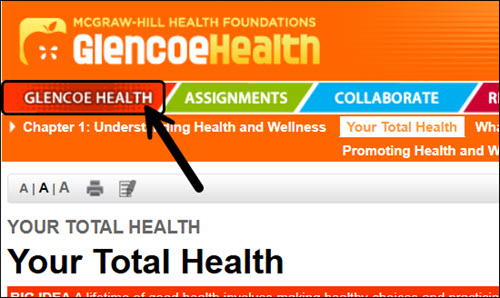
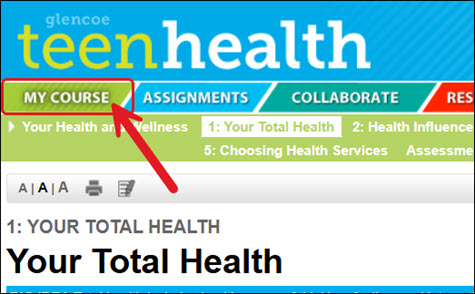
Another option to access the eBook is by clicking on the Glencoe Health tab or the My Course tab. The option will vary based on the program being used.
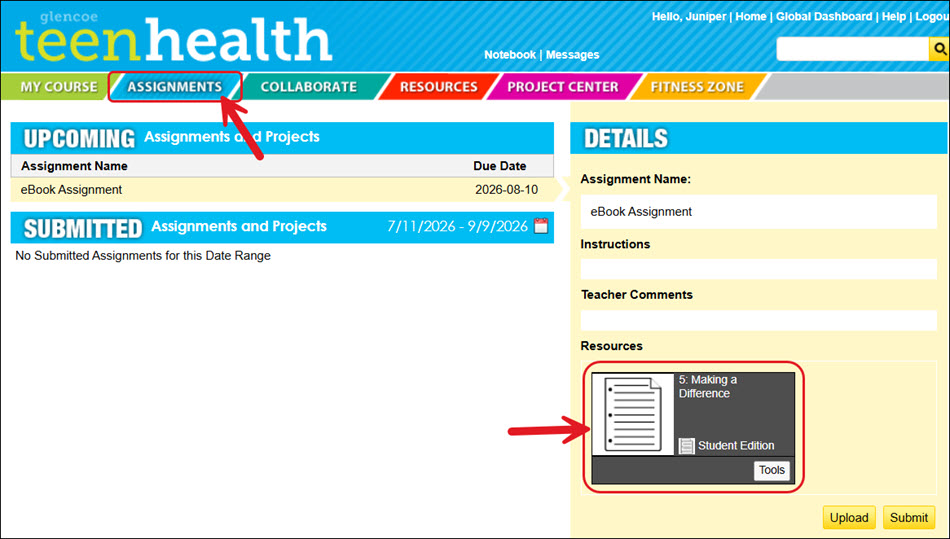
If your teacher has assigned eBook pages to complete, these can be found by clicking on the Assignments tab and then on the Resources tile to launch the eBook.
The only way a teacher will be able to view your answers within the eBook is if they were completed through the assigned pages.
Navigate Student eBook
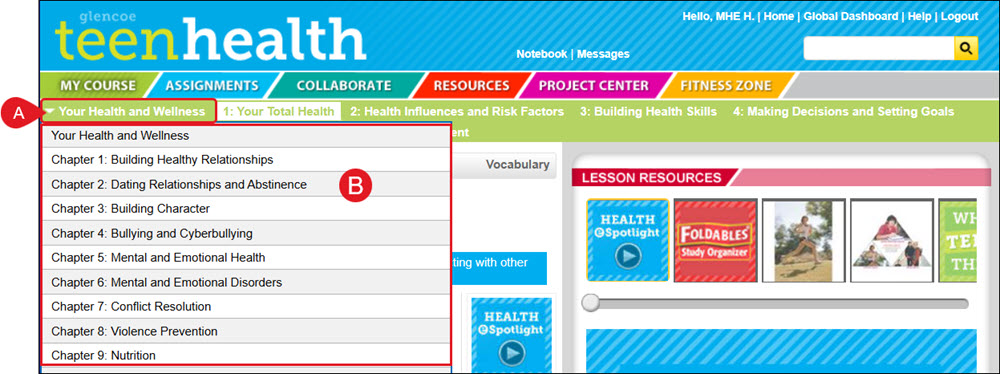
A. To select a different chapter to view, click the Chapter drop-down.
B. Select the needed chapter from the list.
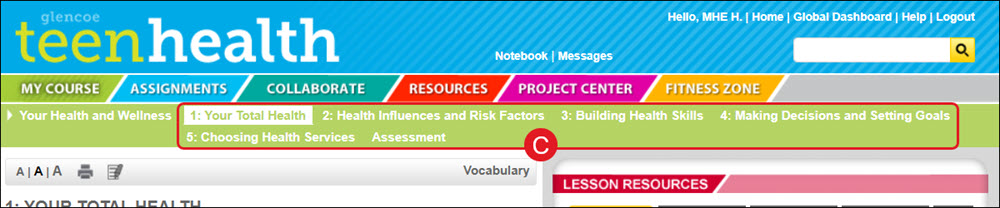
C. To select a different section to view within the chapter, click on the section from the eBook navigation menu.
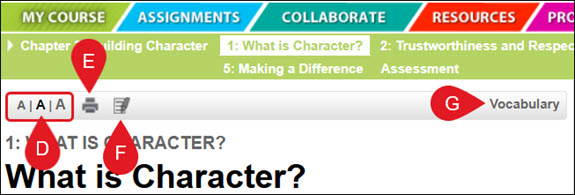
D. Click the different A options to change the available font sizes: small, medium, and large.
E. Click the Print icon to save/print the Current Page or All Pages in English or Spanish.
F. Click the Annotations icon to make highlights within the text. Click on the highlighted text to remove it.
G. Click on Vocabulary to view the list of terminology used for the selected section.
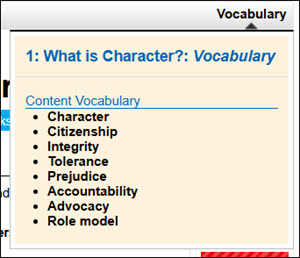
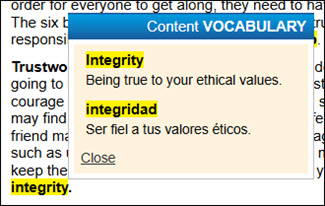
These words will also be highlighted throughout the text. Click on the word to view the definition.
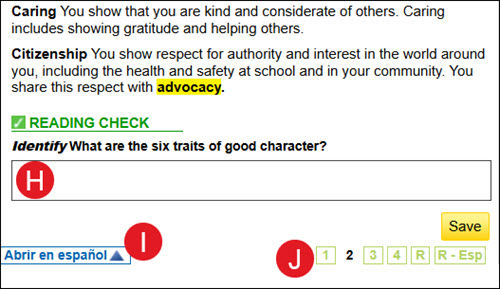
H. Enter answers to questions within the space provided. Click the Save button.
Not all pages will have questions to answer.
I. Click the Abrir en español button to view the page in Spanish.
J. Click the page numbers at the bottom to navigate through the pages of the section.
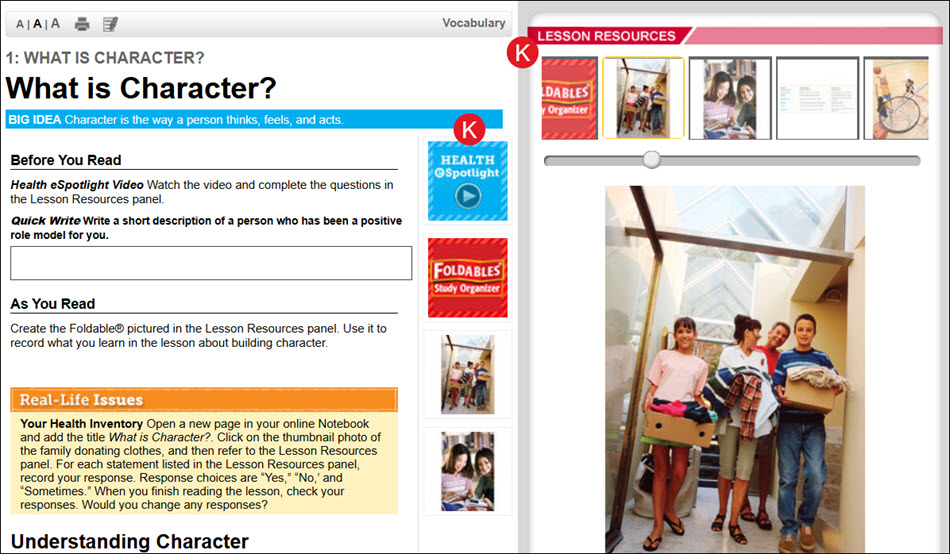
K. Additional resources are available on the side of the page. Click on the resource icon to view it in the Lesson Resources panel on the right.
All the resources available for the currently selected section are also located at the top of the Lesson Resources page for easy accessibility.
