Troubleshoot issues when content is blocked in Google Chrome due to browser or security settings.
Tags
Networks 2014 (K-5)McGraw Hill Social StudiesAsi se Dice 2024Arrive MathConnectEdActively LearnCustomer SupportInspire Science 2020StudySync 2015 & 2017Middle SchoolGlencoe Algebra 1 2014High SchoolOpen Court ReadingGlencoe Health 2022CA Impact 2019Glencoe Algebra 1 2018Building Blocks 2015Wonders 2023 2020 2017Networks 2018CA Inspire Science 2020SSO & Auto-RosteringPre-Algebra 2012PreK-12Everyday Mathematics 4 (K-6)All Sorts 2026 (K-5)Wonders EL 2016SupplementalVisual & Performing ArtsInspire Science 2017Open Learning PlatformHealthGetting Started & OrientationLiteracySocial StudiesGlencoe Math Course 1Wonders 2014WonderWorks 2022 & 2014Glencoe Math Course 2Glencoe Math Course 3Number Worlds 2015Glencoe ScienceCoreCore Plus Math 2015AP, Honors & ElectivesCA Reveal Math (K-12)Teen Health 2021FL Social Studies 2024 (K-12)Building Blocks PreK 2025Achieve MathMy Math 2013 & 2016Glencoe Algebra 2 2014OCR 2023OCR 2016 2018Networks 2014 2016McGraw Hill LiteracyIllustrative Math 2020OCR Foundational Skills KitTX Science 2025 (K-12)StudySync 2021SSO & Manual-RosteringWorld of Wonders 2017iScience 2017Number Worlds 2024Maravillas 2020 & 2017Spotlight on MusicDirect Login & Manual-RosteringImpact 2020Classroom TeacherGlencoe Science 2017Elementary SchoolFL Science 2025 (K-12)World LanguagesMathAsi se Dice 2016Direct InstructionGlenoce Algebra 2 2018InterventionReveal Math (K-12)OCR Word Analysis KitDirect Login & Auto-RosteringMcGraw Hill Health 2014Glencoe Health 2014Error MessagesBuilding Blocks 2024Wonders Balanced Literacy 2016My Math 2018Glencoe MathSciencePreschoolAchieve3000 LiteracyMusic! Its Role
Share:
This article walks teachers through adjusting the settings on their Chrome browser if they receive a message that the content is blocked.
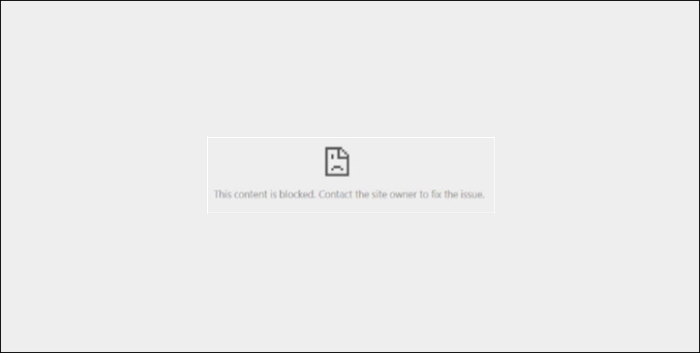
If you encounter a "This content is blocked. contact the site owner to fix the issue." error message when trying to view a PDF in the Chrome browser, you can adjust your settings in Chrome to download the PDF instead of having it open in the Chrome browser window.
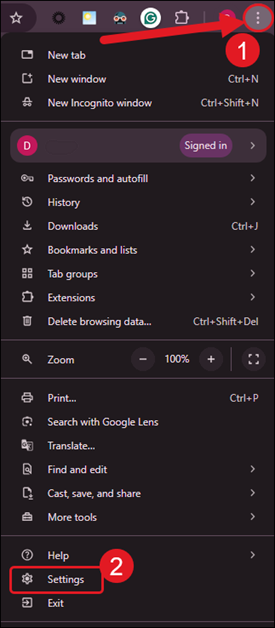
1. Click on the Customize and control Google Chrome menu (3 vertical dots at the top-right).
2. Click on Settings in the menu.
Alternative: Enter chrome://settings/into your web address bar to go directly to the settings page.
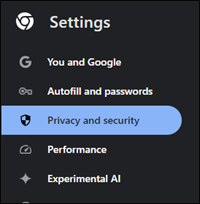
3. Click on Privacy and Security on the left navigation menu.
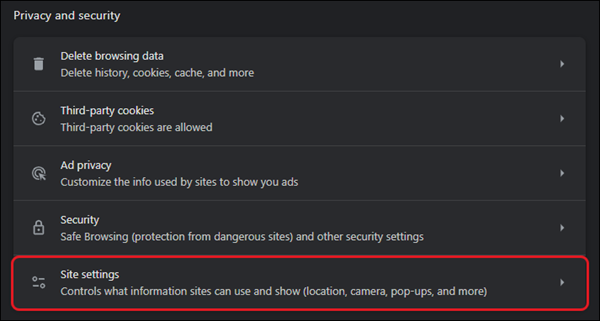
4. Click on Site Settings.
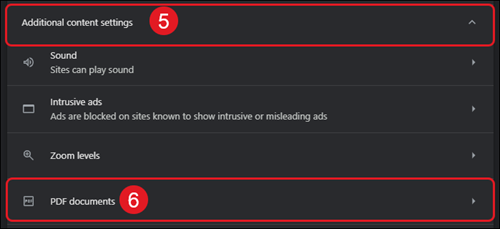
5. Expand Additional content settings at the bottom of the page.
6. Click on PDF documents.
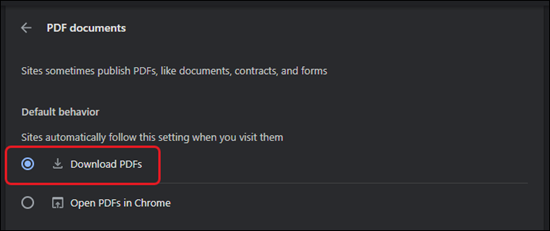
7. Select the radio button for Download PDFs.
networks
mh-social-studies
asi-se-dice
arrive-math
connected
actively-learn
inspire-science
studysync
glencoe-math
open-court-reading
glencoe-health
impact
building-blocks
wonders
mcgraw-hill-pre-algebra
everyday-math
all-sorts
wonderworks
number-worlds
glencoe-science
core-plus-math
reveal-math
teen-health
achieve-math
my-math
mcgraw-hill-literacy
illustrative-math
ocr-foundational-skills-kit
mcgraw-hill-science
wow
iscience
maravillas
spotlight-on-music
direct-instruction
mcgraw-hill-health
achieve3000-literacy
music-its-role
instructor
prek-12
Networks 2014 (K-5), McGraw Hill Social Studies, Asi se Dice 2024, Arrive Math, ConnectEd, Actively Learn, Customer Support, Inspire Science 2020, StudySync 2015 & 2017, Middle School, Glencoe Algebra 1 2014, High School, Open Court Reading, Glencoe Health 2022, CA Impact 2019, Glencoe Algebra 1 2018, Building Blocks 2015, Wonders 2023 2020 2017, Networks 2018, CA Inspire Science 2020, SSO & Auto-Rostering, Pre-Algebra 2012, PreK-12, Everyday Mathematics 4 (K-6), All Sorts 2026 (K-5), Wonders EL 2016, Supplemental, Visual & Performing Arts, Inspire Science 2017, Open Learning Platform, Health, Getting Started & Orientation, Literacy, Social Studies, Glencoe Math Course 1, Wonders 2014, WonderWorks 2022 & 2014, Glencoe Math Course 2, Glencoe Math Course 3, Number Worlds 2015, Glencoe Science, Core, Core Plus Math 2015, AP, Honors & Electives, CA Reveal Math (K-12), Teen Health 2021, FL Social Studies 2024 (K-12), Building Blocks PreK 2025, Achieve Math, My Math 2013 & 2016, Glencoe Algebra 2 2014, OCR 2023, OCR 2016 2018, Networks 2014 2016, McGraw Hill Literacy, Illustrative Math 2020, OCR Foundational Skills Kit, TX Science 2025 (K-12), StudySync 2021, SSO & Manual-Rostering, World of Wonders 2017, iScience 2017, Number Worlds 2024, Maravillas 2020 & 2017, Spotlight on Music, Direct Login & Manual-Rostering, Impact 2020, Classroom Teacher, Glencoe Science 2017, Elementary School, FL Science 2025 (K-12), World Languages, Math, Asi se Dice 2016, Direct Instruction, Glenoce Algebra 2 2018, Intervention, Reveal Math (K-12), OCR Word Analysis Kit, Direct Login & Auto-Rostering, McGraw Hill Health 2014, Glencoe Health 2014, Error Messages, Building Blocks 2024, Wonders Balanced Literacy 2016, My Math 2018, Glencoe Math, Science, Preschool, Achieve3000 Literacy, Music! Its Role
DTS
Top
Regional Page Available
It looks like you're outside the United States. Do you want to see your regional version of this page?