
Edge Browser - Pop-up Blocker Settings
Adjust Microsoft Edge pop-up blocker settings to support McGraw Hill digital content.
Tags
- High School
- Classroom Teacher
- School Parent
- PreK-12
- Customer Support
- School Administrator
- Preschool
- School Student
- Middle School
- Troubleshooting
- Elementary School


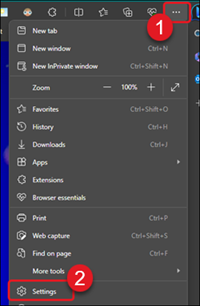
1. Click the
Settings and more browser menu (the three dots in the top right).
2. Click on Settings from the menu.
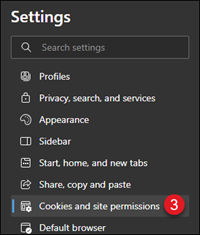
3. Click on Cookies and site permissions from the lefthand menu.
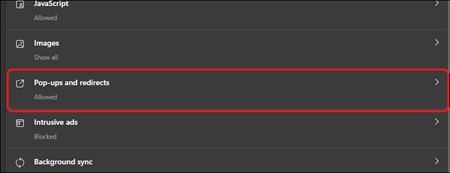
4. Under Site Permissions, click on Pop-ups and redirects.
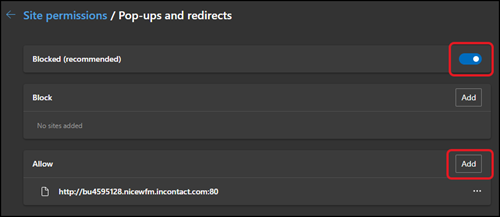
5. To disable the pop-up blocker, toggle off the Blocked (recommended) option.

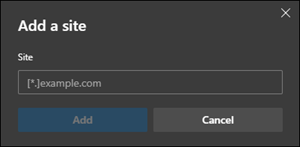
To allow pop-ups and redirects for certain sites while blocking others, toggle on the Blocked (recommended) option. Then, click the Add button next to Allow. Enter the site address in the Add a Site pop-up. Click the Add button.
2. Click on Settings from the menu.
3. Click on Cookies and site permissions from the lefthand menu.
4. Under Site Permissions, click on Pop-ups and redirects.
5. To disable the pop-up blocker, toggle off the Blocked (recommended) option.
To allow pop-ups and redirects for certain sites while blocking others, toggle on the Blocked (recommended) option. Then, click the Add button next to Allow. Enter the site address in the Add a Site pop-up. Click the Add button.