Create, Edit, or Delete an eAssessment Assignment
Discover how to assign, edit, and delete eAssessment assignments with ease.
Tags
- Customer Support
- PreK-12
- Classroom Teacher
- Preschool
- Elementary School
- Middle School
- High School
- Direct Login & Auto-Rostering
- Direct Login & Manual-Rostering
- SSO & Auto-Rostering
- SSO & Manual-Rostering
- Core
- Intervention
- Supplemental
- AP, Honors & Electives
- Literacy
- Math
- Science
- Social Studies
- Health
- Visual & Performing Arts
- World Languages
- Asi se Dice 2016
- Building Blocks 2015
- Core Plus Math 2015
- Glencoe Health 2014
- Glencoe Algebra 1 2014
- Glencoe Algebra 1 2018
- Glencoe Algebra 2 2014
- Glenoce Algebra 2 2018
- Glencoe Geometry 2014
- Glencoe Geometry 2018
- Glencoe Math Accelerated
- Glencoe Math
- Glencoe Math Course 1
- Glencoe Math Course 2
- Glencoe Math Course 3
- Glencoe Science
- Glencoe Science 2017
- Inspire Science 2017
- iScience 2017
- McGraw Hill My Math 2013 & 2016
- Networks 2014 & 2016
- Networks 2014 (K-5)
- Pre-Algebra 2012
- Wonders 2014
- Number Worlds 2015
- Grades & Assignments
- Online Assessments


These steps apply to programs using the eAssessment testing platform. If eAssessment is not available in your program, please refer to the McGraw Hill Assessment Management Resources for guidance on assigning and managing assessments.
Article Contents
Create an Assignment
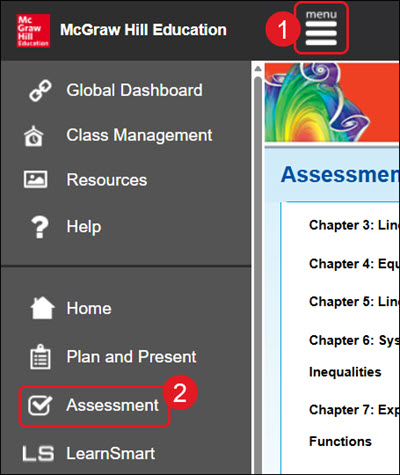
- Click Menu at the top left.
- Click on Assessment in the menu.
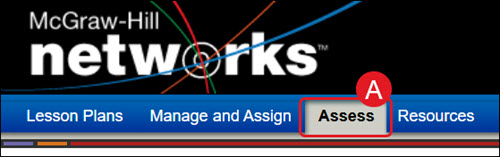
A. For certain programs, such as Networks, click on Assess from the navigation menu.
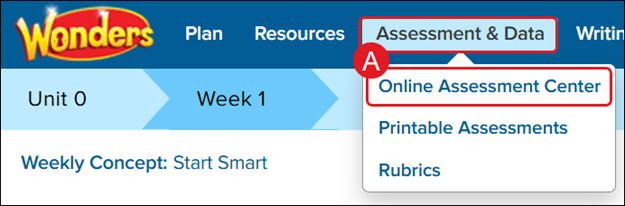
For Wonders ©2014, hover over Assessment & Data and select Online Assessment Center from the menu.
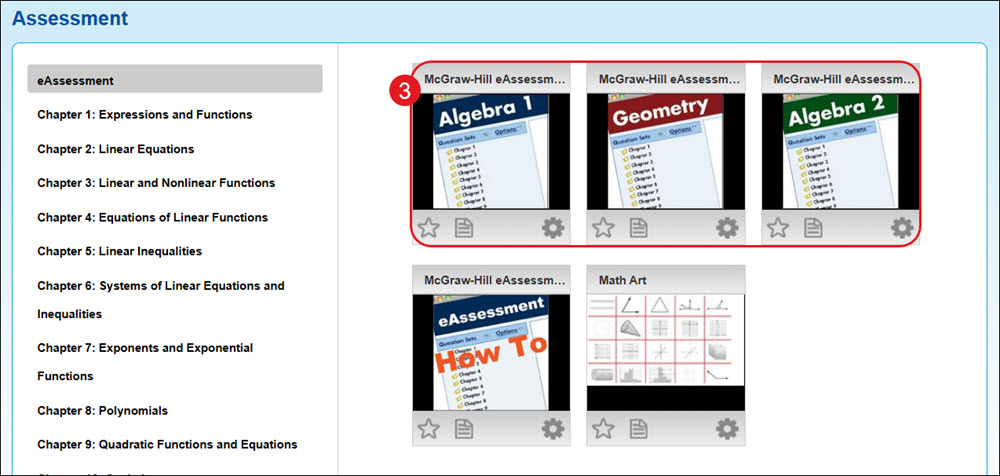
- Click on the eAssessment tile.
The program will open in a new browser tab.
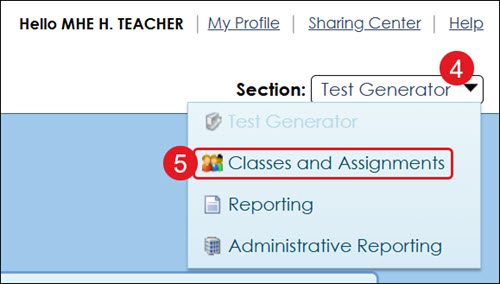
- Click on the Section drop-down.
- Click on Classes and Assignments from the menu.
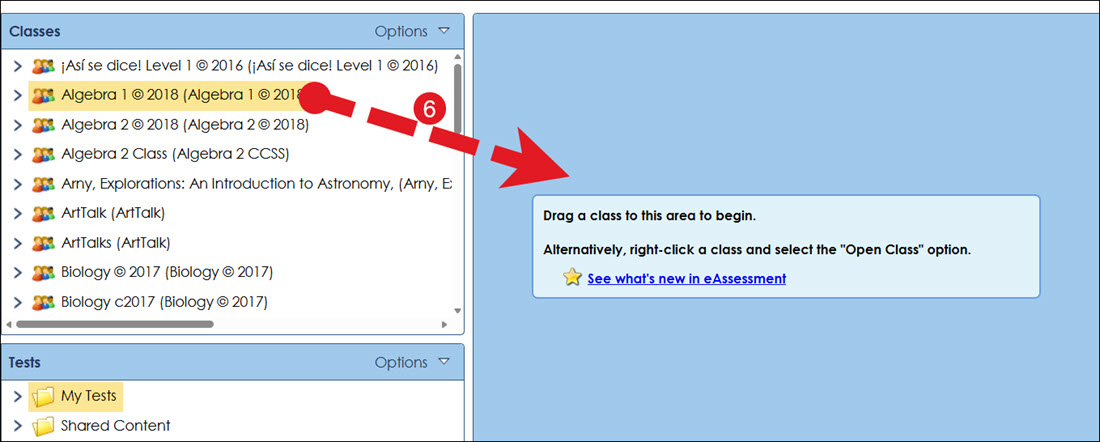
- In the Classes box, click on the class and drag it into the center of the screen.
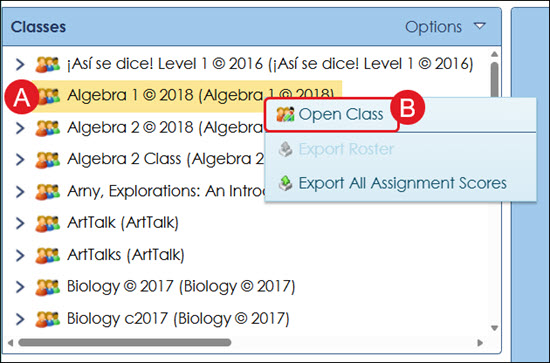
Alternative: Right-click on the class name (A) and click Open Class (B) from the menu.
- In the Tests box, click on the assessment name and drag it into the class box to the right.
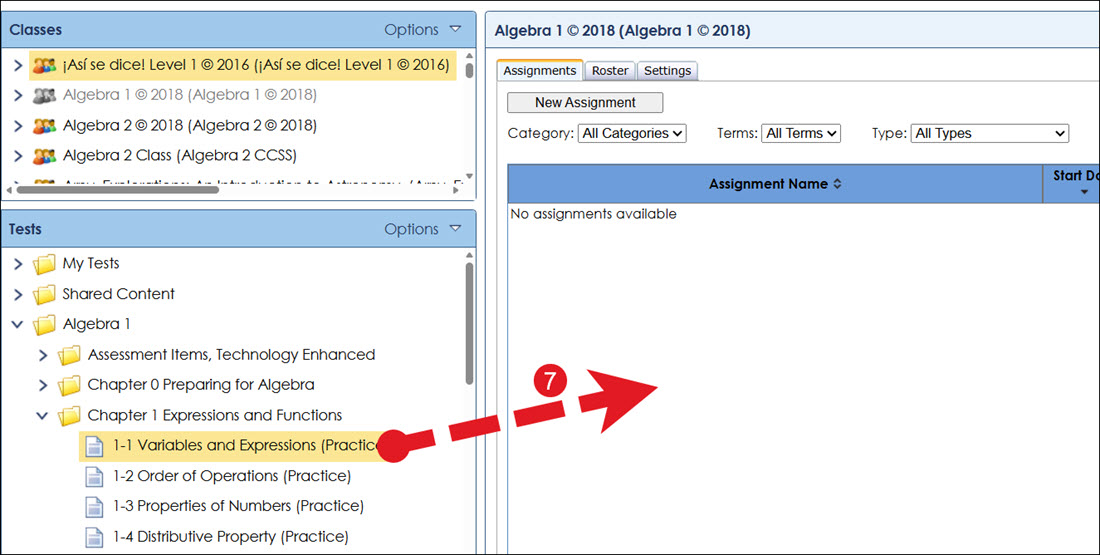
Alternative: Right-click on the assessment name (C) and click New Assignment from Test (D) in the menu.
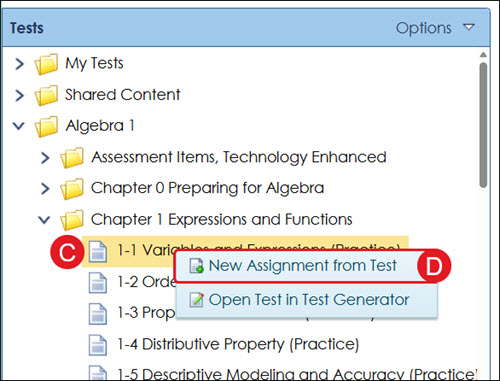
E. Another option is to click the New Assignment button on the Assignments tab.
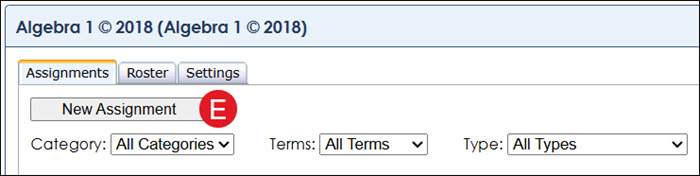
- On the New Assignment pop-up, enter a Name for the assignment.
F. To select a different assessment to assign, click the Select Test button.
Note: If you're creating an assignment via the New Assignment button (E), you will need to click Select Test to choose the assessment you want to assign.
- Select the radio button for it to be a Recorded assignment or a Study guide.
- Select the Category type from the drop-down.
- Enter the Term. This is optional.
- Select the Language from the drop-down.
- Click the Next button.
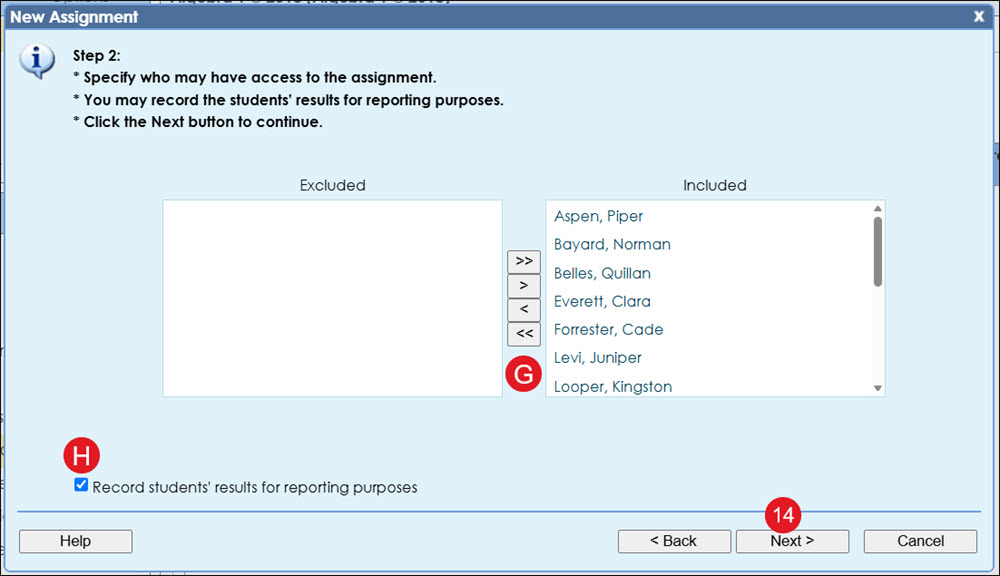
All students assigned to the class roster are automatically Included in the assignment.
G. To remove students from the assignment, click on their name and then click the arrows pointing towards the Excluded box.
H. Uncheck the Record students' results for reporting purposes if you want it to be an ungraded assignment.
- Click the Next button.
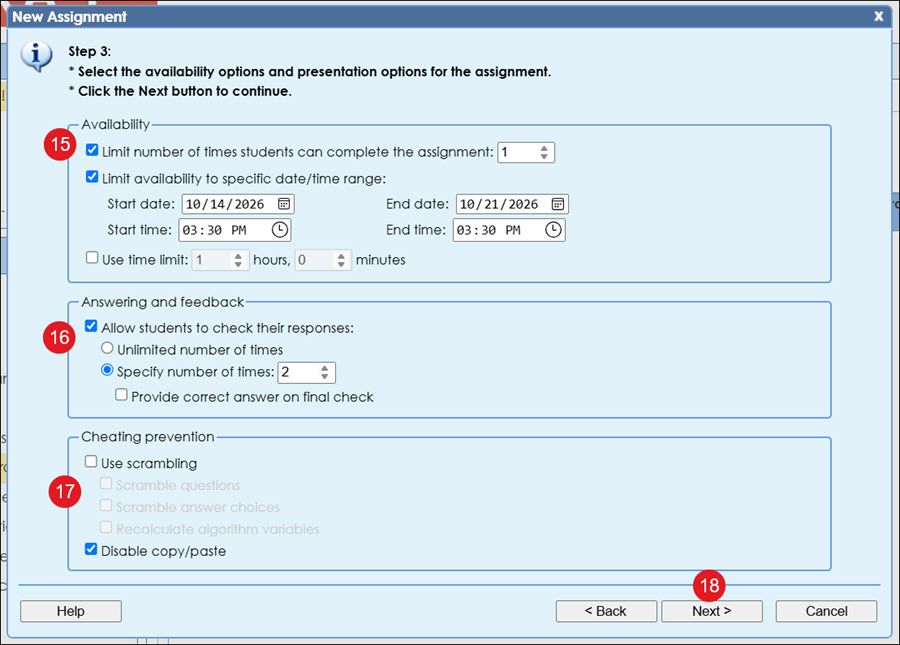
- Check or uncheck the preferred Availability options, including setting a limited number of times students can complete the assignment, limited dates and times they can access the assignment, and/or the use of a time limit for completing the assignment.
- In the Answering and feedback section, select the checkbox if you want to allow students to check their answers. If enabled, choose whether students can check their answers an unlimited number of times or a set number of times.If this option is selected, you can also check the box to provide the correct answer on their final answer check for the question.
When this option is turned on, you can also enable an additional checkbox to display the correct answer after the student's final answer check.
- For Cheating prevention, check or uncheck the box(es) to Use scrambling for the questions and/or Disable copy/paste.
- Click the Next button.
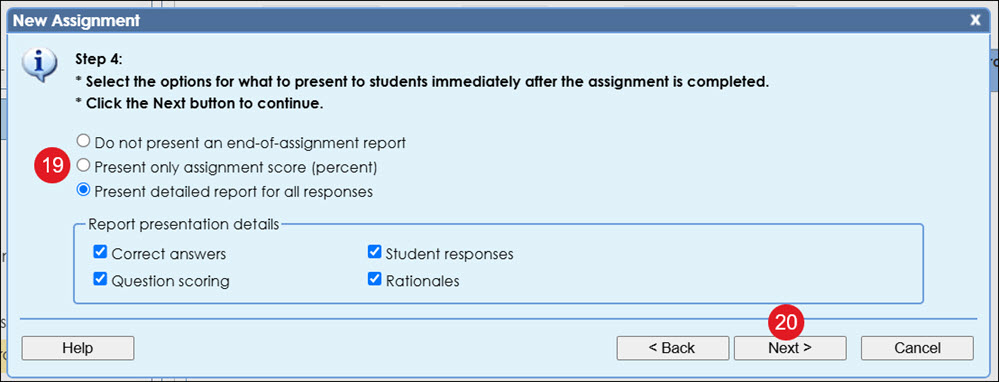
- Select the radio button to not present an end-of-assignment report, present only the assignment score percentage, or present a detailed report for all student responses.
If Preset detailed report for all responses is selected, check or uncheck the preferred Report presentation details.
- Click the Next button.
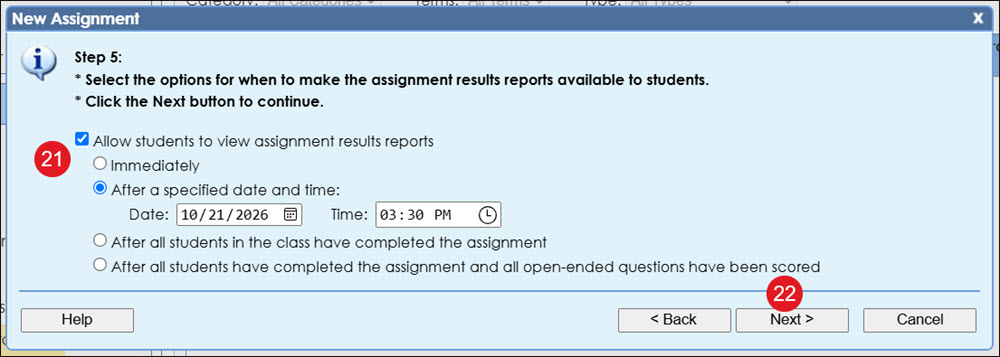
- Uncheck the box if you do not want to Allow students to view assignment results reports.
If activated, select the radio button to allow them to see it immediately, after a specified date and time, after all students have completed the assignment, or after all questions have been scored.
- Click the Next button.
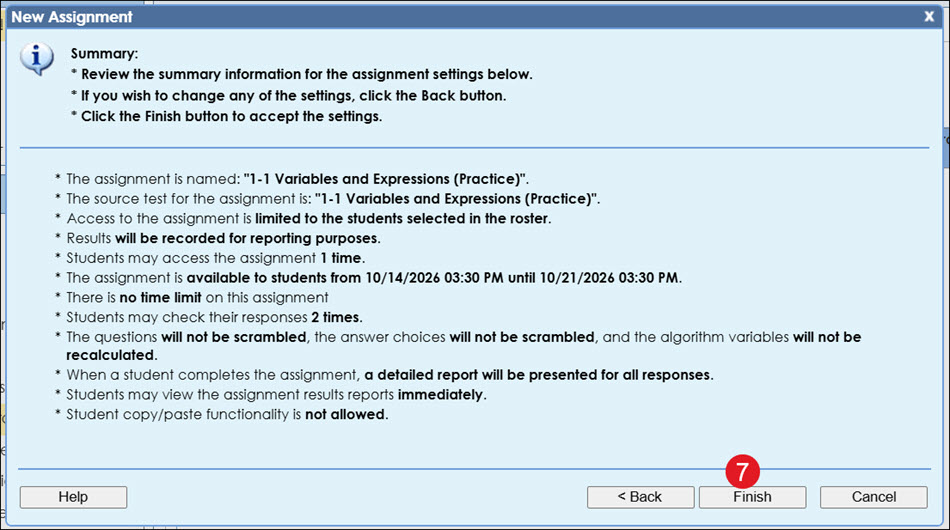
- After reviewing the assignment details, click the Finish button.
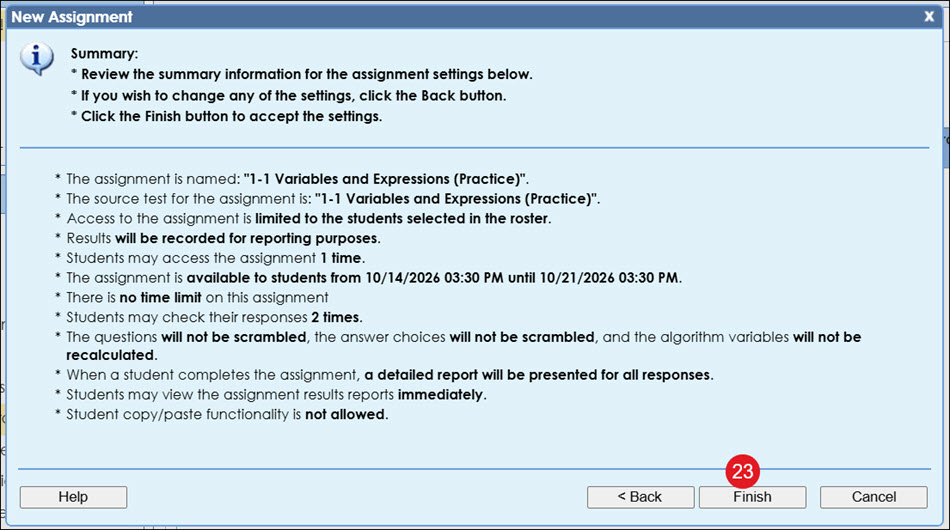
Edit Assignment Settings
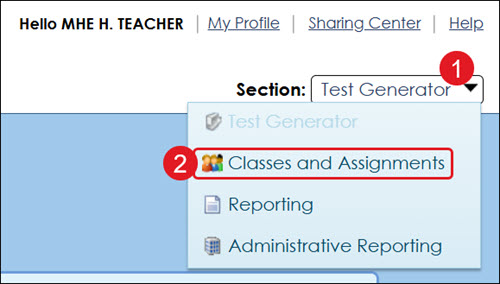
- From within eAssessment, click on the Section drop-down.
- Click on Classes and Assignments from the menu.
- In the Classes box, click on the class and drag it into the center of the screen.
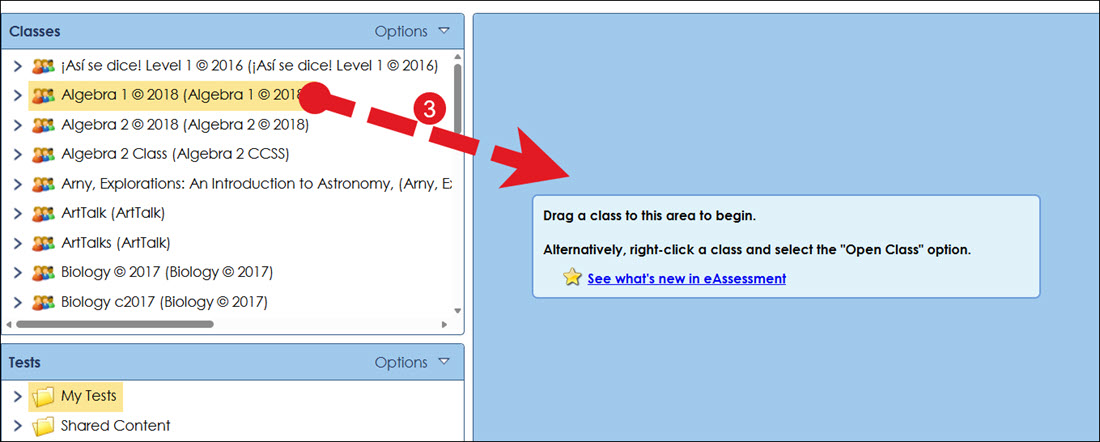
Alternative: Right-click on the class name (A) and click Open Class (B) from the menu.
- Click on the pencil icon to the left of the Assignment Name.
- Click Edit Assignment from the menu.
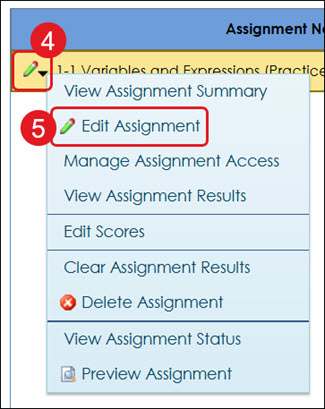
- Navigate through the steps to make the necessary adjustments.
- Click the Finish button.
Delete an Assignment
Keep in mind, once an assignment has been deleted, there is not a way to get it back.
- From within eAssessment, click on the Section drop-down.
- Click on Classes and Assignments from the menu.
- In the Classes box, click on the class and drag it into the center of the screen.
Alternative: Right-click on the class name (A) and click Open Class (B) from the menu.
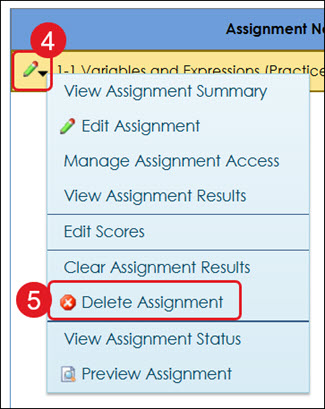
- Click on the pencil icon to the left of the Assignment Name.
- Click Delete Assignment from the menu.
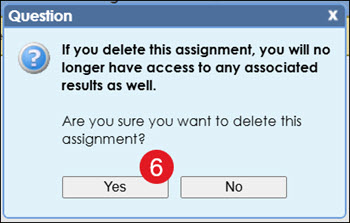
- On the Question pop-up, click the Yes button to confirm.