Create, Rename, or Delete District Assessment Banks
Create, rename, or delete district banks as a curriculum administrator to organize assessments at the district level.
- Customer Support
- PreK-12
- School Administrator
- Preschool
- Elementary School
- Middle School
- High School
- Direct Login & Auto-Rostering
- Direct Login & Manual-Rostering
- SSO & Auto-Rostering
- SSO & Manual-Rostering
- Core
- Intervention
- Supplemental
- AP, Honors & Electives
- Career & Technical Education
- Literacy
- Math
- Science
- Social Studies
- Health
- Visual & Performing Arts
- World Languages
- AP Biology
- AP Chemistry
- AP History & Geography
- AP Psychology
- AP Economics
- AP African American Studies
- AP Precalculus
- AP Statistics
- AP Computer Science
- AP Language and Composition
- AP Public Speaking
- AP Music Theory
- 5 Steps to a 5 - AP Test Prep
- Glencoe Health 2022
- Teen Health 2021
- Arrive Math
- Building Blocks 2024
- Building Blocks PreK 2025
- Number Worlds 2024
- SRA Reading Laboratory 2025
- SRA Reading Mastery Transformations
- McGraw Hill Literacy Emerge!
- McGraw Hill Literacy Summit!
- McGraw Hill Literacy Soar!
- Open Court Reading
- Open Court Reading 2016, 2018, 2023
- Open Court Reading 2025
- CA Reveal Math (K-12)
- Illustrative Math
- Reveal Math (K-12)
- CA Inspire Science 2020
- FL Science 2025 (K-12)
- Inspire Science 2020
- TN Science (K-12)
- TX Science 2025 (K-12)
- CA Impact 2019
- FL Social Studies 2024 (K-12)
- Impact Social Studies
- McGraw Hill Social Studies
- Asi se Dice 2024
- Wonders Balanced Literacy 2016
- Maravillas 2020 & 2017
- Music! Its Role
- McGraw Hill My Math 2018
- Networks 2018
- OCR Foundational Skills Kit
- OCR Word Analysis Kit
- Spotlight on Music
- Wonders 2023 2020 2017
- CTE - Business, Marketing, and Finance
- CTE - Health Science
- CTE - Computing and Technology
- CTE - Agriculture
- CTE - Culinary Arts
- CTE - Early Childhood Education
- CTE - Criminal Justice
- Texas Math
- Online Assessments


View the demo in a separate tab.
View the Spanish version of the demo.
You will need to be assigned the Curriculum Administrator role to have access to the assessment banks. If you do not yet have an existing account, or if you have an account but not the proper role, reach out to an Organization Administrator in your district. District Organization Administrators can create new accounts and add roles to existing accounts at the district and school levels. School Organization Administrators can only create accounts and add roles for teachers and administrators for the school(s) they are associated with.
Article Contents
Create a District Bank
1. SSO or sign in at my.mheducation.com.
For users who have a teacher and administrator role, you will land on your teacher profile.
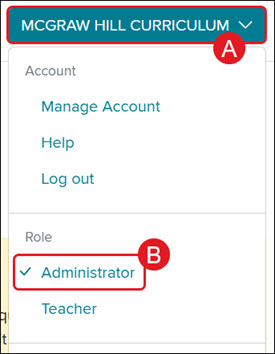
To access the administrator tools, click on the Profile button (A) and select Administrator (B) from the menu.
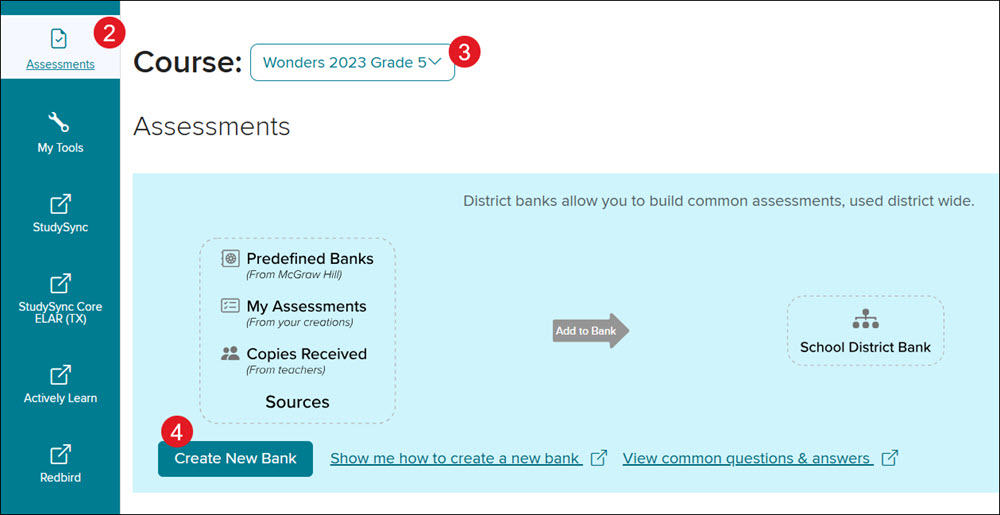
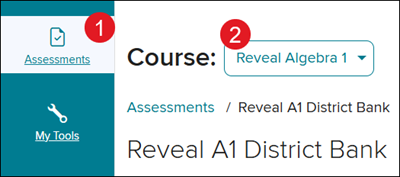
2. Click on Assessments from the navigation menu.
3. Select the program from the Course drop-down.
4. Click the Create New Bank button.
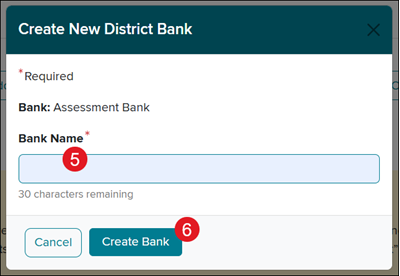
5. On the Create New District Bank pop-up, enter a Bank Name.
6. Click the Create Bank button.
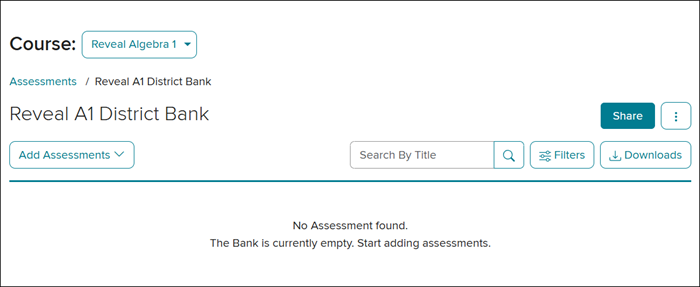
The page will automatically load to the new bank page.
Rename a District Bank
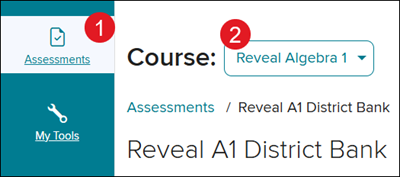
1. Click on Assessments from the navigation menu.
2. Select the program from the Course drop-down.
3. Click on the Rename (pencil) icon in the Action column.
4. Enter the new Title in the provided field.

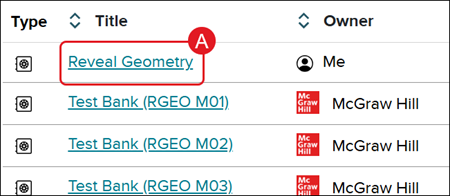
A. You can also click on the Title of the custom bank,
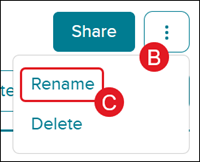
B. click on the Options button to the right,
C. and click Rename from the menu.
Delete a District Bank
Note: When deleting a District Bank, it also removes all custom assessments you have created within that bank. If you would like to keep the custom-created assessments, you will first want to move the assessments to another bank. For steps on moving assessments, refer to the Move Assessments Between District Banks article.
1. Click on Assessments from the navigation menu.
2. Select the program from the Course drop-down.
3. Click the Delete (trash can) icon to the right.

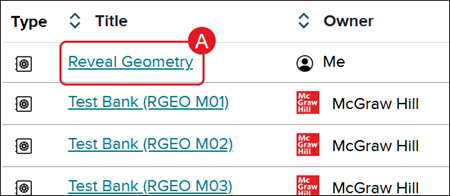
A. You can also click on the Title of the custom bank,
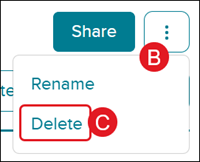
B. click on the Options menu icon to the right,
C. and click Delete from the menu.
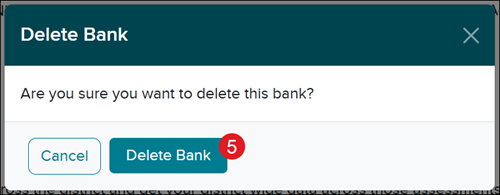
5. On the Delete Bank pop-up, click the Delete Bank button to confirm.