Create a New ALEKS Topic Goal Assignment
Learn how to create a Topic Goal assignment in the new ALEKS view.
- PreK-12
- Customer Support
- Classroom Teacher
- Elementary School
- Middle School
- High School
- Direct Login & Auto-Rostering
- Direct Login & Manual-Rostering
- SSO & Auto-Rostering
- SSO & Manual-Rostering
- Supplemental
- Math
- ALEKS
- Grades & Assignments


View the demo in a separate tab.
View the Spanish version of the demo.
Best practices for using Topic goals:
If assigning Topic goals, keep in mind that student work in Review mode, and in Homework, Test, and Quiz assignments, do not count toward the Topic goal. Only completion of Ready to Learn topics in the ALEKS Pie, also known as Learn mode of the adaptive path, counts toward topic goals.
Note: Students may not receive full credit for topic goals if they work too far ahead in the class.
1. SSO or log in at my.mheducation.com.
2. Launch your ALEKS course.
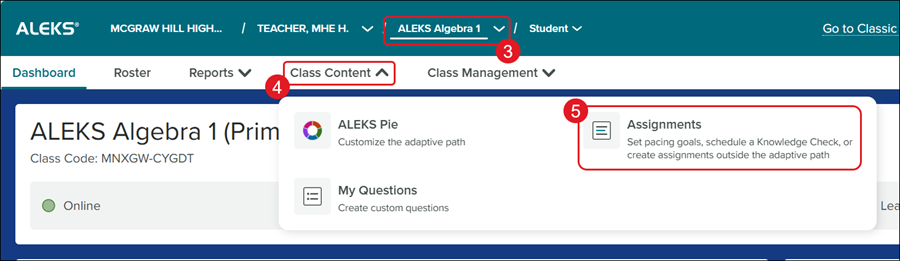
3. Select the Class from the drop-down.
4. Click on Class Content.
5. Click Assignments from the menu.
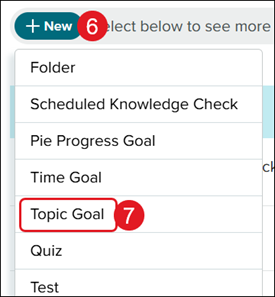
6. Click the +New button.
7. Click Topic Goal from the menu.
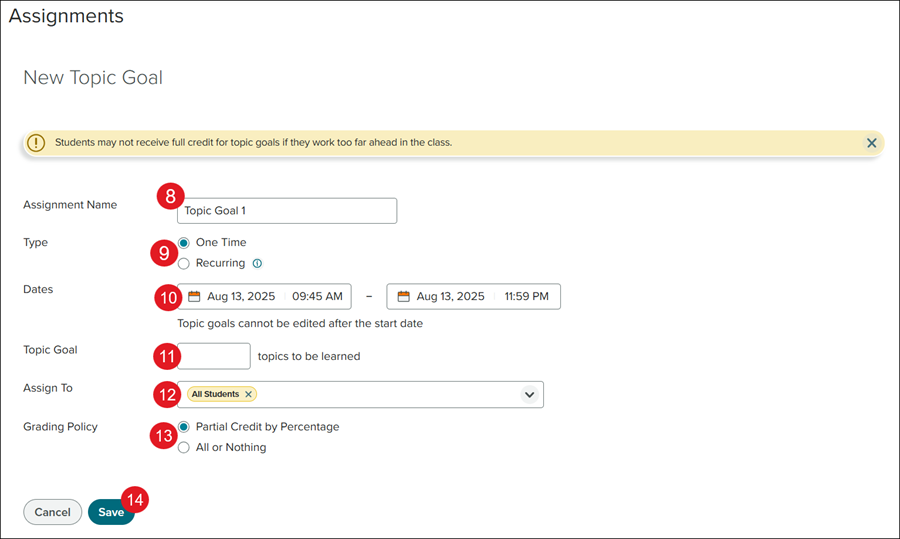
8. Enter an Assignment Name.
9. Select the radio button next to the preferred Type.
Recurring - This option creates a series of topic goals. Once created, each topic goal can only be edited individually.
10. Select the Dates for the assignment to be accessible to students.
Note: Topic goals cannot be edited after the start date.
11. Enter the number of topics students need to complete in the Topic Goal field.
12. Select the student to Assign To for the assignment. The default is set to all students in the student roster.
13. Select the radio button for the preferred Grading Policy.
14. Click the Save button.