Simplified Login allows younger students to access their McGraw Hill accounts using images instead of a standard username and password.
If the teacher no longer has the Teacher Edition of the book in their account, they will need to add the material back to their account then use the these steps to remove Simplified Login. If the class has already been removed, or the teacher has been disassociated from the school/district, please contact our K-12 Technical Support team to have the class removed.
1. Click on the Teacher Edition from your My ConnectED Programs page.
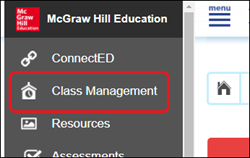
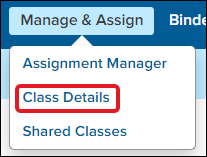
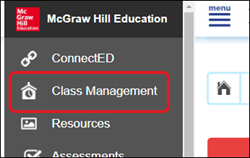
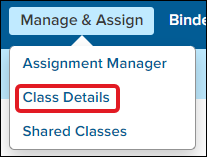
2. Click on Menu then Class Management or Manage & Assign then Class Details.
Note: The option depends on the program being used.
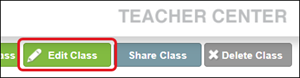
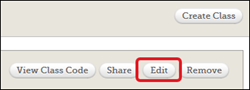
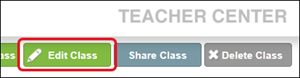
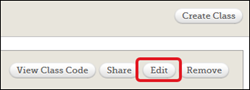
3. Click the Edit Class or Edit button. Options depend on the program being used.
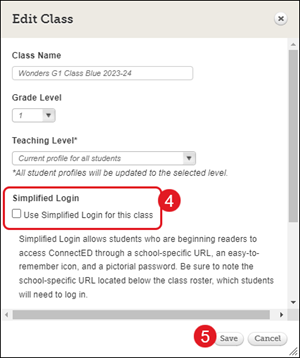
4. Check the box next to Use Simplified Login for this class.
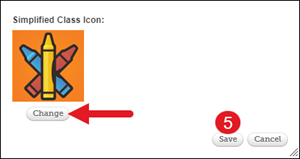
If you would like to change the Class Icon the students will see, click the Change button and select the desired image from the pop-up.
5. Click the Save button.
Disable Simplified Login
1. Click on the Teacher Edition from your My ConnectED Programs page.
2. Click on Menu then Class Management or Manage & Assign then Class Details.
Note: The option depends on the program being used.
3. Click the Edit Class or Edit button. Options depend on the program being used.
4. Uncheck the box next to Use Simplified Login for this class.
5. Click the Save button.
glencoe-health
mcgraw-hill-health
building-blocks
connecting-math-concepts
number-worlds
corrective-reading
early-interventions-in-reading
spelling-mastery
wonderworks
maravillas
ocr-foundational-skills-kit
open-court-reading
studysync
wonders
wow
core-plus-math
everyday-math
glencoe-math
my-math
mcgraw-hill-pre-algebra
glencoe-science
inspire-science
iscience
networks
music-its-role
spotlight-on-music
asi-se-dice
instructor
prek-12
Customer Support, PreK-12, Classroom Teacher, Preschool, Elementary School, Middle School, High School, Direct Login & Auto-Rostering, Direct Login & Manual-Rostering, SSO & Auto-Rostering, SSO & Manual-Rostering, Core, Intervention, Supplemental, AP, Honors & Electives, Career & Technical Education, Literacy, Math, Science, Social Studies, Health, Visual & Performing Arts, World Languages, Glencoe Health 2014, McGraw Hill Health 2014, Building Blocks 2015, Connecting Math Concepts, Number Worlds 2015, Corrective Reading, Early Interventions in Reading, Spelling Mastery, WonderWorks 2022 & 2014, Maravillas 2020 & 2017, OCR Foundational Skills Kit, OCR Word Analysis Kit, Open Court Reading 2016, 2018, 2023, StudySync 2015 & 2017, Wonders, Wonders 2014, Wonders 2023 2020 2017, Wonders Balanced Literacy 2016, Wonders EL 2016, World of Wonders 2017, Core Plus Math 2015, Everyday Mathematics 4 (K-6), Glencoe Algebra 1 2014, Glencoe Algebra 1 2018, Glencoe Algebra 2 2014, Glenoce Algebra 2 2018, Glencoe Math, Glencoe Geometry 2014, Glencoe Geometry 2018, Glencoe Math Course 1, Glencoe Math Course 2, Glencoe Math Course 3, Glencoe Math Accelerated, McGraw Hill My Math 2013 & 2016, McGraw Hill My Math, McGraw Hill My Math 2018, Pre-Algebra 2012, Glencoe Science 2017, Glencoe Science, Inspire Science 2017, iScience 2017, Networks, Networks 2014 (K-5), Networks 2014 & 2016, Networks 2018, Music! Its Role, Spotlight on Music, Asi se Dice 2016, Log-In & Passwords, Simplified Login, Class Management
dts
2026-03-24T18:25:26.536-03:00
View the demo in a separate tab. View the Spanish version of the demo. Simplified Login allows younger students to access their McGraw Hill accounts using images instead of a standard username and password. If the teacher no longer has the Teacher Edition of the book in their account, they will need to add the material back to their account then use the these steps to remove Simplified Login. If the class has already been removed, or the teacher has been disassociated from the school/district, please contact our K-12 Technical Support team to have the class removed. Article Contents Enable Simplified Login Disable Simplified Login Enable Simplified Login 1. Click on the Teacher Edition from your My ConnectED Programs page. 2. Click on Menu then Class Management or Manage & Assign then Class Details. Note: The option depends on the program being used. 3. Click the Edit Class or Edit button. Options depend on the program being used. 4. Check the box next to Use Simplified Login for this class. If you would like to change the Class Icon the students will see, click the Change button and select the desired image from the pop-up. 5. Click the Save button. Disable Simplified Login 1. Click on the Teacher Edition from your My ConnectED Programs page. 2. Click on Menu then Class Management or Manage & Assign then Class Details. Note: The option depends on the program being used. 3. Click the Edit Class or Edit button. Options depend on the program being used. 4. Uncheck the box next to Use Simplified Login for this class. 5. Click the Save button.
Help us improve!
Let us know how we can improve our support information by providing feedback in this short survey.
Top
Regional Page Available
It looks like you're outside the United States. Do you want to see your regional version of this page?