Review ConnectED Student eBook Work
Learn how teachers review student work completed in ConnectED eBooks.
Tags
- Customer Support
- PreK-12
- Classroom Teacher
- Elementary School
- Middle School
- High School
- Direct Login & Auto-Rostering
- Direct Login & Manual-Rostering
- SSO & Auto-Rostering
- SSO & Manual-Rostering
- Core
- Literacy
- Math
- Science
- Social Studies
- Health
- Visual & Performing Arts
- World Languages
- Glencoe Health 2014
- McGraw Hill Health 2014
- Glencoe Algebra 1 2014
- Glencoe Algebra 1 2018
- Glencoe Algebra 2 2014
- Glenoce Algebra 2 2018
- Glencoe Math
- Glencoe Geometry 2014
- Glencoe Geometry 2018
- Glencoe Math Course 1
- Glencoe Math Course 2
- Glencoe Math Course 3
- Glencoe Math Accelerated
- McGraw Hill My Math 2013 & 2016
- McGraw Hill My Math 2018
- McGraw Hill My Math
- Glencoe Science 2017
- Glencoe Science
- Inspire Science 2017
- iScience 2017
- Asi se Dice 2016
- Networks 2014 (K-5)
- Grades & Assignments


View the demo in a separate tab.
View the Spanish version of the demo.
To complete these steps, you will need to first redeem the Student Edition of the program. If you need the Student Edition Master Code, reach out to your Organization Administrator.
Article Contents
Access Completed eBook Pages
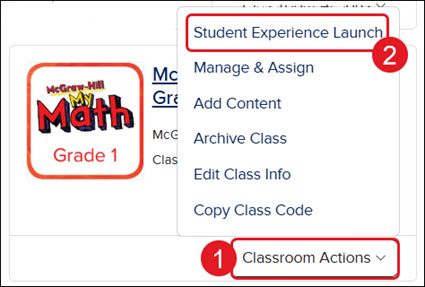
- Click Classroom Actions on the class card.
- Click Student Experience Launch from the menu.
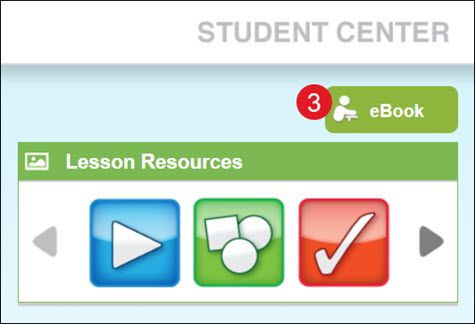
- Click the eBook button to the right of the Student Center.
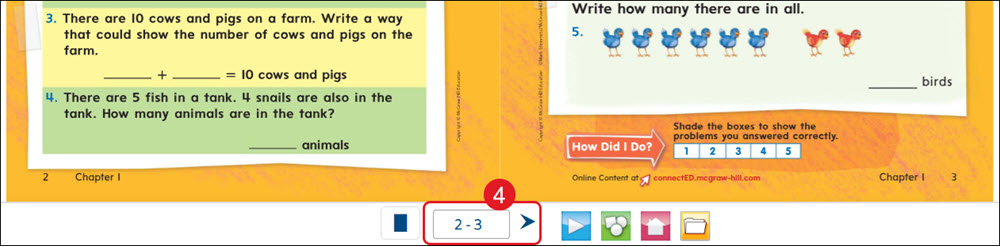
- At the bottom of the eBook, select the page(s) the work was completed on by the students.
- You can also navigate to the location within the eBook using the Contents option.
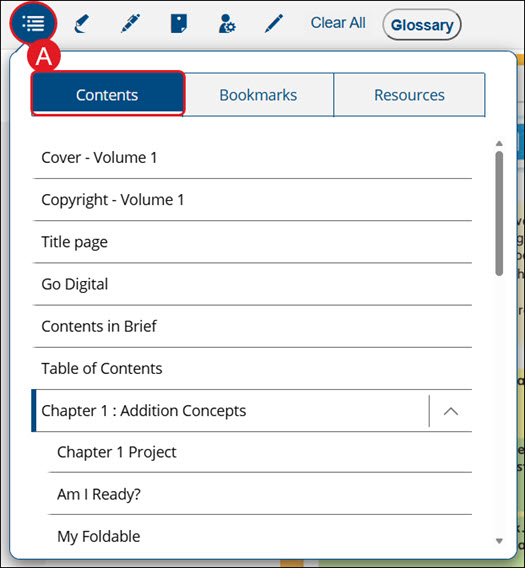
- You can also navigate to the location within the eBook using the Contents option.
- Click the Review icon (person with gear icon) on the top toolbar.

- Select the class.
- Select the Student you want to review.
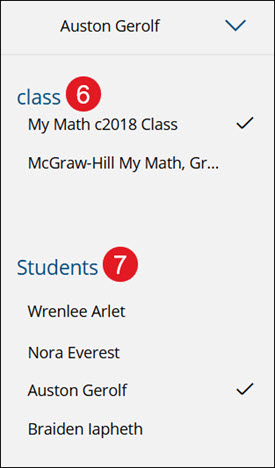
- Click Done at the top right once the review is complete.
Use the Pen Tool
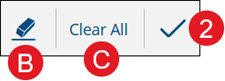
- Click the Pen tool icon in the top toolbar.

- Use the bar at the top left to adjust the pen thickness.

- Click the Eraser icon to clear specific written lines.
- Click Clear All to clear all teacher markings from the page.
- Use the bar at the top left to adjust the pen thickness.
- Click the checkmark at the top-right once markings are complete.
Add a Note
- Click the Note tool icon in the top toolbar.

- If viewing two pages at a time, click to add the note to the Left Page or Right Page.
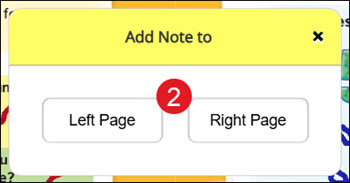
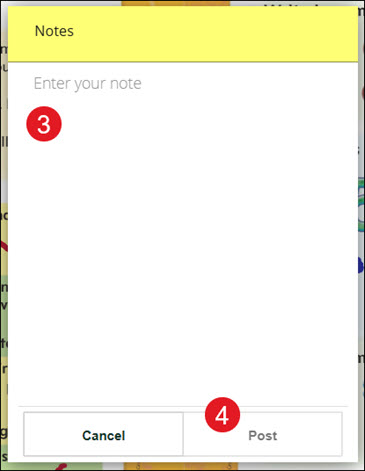
- Enter your note in the provided field.
- Click the Post button.
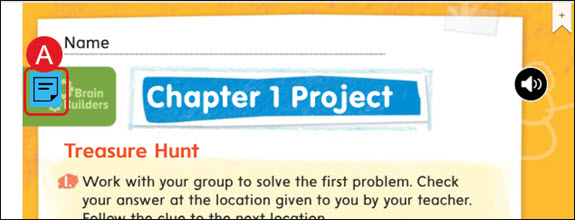
A. To edit or delete a note, click on the blue note icon on the page.
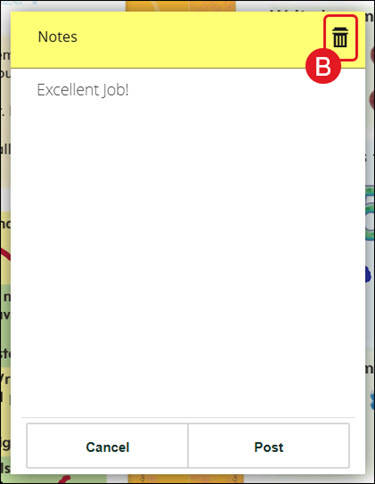
B. Click the trash can icon to delete the note.
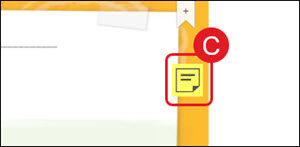
C. To review student notes, click on the yellow note icon.