Completing PDF Assignments on a Chromebook
Follow steps for completing and submitting PDF assignments on a Chromebook.
- Customer Support
- Middle School
- High School
- PreK-12
- Supplemental
- Visual & Performing Arts
- Health
- Literacy
- Social Studies
- School Student
- Core
- AP, Honors & Electives
- School Parent
- Elementary School
- World Languages
- Math
- Intervention
- Science
- Preschool
- AP Biology
- AP Chemistry
- AP History & Geography
- AP Psychology
- AP Economics
- AP African American Studies
- AP Precalculus
- AP Statistics
- AP Computer Science
- AP Language and Composition
- AP Public Speaking
- AP Music Theory
- 5 Steps to a 5 - AP Test Prep
- Glencoe Health 2022
- Teen Health 2021
- Arrive Math
- Building Blocks 2024
- Building Blocks PreK 2025
- Number Worlds 2024
- SRA Reading Laboratory 2025
- SRA Reading Mastery Transformations
- McGraw Hill Literacy Emerge!
- McGraw Hill Literacy Summit!
- McGraw Hill Literacy Soar!
- Open Court Reading 2025
- CA Reveal Math (K-12)
- Illustrative Math
- Reveal Math (K-12)
- Texas Math
- CA Inspire Science 2020
- FL Science 2025 (K-12)
- Inspire Science 2020
- TN Science (K-12)
- TX Science 2025 (K-12)
- CA Impact 2019
- FL Social Studies 2024 (K-12)
- Impact Social Studies
- McGraw Hill Social Studies
- All Sorts 2026 (K-5)
- Asi se Dice 2024
- CTE - Health Science
- CTE - Agriculture
- CTE - Computing and Technology
- CTE - Culinary Arts
- CTE - Early Childhood Education
- CTE - Business, Marketing, and Finance
- CTE - Criminal Justice
- Grades & Assignments
- Student Resources
- Chromebooks


This article explains how students can complete and download PDF assignments using a Chromebook. If you make progress on an assignment and need to come back to it later, be sure to use these instructions to save your PDF assignment. When you re-open the assignment later, your previous work will be saved within the assignment.
1. Open the assignment using the Chrome web browser.
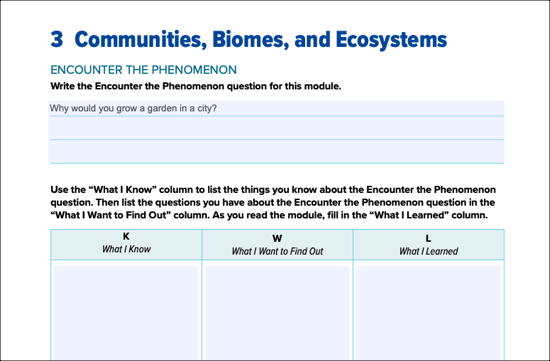
2. Type your responses into the fillable fields in the PDF assignment. Fillable fields are displayed in blue.
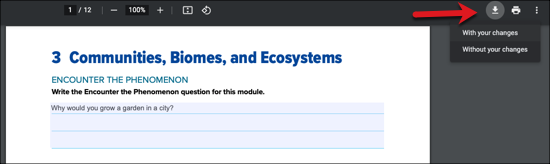
3. Once you've finished your assignment, select the download arrow the top right.
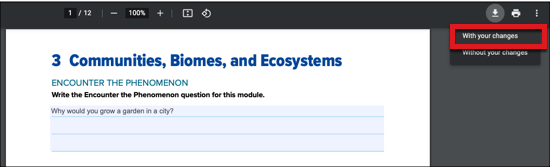
4. Select With your changes from the drop-down menu.
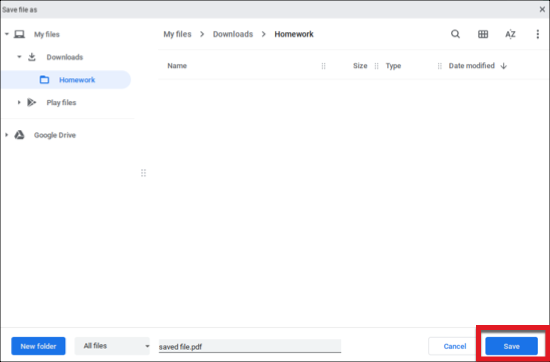
4. Select the location where you wish to save your assignment and click Save.