Complete an Assigned Fluency Check
Learn how to complete a fluency check that has been assigned by your teacher.
- PreK-12
- Customer Support
- School Student
- School Parent
- Elementary School
- Direct Login & Auto-Rostering
- Direct Login & Manual-Rostering
- SSO & Auto-Rostering
- SSO & Manual-Rostering
- Core
- Intervention
- Literacy
- SRA Reading Mastery Transformations
- Corrective Reading
- Open Court Reading 2025
- Grades & Assignments


1. Sign in to your student account.
2. Click on the class tile to launch the course.
3. On your Home page, click the Let's Go button for the assignment.
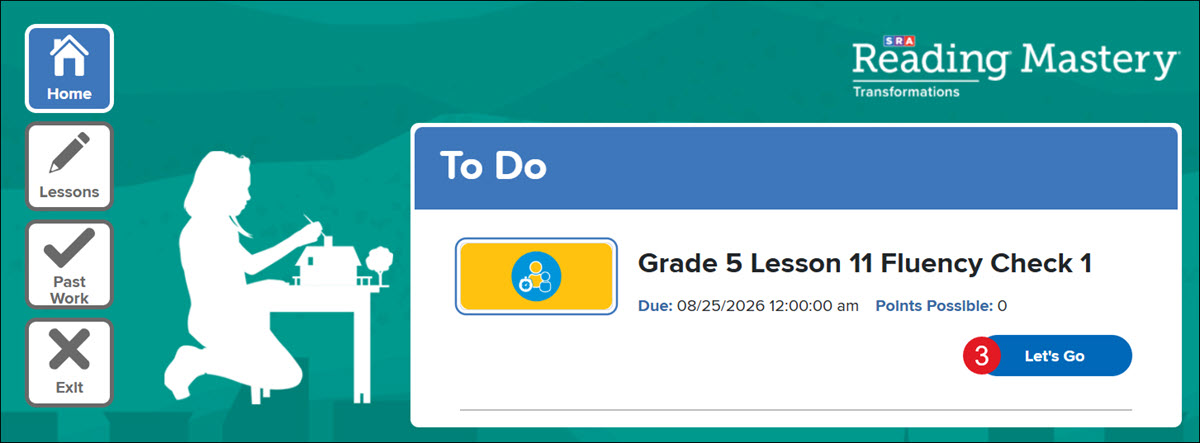
4. Click the Ready button.
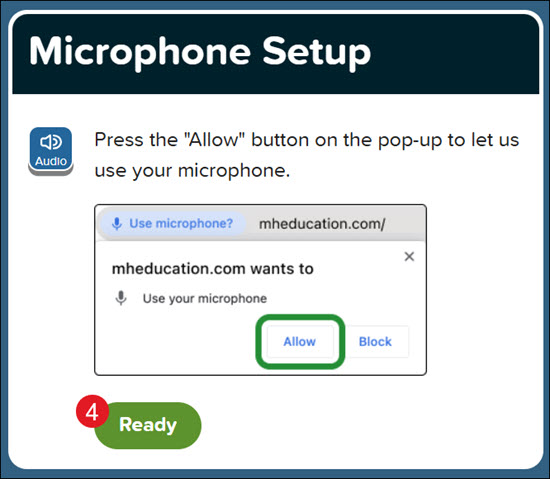
If your microphone is not enabled, you will receive a pop-up asking you to allow microphone access.
Note: The pop-up will vary based on the browser being used.
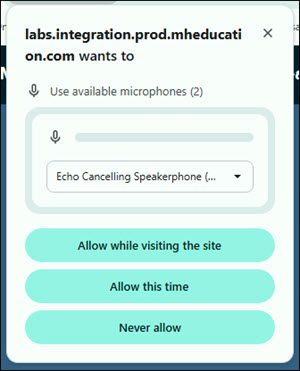
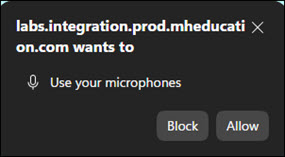
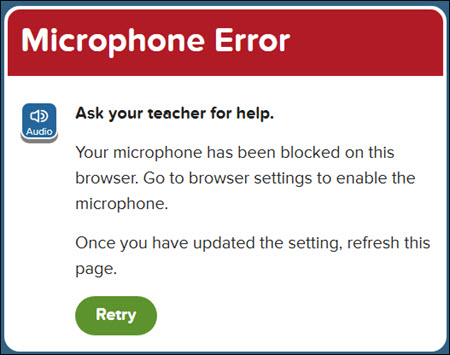
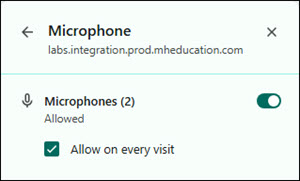
If you receive a Microphone Error that the microphone has been blocked, you will need to enable the tool in the browser. Reach out to your teacher for assistance if needed.
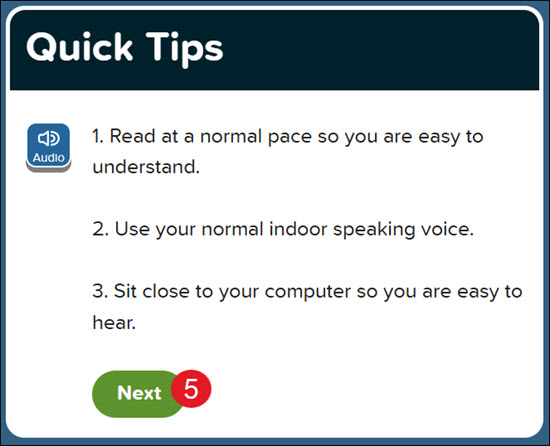
5. Click the Next button after the program has read the Quick Tips aloud.
6. Click the Start button.
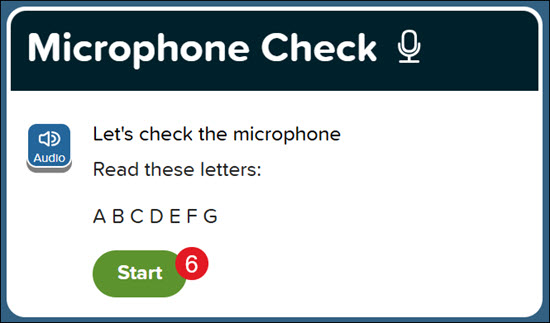
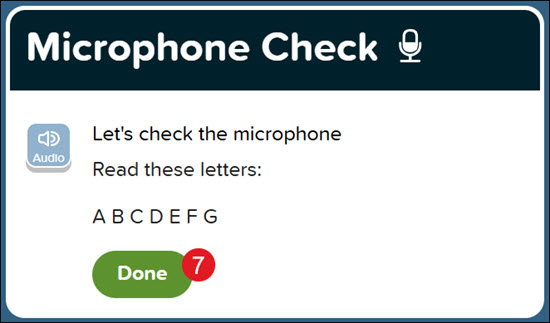
7. Read off the letters on the Microphone Check to verify your microphone is working properly.
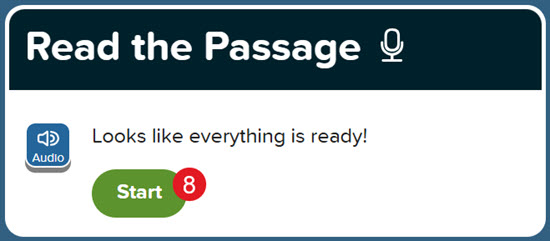
8. Click the Start button once you are ready to read the assigned passage.
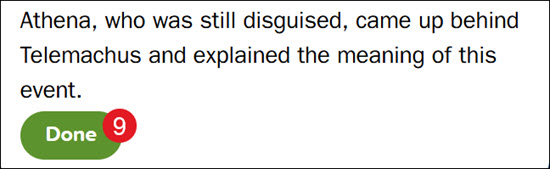
9. Click the Done button once you've finished reading the passage or the time has ended.
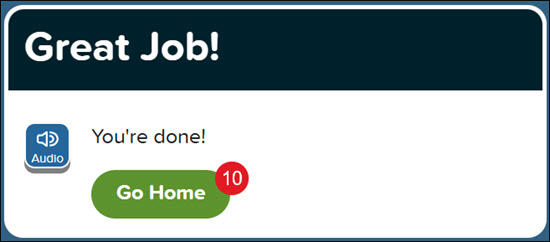
10. Click the Go Home button to navigate back to your Home page. Refresh the page to make sure the assignment has been submitted.