
Classic ALEKS Timeline Report
Use the Timeline report in classic ALEKS view to review student activity over time.
- Customer Support
- PreK-12
- Classroom Teacher
- Elementary School
- Middle School
- High School
- Direct Login & Auto-Rostering
- Direct Login & Manual-Rostering
- SSO & Auto-Rostering
- SSO & Manual-Rostering
- Supplemental
- Math
- ALEKS
- Reports & Analytics


View the demo in a separate tab.
View the Spanish version of the demo.
This report allows teachers to view a student's progress milestones over time.
1. SSO or log in at my.mheducation.com.
2. Launch your ALEKS course.
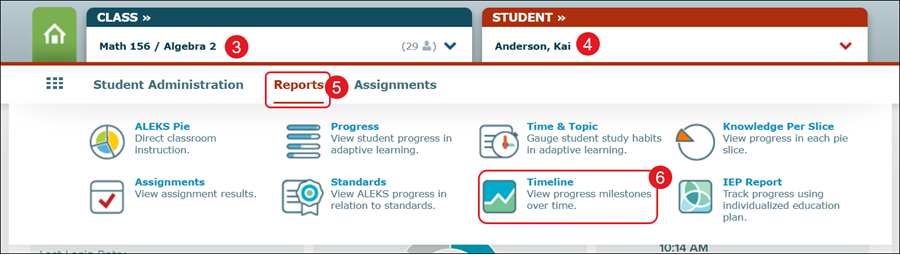
3. Select the Class from the drop-down.
4. Select the Student.
5. Hover over Reports.
6. Click on Timeline from the menu.
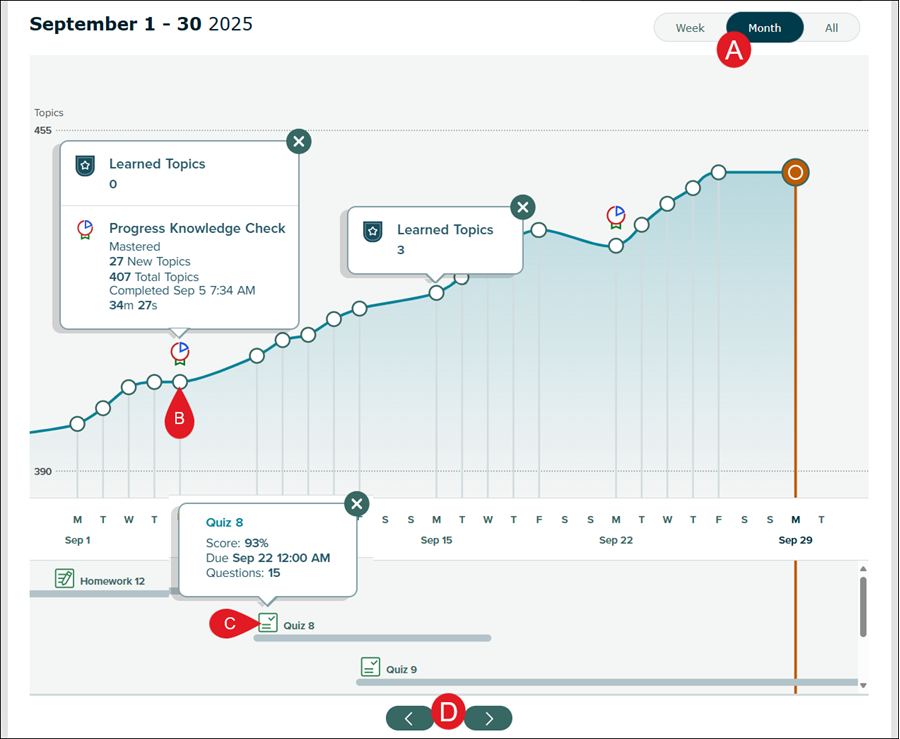
A. Toggle between viewing the report by Week, Month, or All progress milestones at a time.
B. Click a dot on the graph to view how many topics were Learned.
By clicking on a Progress Knowledge Check dot, teachers can view how many topics were Mastered, New Topics learned, Total Topics, when the Knowledge Check was Completed, and how long it took the student to complete it.
C. Click on an assignment icon to view the student's Score, when it was Due, and how many Questions it had.
D. Click the arrows at the bottom to navigate between weeks, months, and pages.
