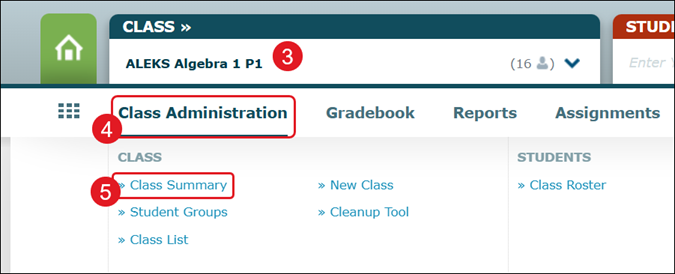
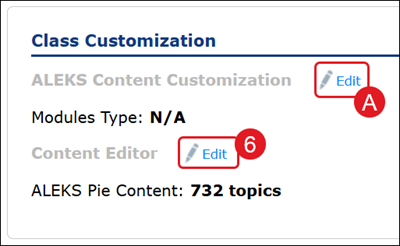
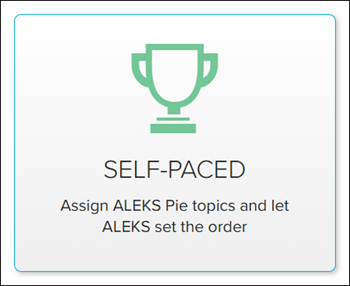
Setting self-paced class content allows teachers to assign which ALEKS Pie topics they want students to complete while ALEKS sets the order of those selected topics.
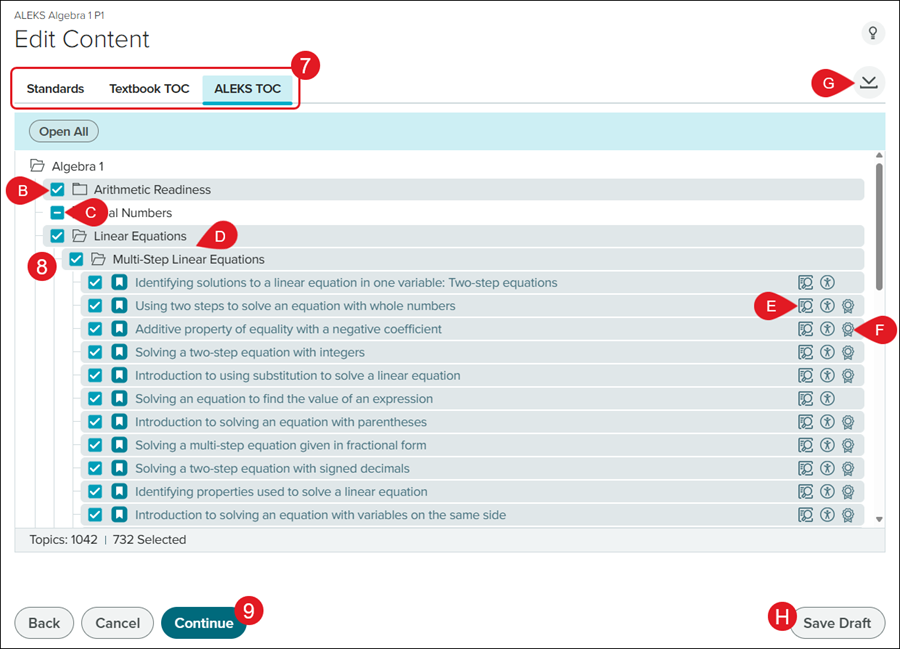
8. Check/uncheck the box next to the topics you want to include.
B. Those with a checkmark have all topics included for that section.
C. Those with a dash only have select topics included for that section.
D. Click on a section to expand and view the topics.
E. Click the Preview to view an example question for that topic.
F. Click the Standards icon to view the associated standards for that topic.
G. Click the Download button to download a PDF of the Class Syllabus.
9. Click the Continue button.
H. Click the Save Draft button to save what changes you've made to finish setup at a later time.
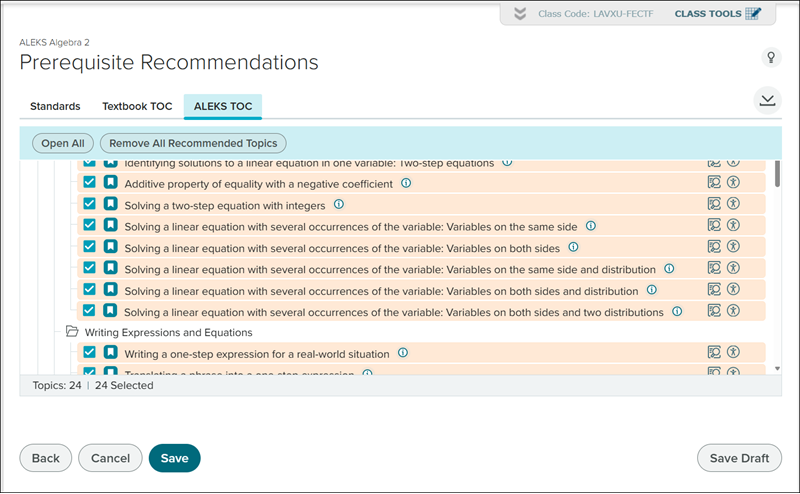
Depending on the topics selected, the ALEKS program may suggest Prerequisite Recommendations for topics to add to the syllabus to better help students prepare for the topics in the class.
Uncheck any options you do not want to add and click Save at the bottom.
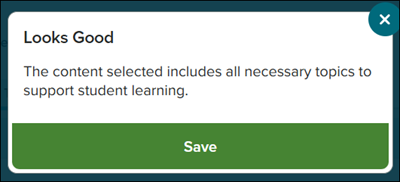
10. Click the Save button on the pop-up.
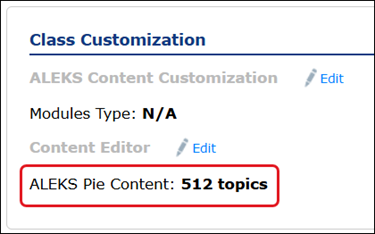
You'll receive a message that your changes have been saved and the ALEKS Pie Content count, in the Class Customization section, will reflect the new number of topics selected.
Help us improve!
Let us know how we can improve our support information by providing feedback in this short survey.
Top
Regional Page Available
It looks like you're outside the United States. Do you want to see your regional version of this page?
Support Topics/Assessments & Reporting/Grades & Assignments
Context/Integration Type/SSO & Manual-Rostering
Support Topics/Classroom & Course Management/Plan & Present
prek-12
2026-03-24T19:18:41.206-03:00
<p>For a full page view of the demo, <a href="https://hub.mheducation.com/share/g0fh6bnkvqgi" target="_blank">click here</a>.</p> <p>For a Spanish version of the demo, <a href="https://hub.mheducation.com/share/abmfvrpn6rxk" target="_blank">click here</a>.</p> <p>Setting self-paced class content allows teachers to assign which ALEKS Pie topics they want students to complete while ALEKS sets the order of those selected topics.</p> <p>1. SSO or log in at <a href="https://my.mheducation.com/login" target="_blank">my.mheducation.com</a>.</p> <p>2. Launch <strong>ALEKS</strong>.</p> <p>3. Select the <strong>Class </strong>from the drop-down.</p> <p>4. Hover over <strong>Class Administration</strong>.</p> <p>5. Click on <strong>Class Summary</strong> from the menu.</p> <p><img src="/content/dam/mhe/support/support-images/migrated/rtaImage--706437173.jpeg" data-assetref="rtaImage--706437173-1777322283516"></p> <p>6. In the <strong>Class Customization</strong> section, click <strong>Edit </strong>next to <strong>Content Editor</strong>.</p> <p><img src="/content/dam/mhe/support/support-images/migrated/rtaImage--706353042.jpeg" data-assetref="rtaImage--706353042-1777322283517"></p> <p>Or you can click <strong>Edit </strong>(A) next to <strong>ALEKS Content Customization</strong> and click the <strong>Self-Paced</strong> button.</p> <p><img src="/content/dam/mhe/support/support-images/migrated/rtaImage--706352679.jpeg" data-assetref="rtaImage--706352679-1777322283518"></p> <p><img src="/content/dam/mhe/support/support-images/migrated/rtaImage--706349684.jpeg" data-assetref="rtaImage--706349684-1777322283518"></p> <p>7. Click on <strong>Standards</strong>, <strong>Textbook TOC</strong>, or <strong>ALEKS TOC</strong>.</p> <p><strong>Note:</strong> To see the <strong>Textbook TOC </strong>option, you will first need to integration a textbook for the class. Refer to the <a href="/content/mheducation/us/en/support/aleks-support-center/knowledge/aleks-customize-class-content" target="_blank">ALEKS - Class Summary</a> article for steps on adding a textbook.</p> <p>8. Check/uncheck the box next to the <strong>topics </strong>you want to include.</p> <p>B. Those with a checkmark have all topics included for that section.</p> <p>C. Those with a dash only have select topics included for that section.</p> <p>D. Click on a section to expand and view the topics.</p> <p>E. Click the <strong>Preview </strong>to view an example question for that topic.</p> <p>F. Click the <strong>Standards </strong>icon to view the associated standards for that topic.</p> <p>G. Click the <strong>Download </strong>button to download a PDF of the <strong>Class Syllabus</strong>.</p> <p>9. Click the <strong>Continue </strong>button.</p> <p>H. Click the <strong>Save Draft</strong> button to save what changes you've made to finish setup at a later time.</p> <p>Depending on the topics selected, the ALEKS program may suggest <strong>Prerequisite Recommendations</strong> for topics to add to the syllabus to better help students prepare for the topics in the class.</p> <p>Uncheck any options you do not want to add and click <strong>Save </strong>at the bottom.</p> <p><img src="/content/dam/mhe/support/support-images/migrated/rtaImage--706333074.jpeg" data-assetref="rtaImage--706333074-1777322283518"></p> <p>10. Click the <strong>Save </strong>button on the pop-up.</p> <p><img src="/content/dam/mhe/support/support-images/migrated/rtaImage--706351108.jpeg" data-assetref="rtaImage--706351108-1777322283519"></p> <p>You'll receive a message that your changes have been saved and the <strong>ALEKS Pie Content</strong> count, in the <strong>Class Customization</strong> section, will reflect the new number of topics selected.</p> <p><img src="/content/dam/mhe/support/support-images/migrated/rtaImage--706366461.jpeg" data-assetref="rtaImage--706366461-1777322283519"></p> dts Set up self-paced class content in Classic ALEKS for flexible learning. 2025-11-19 Customize Classic ALEKS View Self-Paced Class Content Set up self-paced class content in Classic ALEKS for flexible learning. Set up self-paced class content in classic ALEKS view for flexible learning.
Set up self-paced class content in classic ALEKS view for flexible learning.
For a full page view of the demo, click here. For a Spanish version of the demo, click here. Setting self-paced class content allows teachers to assign which ALEKS Pie topics they want students to complete while ALEKS sets the order of those selected topics. 1. SSO or log in at my.mheducation.com. 2. Launch ALEKS. 3. Select the Class from the drop-down. 4. Hover over Class Administration. 5. Click on Class Summary from the menu. 6. In the Class Customization section, click Edit next to Content Editor. Or you can click Edit (A) next to ALEKS Content Customization and click the Self-Paced button. 7. Click on Standards, Textbook TOC, or ALEKS TOC. Note: To see the Textbook TOC option, you will first need to integration a textbook for the class. Refer to the ALEKS - Class Summary article for steps on adding a textbook. 8. Check/uncheck the box next to the topics you want to include. B. Those with a checkmark have all topics included for that section. C. Those with a dash only have select topics included for that section. D. Click on a section to expand and view the topics. E. Click the Preview to view an example question for that topic. F. Click the Standards icon to view the associated standards for that topic. G. Click the Download button to download a PDF of the Class Syllabus. 9. Click the Continue button. H. Click the Save Draft button to save what changes you've made to finish setup at a later time. Depending on the topics selected, the ALEKS program may suggest Prerequisite Recommendations for topics to add to the syllabus to better help students prepare for the topics in the class. Uncheck any options you do not want to add and click Save at the bottom. 10. Click the Save button on the pop-up. You'll receive a message that your changes have been saved and the ALEKS Pie Content count, in the Class Customization section, will reflect the new number of topics selected.
dts
Customer Support, PreK-12, Classroom Teacher, Elementary School, Middle School, High School, Direct Login & Auto-Rostering, Direct Login & Manual-Rostering, SSO & Auto-Rostering, SSO & Manual-Rostering, Supplemental, Math, ALEKS, Class Management, Plan & Present, Grades & Assignments