Create Classic ALEKS View QuickTable Quizzes
Create and manage QuickTables quizzes in classic ALEKS view.
- Supplemental
- SSO & Manual-Rostering
- Customer Support
- Online Assessments
- Direct Login & Auto-Rostering
- Middle School
- ALEKS
- Direct Login & Manual-Rostering
- High School
- Classroom Teacher
- SSO & Auto-Rostering
- PreK-12
- Math
- Grades & Assignments


This article walks teachers through creating and editing QuickTables quizzes.
For a full page view of the demo, click here.
For a Spanish version of the demo, click here.
Article Contents
New Quiz
General Tips:
- In order to maximize student engagement and prevent student mental overload, we recommend selecting between 10-35 math facts.
- Math facts on this quiz will be presented to the student in randomized order.
1. SSO or log in at my.mheducation.com.
2. Launch ALEKS.
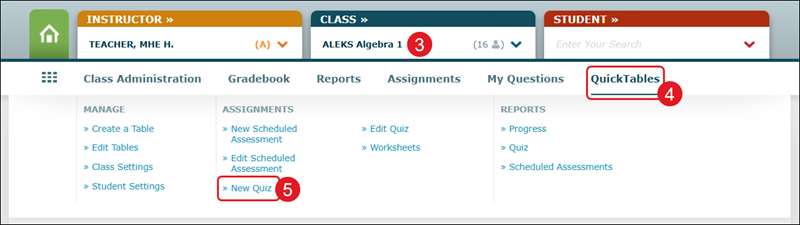
3. Select a Class from the drop-down.
4. Hover over QuickTables.
5. Click on New Quiz from the menu.
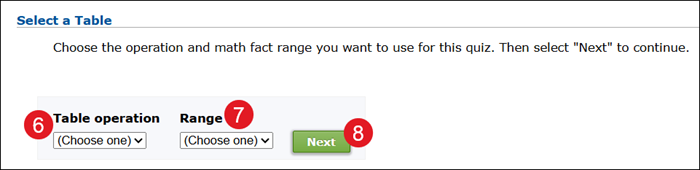
6. Select a Table operation.
7. Select a Range.
8. Click the Next button.
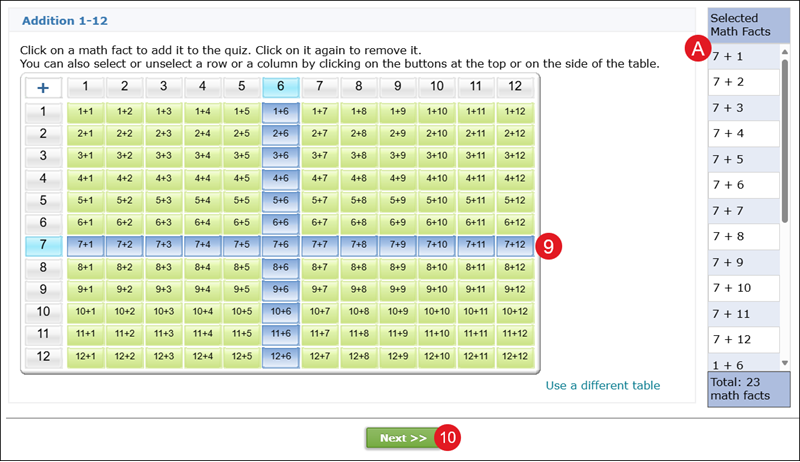
9. Click on the math fact and/or row or column in the table to add them to the quiz. Clicking on the math fact a second time will remove it.
A. The selected math facts will show to the right of the table.
10. Click the Next button.
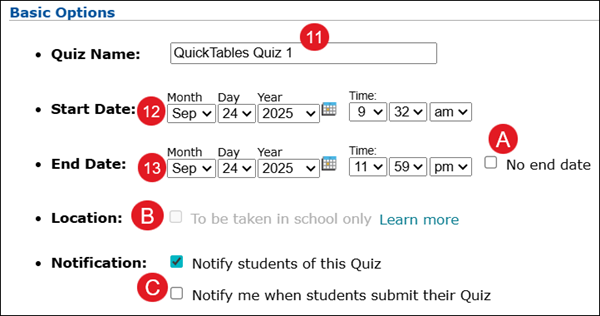
11. Enter a Quiz Name.
12. Select a Start Date and Time.
13. Select an End Date and Time.
A. If you want the assessment to stay open until you manually close it, check the No end date box.
B. Check the Location box if you want students to only complete the quiz in school.
If selected, students can only take this Quiz using a school computer.
To use this option, the domain name or IP address needs to be entered for your school computers. Your school administrator for ALEKS must enter this information.
C. Uncheck the Notification boxes if you do not want students notified of the Quiz and/or if you would like to be notified once they submit their quiz.
D. In the Advanced Options section, the Status defaults to Enabled. This means that students will see the Scheduled Assessment on the selected start date.
To change to Disabled, click the Edit link to the right and select Disabled from the drop-down.

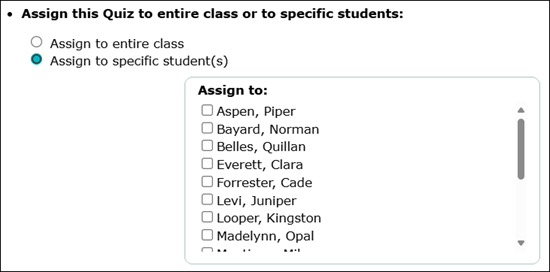
E. The Scheduled Assessment assigns all students in this class by default.
To select certain students for the Scheduled Assessment, click the Edit link to the right. Select the Assign to specific student(s) radio button and checkmark the students you want assigned.
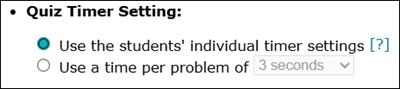
F. The Quiz Timer Setting is set to Use individualized timers. Click the Edit link to the right to change the option to Use a time per problem.
Choosing the first option gives students their individual timer settings defined on the Student Settings page. If students have different timer settings on that page, then they will have different timer settings on this quiz.
Choosing the second option allows you to specify a timer setting for this quiz only and gives each student this amount of time per problem. This overrides the settings on the Student Settings page.
G. The QuickTables Retention Assessments is set to be prevented on the same day as the Scheduled Assessment.
Note: A Retention Assessment is automatically given to a student a certain amount of time after the student completes a table. The goal is to assess the student's long-term progress of the table.
To prevent the QuickTables Retention Assessment from coming up days prior to the Scheduled Assessment, click the Edit link to the right. Select up to 7 days prior from the drop-down.

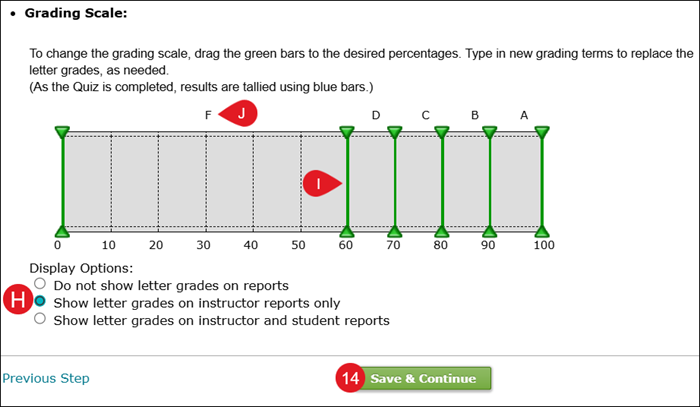
H. The Grading Scale is set to Show letter grades on instructor reports only.
Click the Edit link to the right to choose between not showing the letter grades on reports, showing letter grades only on instructor reports, or to show letter grades on instructor and student reports.
I. You can also click and drag the green bars on the grading scale to the desired percentages.
J. Click on the letters on the grading scale to replace them, as needed.
14. Click the Save & Continue button.
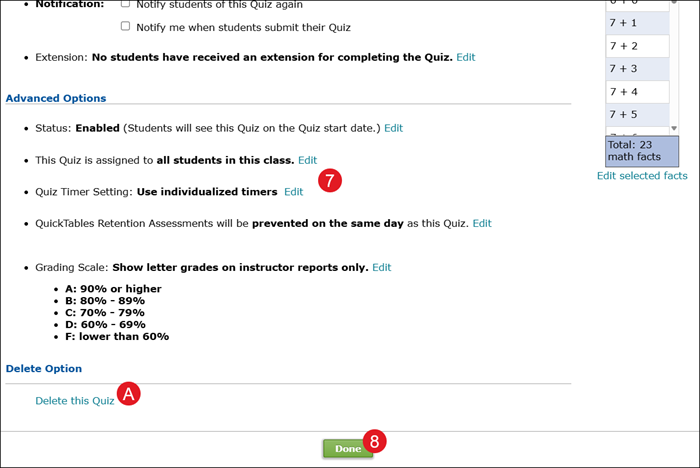
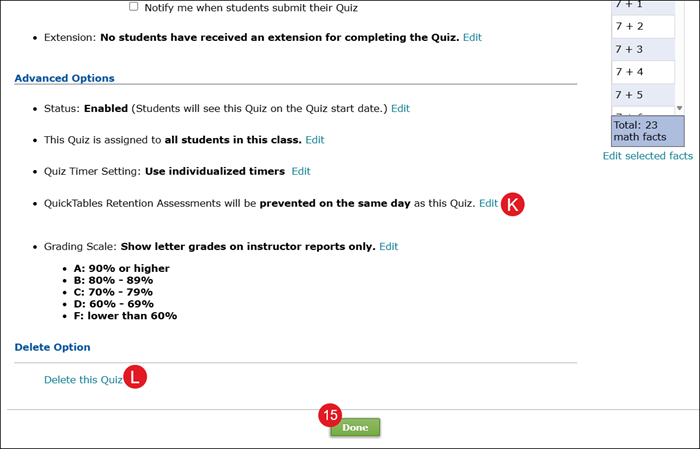
K. On the summary page, click the Edit link next to an option to make changes.
L. Click Delete this Quiz to remove it from student access.
15. Click the Done button.
Edit Quiz
1. SSO or log in at my.mheducation.com.
2. Launch ALEKS.
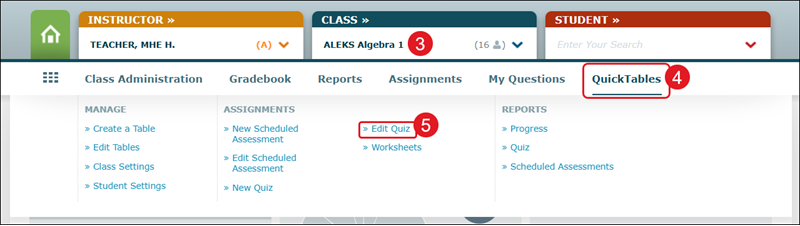
3. Select a Class from the drop-down.
4. Hover over QuickTables.
5. Click on Edit Quiz from the menu.
6. Click on the Quiz Name.

7. Click the Edit link next to option you want to make changes to.
A. Click Delete this Quiz to remove the quiz from student access.
8. Click the Done button.