Classic ALEKS Knowledge Per Slice Report
Use the Knowledge Per Slice report in classic ALEKS view to evaluate mastery by topic area.
- Customer Support
- PreK-12
- Classroom Teacher
- Elementary School
- Middle School
- High School
- Direct Login & Auto-Rostering
- Direct Login & Manual-Rostering
- SSO & Auto-Rostering
- SSO & Manual-Rostering
- Supplemental
- Math
- ALEKS
- Reports & Analytics


View the demo in a separate tab.
View the Spanish version of the demo.
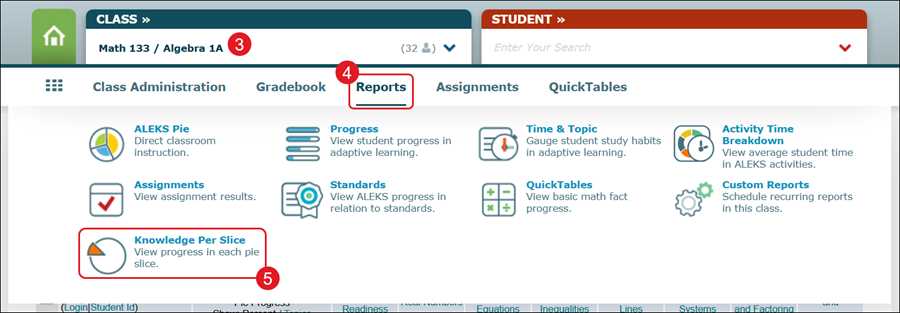
1. SSO or log in at my.mheducation.com.
2. Launch ALEKS.
3. Select the Class from the drop-down.
4. Hover over Reports.
5. Click on Knowledge Per Slice from the menu.
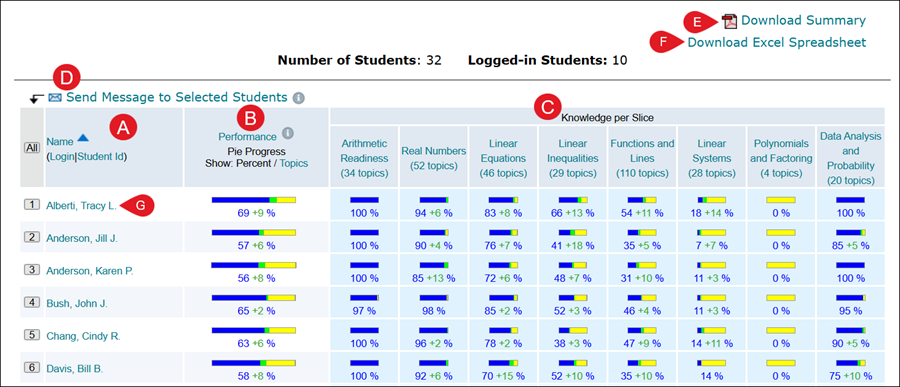
A. Click on a header title to organize the data by that column.
B. The Performance column shows a bar graph of what the student has learned as a whole. Click Percent or Topics to toggle the column between the two different views.
C. The Knowledge per Slice section provides a breakdown of what the student has mastered for each assigned topic. Each slice provides the number of topics associated with each.
Performance Bars:
Blue represents content mastered based on the Knowledge Check.
Green represents the progress made in Learning Mode.
Yellow represents the content that is not yet mastered.
Gray represents the percentage/topics not assessed in that course.
D. Click on the All or the number to the left of a student name and click the Send Message to Selected Students link to send a message to the selected students.
E. Click the Download Summary link to download a PDF copy of the report.
F. Click the Download Excel Spreadsheet to download a breakdown of the student data in an Excel spreadsheet.
G. Click on a student's name to navigate to the student's Knowledge Per Slice report.
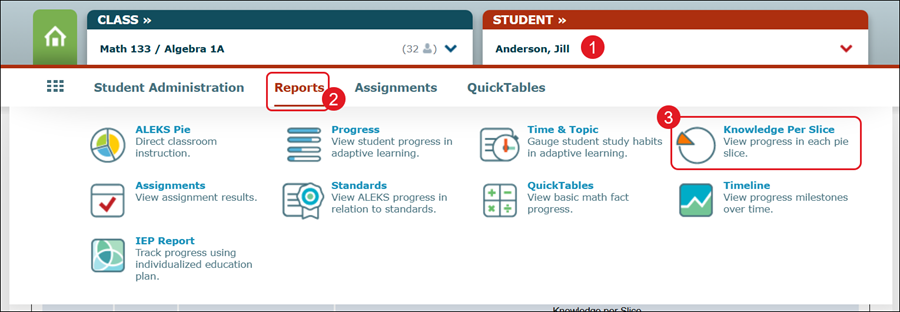
You can also access an individual student report by selecting their name from the Student (1) drop-down, hovering over Reports (2), and clicking on Knowledge Per Slice (3) from the menu.
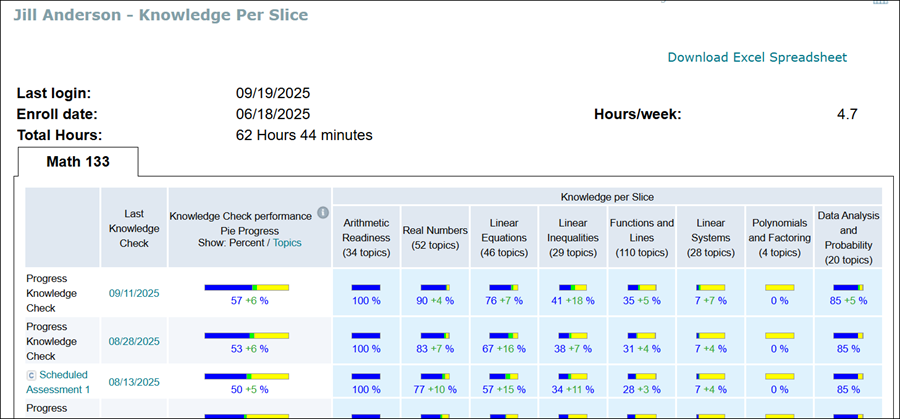
The individual student report will provide details of when they last logged into ALEKS, the date of enrollment, their total hours spent within ALEKS, and the hours per week spent within ALEKS.
It will also provide details for each Knowledge Check completed, the date of the Knowledge Check, and the Pie Progress made with each Knowledge Check overall, as well as a breakdown per slice.