Classic ALEKS IEP Report
Review the ALEKS IEP report in classic view to support individualized education planning.
- Customer Support
- PreK-12
- Classroom Teacher
- Elementary School
- Middle School
- High School
- Direct Login & Auto-Rostering
- Direct Login & Manual-Rostering
- SSO & Auto-Rostering
- SSO & Manual-Rostering
- Supplemental
- Math
- ALEKS


View the demo in a separate tab.
View the Spanish version of the demo.
In addition to offering an adaptive, self-paced learning environment that avoids multiple-choice, ALEKS closely monitors each student's daily learning progress. This information can be used to create and maintain comprehensive individualized education plans (IEPs) and to guide effective one-on-one instruction. This report includes tools to support IEPs.
Article Contents
Access IEP Report
1. SSO or log in at my.mheducation.com.
2. Launch your ALEKS course.
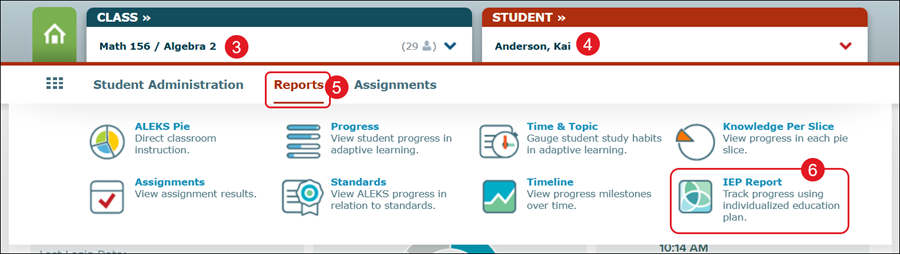
3. Select the Class from the drop-down.
4. Select the Student.
5. Hover over Reports.
6. Click on IEP Report from the menu.
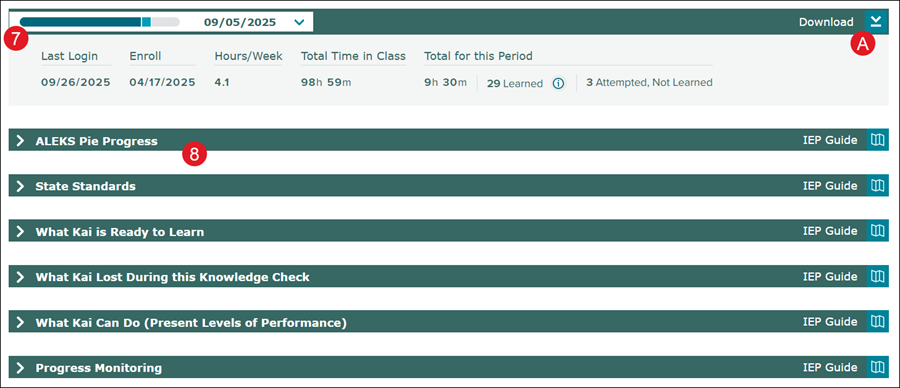
7. Select a Knowledge Check from the drop-down.
8. Click on a blade to expand the section.
A. Click the Download button to download/save the entire report to share with parents.
Report Section Descriptions
ALEKS Pie Progress
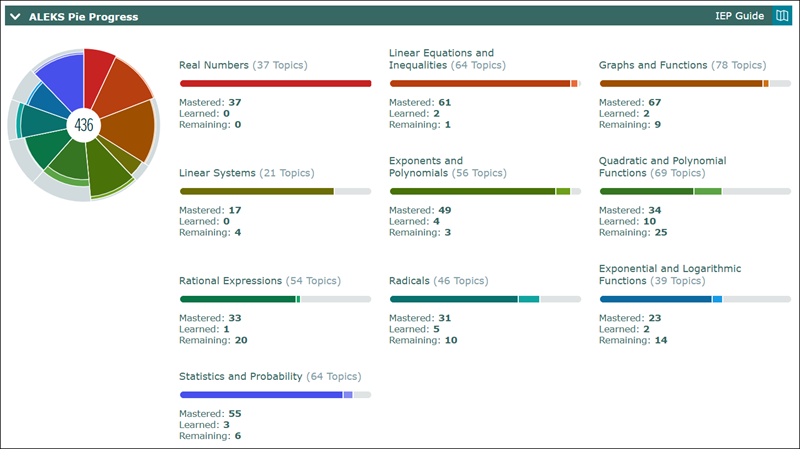
The ALEKS Pie represents the student's individualized learning path through the course material. The darker color represents what the student has mastered and the lighter color represents what the student has learned. The gray area is the content remaining.
State Standards
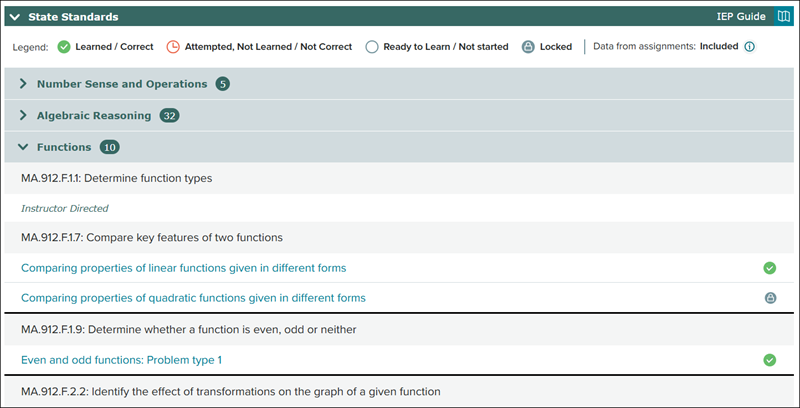
Instructors can determine how a student is progressing against individual state or Common Core State Standards. Select the State Standards section to see a detailed breakdown of the student's progress against the standards. Expand any strand to see each standard and the topics the student has learned in their individualized learning path, or answered correctly in an assignment. Also, select a topic to generate a unique instance of the problem with the explanation; these sample problems can be printed for the student's portfolio.
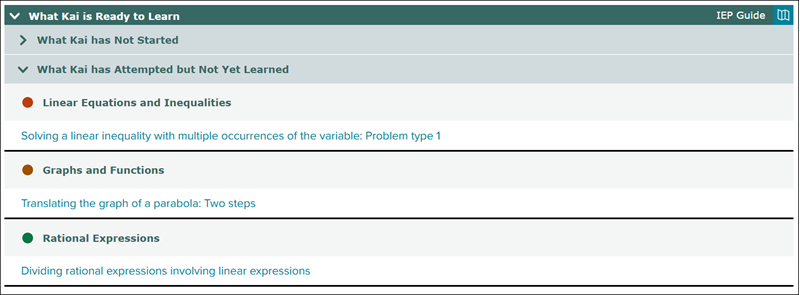
What Student is Ready to Learn
Expand this section to see topics the student is ready to learn. Select a topic to generate a unique instance of the problem with the explanation; these sample problems can be printed for the student's portfolio. Instructors can use the student's list of Ready to Learn topics to guide one-on-one instruction.
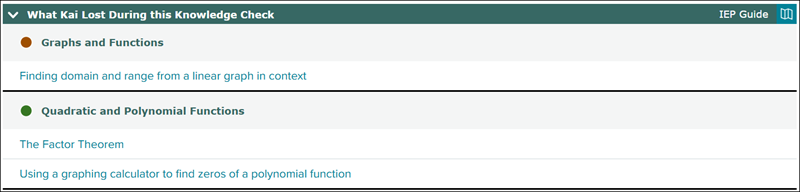
What Student Lost During this Knowledge Check
Expand this section to see the topics that the student did not retain during a Knowledge Check and, therefore, were added back to the student's ALEKS Pie. Selecting a topic generates a sample problem similar to the problem type the student received during the Knowledge Check. Instructors can use this list to target gaps in knowledge and prepare the student for future Knowledge Checks.
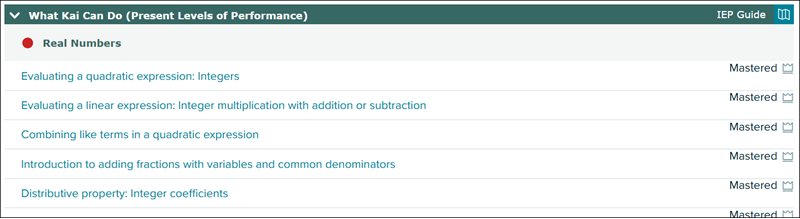
What Student Can Do (Present Levels of Performance)
Expand this section to see topics the student has learned or mastered in the period selected; the report period can be changed by selecting from the drop-down menu at the top of the report. Select a topic to generate a unique instance of the problem and the explanation; these sample problems can be printed for the student's portfolio.
Progress Monitoring
This section includes three components that provide details of the student's progress in ALEKS:

Detailed Progress History
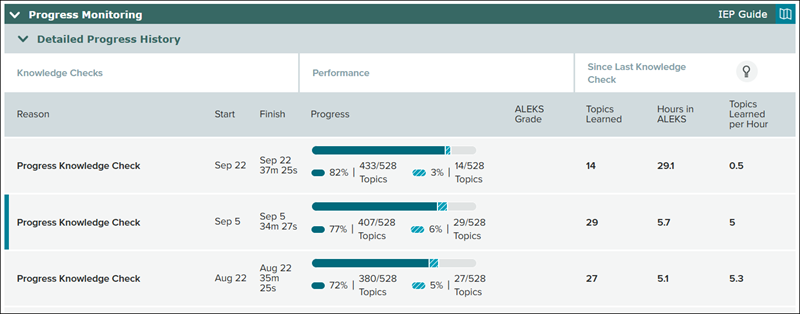
This section displays the student's progress over time, beginning with the Initial Knowledge Check. The darker color represents what content the student has mastered in a Knowledge Check; the lighter color represents what the student has learned since the previous Knowledge Check, and the gray represents what the student has remaining to learn. The "Percent" or "Topics" button under the Performance column can be selected to change the display of progress data between percentages and number of topics.
Time and Topic
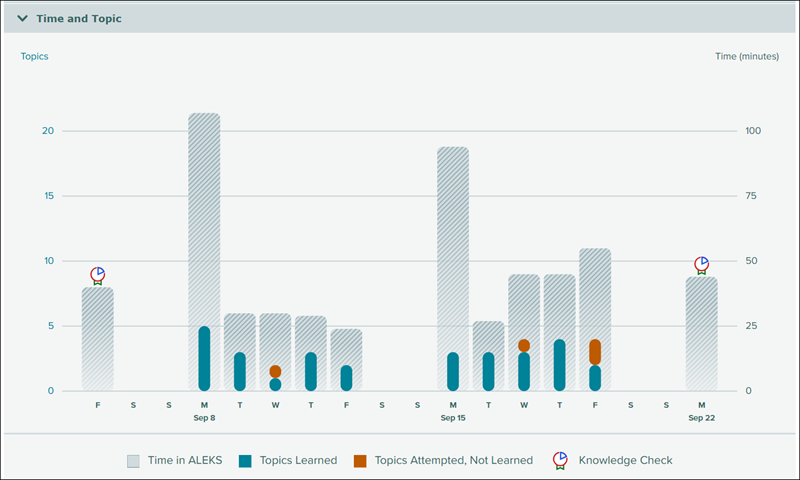
This section tracks the student's learning progress and time spent in the program. Additional information about the student's progress can be displayed by hovering over or selecting each bar in the graph.
Learning Log/Recent Student Learning
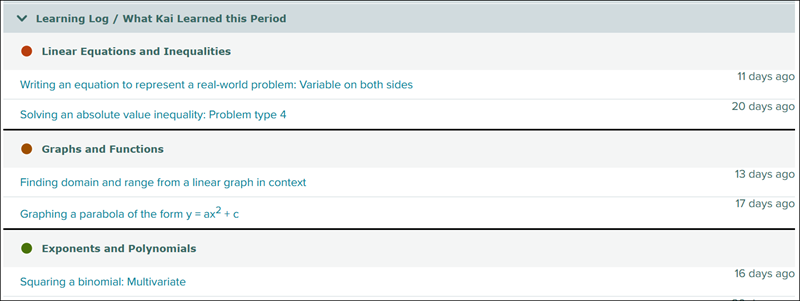
This section highlights the topics the student learned in the report period. Instructors can use this information to review topics the student has recently learned to further improve retention.