Chrome and Edge PDF Settings
Configure Chrome and Edge PDF settings to view and complete digital assignments.
- SSO & Manual-Rostering
- Customer Support
- Direct Login & Auto-Rostering
- School Student
- Middle School
- Direct Login & Manual-Rostering
- High School
- Classroom Teacher
- School Parent
- SSO & Auto-Rostering
- PreK-12
- School Administrator
- Preschool
- Elementary School
- Reveal Math (K-12)
- AP Biology
- AP Chemistry
- AP History & Geography
- AP Psychology
- AP Economics
- AP African American Studies
- AP Precalculus
- AP Statistics
- AP Computer Science
- AP Language and Composition
- AP Public Speaking
- AP Music Theory
- 5 Steps to a 5 - AP Test Prep
- Glencoe Health 2022
- Teen Health 2021
- Arrive Math
- Building Blocks 2024
- Building Blocks PreK 2025
- Number Worlds 2024
- SRA Reading Laboratory 2025
- SRA Reading Mastery Transformations
- Achieve3000 Literacy
- Actively Learn
- McGraw Hill Literacy Emerge!
- McGraw Hill Literacy Summit!
- McGraw Hill Literacy Soar!
- Open Court Reading 2025
- Redbird
- StudySync 2021
- ALEKS
- ALEKS Adventure
- CA Reveal Math (K-12)
- Illustrative Math
- Redbird Math
- CA Inspire Science 2020
- FL Science 2025 (K-12)
- Inspire Science 2020
- TN Science (K-12)
- TX Science 2025 (K-12)
- CA Impact 2019
- FL Social Studies 2024 (K-12)
- Impact Social Studies
- McGraw Hill Social Studies
- All Sorts 2026 (K-5)
- Asi se Dice 2024
- CTE - Health Science
- CTE - Agriculture
- CTE - Computing and Technology
- CTE - Culinary Arts
- CTE - Early Childhood Education
- CTE - Business, Marketing, and Finance
- CTE - Criminal Justice
- Glencoe Health 2014
- McGraw Hill Health 2014
- 2Inform
- Building Blocks 2015
- Connecting Math Concepts
- Number Worlds 2015
- Corrective Reading
- Early Interventions in Reading
- Spelling Mastery
- WonderWorks 2022 & 2014
- Maravillas 2020 & 2017
- OCR Foundational Skills Kit
- OCR Word Analysis Kit
- Open Court Reading 2016, 2018, 2023
- StudySync 2015 & 2017
- Wonders
- Wonders 2014
- Wonders 2023 2020 2017
- Wonders Balanced Literacy 2016
- Wonders EL 2016
- World of Wonders 2017
- Core Plus Math 2015
- Everyday Mathematics 4 (K-6)
- Glencoe Algebra 1 2014
- Glencoe Algebra 2 2014
- Glencoe Algebra 1 2018
- Glenoce Algebra 2 2018
- Glencoe Math
- Glencoe Geometry 2014
- Glencoe Geometry 2018
- Glencoe Math Course 1
- Glencoe Math Course 2
- Glencoe Math Course 3
- Glencoe Math Accelerated
- McGraw Hill My Math
- McGraw Hill My Math 2013 & 2016
- McGraw Hill My Math 2018
- Pre-Algebra 2012
- Glencoe Science
- Glencoe Science 2017
- Inspire Science 2017
- iScience 2017
- Networks
- Networks 2014 (K-5)
- Networks 2018
- Networks 2014 & 2016
- Music! Its Role
- Spotlight on Music
- Asi se Dice 2016
- Texas Math
- Troubleshooting
- Browser Device Compatibility


If you have difficulty viewing or printing PDFs while using the Chrome or Edge browser, you will want to follow the steps below to adjust your browser settings to download the PDF.
Note: You will need to have a PDF reader installed on your computer or the following steps will not work. You will want to use a different browser if possible, or a different device/computer, if you do not have access to a PDF reader.
Change browser download settings for PDF files on Chrome:
1. Open the Google Chrome browser.
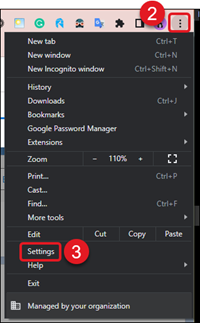
2. Click the three-dot menu icon in the top-right corner of the browser window.
3. Select Settings from the drop-down menu.
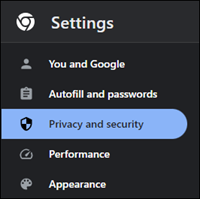
4. On the Settings window, select Privacy and Security on the left.
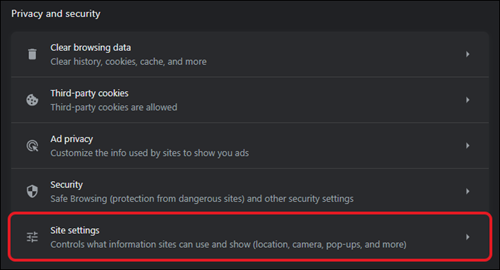
5. Click on Site Settings.
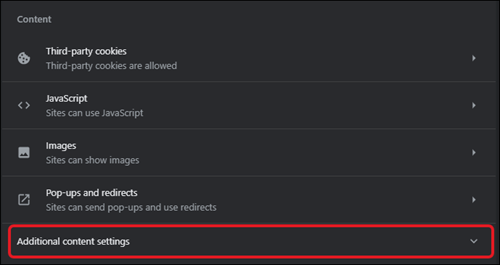
6. Under the Content section, click on Additional Content Settings.
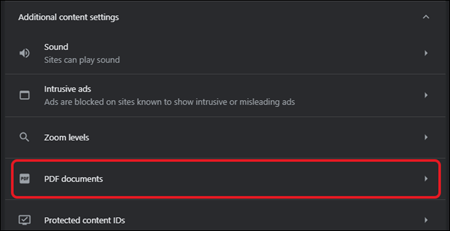
7. Click on PDF documents.
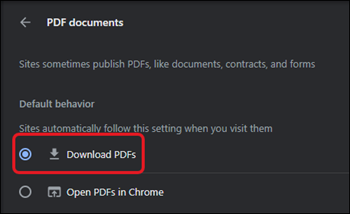
8. Select the Download PDFs radio button.
Alternative Chrome Steps:
1. Open the Google Chrome browser.
2. Navigate to chrome://settings/content/pdfDocuments

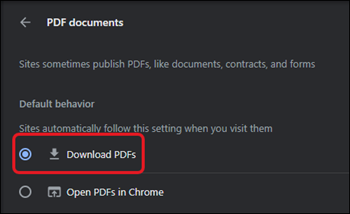
3. Select the Download PDFs radio button.
Change browser download settings for PDF files Microsoft Edge:
1. Open the Microsoft Edge browser.
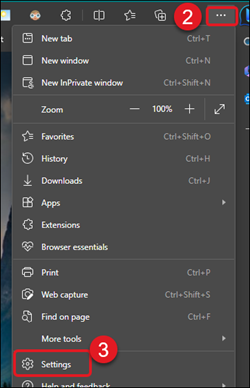
2. Click the three-dot menu icon in the top-right corner of the browser window.
3. Select Settings from the menu.
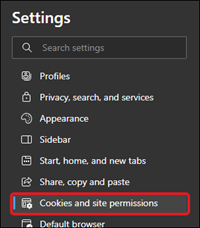
4. On the Settings window, select Cookies and Site Permissions on the left.
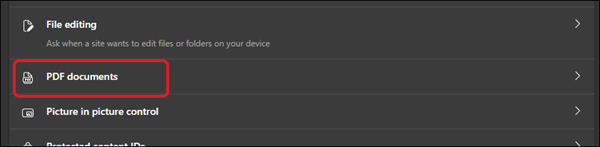
5. Click on PDF documents.
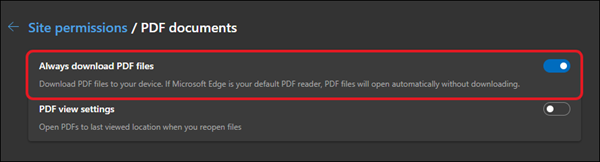
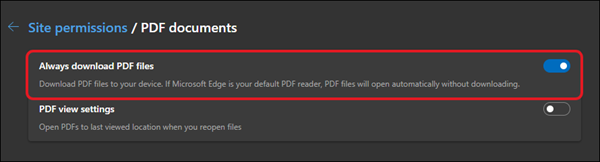
6. Click the toggle switch to the right of Always download PDF files.
Alternative Edge Steps:
1. Open the Microsoft Edge browser.
2. Navigate to edge://settings/content/pdfDocuments

3. Click the toggle switch to the right of Always download PDF files.
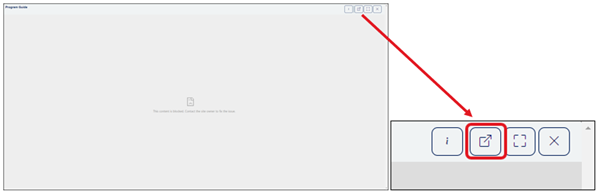
After following the steps above, you may still see a gray screen with a sad face paper icon in the middle when viewing a PDF resource (see image below). If you do, you will then want to click the Open in new tab button (box with arrow) at the top-right of the screen. This will auto-download the resource to your device, allowing you to open the PDF in a PDF viewer.