
Spanish Resources for Califorina Impact Social Studies
Access Spanish-language resources for California Impact Social Studies to support bilingual instruction.
- SSO & Manual-Rostering
- Customer Support
- Social Studies
- Direct Login & Auto-Rostering
- Tools & Resources
- Middle School
- Core
- Direct Login & Manual-Rostering
- High School
- CA Impact 2019
- Classroom Teacher
- SSO & Auto-Rostering
- PreK-12
- Plan & Present


This article will walk teachers through locating the available Spanish resources for California Impact Social Studies. These resources are only available for middle and high school Impact programs.
Dashboard/Course Navigation
1. Launch your California Impact class.
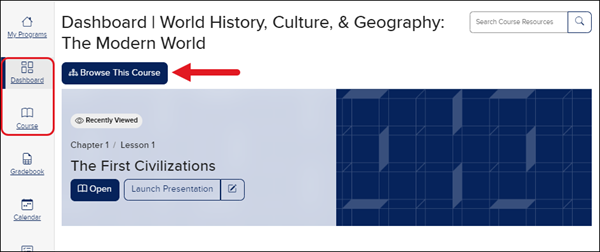
2. From the Dashboard or the Course page, click the Browse This Course button.
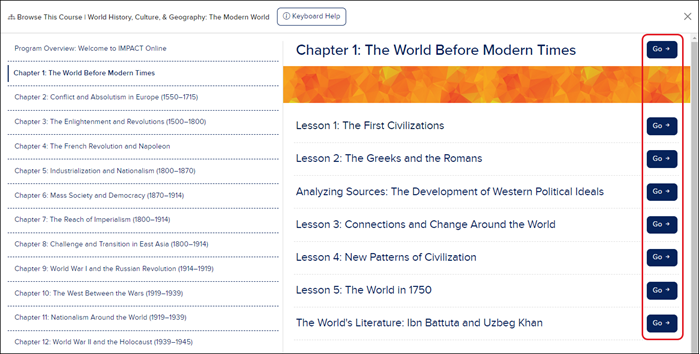
3. Select the Chapter from the left of the page and then click the Go button to the right of the Chapter or Lesson you want to navigate to.
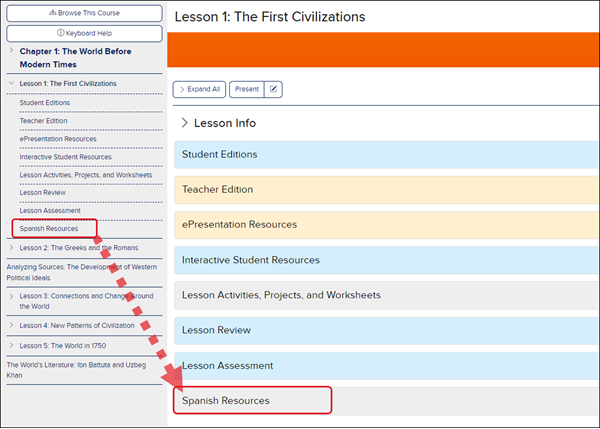
4. Click on the Spanish Resources option in the Course Navigation Panel or expand the Spanish Resources blade to view the available Spanish resources for your selection.
Course Resources Page Navigation
Another option to access the available Spanish Resources for the course is by navigating to the Course Resources page.
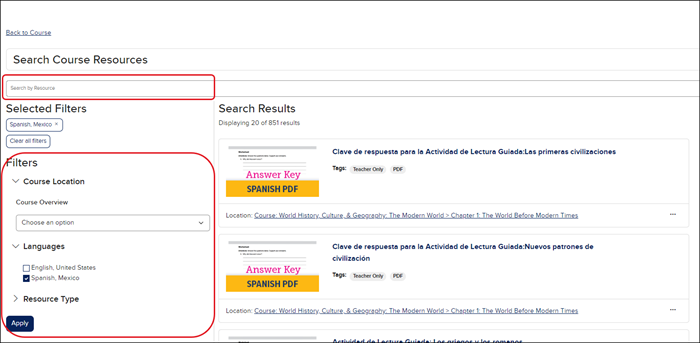
1. From the Dashboard or Course page, enter the resource name in the Search field, or click the magnifying glass to navigate to the Course Resources page.
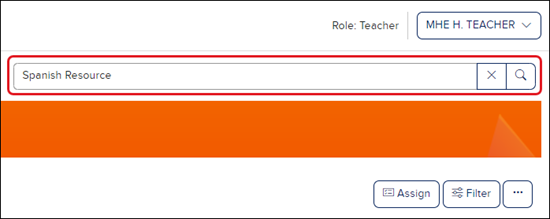
2. Use the Filters and Search by Resource field to narrow the resources available.
Additional Articles:
Open Learning Platform - Assignment Management
MH Assess - Assessment Management
Open Learning Platform - Presentation Player
