
Building Blocks Adaptive PreK-8 Student Progress Reports
Monitor student progress in Building Blocks PreK–8 using built-in reports and dashboards.
- Math
- Intervention
- SSO & Manual-Rostering
- Customer Support
- Number Worlds 2024
- Direct Login & Auto-Rostering
- Reports & Analytics
- Direct Login & Manual-Rostering
- Building Blocks 2024
- Classroom Teacher
- SSO & Auto-Rostering
- PreK-12
- Preschool
- Elementary School


Teachers who use Number Worlds/ Building Blocks 2024 and Building Blocks PreK 2025 have access to an additional dashboard that provides student progress details, placement tests, and reporting.
This article covers the Building Blocks Adaptive PK-8 Dashboard and Student Progress pages.
Refer to the Placement Tests and Trajectory Report articles to learn more about those pages.
Additional Resource: Building Blocks Adaptive PK-8 - Adaptive Learning User Guide
Access the Building Blocks Adaptive PK-8 Dashboard
1. Once you have logged into your teacher account at my.mheducation.com, launch the redeemed program: Number Worlds/Building Blocks 2024 or Building Blocks PreK 2025.
2. On your program Dashboard, click on the Building Blocks tile under the Additional Resources.
A. You can also access the Building Blocks dashboard by clicking on the Building Blocks option in the left Navigation menu.
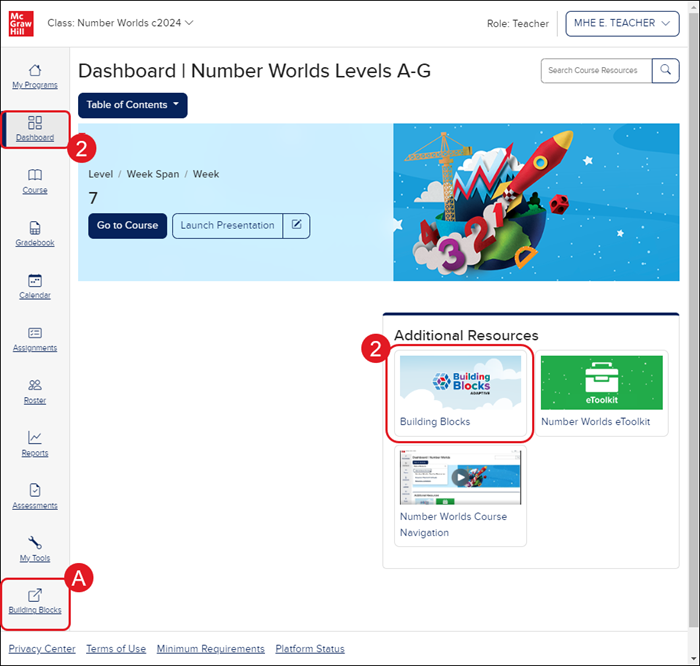
The Building Blocks Adaptive PK-8 dashboard will then open in a secondary browser tab.
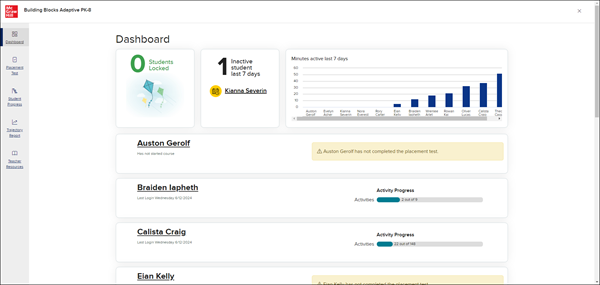
Dashboard
The Last Login date for each student and their Activity Progress:

If they have not started the course, or have not taken the placement test, a Has not started course and has not completed the placement test message will show for the student:

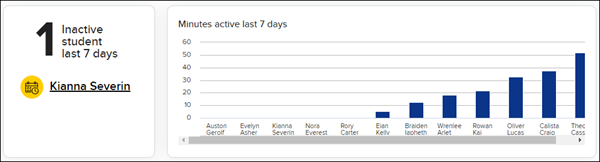
The Dashboard also provides information on Inactive and Active students for the program:
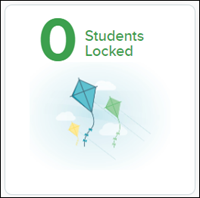
As well as if any students are currently in Locked status:
Student Progress
The Student Progress page can be accessed in two ways, by clicking on a student name from the Dashboard:

Or by clicking the Student Progress menu option on the left:
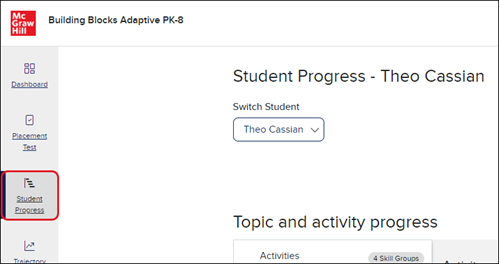
The Student Progress page provides the topic and activity progress for the selected student.
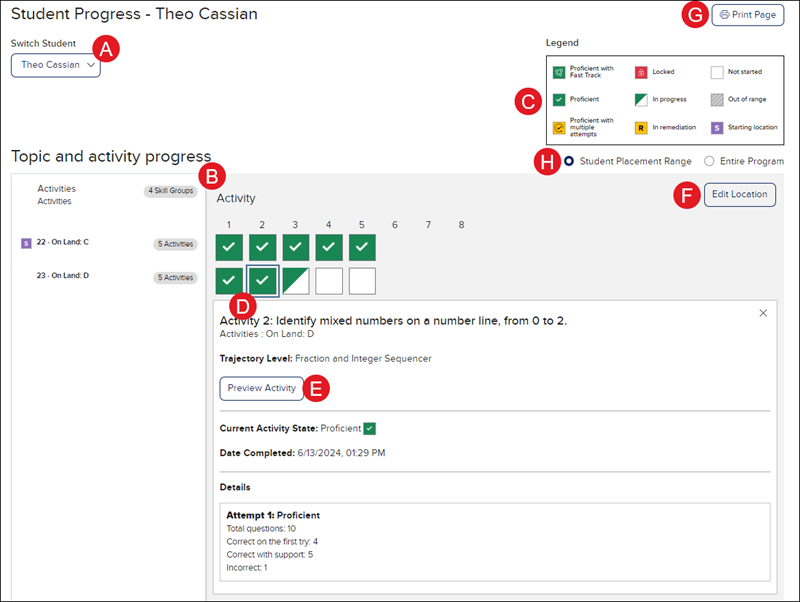
A. Switch between students by selecting a different student from the Switch Student drop-down.
B. The Topic and activity progress section shows the number of activities the student has completed or is in the process of completing.
C. The Legend describes each symbol's meaning in the Topic and activity progress section.
D. Click on Activity to open the details box for the selected activity.
The box includes information on what activity it is for, the section the activity is associated with, the Trajectory Level, the student's current status for the activity, the date completed - if applicable, and the activity attempt details.
E. Click the Preview Activity button to view the activity as a student would see it.
F. Click the Edit Location button to change the student to a new skill group.
G. Click the Print Page button to print the student activity details page for the selected student.
H. Toggle between viewing the Student Placement Range for the program and the student's progress compared to the Entire Program.
