Archive/Unarchive a Classic ALEKS Class
Archive an ALEKS class to preserve data while removing it from active courses.
- Customer Support
- PreK-12
- Classroom Teacher
- Elementary School
- Middle School
- High School
- Direct Login & Auto-Rostering
- Direct Login & Manual-Rostering
- SSO & Auto-Rostering
- SSO & Manual-Rostering
- Supplemental
- Math
- ALEKS
- ALEKS Adventure
- Class Management
- End-of-Year Tasks


View the demo in a separate tab.
View the Spanish version of the demo.
Note: Archiving a class in ALEKS will not remove the class from your My Programs dashboard. To archive a class on your My Programs dashboard, refer to the Archive or Unarchive Classes article.
Article Contents
Archive a Class
1. SSO or log in at my.mheducation.com.
2. Launch ALEKS.
3. Hover over Instructor Administration.
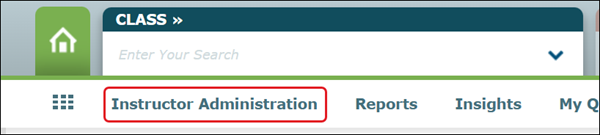
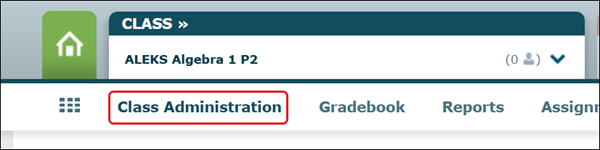
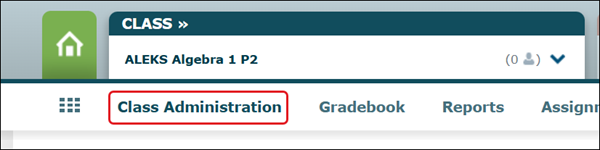
If a Class is selected, it will show as Class Administration.
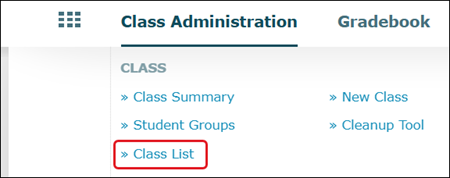
4. Click on Class List from the menu.
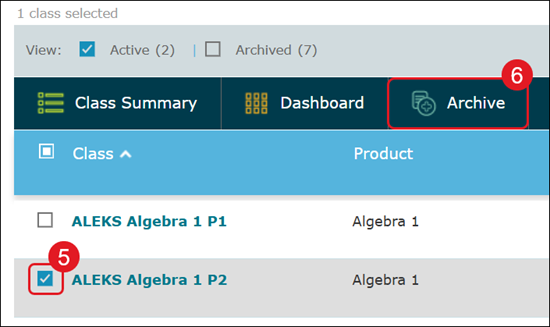
5. Check the box next to the class you want to archive.
6. Click on the Archive button at the top of the list.
This option will not show until an active class is checked.
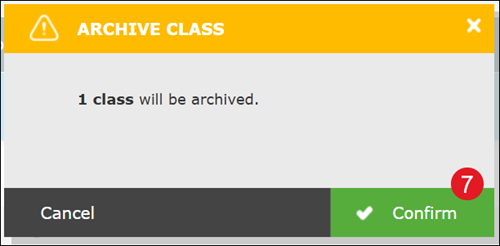
7. On the Archive Class pop-up, click the Confirm button.
Unarchive a Class
1. SSO or log in at my.mheducation.com.
2. Launch ALEKS.
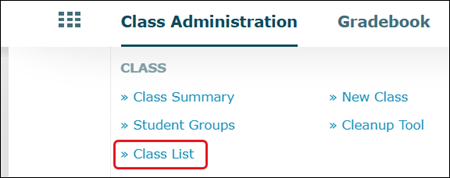
3. Hover over Instructor Administration.
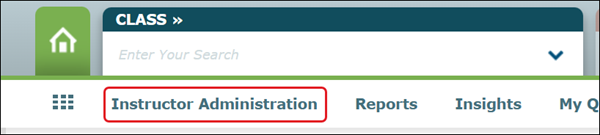
If a Class is selected, it will show as Class Administration.
4. Click on Class List from the menu.
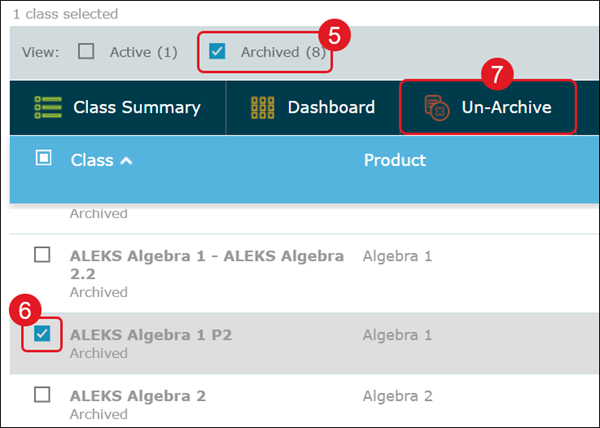
5. Checkmark the Archived box.
6. Checkmark the class you want to unarchive.
7. Click the Un-Archive button.
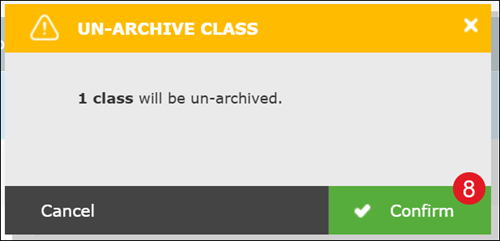
8. On the Un-Archived Class pop-up, click the Confirm button.