Duplicate a Classic ALEKS Master Template
Duplicate an ALEKS Master Template to reuse course structures and instructional settings.
- Customer Support
- PreK-12
- School Administrator
- Elementary School
- Middle School
- High School
- Direct Login & Auto-Rostering
- Direct Login & Manual-Rostering
- SSO & Auto-Rostering
- SSO & Manual-Rostering
- Supplemental
- Math
- ALEKS
- ALEKS Adventure
- Class Management
- Tools & Resources


View the demo in a separate tab.
View the Spanish version of the demo.
1. SSO or log in at my.mheducation.com.
You may need to toggle between roles and organizations to get to your administrator tools.
2. In the navigation menu, click the menu option for ALEKS.
You will only see this menu option if you are an Administrator and your organization has licenses for ALEKS on Open Learning.
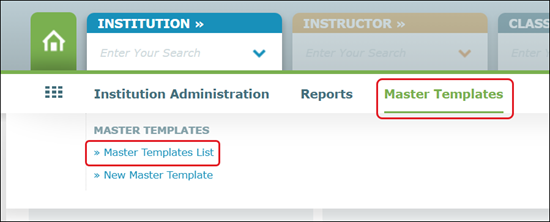
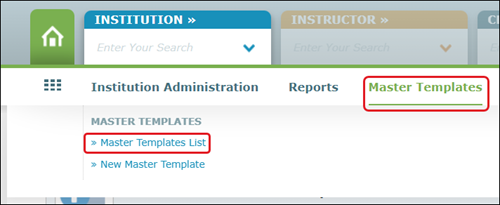
3. Hover over Master Templates in the navigation menu and select Master Template List.
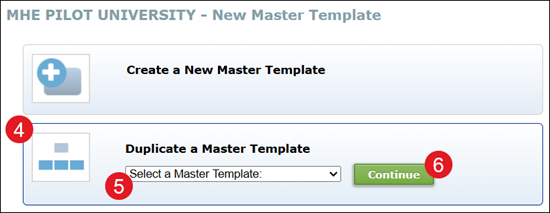
4. Click on Duplicate a Master Template.
5. Select a Master Template from the drop-down.
6. Click the Continue button.
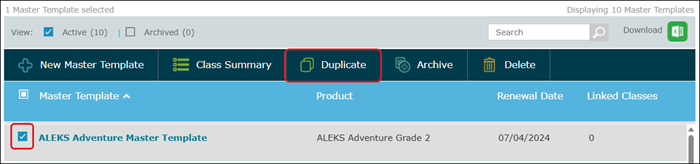
You can also select the template to duplicate by going to Master Template List, checking the template you want to copy, and click Duplicate.
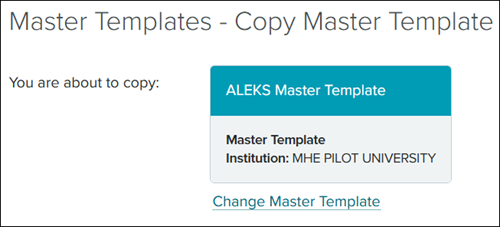
The Master Template selections being copied are shown at the top.
Click the Change Master Template link to select a different option.
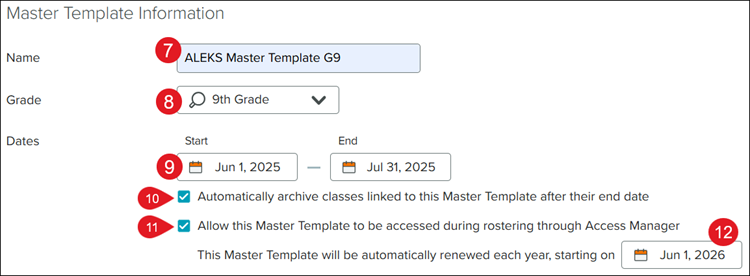
7. Enter a Name for the template.
8. Select the Grade level from the drop-down.
9. Select a Start and End date for the template.
10. Check the box next to Automatically archive classes linked to this Master Template if you want the teacher's course to be archived the same date that is entered into the End date field.
11. To be able to assign the template through Access Manager, you MUST check the Allow this Master Template to be accessed during rostering through Access Manager box.
12. Enter the date you want the Master Template to renew every year.
The MUST be selected if you checked to access the Master Template through Access Manager (previous step).
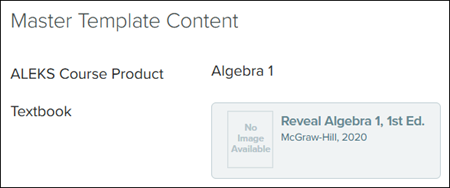
The ALEKS Course Product and Textbook (if selected) from the copied Master Template will be automatically selected.
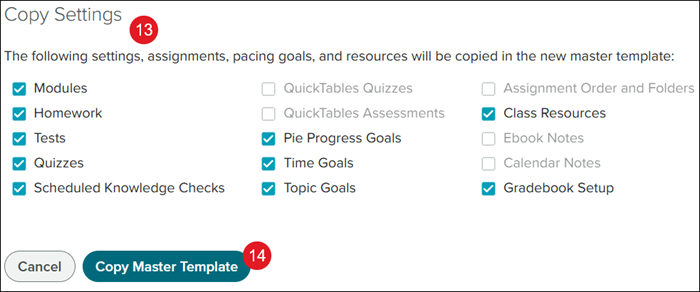
13. In the Copy Settings section, check the box next to any settings, assignments, goals, and resources you want included in the new template.
If an option is grayed out this means that there is nothing available for those options to attach.
14. Click the Copy Master Template button.