Archive a Classic ALEKS Master Template
Archive an ALEKS master template to remove it from active use while preserving data.
- Customer Support
- PreK-12
- School Administrator
- Elementary School
- Middle School
- High School
- Direct Login & Auto-Rostering
- Direct Login & Manual-Rostering
- SSO & Auto-Rostering
- SSO & Manual-Rostering
- Supplemental
- Math
- ALEKS
- ALEKS Adventure
- Class Management
- Tools & Resources


View the demo in a separate tab.
View the Spanish version of the demo.
1. SSO or log into your Administrator account at my.mheducation.com.
You may need to toggle between roles and organizations to get to your Admin Tools.
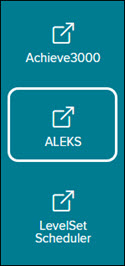
2. In the navigation menu, click the menu option for ALEKS.
You will only see this menu option if you are an Administrator and your organization has licenses for ALEKS on Open Learning.
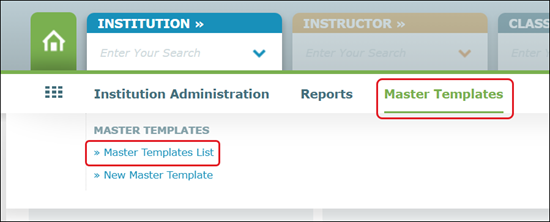
3. Hover over Master Templates in the navigation menu and select Master Template List.
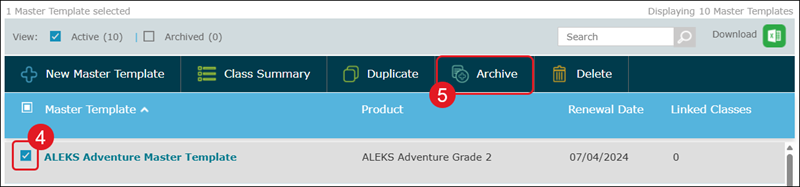
4. Check mark the template you want to remove.
5. Click the Archive button.
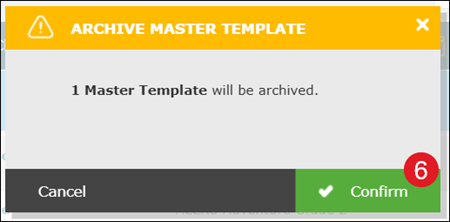
6. On the Archive Master Template pop-up, click the Archive button.
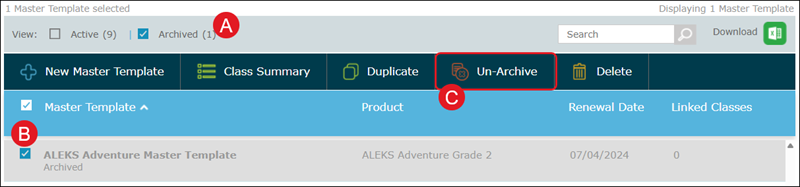
A. To view archived templates, check the Archived box in the header.
B. To unarchive a template, check the box next to the template.
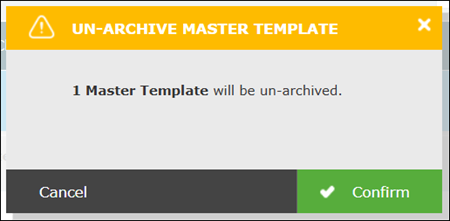
C. Click Un-Archive from the menu.
On the Un-Archive Master Template pop-up, click the Confirm button.