Switch to Student View in Classic ALEKS Adventure as a Teacher
Switch between teacher and student views in ALEKS Adventure to preview the learner experience.
- Supplemental
- ALEKS Adventure
- Math
- Dashboard & Navigation Overview
- SSO & Manual-Rostering
- Customer Support
- Direct Login & Auto-Rostering
- Direct Login & Manual-Rostering
- Classroom Teacher
- SSO & Auto-Rostering
- PreK-12
- Elementary School


Teachers can view the student experience for ALEKS Adventure from the Instructor Module in ALEKS. Accessing the Student View creates a fake account for the teacher, which can be used to interact with ALEKS Adventure the way a student would.
1. From your My Programs page, click on ALEKS Adventure.
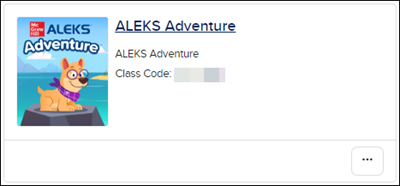
2. If you have more than one class, select the correct class from the Class drop-down.
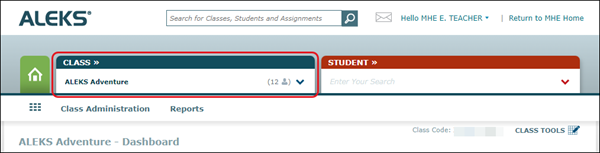
3. Click on Class Tools to the right of the page.
4. Click on Student View.
Note: Clicking on Student View with a student in the class selected does not affect the student's account in any way.
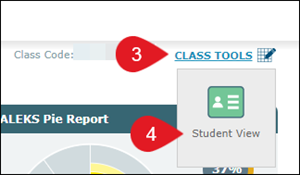
The fake teacher account starts you at the beginning of the student experience, including the introduction, character, ship creation, and the Initial Knowledge Check. The system remembers where you left off so when you access the Student View at a later date, you can pick up exactly where you left off.
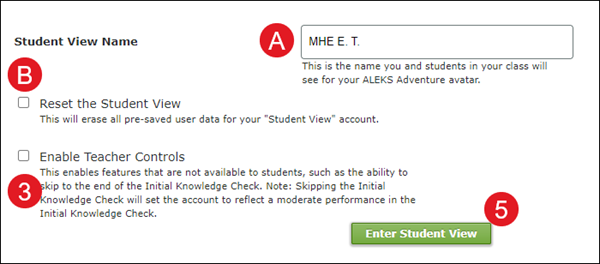
A. The Student View Name defaults to the name set for your instructor account. You can change the name you and the students in the class will see for your ALEKS Adventure avatar by entering a different one in the provided field.
B. You can reset your progress in the Student View by selecting the Reset the Student View checkbox.
C. Check the Enable Teacher Controls box to enable features that are not available to students, such as skipping the Initial Knowledge Check.
5. Click the Enter Student View button.
The program will then open in a secondary browser tab.