Classic ALEKS Adventure - Progress Report
Use ALEKS Adventure progress reports to track student mastery and advancement.
Tags
- Supplemental
- ALEKS Adventure
- Math
- Getting Started & Orientation
- SSO & Manual-Rostering
- Customer Support
- Direct Login & Auto-Rostering
- Reports & Analytics
- Direct Login & Manual-Rostering
- Classroom Teacher
- SSO & Auto-Rostering
- PreK-12
- Preschool
- Elementary School


This article walks teachers through viewing the Progress Report for ALEKS Adventure in the classic ALEKS view.
The ALEKS Progress Report shows overall student progress in both Learning Mode and Assessment Mode, as well as average learning rates. They can be used to monitor progress and identify students who could benefit from intervention by comparing data points.Access Progress Report
1. SSO or sign in to your teacher account at my.mheducation.com.2. Launch ALEKS Adventure.
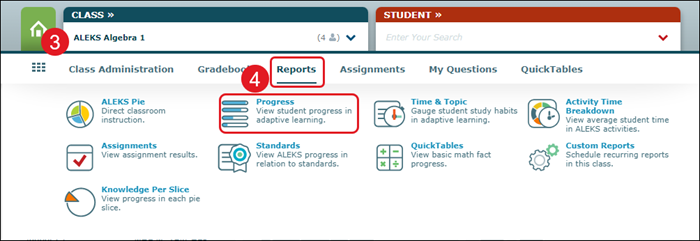
3. Select the class from the Class drop-down.
4. Hover over Reports and select Progress from the drop menu.
Class Progress Report
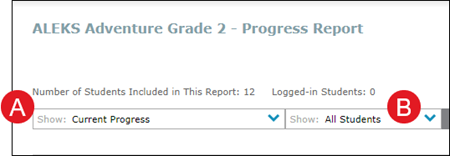
A. The view of progress data is automatically set to Current Progress. Click on the drop-down to switch between Current Progress and Initial Knowledge Check.B. Click on the Show: All Students drop-down to view the data for a specific group of students.
The Performance and Learning data sections under each view show the student's current progress and average learning rates.
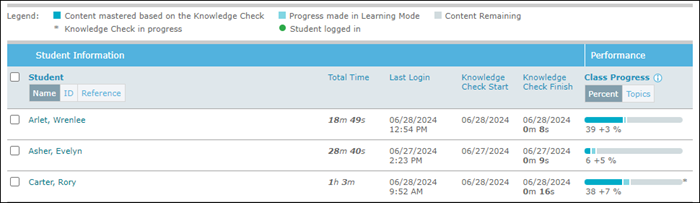
Click the information icon to show a key that illustrates what the different parts of the bar represent. The information provided in the key will vary based on the view selected.
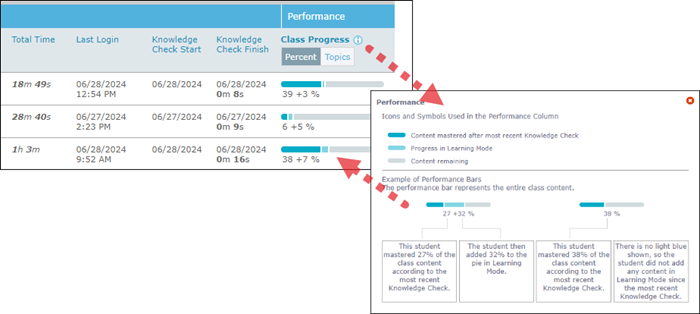
Click on any of the header links to sort by that option. Ex: Clicking Total Time will resort to the list based on the total time the students have been in the program.

Click on Name, ID, or Login under Student to view the student list by that option. Click Percent or Topics to view the Class Progress by that option.

Student Progress Report
Click on the student's Name, ID, or Login in the Student list to open their individual progress report.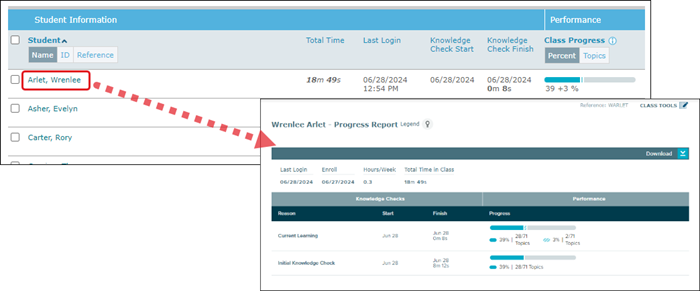
You can also select a student from the Student drop-down at the top of the page and then select Progress from the Reports menu.
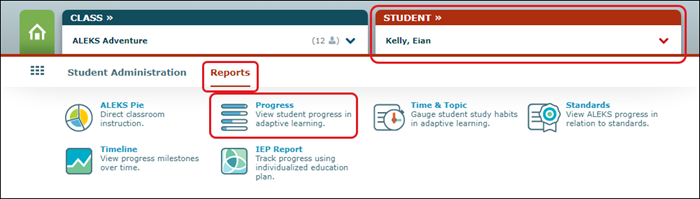
A. The student progress report will show you their Last Login date, when they were enrolled into the class, how many hours per week they are in the program, and the total time they have spent in the program for the class.
B. If they are enrolled in more than one ALEKS class, you can toggle between only viewing data for the selected class, or viewing combined data for all of the classes they are assigned to.
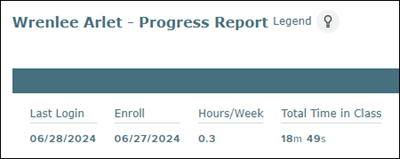
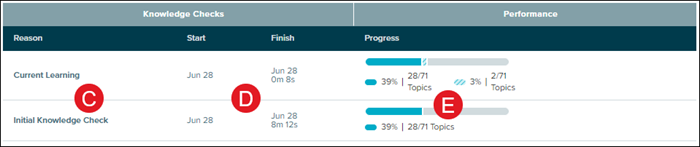
C. The student's progress report will show data for their Initial Knowledge Check and each of the Current Learning they've completed.
D. The date the student started and finished the Knowledge Check will be listed for each.
E. The bar graph shows the same as it does when viewing the data as a whole class. The dark blue represents content mastered based on the Knowledge Check, while the light blue represents progress the student has made in Learning Mode. The gray represents the content remaining.